How to create a Team in Decode?
Overview
A Team in Decode is a group within your workspace. Teams control what users can access. A user can only view the studies, files and folders created within the teams they belong to. If a user belongs to multiple teams, they can switch between them from the top left of the Dashboard. Every workspace comes with a Default Team. You can create additional teams as needed.
Steps
Step 1: Log in to your Decode account
Once you log into your Decode account, you will be navigated to your home page.
Step 2: Open Settings
From the left Sidebar Navigation, click Settings.
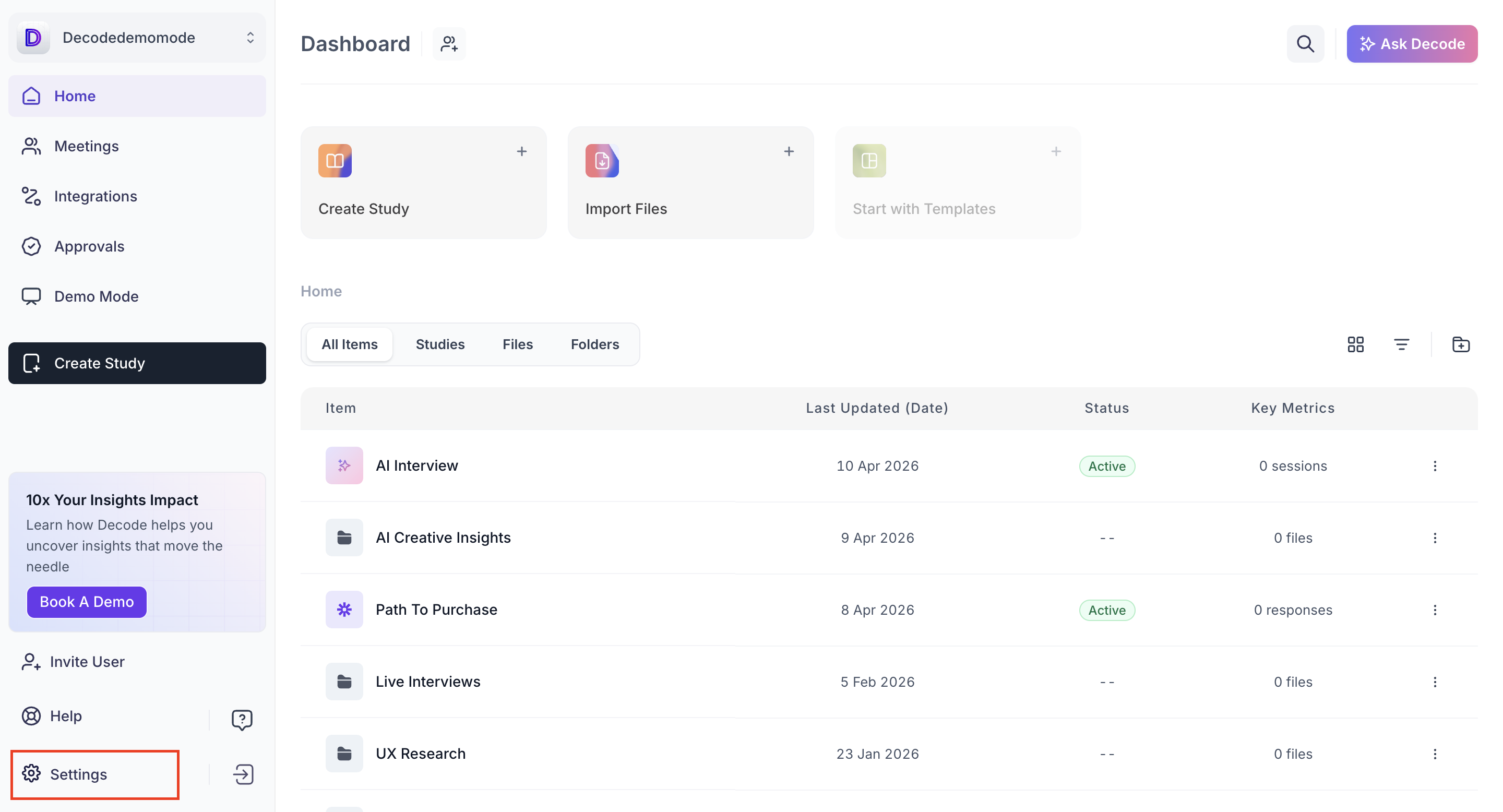
Step 3: Go to the Teams tab
Click the Teams tab at the top of the Settings page.
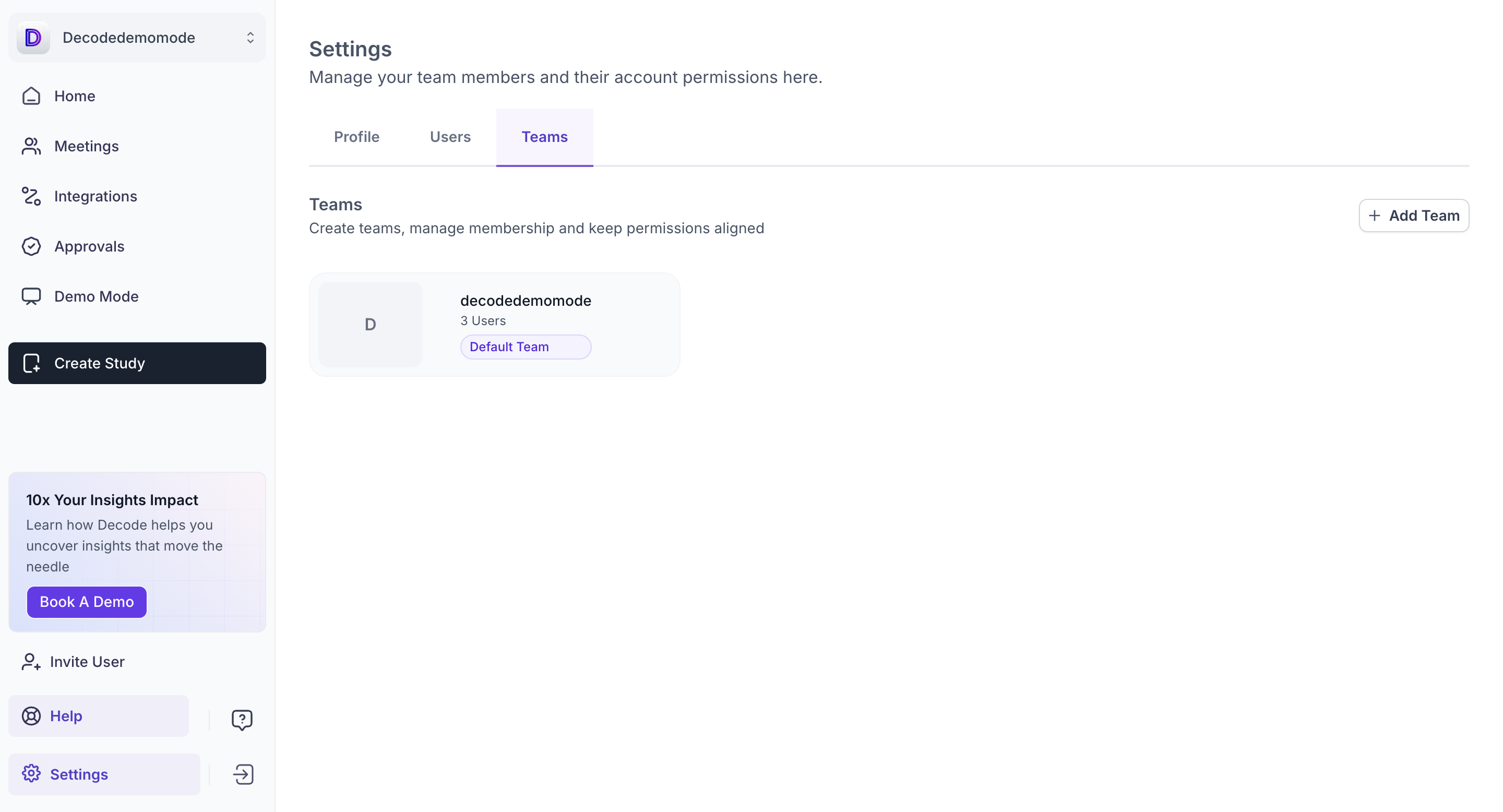
Step 4: Create a new team
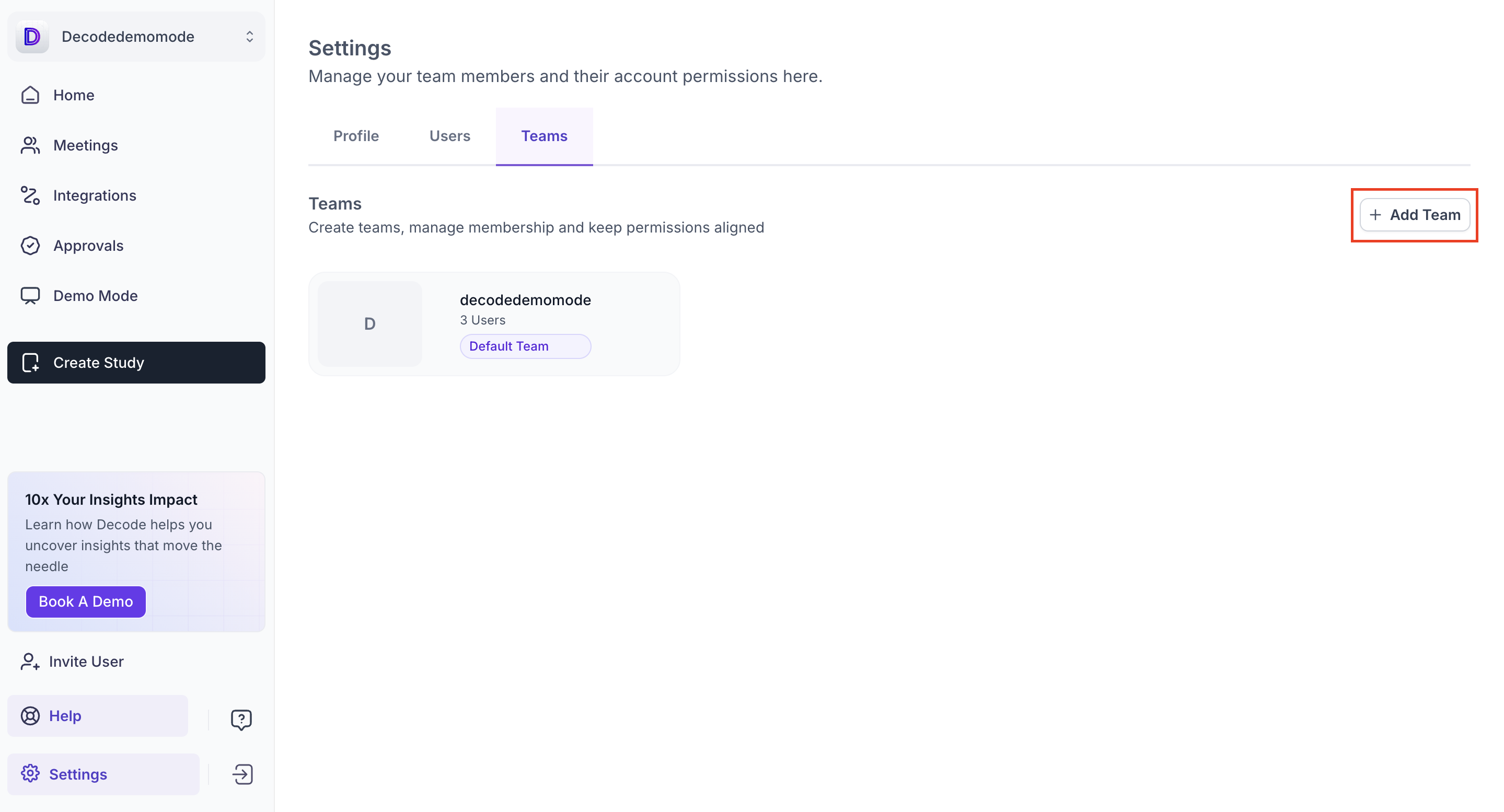
Click + Add Team. A new team is added to the Teams list. Click on it to open the team page and start adding members.
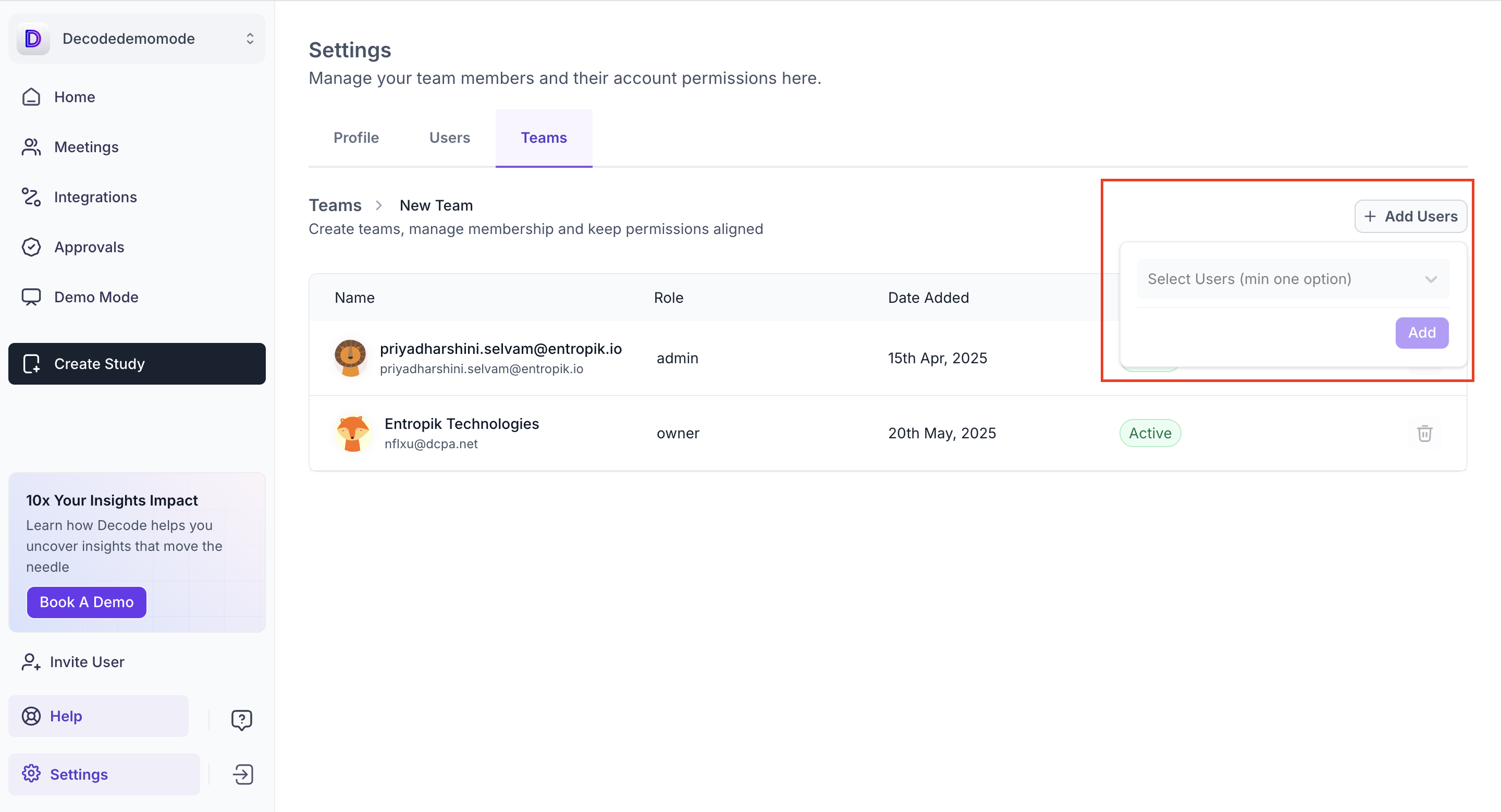
Step 5: Add members
Click + Add Users. Select users from the dropdown. All users who have been invited to your workspace will be listed here. Click Add to confirm. Each member is listed with their name, role, date added and status.