Generating AI Report
How to create and share an AI generated report from your study
What is the Report Tab
The Report tab is available across all study types in Decode. Once a study is published and responses have been collected, you can generate an AI formatted presentation of your findings directly from the platform.
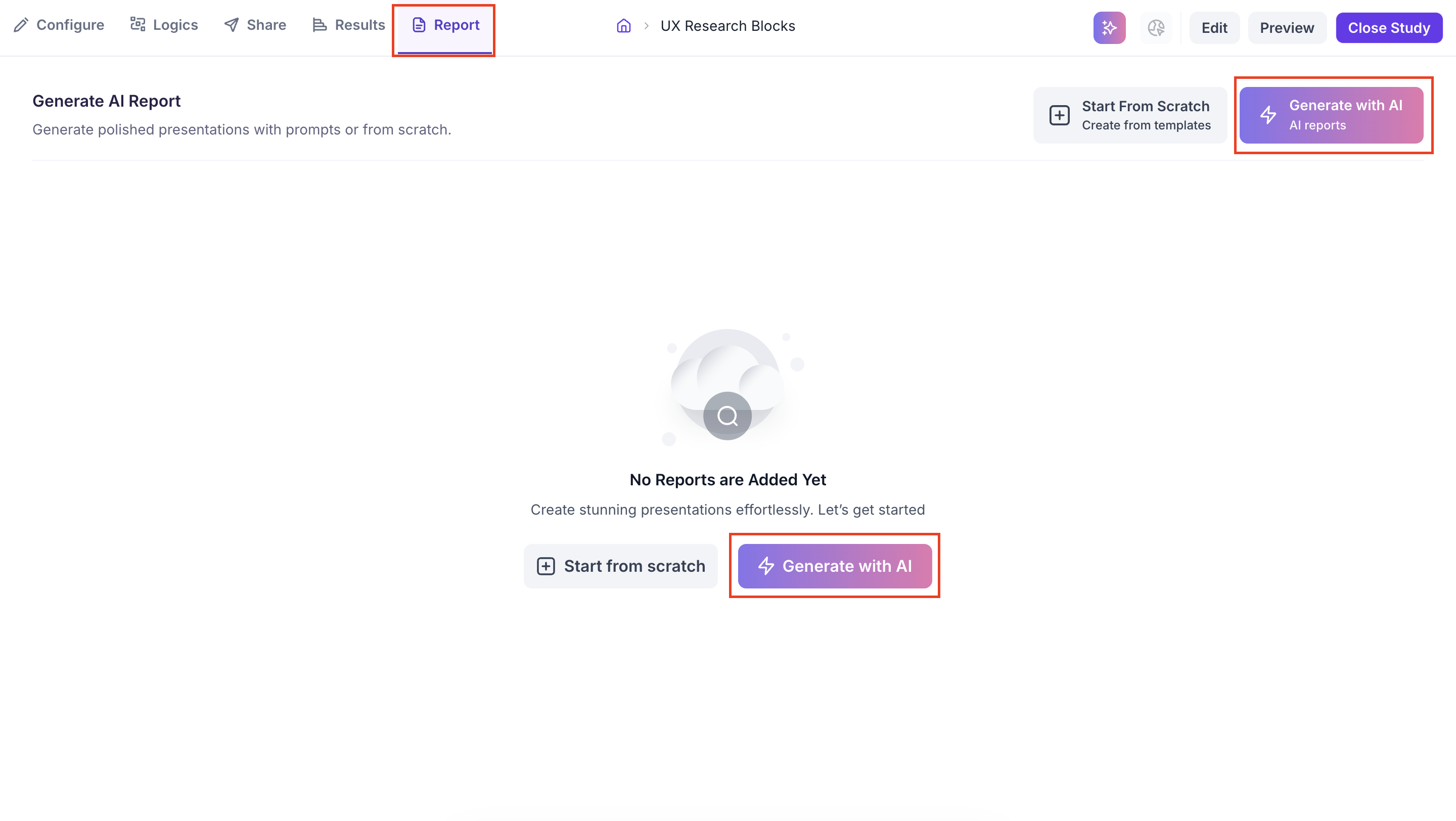
Generating a Report
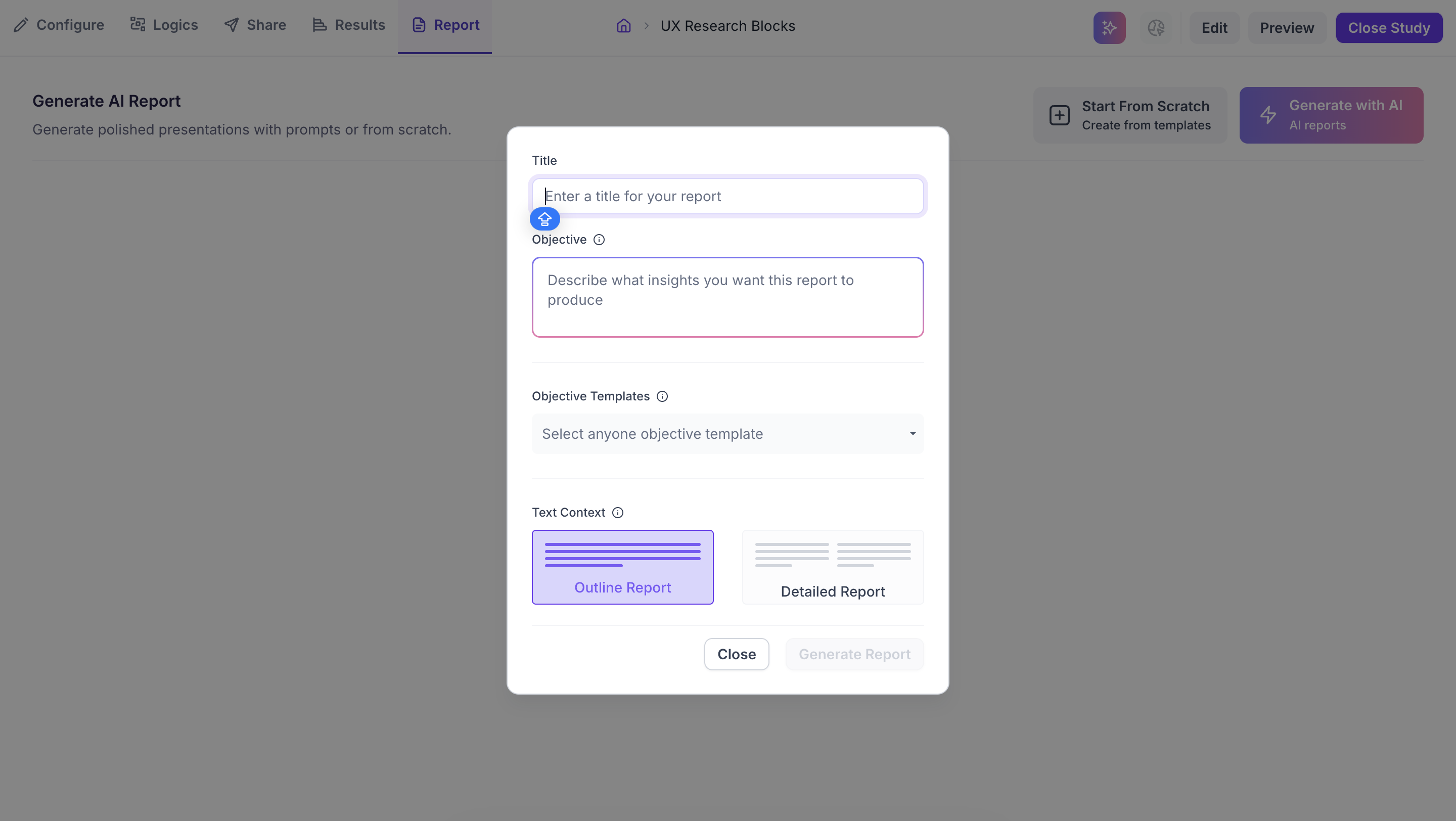
Click Generate with AI to start. A panel opens with the following fields.
- Title: Enter a name for the report. Use the study name or a short description of what the report covers so anyone on your team can identify it at a glance.
- Objective: Enter what you want the report to focus on. For example, if you want to understand how the creative performed on attention and clarity, write that. If you want the report to cover emotional response and recommendations for improvement, write that instead. The more specific the objective, the more relevant the report output will be.
- Objective Templates: Select a template to tell Decode how to focus the report. If you select Generic, the report is generated based on your objective as written. If you select a specific template such as Creative Performance or Packaging Test and Shelf Performance, Decode uses that as the lens for the report, giving more weight to the metrics and findings relevant to that area.
The available templates are Generic, Creative Performance, Concept Evaluation and Purchase Intent, Packaging Test and Shelf Performance, and Pricing Sensitivity and Willingness to Pay. - The available templates are;Generic, Creative Performance, Concept Evaluation and Purchase Intent, Packaging Test and Shelf Performance, and Pricing Sensitivity and Willingness to Pay.
- Choose the format of the report. Outline Report produces a summary structure with the key findings. Detailed Report produces a more comprehensive output covering the data in depth. Select based on how much detail your audience needs.
Once all fields are filled, click Generate Report.
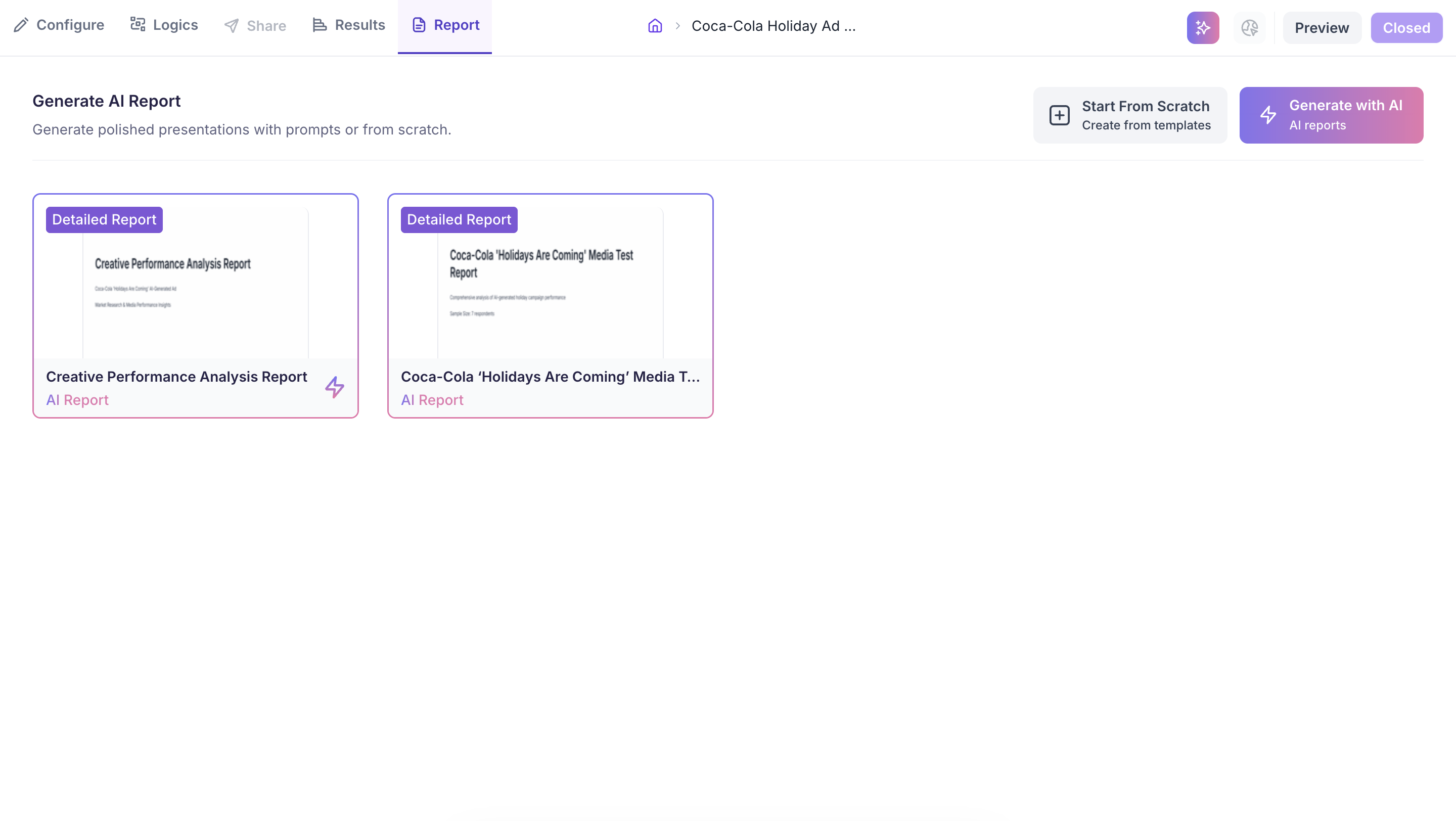
Viewing and Sharing Reports
Generated reports appear as cards on the Report tab, each labelled as either an Outline Report or a Detailed Report.
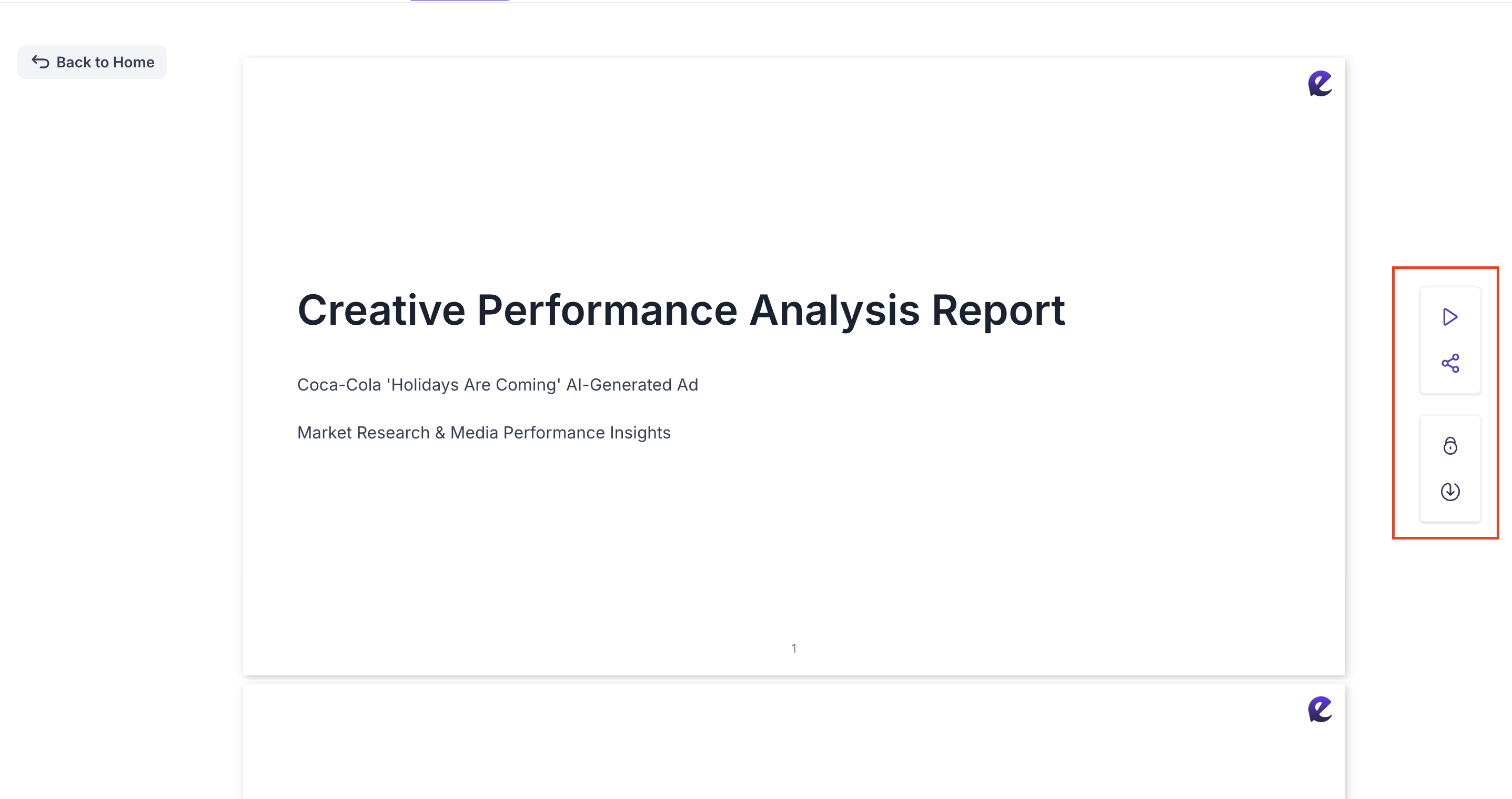
Click any card to open the full report. From inside the report you can present it directly, share it with your team, enable password protection or download it.