How to Book a Session ?
Overview
This article explains how a participant books a session. Use this to understand the participant booking experience from start to confirmation.
BOOKING YOUR SESSION
Step 1: Open the Study Link
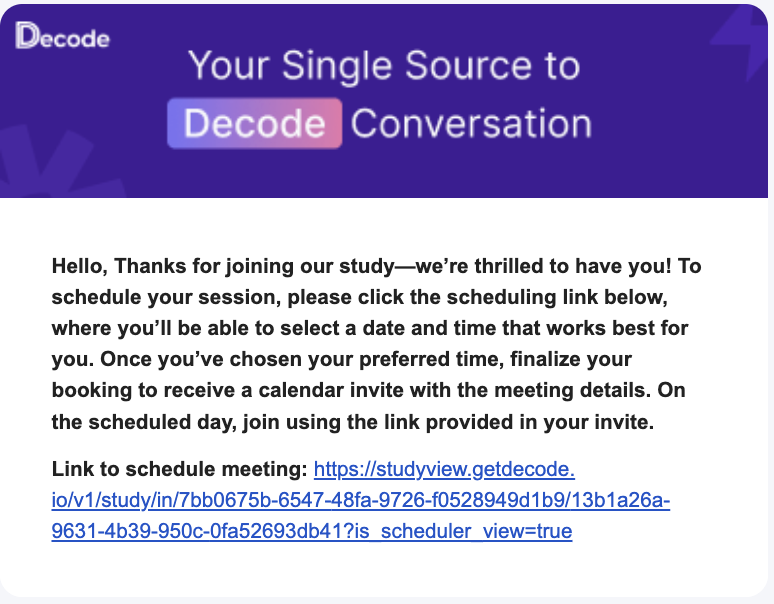
Participants click the link in their invitation email. The welcome screen shows the study title and a brief description of what to expect.
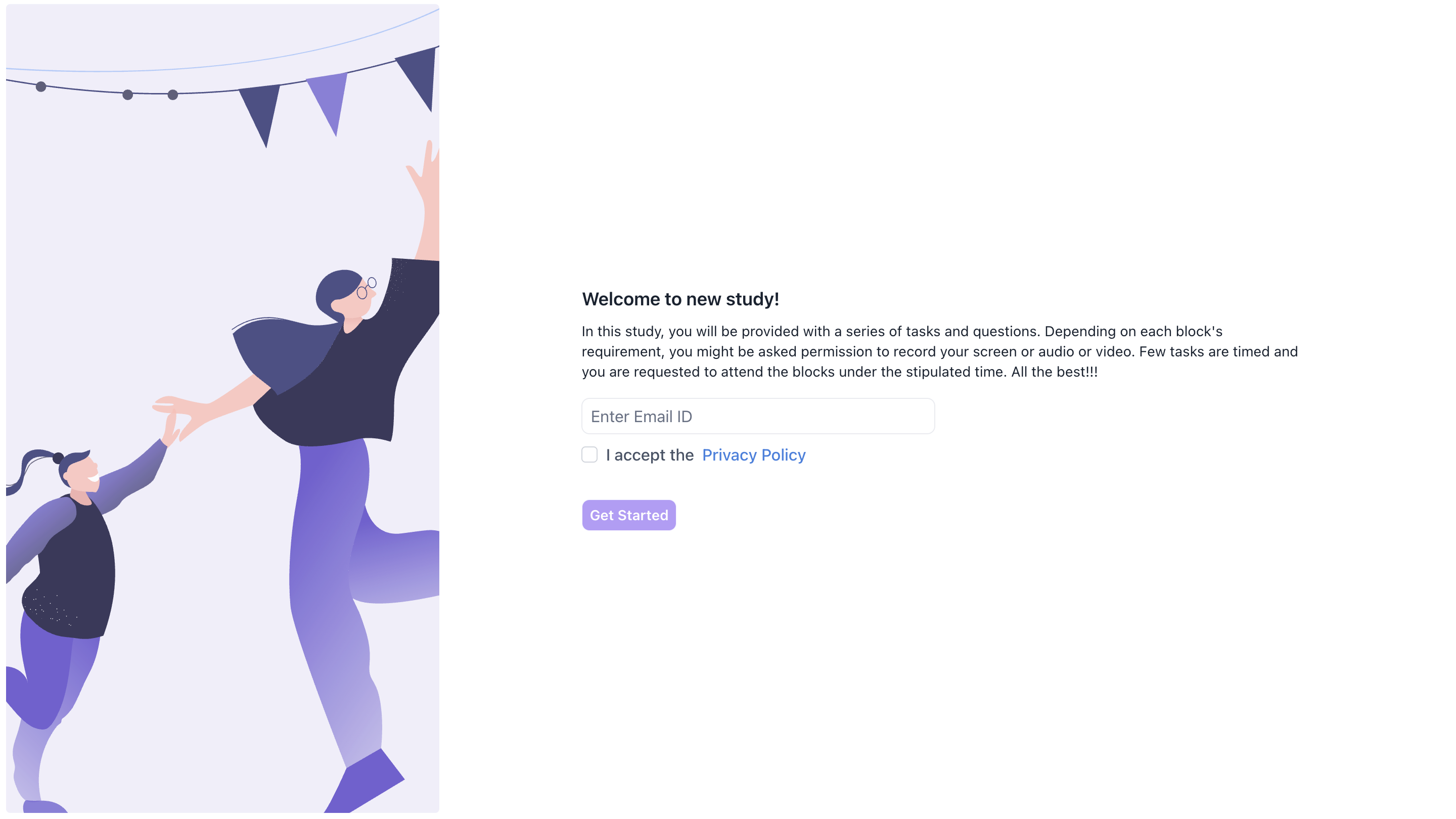
Enter your email address, check the box to accept the Privacy Policy, and click Get Started.
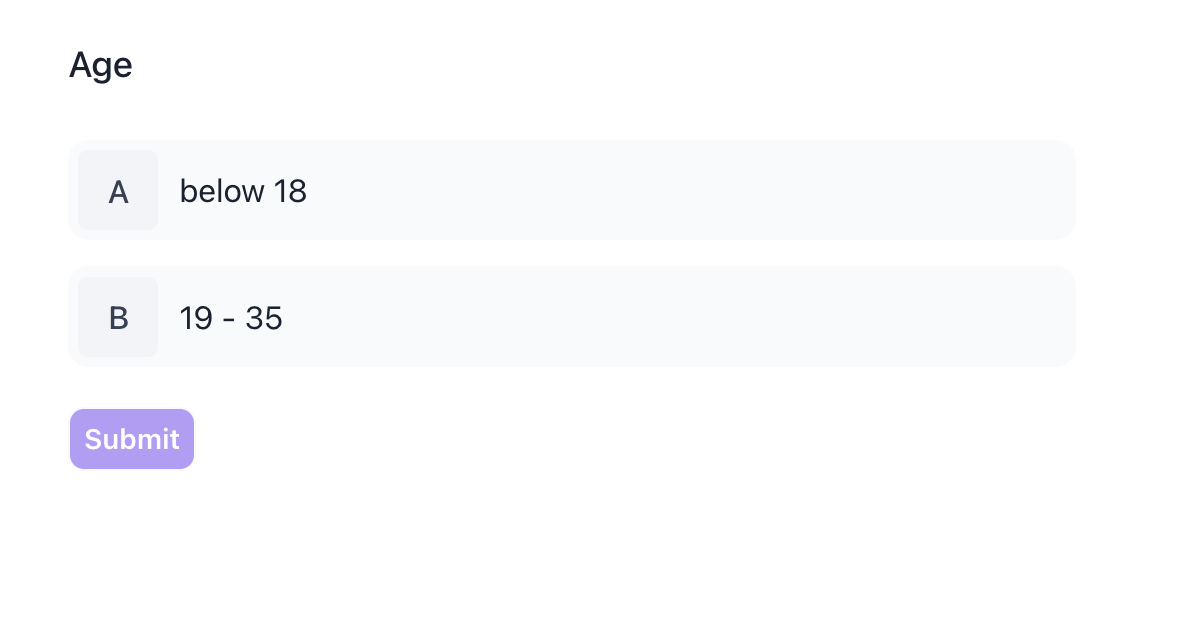
If you have set up screening questions, participants will be asked to answer them first. Those who do not meet the criteria will see the Screenout Page and cannot proceed to booking.
Step 2: Select a Date
Available dates are shown as a row of day cards, each showing the day of the week and date. The study name, session duration, and session format (for example, "30 min" and "One on One") are shown above the date selector, along with the participant's local time zone. Click any available date to see the time slots for that day.
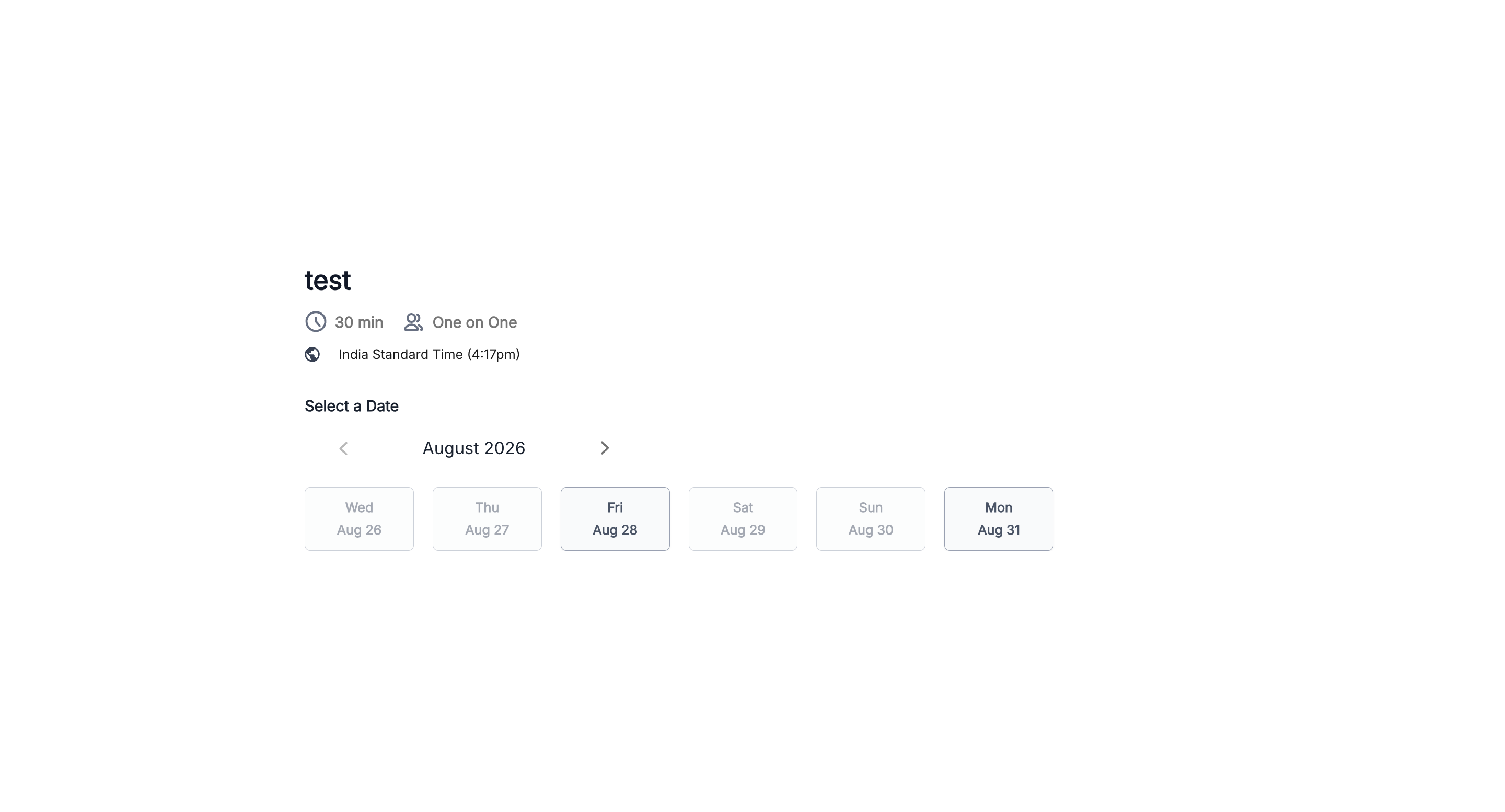
Step 3: Choose a time slot
After selecting a date, available time slots appear below, shown in the participant's local time zone. Click any open slot to select it.
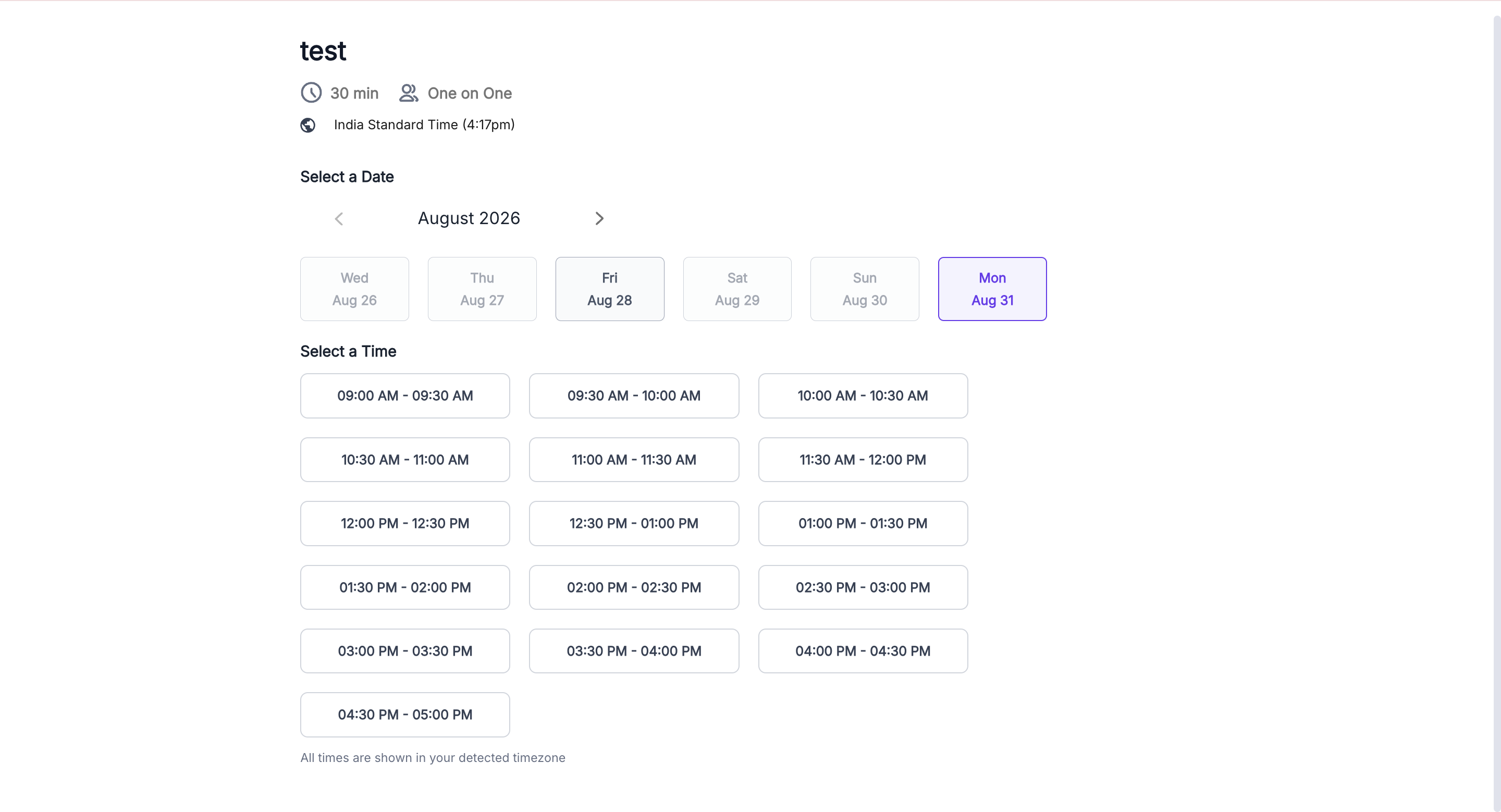
Step 4: Review and confirm
After selecting a slot, a Confirm Your Session screen shows a summary: Date, Time, Time Zone, and Duration. This slot is held temporarily while the participant completes booking, shown as a countdown (for example, "This time is reserved for you for 4:55 minutes"). Click Confirm Booking to finalise.
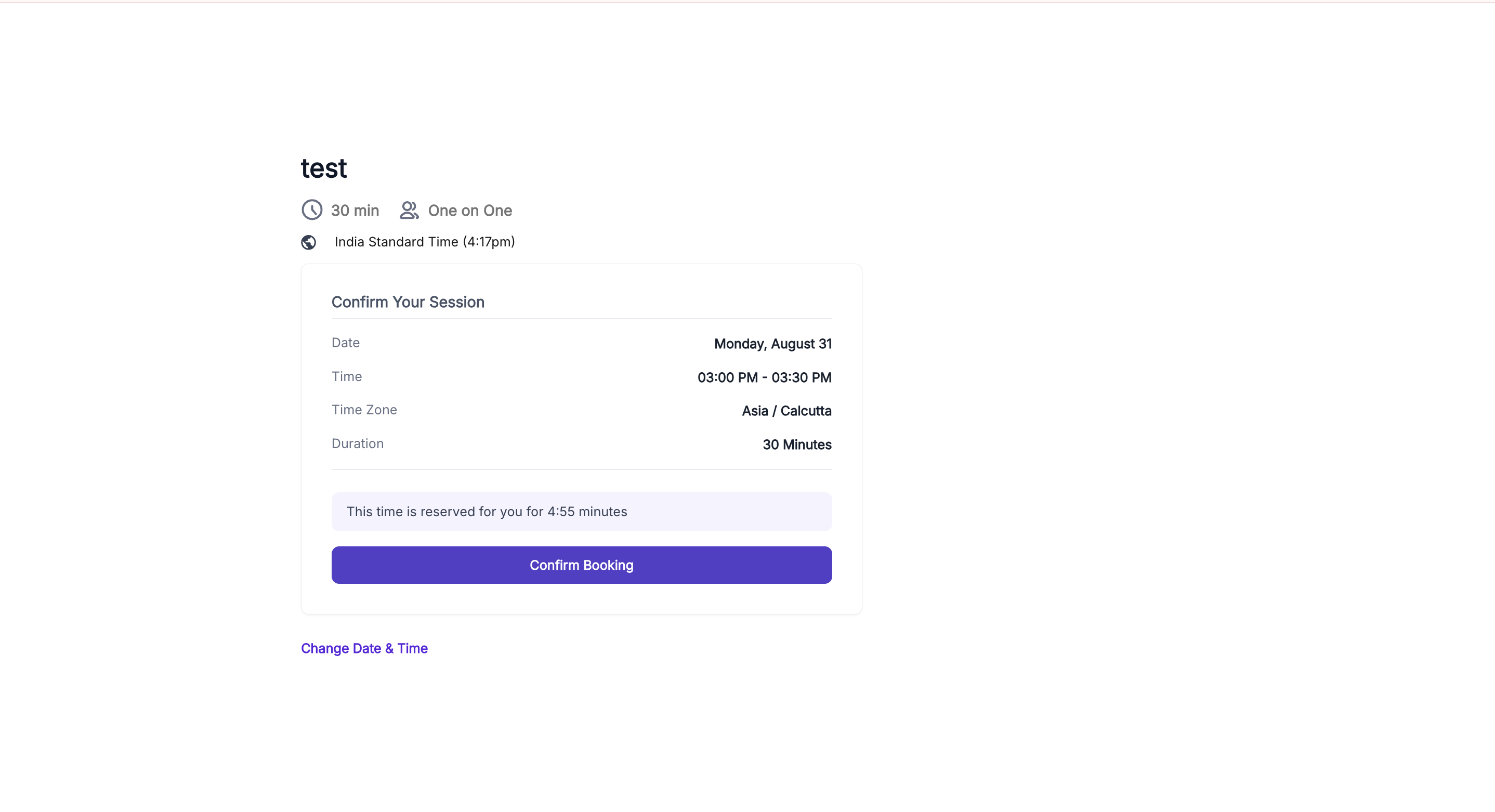
Step 5: Booking confirmation
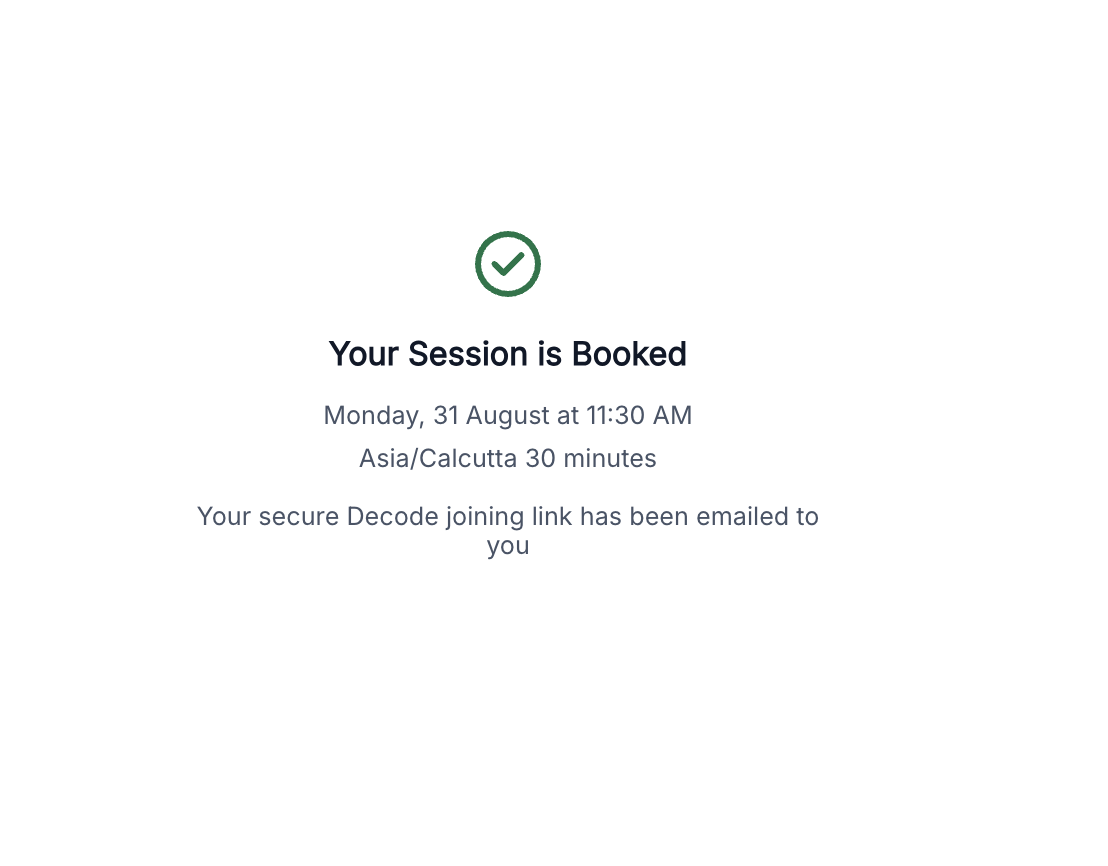
A confirmation screen appears showing the booking details. The participant receives a calendar invite with the join link for their session, which they'll need to access the session on the day.