
Joining a Live Session in Desktop/Laptop
Overview
Live sessions in Decode run through Decode Live, a video meeting interface built into Decode. On a desktop or laptop, Decode Live opens in your browser. There is nothing to install.
There are three roles in a session: Moderator, Participant, and Observer. Each role has its own join link and a different set of controls inside the session. Every live session is recorded automatically. The red dot at the top right of the Decode Live screen shows that recording is in progress.
This article covers how each role joins from a desktop or laptop and what each control does. Joining from a phone works differently. See [Joining a Live Session from a Mobile Device] for that.
Moderator
The moderator leads the session. They control who enters the room, guide the conversation, and manage all session activity from start to finish.
How to join
There are three ways to join as a moderator.
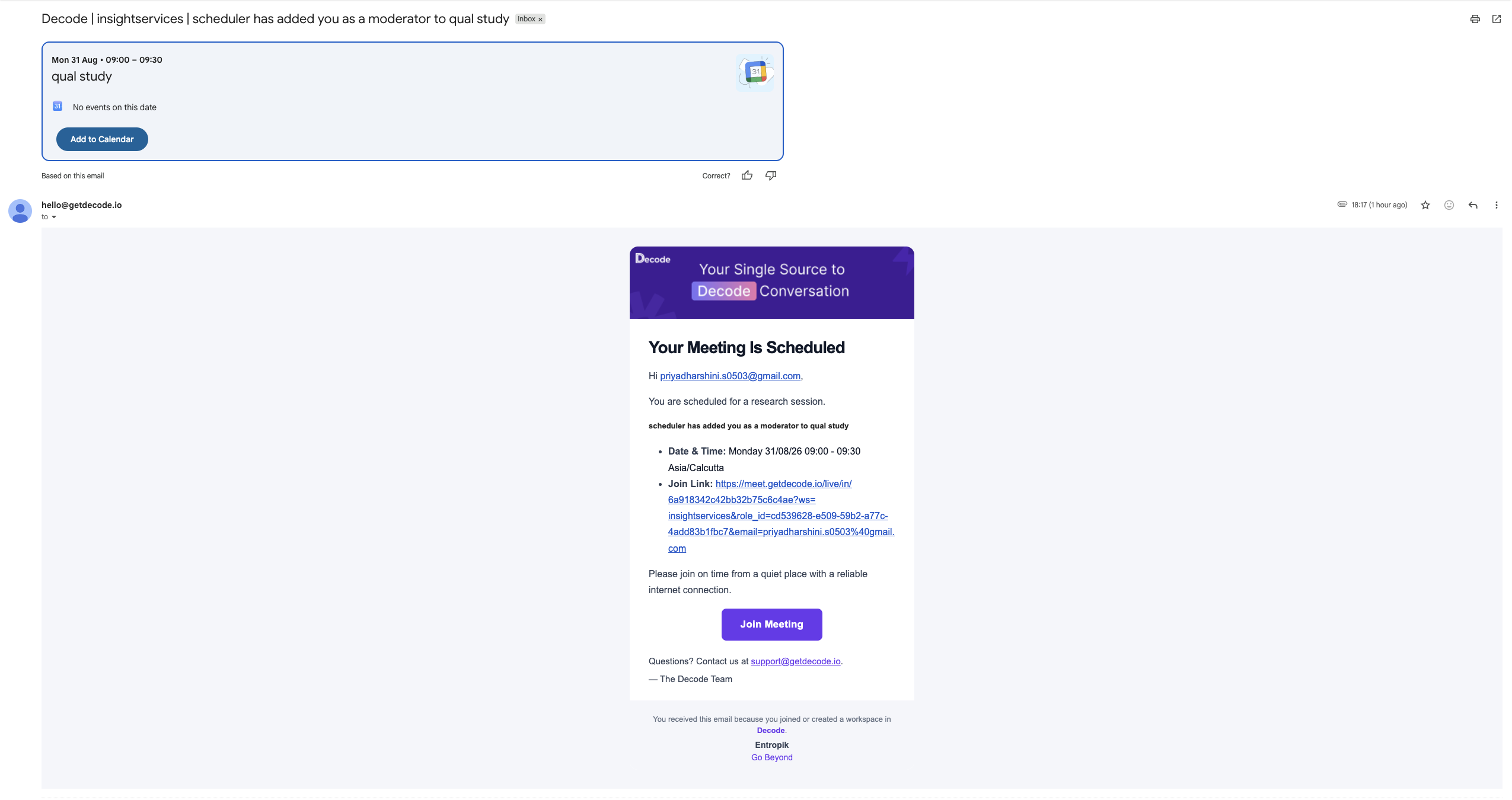
1. Join with the moderator link. Open the moderator join link from your calendar invite. On the Decode Live screen, enter your Email ID and a Display Name, then click Join Meeting.
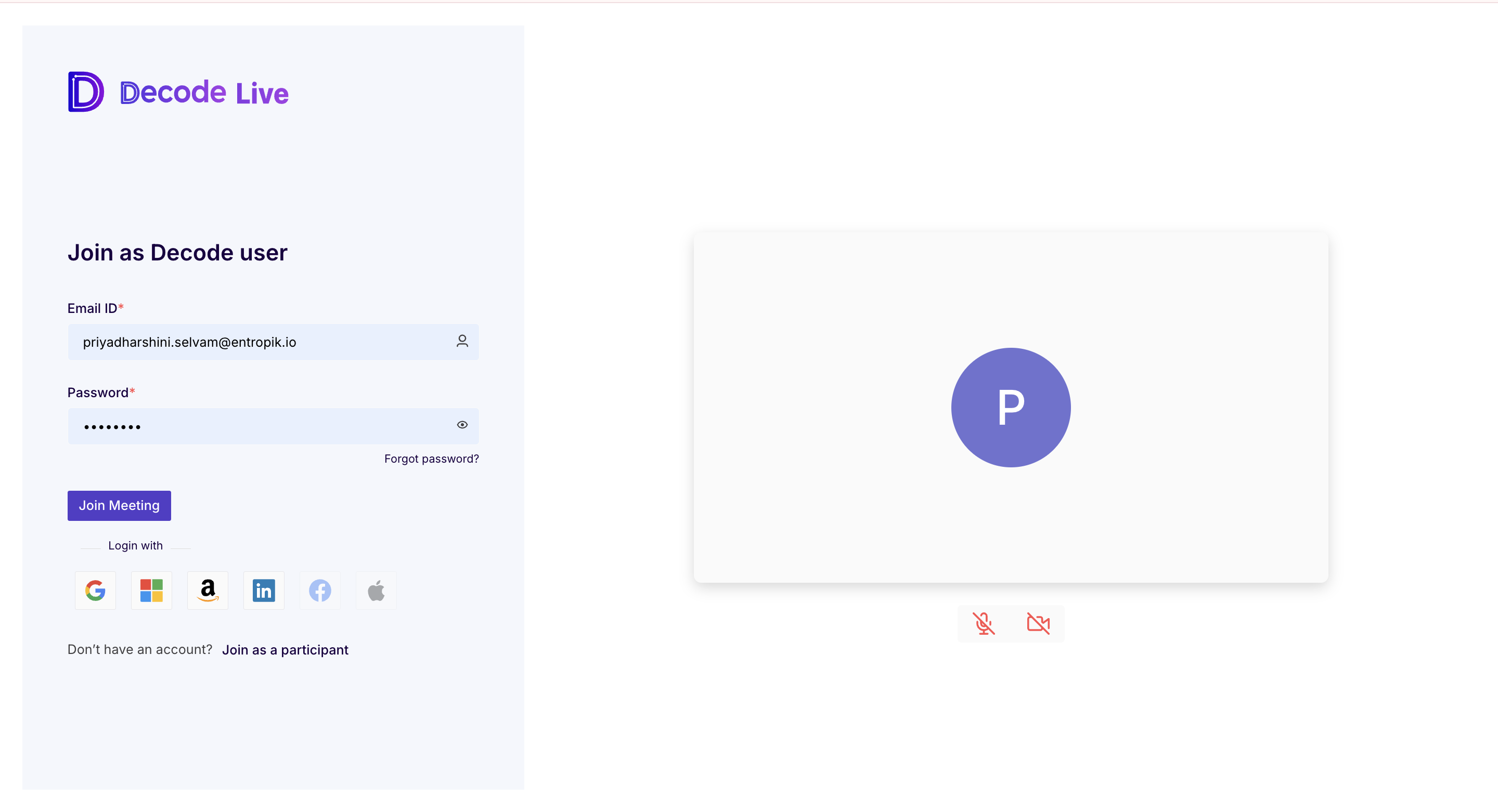
2. Join as a Decode user. If you have a Decode account, click Join as a Decode user below the form and sign in with your email and password.
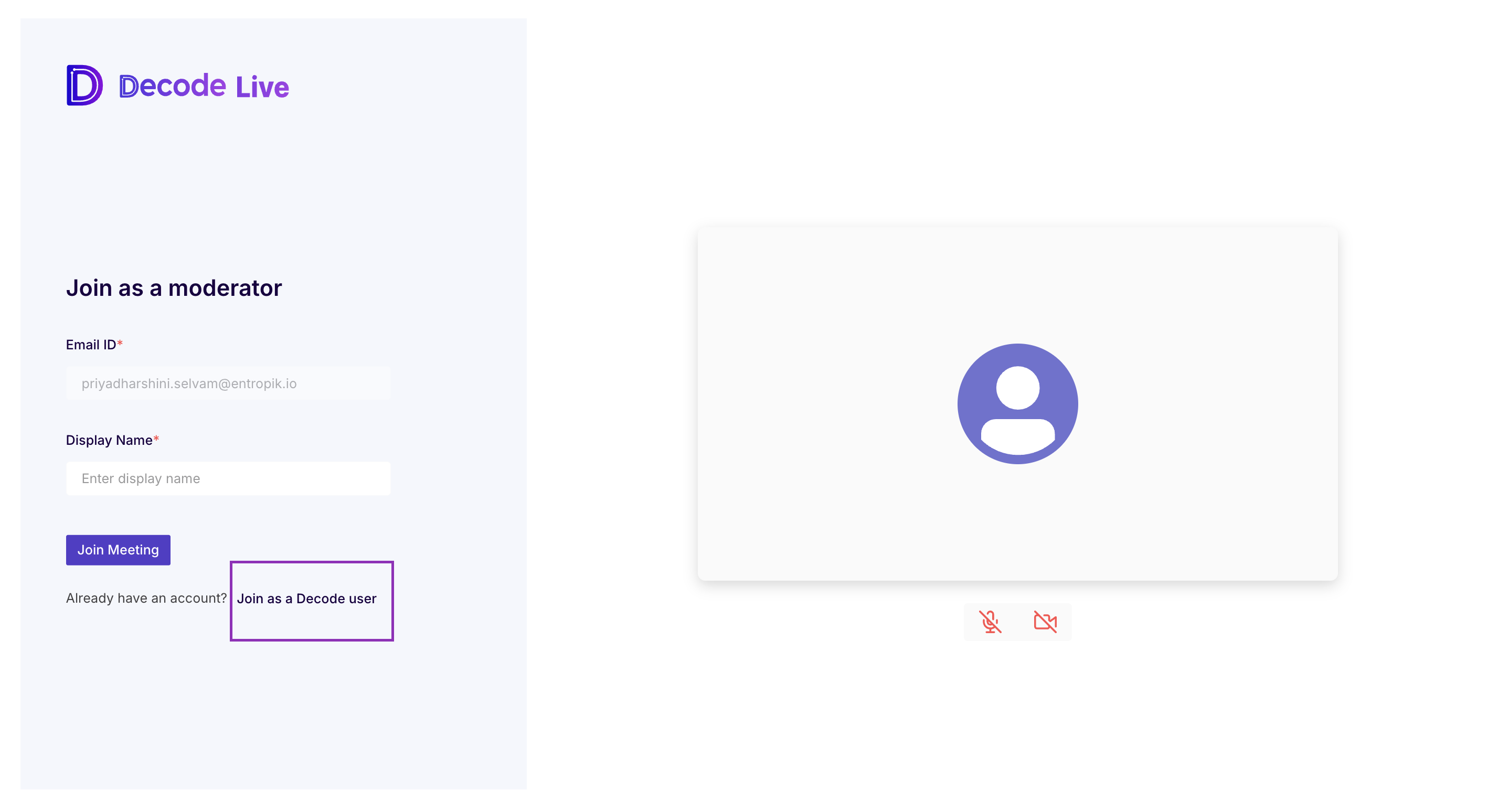
You can also sign in with Google, Microsoft, Amazon, LinkedIn, Facebook, or Apple.
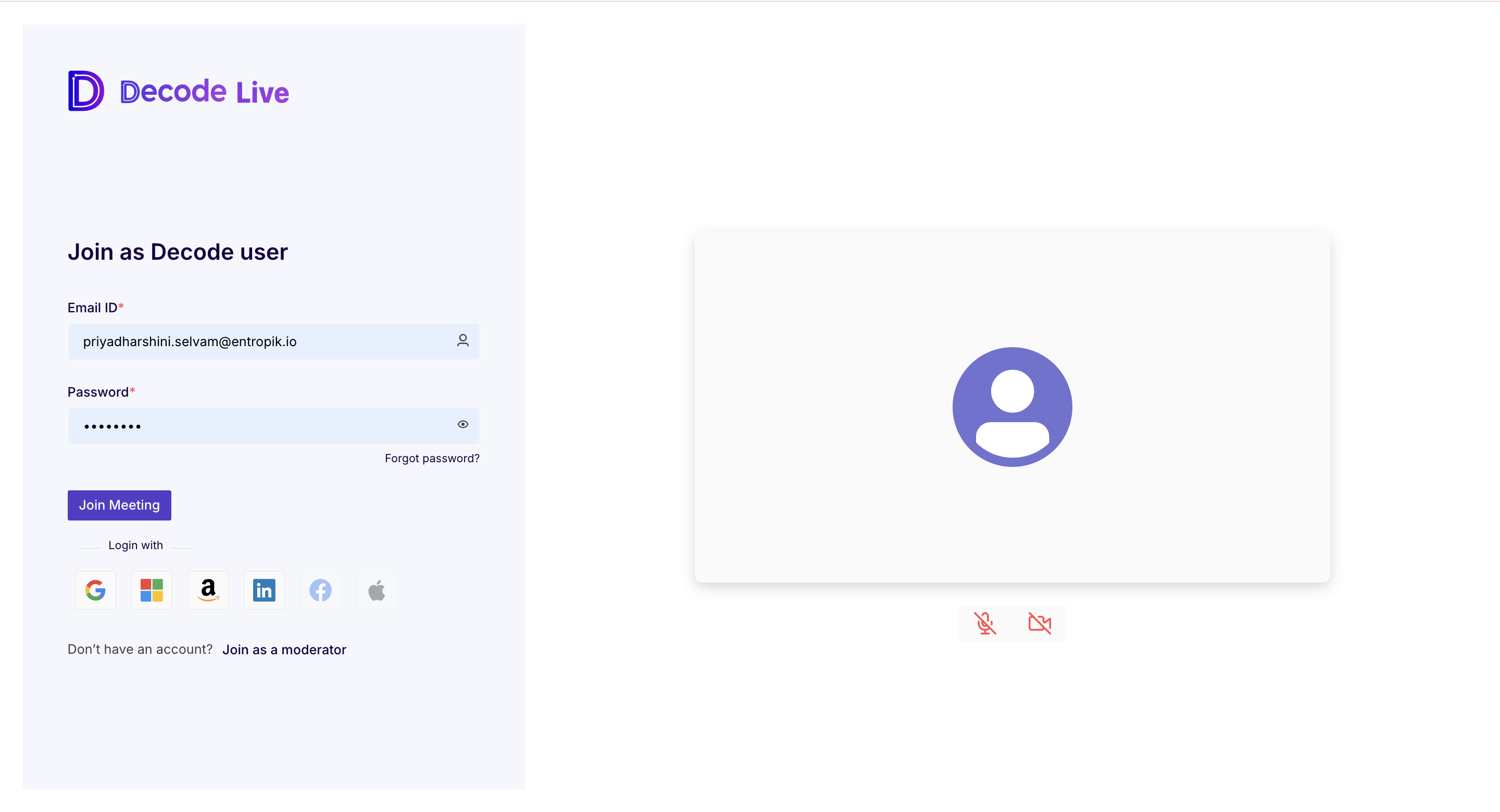
3. Join from the Sessions tab. Open your study in Decode, go to the Sessions tab, and click Join next to your session. Join works when you have access to the platform and were added as the moderator for the study, and it opens the Decode Live screen with your email address already filled in. Enter a Display Name and click Join Meeting. The link icon next to Join gives you the separate join links for each role, so you can copy and share them.
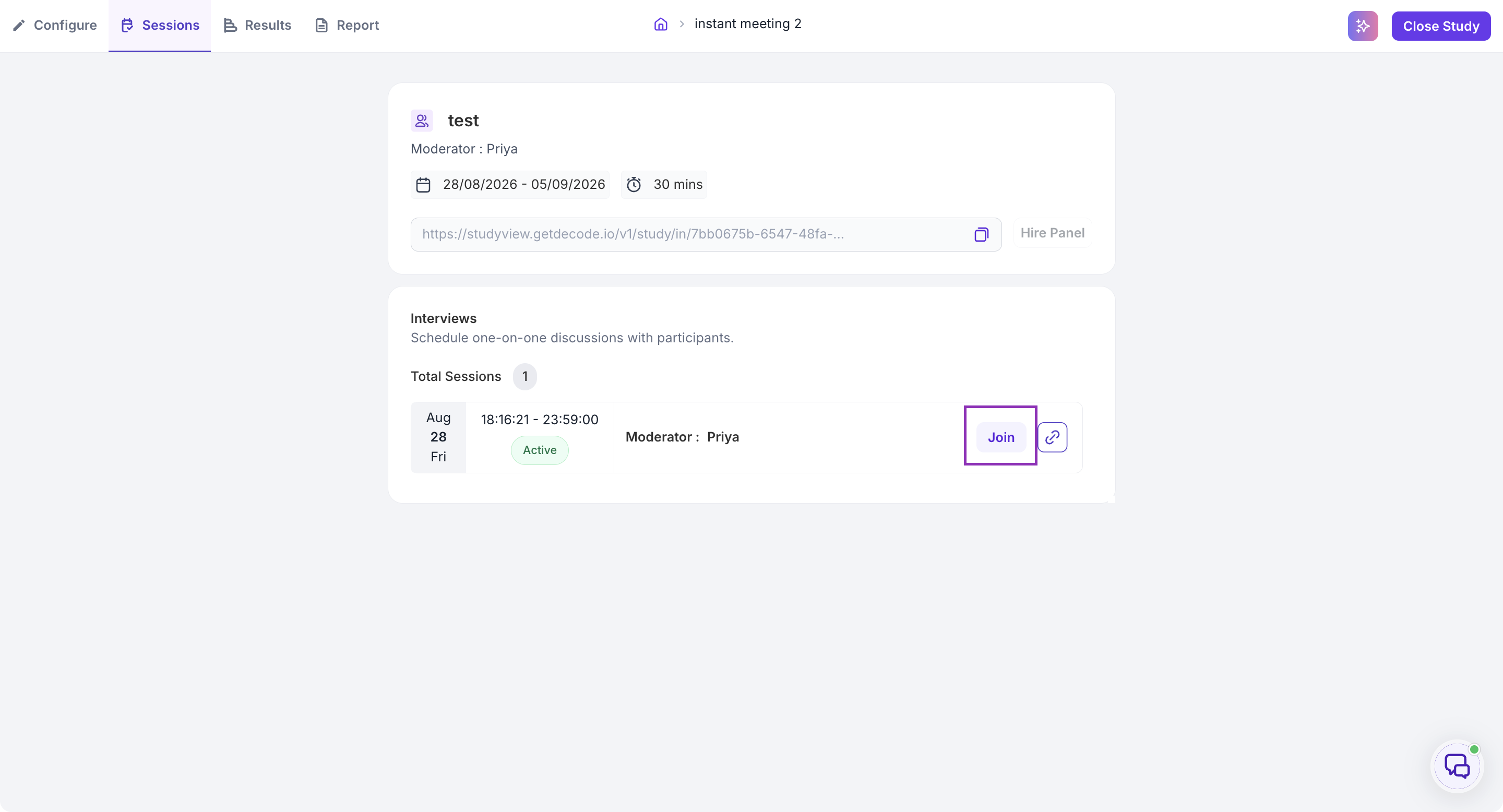
Before you join, the right side of the screen shows a preview from your camera. Use the microphone and camera buttons below the preview to decide whether you join with them on or off.
When a participant arrives, they wait outside the room until you admit them. Once you admit them, their tile appears in the main view and the session begins.
Session controls
1. Admit and Deny. When someone is waiting to join, a notification appears at the top right with their name and Admit and Deny buttons. Click Admit to let them in when you are ready to start. Click Deny if the wrong person has joined or you are not ready.
2. Microphone and Camera. Mute or unmute your audio and turn your video on or off with the two buttons at the bottom left. The three dots next to these buttons open a quick device picker, so you can switch to a different microphone or camera during the session without opening Settings.
3. Share. Click the share icon at the bottom of the screen. A Start Sharing panel opens with two choices.
- Share Screen: shows your screen to everyone in the session. Your browser asks whether to share a browser tab, a window, or your entire screen. Pick one and click Share. If participants need to hear audio from what you share, share a tab or a window. Audio does not come through when you share your entire screen. Use this when you want the participant to react to a prototype, a design, or any other material during the session.
- Share PDF: opens a PDF inside the session for everyone to view. Click to upload your PDF, then click Start Sharing. You can annotate and draw shapes on the PDF while it is shared.
4. Hand Raise. Click the hand icon to raise a hand signal that others in the session can see. As a moderator, use this to show you want to speak without interrupting the participant while they are talking.
5. Reactions. Click the smiley icon to send a quick emoji reaction, such as a thumbs up, a clap, or a wave. Reactions let you respond in the moment without unmuting.
6. Chat. Click the chat icon at the bottom right to open the chat panel. Type your message and use the To dropdown above the message box to send it to everyone in the session or only to a specific role.
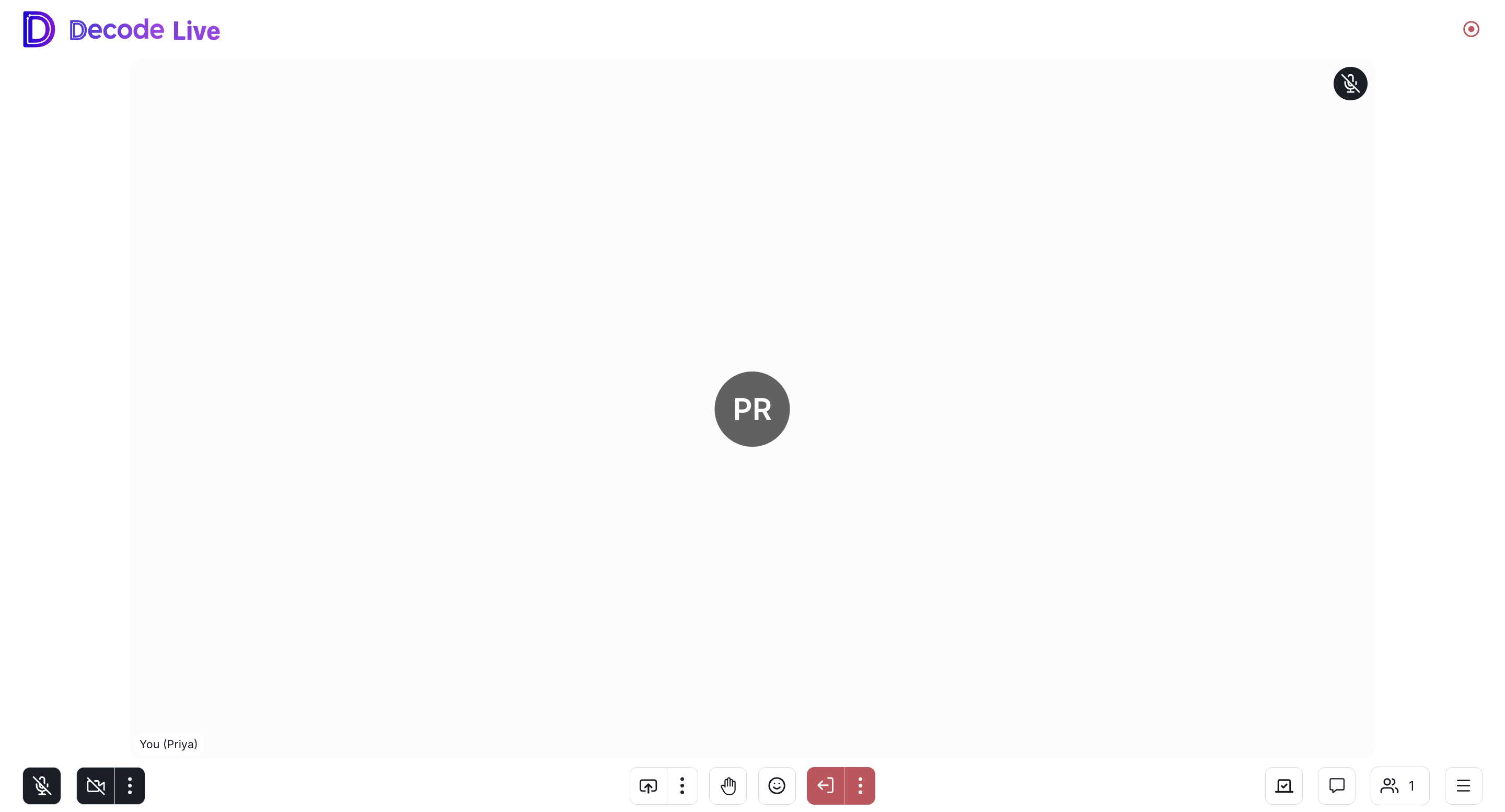
7. Participants panel. Click the participant count at the bottom right to open the Participants panel. The panel lists everyone in the session grouped by role, with a count for each group. People who joined as participants appear under Attendee. Use the search bar at the top to find someone by name. Each row shows whether that person's microphone is on or off.
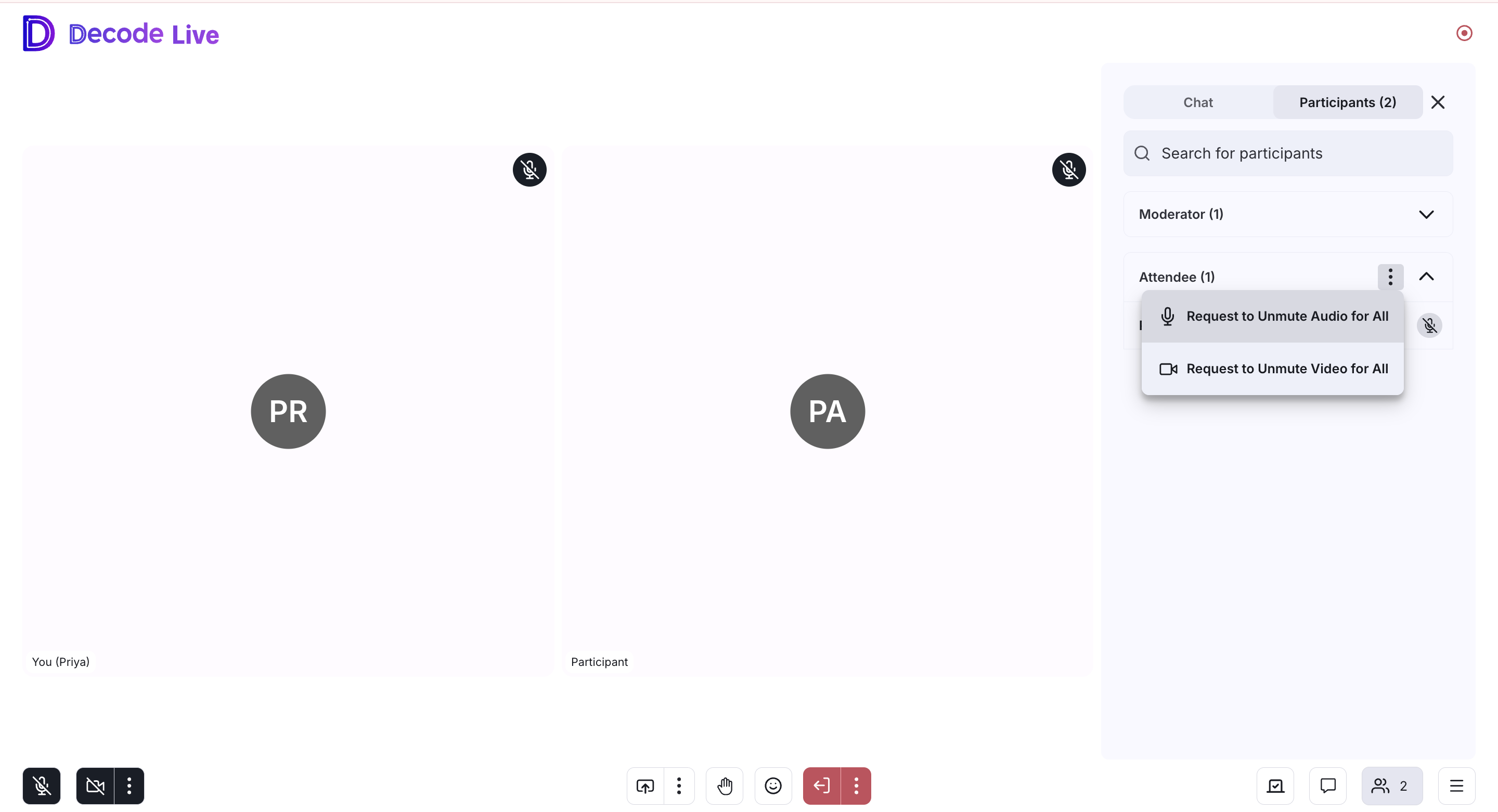
Click the three dots next to the Attendee group for controls that apply to everyone in that group at once. This is where you mute all attendees, for example when background noise is affecting the recording. The same menu holds Request to Unmute Audio for All and Request to Unmute Video for All, which ask everyone in the group to turn their microphone or camera back on.
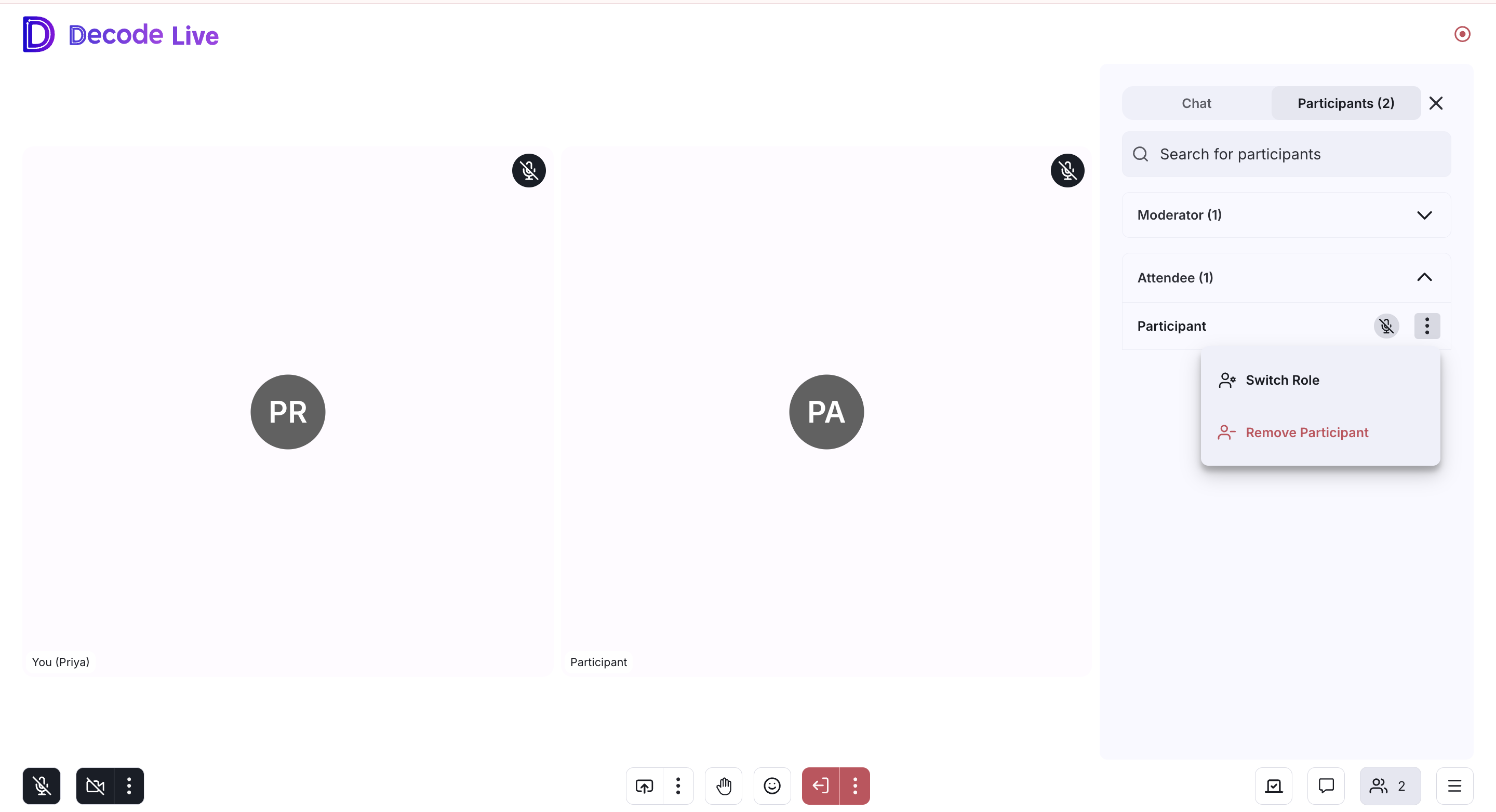
Click the three dots next to a person's name for these options.
- Switch Role: changes that person's role during the session. They see a message on their screen telling them their new role.
- Remove Participant: removes that person from the session. They can rejoin later with the same link.
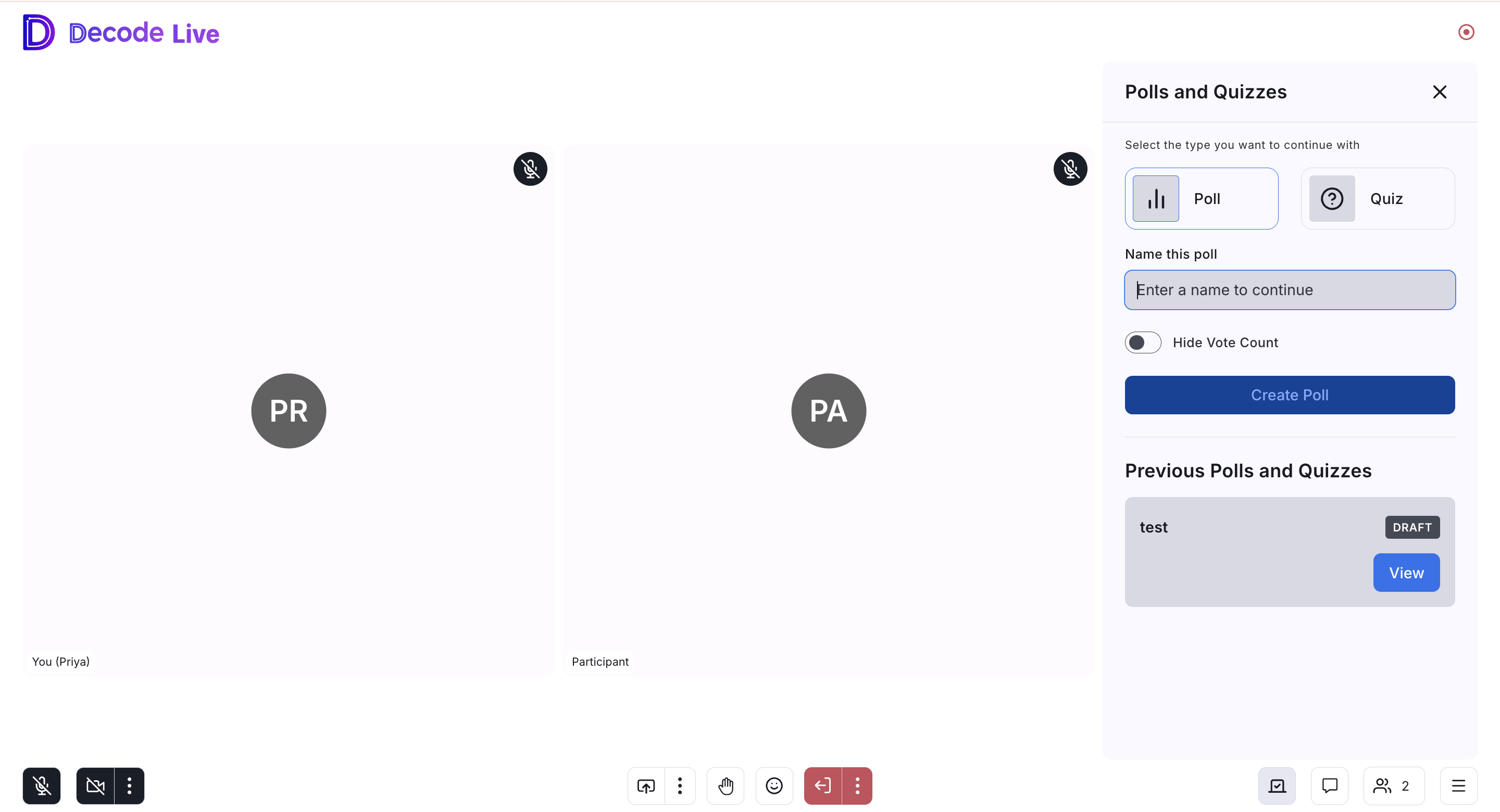
8. Polls and Quizzes. Click the polls icon at the bottom right to open the Polls and Quizzes panel. Choose Poll or Quiz, give it a name, and click Create Poll. Add your question and its answer options, click Save, then click Launch poll to send it to everyone in the session. When creating a poll, turn on Hide Vote Count if you do not want people to see how many votes each option receives.
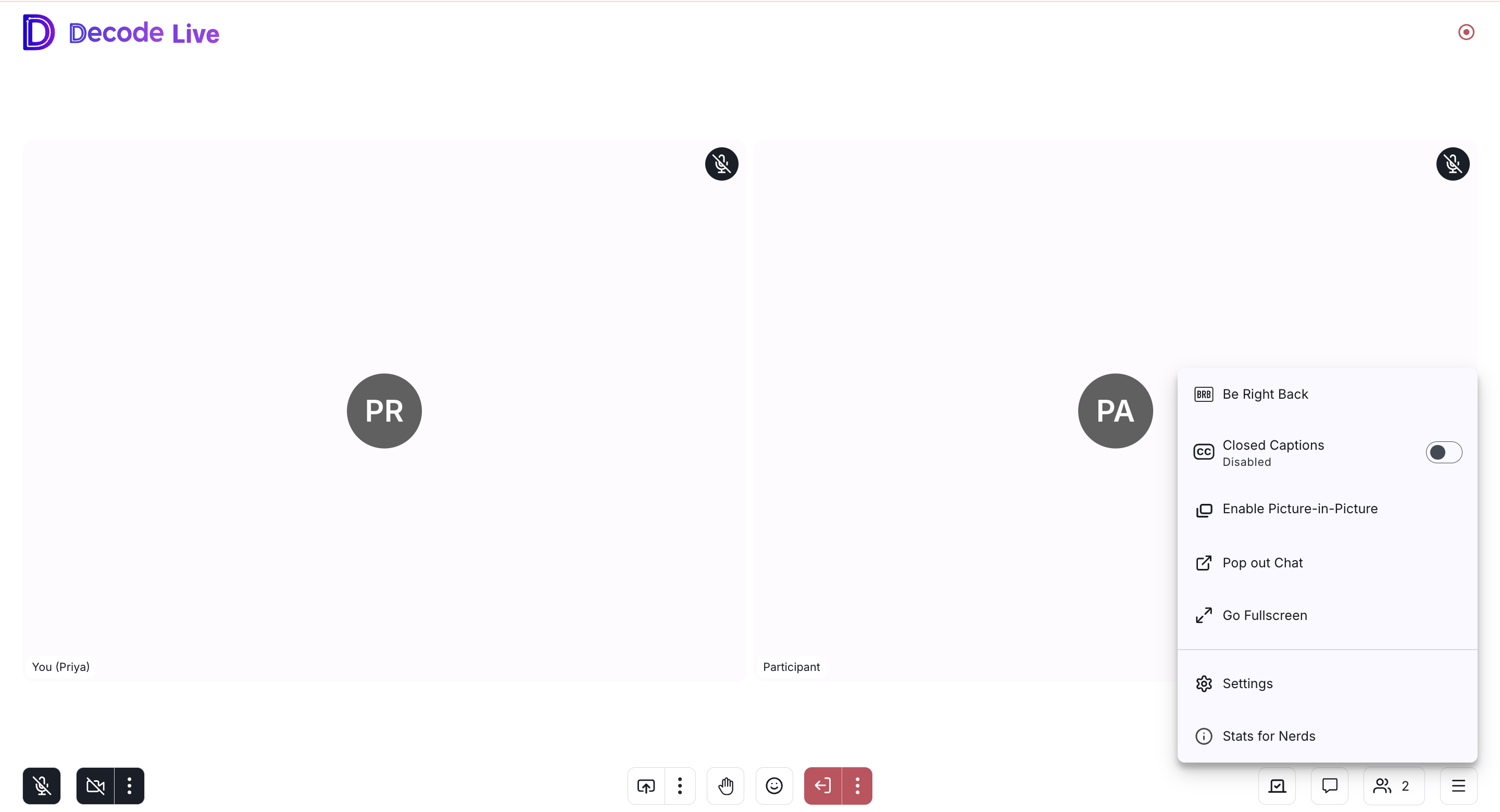
9. More Options menu. Click the menu button at the bottom right for additional controls.
- Be Right Back: marks you as temporarily away. Your tile shows a Be Right Back status to everyone until you turn it off.
- Closed Captions: turns captions on or off during the session.
- Enable Picture-in-Picture: moves the session video into a small floating window that stays visible while you work in other tabs or applications.
- Pop out Chat: opens the chat in its own separate window.
- Go Fullscreen: expands Decode Live to fill your screen.
- Stats for Nerds: shows technical session details.
- Settings: covered below.
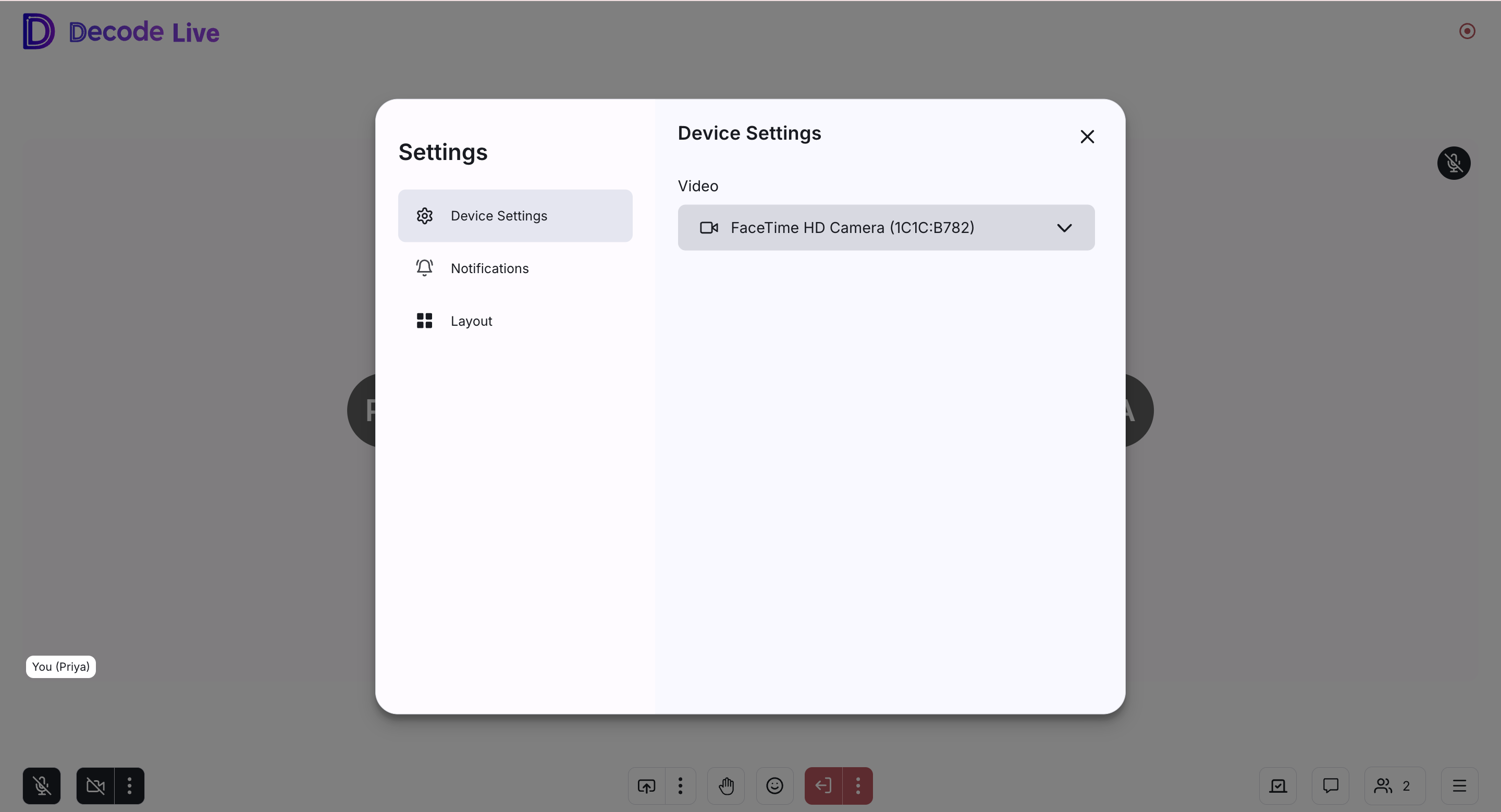
10. Settings. Open Settings from the More Options menu. Settings has three sections.
- Device Settings: choose which camera the session uses.
- Notifications: turn alerts on or off for session events. You can toggle alerts for Peer Joined, Peer Leave, Hand Raised, and Error. Turn on the ones you want so you notice session activity without watching the screen constantly.
- Layout: control how the session looks on your screen. Tiles In View sets how many video tiles appear at once. Audio Only Mode turns off video so the session runs with audio only. Mirror Local Video controls whether your own video appears mirrored, the way you would see yourself in a mirror.
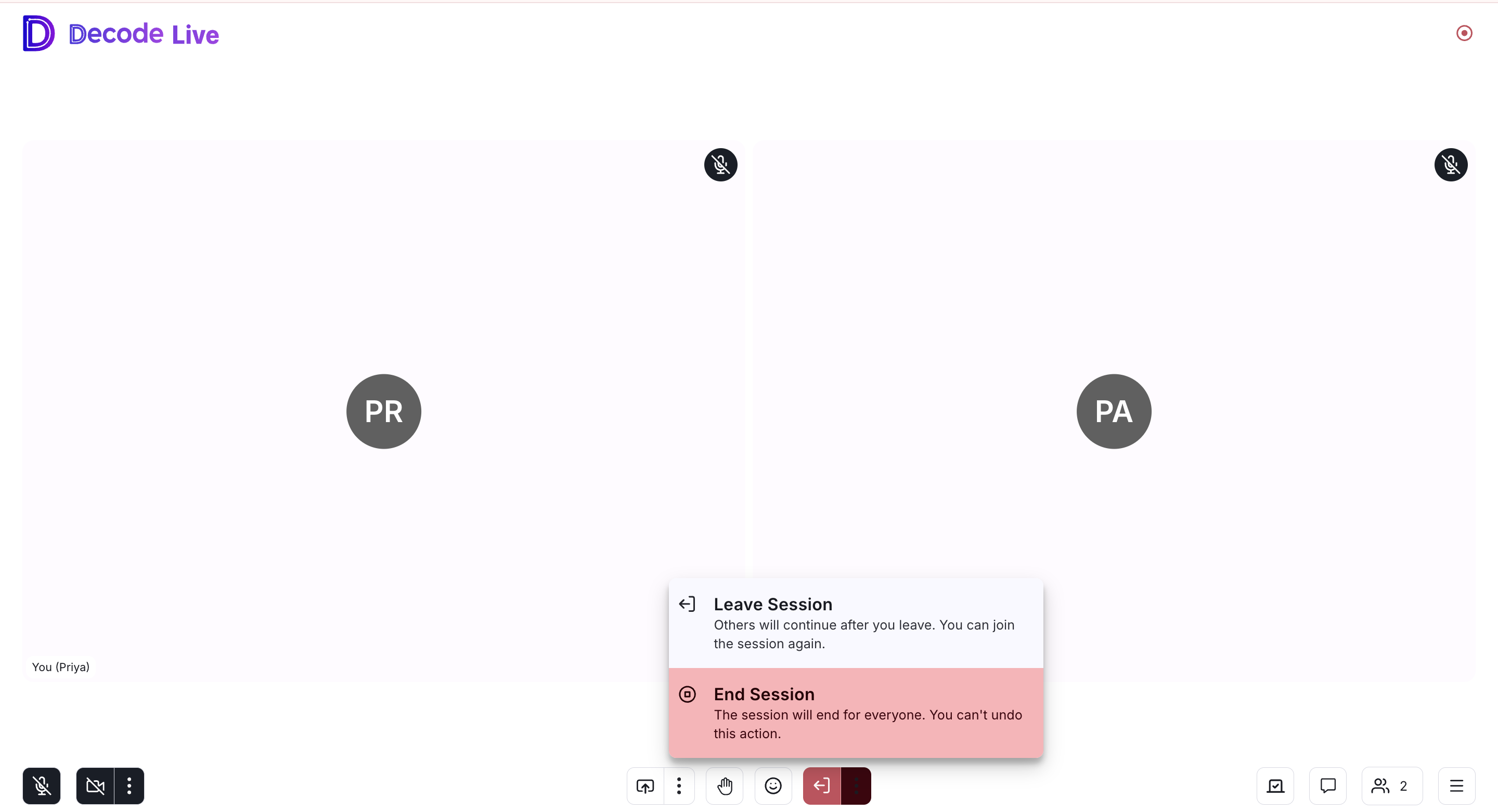
11. Leave or end the session. Click the red button at the bottom of the screen. Two options appear.
- Leave Session: you exit, the session continues for everyone else, and you can join again. Use this if you need to step out but the session should keep going.
- End Session: the session ends for everyone immediately. This cannot be undone. Use this when the session is complete.
Participant
The participant attends the session to answer questions and complete tasks as the moderator directs. They join with the participant link and wait to be admitted before the session begins.
How to join
Open the join link from your calendar invite. On the Decode Live screen, there are two ways to join.
1. Join as a participant. Enter your Email ID and a Display Name, then click Join Meeting.

2. Join as a Decode user. If you have a Decode account, click Join as a Decode user and sign in with your credentials.
After you click Join Meeting, a waiting screen appears with the message that the meeting host will let you in soon. You stay on this screen until the moderator admits you. Once admitted, you enter the session and can see and hear the moderator.
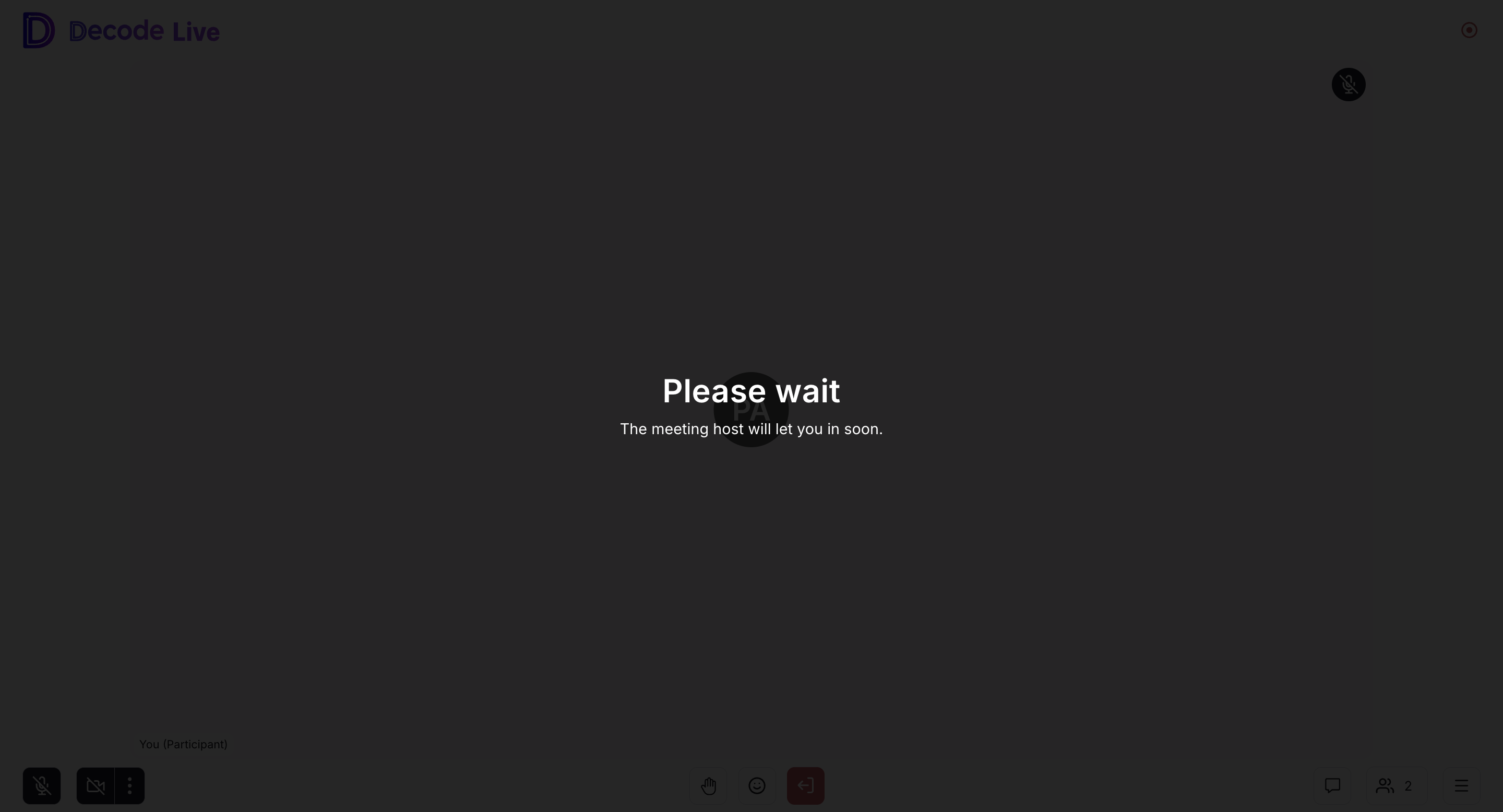
If the moderator changes your role during the session, a message appears on your screen telling you your new role.
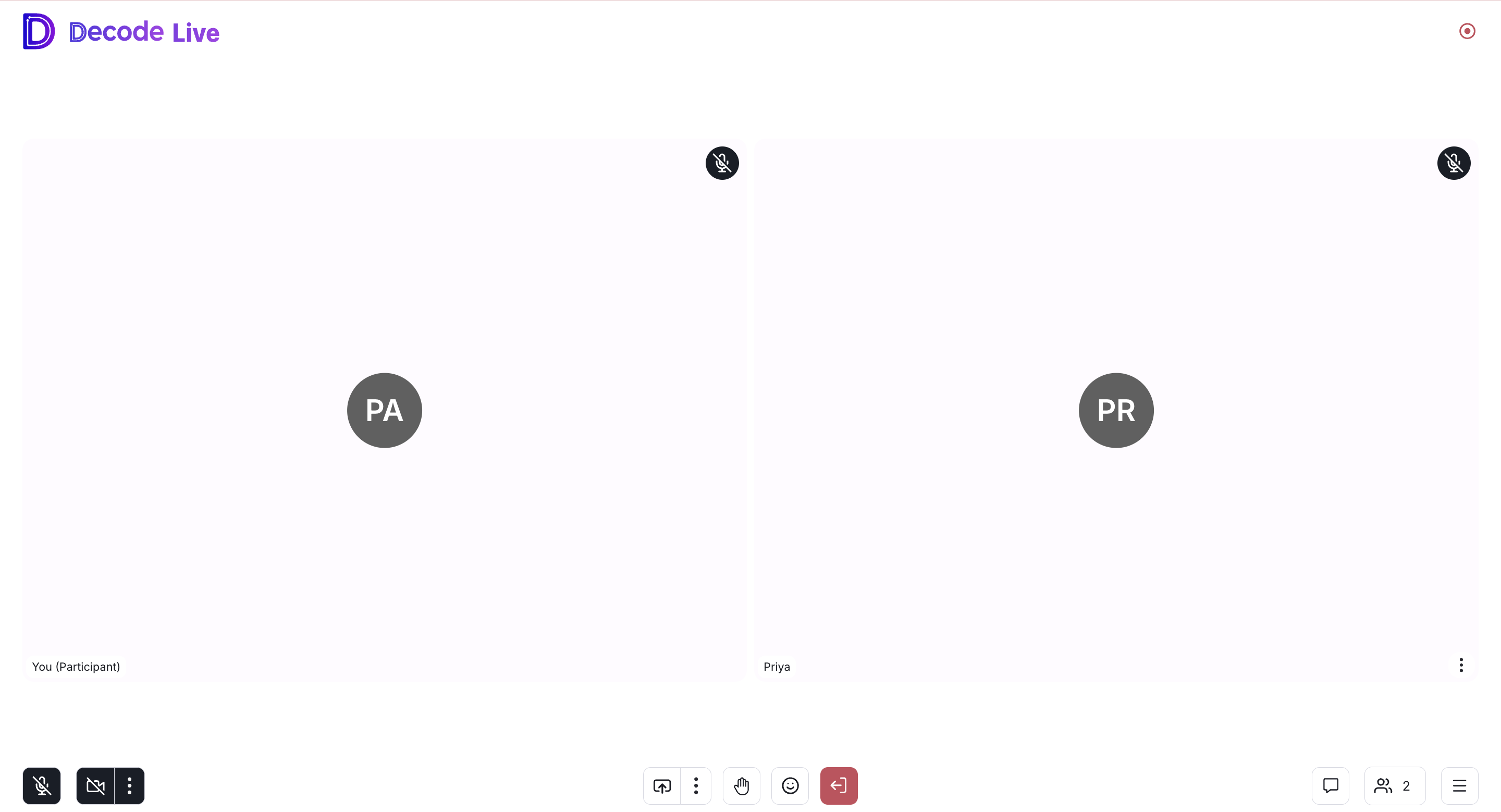
1. Microphone and Camera. Mute or unmute your audio and turn your video on or off with the two buttons at the bottom left. The three dots next to these buttons open a quick device picker, so you can switch to a different microphone or camera during the session.
2. Share. Click the share icon to open the Start Sharing panel. You can share your screen (a browser tab, a window, or your entire screen) or share a PDF that everyone in the session can view.
3. Hand Raise. Click the hand icon to raise a hand signal the moderator can see. Use this when you have a question or want to speak without interrupting.
4. Reactions. Click the smiley icon to send a quick emoji reaction without unmuting.
5. Chat. Click the chat icon to open the chat panel. Messages go to everyone in the session by default. Use the To dropdown to send to a specific role instead, such as the moderator, or search for a person by name. A direct message to the moderator is useful for sharing something in text, such as a link, without interrupting the spoken conversation.
6. Participants panel. Click the participant count to see everyone currently in the session, grouped by role, with a search bar at the top. Participants can view this list but cannot manage other people.
7. More Options menu. Click the menu button at the bottom right for Be Right Back, Closed Captions, Picture-in-Picture, Pop out Chat, Go Fullscreen, and Settings. These work the same way as described in the moderator section.
8. Leave Session. Click the red button to leave the session. Leaving only affects you. The session continues for everyone else, and you can join again with the same link.
Observer
The observer watches the session without taking part in it. They can see and hear the moderator and the participant, but they do not appear on video and cannot be heard. Observers are typically team members or stakeholders who want to follow the session in real time.
Observers are silent, not hidden. Everyone in the session can see that an observer has joined, because observers appear in the participant count and in the Participants panel.
How to join
Open the observer join link from your calendar invite. On the Decode Live screen, there are two ways to join.
1. Join as an observer. Enter your Email ID and a Display Name, then click Join Meeting.
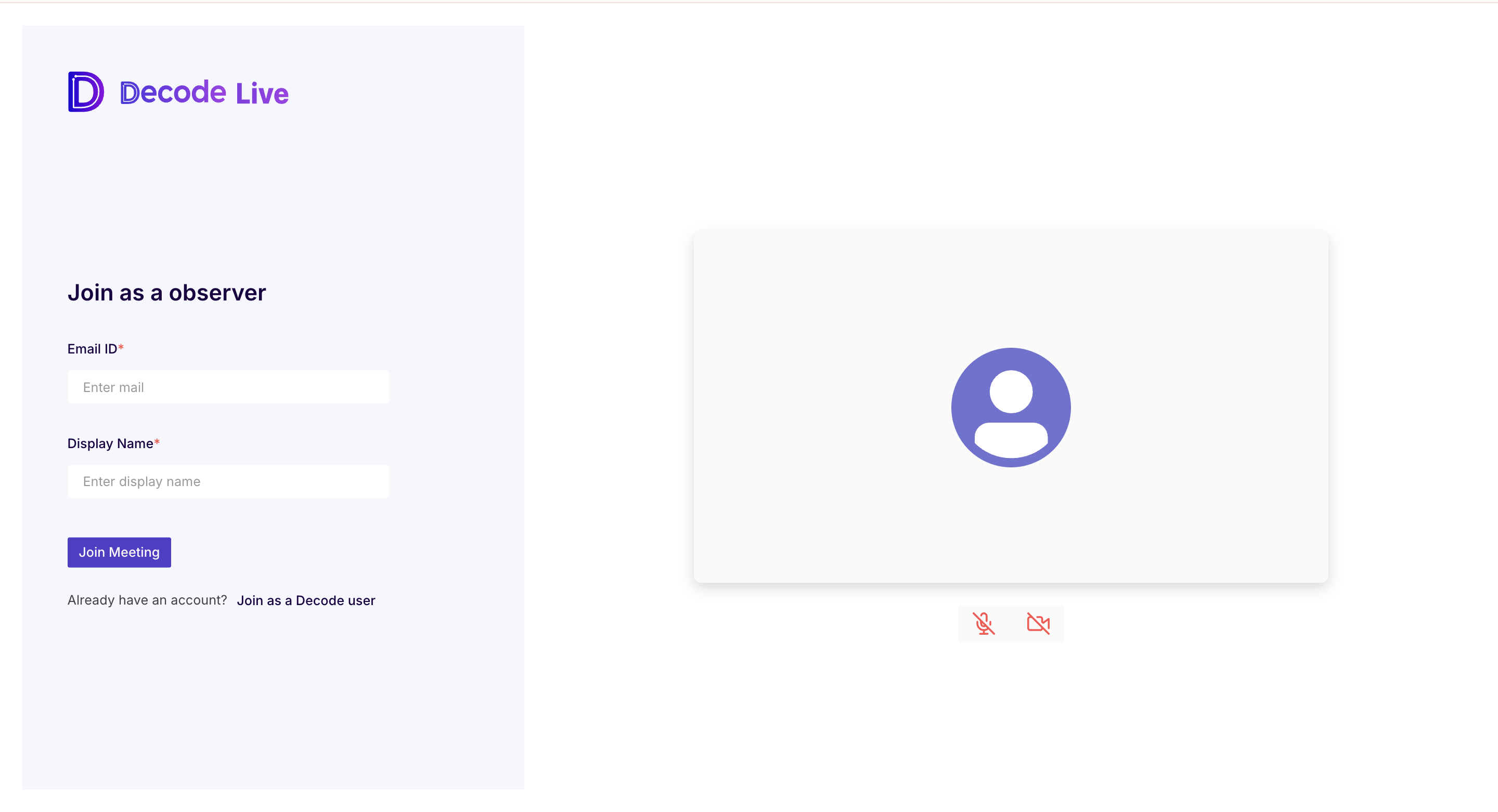
2. Join as a Decode user. If you have a Decode account, click Join as a Decode user and sign in with your credentials.
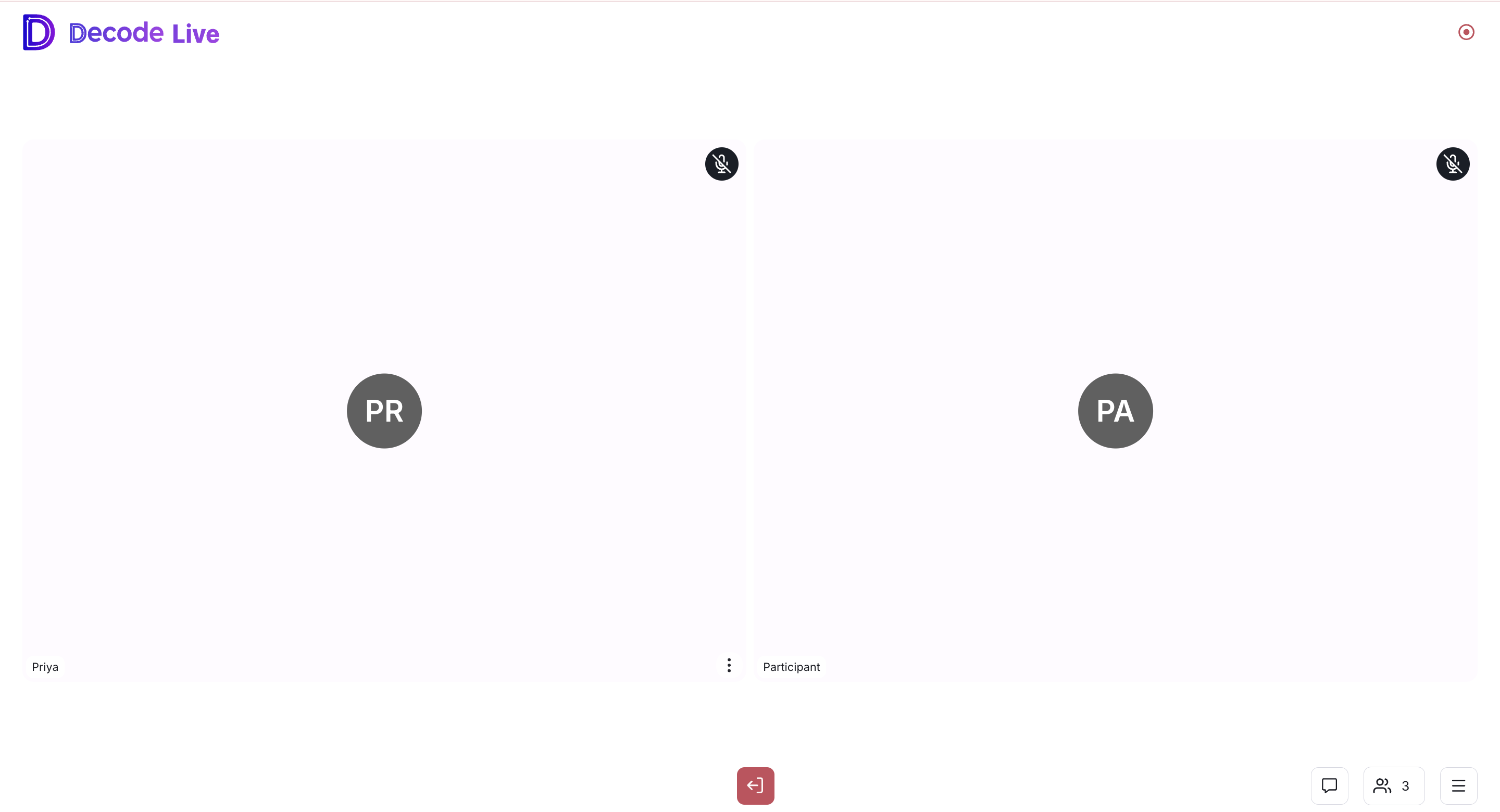
Observers do not wait to be admitted. After clicking Join Meeting, they enter the session directly. Inside, the observer sees the moderator and the participant in the main view. The observer has no video tile, no microphone, and no camera.
Session controls
1. Chat. Click the chat icon at the bottom right to open the chat panel. Use the To dropdown to send your message to a specific role or person in the session, including the moderator and the participant. Chat is how observers share observations or flag moments of interest in real time without interrupting the session.
2. Participants panel. Click the participant count to see everyone currently in the session, grouped by role.
3. More Options menu. Click the menu button at the bottom right for Be Right Back, Closed Captions, Picture-in-Picture, Pop out Chat, Go Fullscreen, and Settings. These work the same way as described in the moderator section.
4. Leave Session. Click the red button to leave the session. Leaving only affects you. The session continues for everyone else.
What each role can do
| Moderator | Participant | Observer | |
|---|---|---|---|
| Microphone and camera | Yes | Yes | No |
| Share screen or PDF | Yes | Yes | No |
| Admit and deny people | Yes | No | No |
| Mute and unmute controls for the group | Yes | No | No |
| Switch roles and remove attendees | Yes | No | No |
| Create and launch polls and quizzes | Yes | No | No |
| Hand raise | Yes | Yes | No |
| Emoji reactions | Yes | Yes | No |
| Chat | Yes | Yes | Yes |
| End the session for everyone | Yes | No | No |
| Leave the session | Yes | Yes | Yes |