
Uploading a Creative
How to upload a creative and start your analysis
The Upload and Predict tab is where you add creatives for analysis. Each creative you upload is processed individually and results appear in the left panel once processing is complete.
Uploading a Creative
1. Select your files
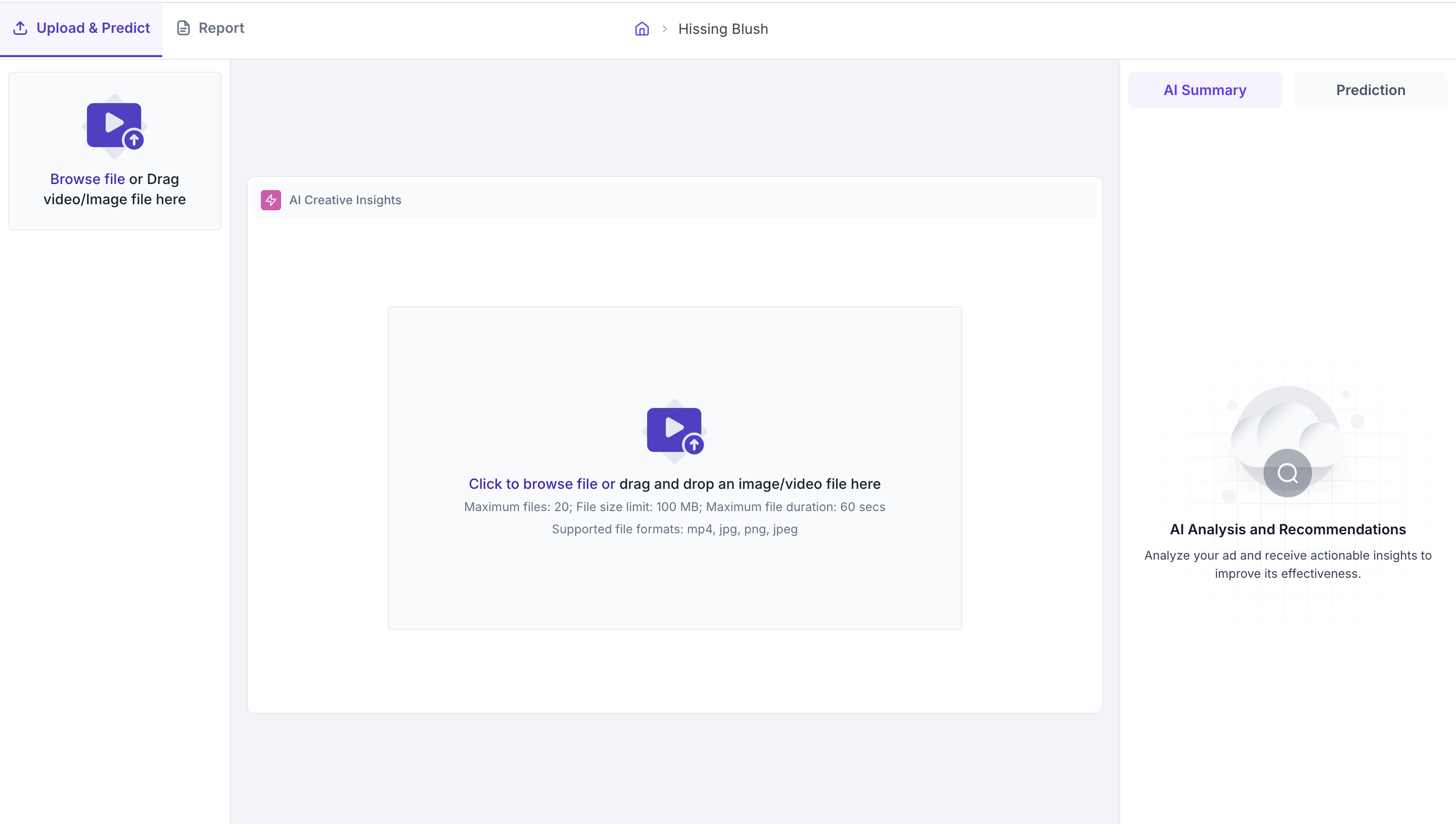
Click Browse file to select files from your device, or drag and drop them directly into the upload area. You can upload up to 20 files at a time.
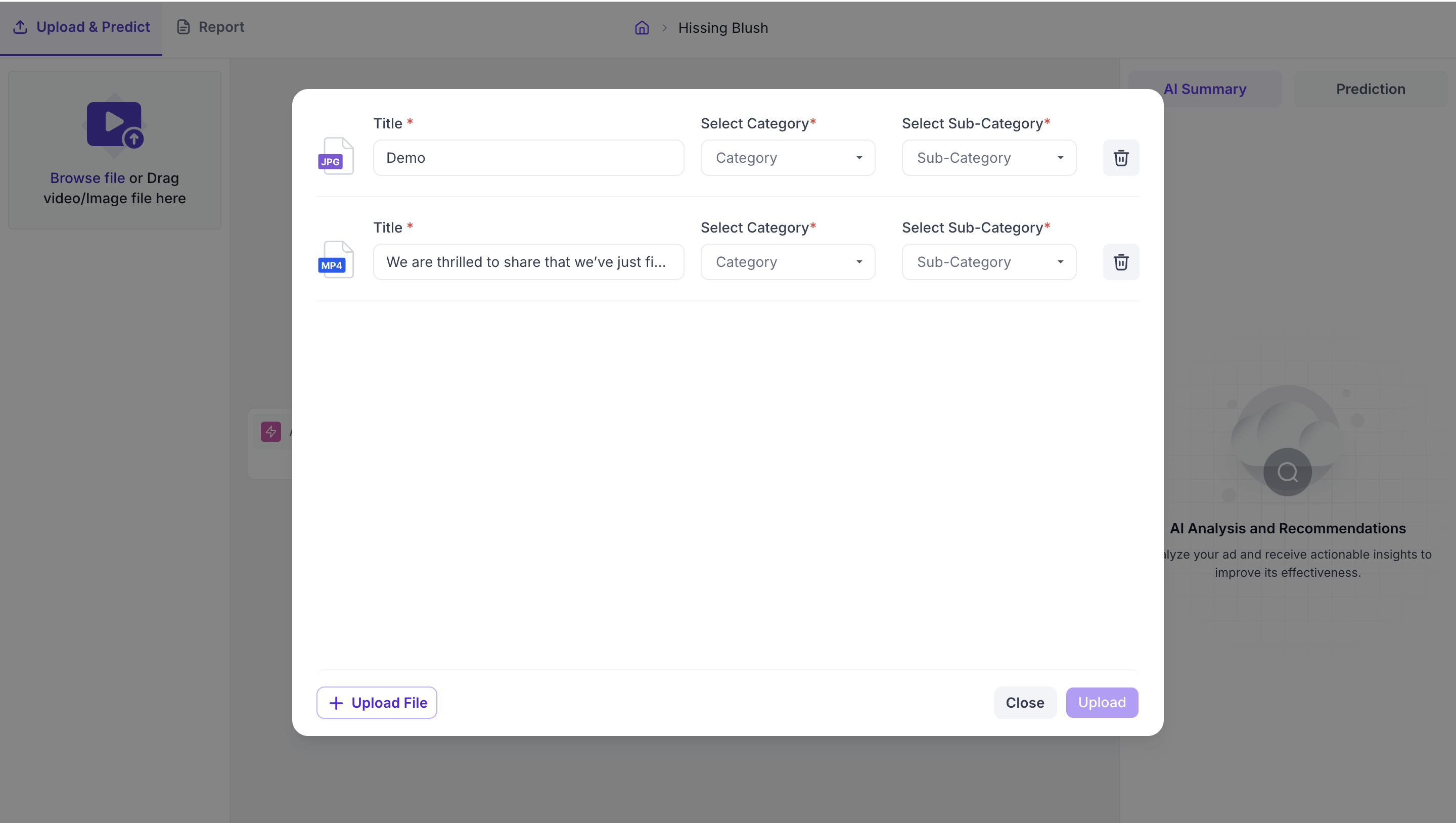
Result: Each file you add appears as a row in the upload panel with a Title field, a Category dropdown and a Sub-Category dropdown.
2. Set a title for each file
Enter a name in the Title field. The title appears in the left panel and is how you identify the creative in your results.
3. Select a Category and Sub-Category
For each file, select the Category and Sub-Category that best describes the creative. These fields determine which benchmark scores your creative is compared against. Selecting the correct category ensures the benchmark is relevant to your creative type.
4. Upload the files
Click Upload to begin processing.
Result: Each creative appears in the left panel once processing is complete. Click any creative in the left panel to open its results.
File Requirements
Supported formats are MP4, JPG, PNG and JPEG. Each file must be no larger than 100 MB. For video files, the maximum duration is 60 seconds. You can upload a maximum of 20 files at a time.