Setting Up a Task Block
Overview
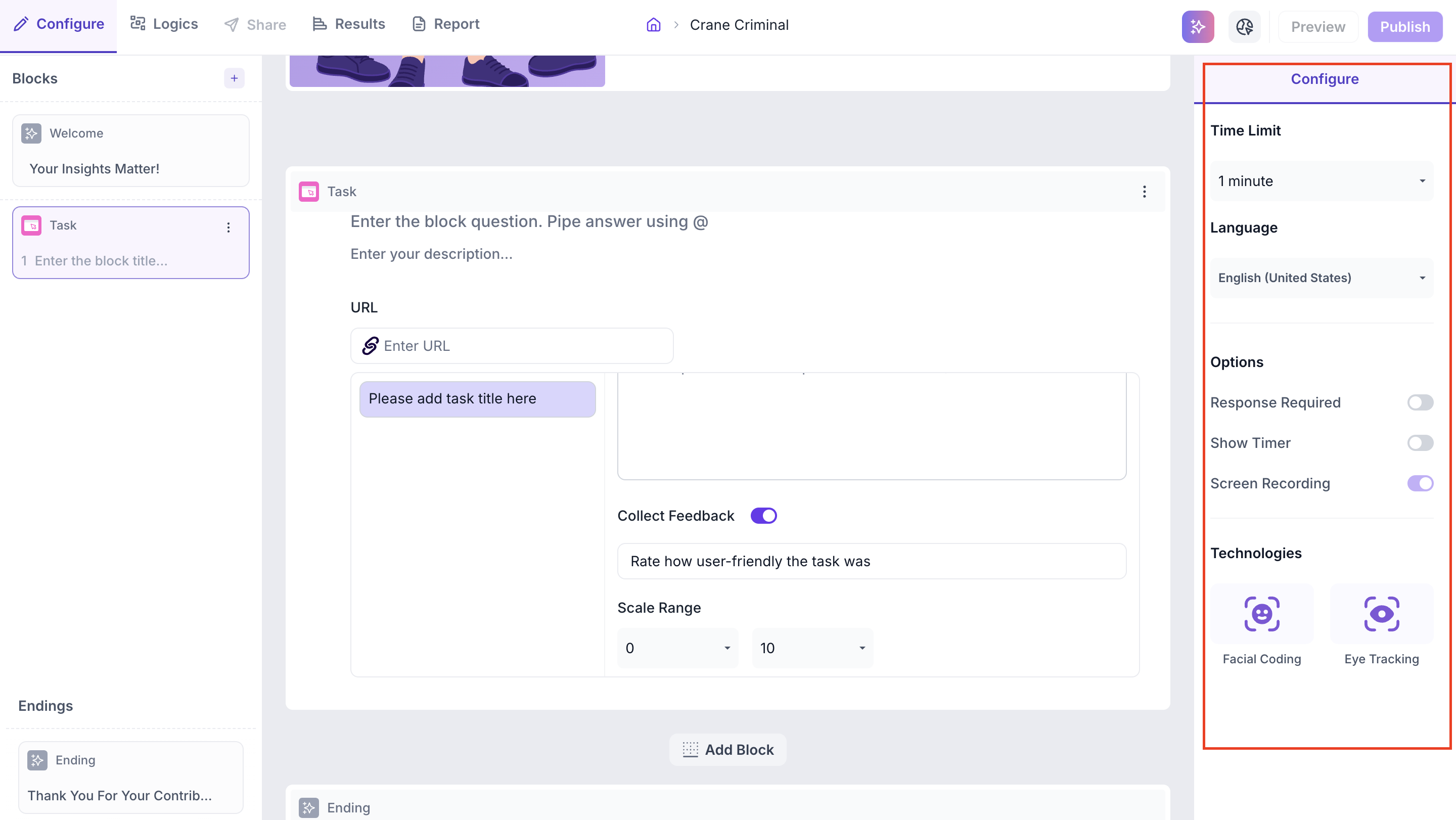
You provide the website URL and define the task participants need to complete. Configure the time limit and tracking technologies and optionally collect feedback from participants at the end of the task.
SETUP
Step 1: Add the Block
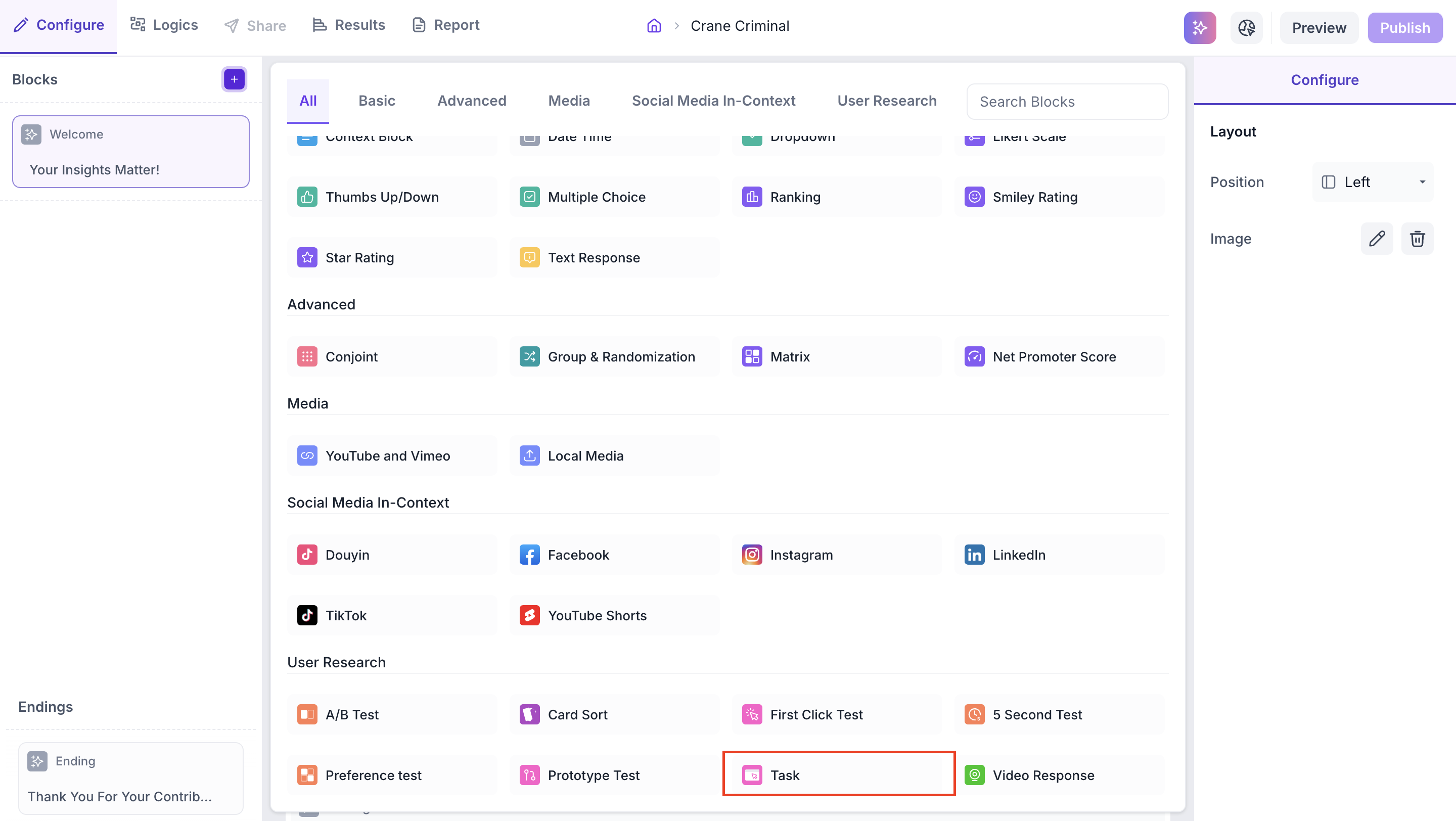
Click the + icon in the left panel to open the block selection panel. Under the User Research section, select Task.
Step 2: Enter the Website URL
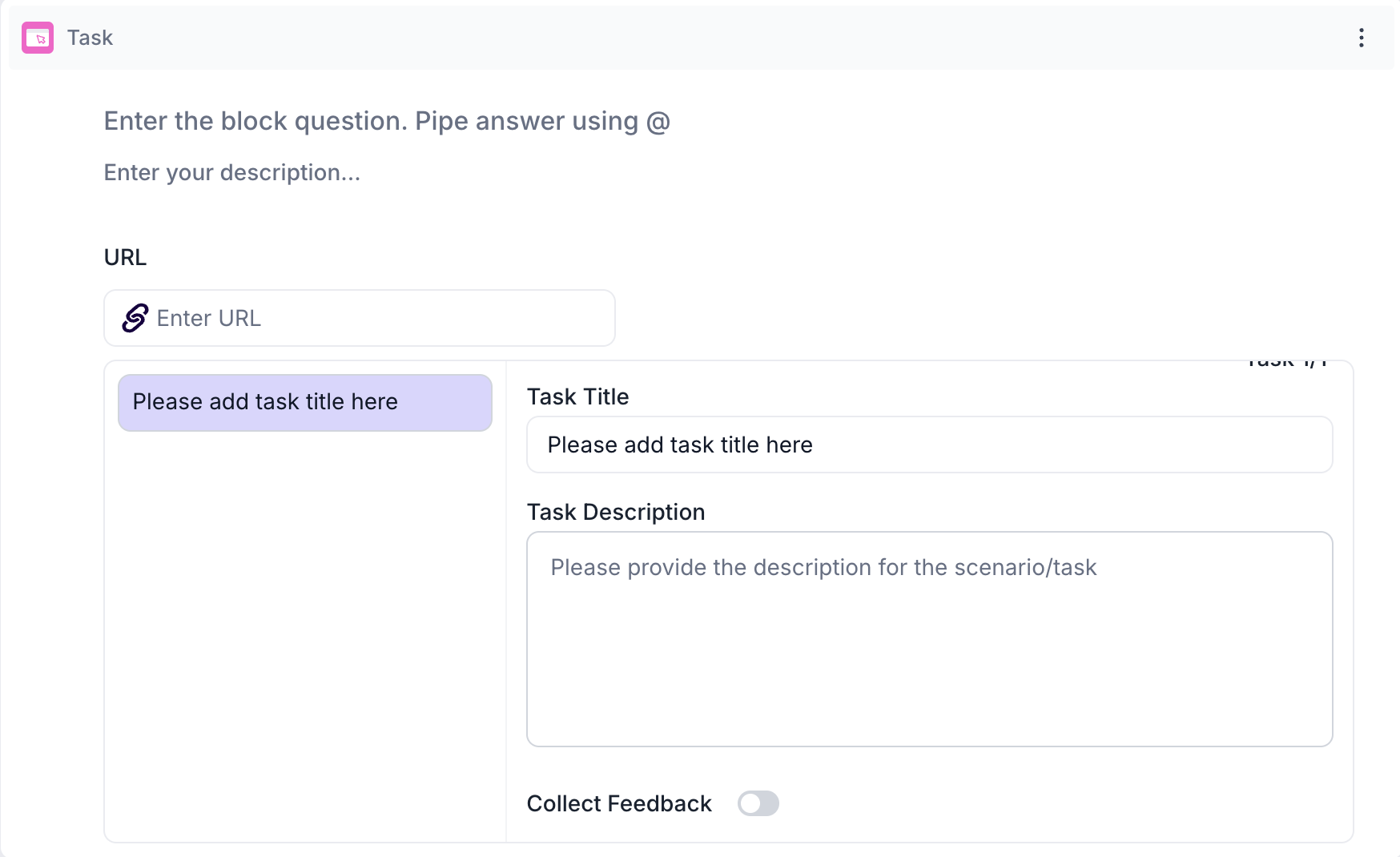
Enter the URL of the live website where participants will complete the task. The URL must be publicly accessible so participants can open it in their browser without logging in.
Step 3: Add a Task
Add Task Title and Description.
- Task Title: The name of the task shown to participants at the start of the session
- Task Description: The scenario or instructions participants need to complete the task. Write this in plain language so participants understand exactly what they are being asked to do
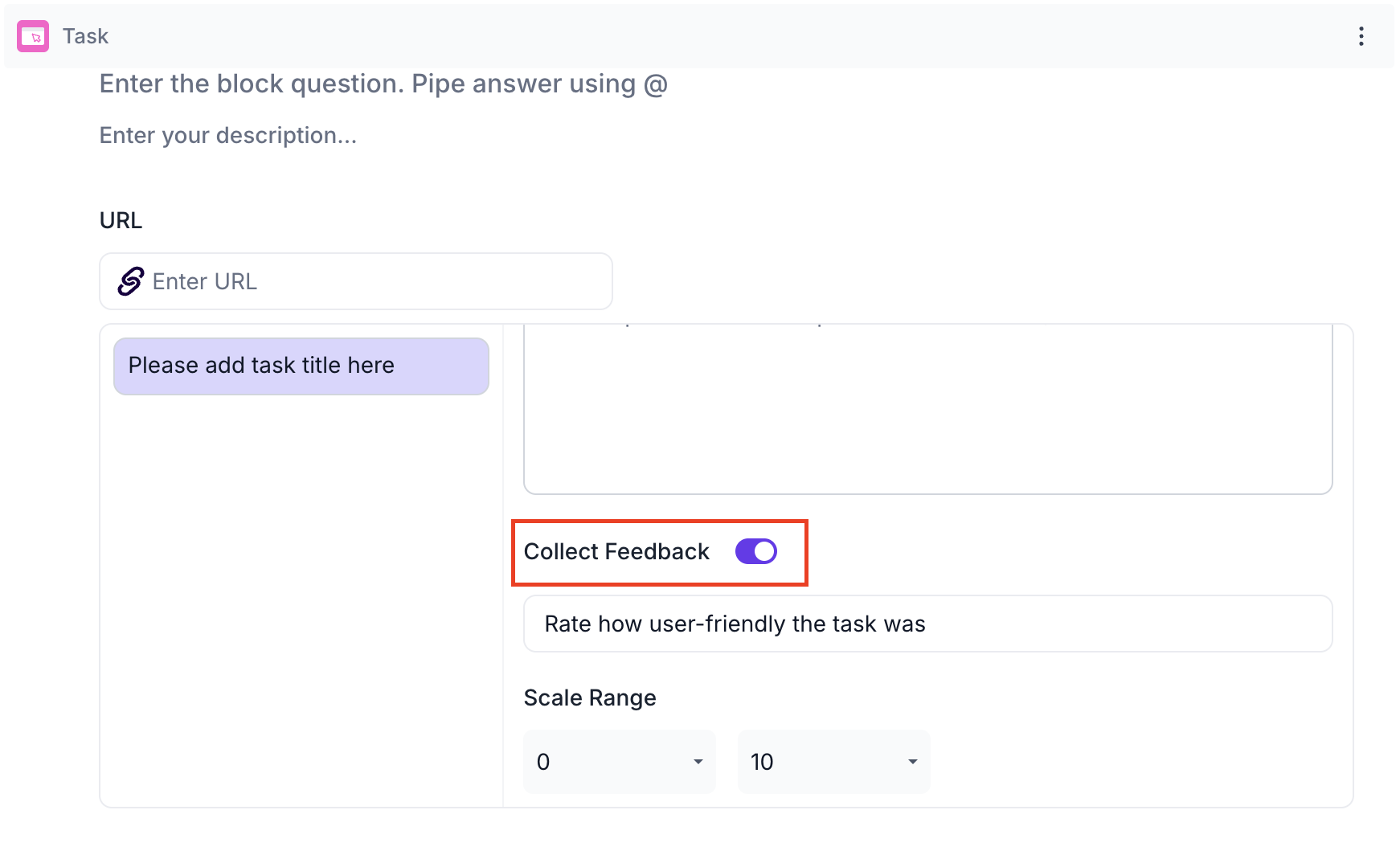
Collect Feedback
Enable Collect Feedback to add a rating question at the end of the task. Participants are asked to rate how user-friendly the task was. Set the Scale Range by selecting the start value (0 or 1) and the end value (between 5 and 10).
Step 4: Configure Properties
Use the Configure panel to set the following properties.
Time Limit
Set the maximum time participants have to complete the task. Once the time is up, the task ends and the recording is saved. Available options are 1, 5, 10, 15 and 30 minutes.
Language
Select the language for this block. Transcripts will be generated in the selected language if the participant spoke during the session.
Options
Response Required: Participants must complete the task before proceeding to the next block. Disable this if you want to make the task optional
Show Timer: When enabled, a countdown timer is displayed to participants during the task so they are aware of the time remaining. Use this when the time limit is important to the task scenario
Screen Recording: Records the participant's screen for the full duration of the task. The recording captures the participant's complete navigation through the website and is available in the Results tab.
Technologies
Select the tracking technologies to enable for this block.
- Facial Coding: Tracks facial expressions to identify emotional responses such as happiness, surprise and anger throughout the session. Requires the participant's camera to be enabled
- Eye Tracking: Monitors eye movement and gaze to understand which areas of each page received the most visual attention during the task