
Switch Workspaces
Overview
If you belong to more than one team in Decode, you can switch between them using the team switcher at the top left of the sidebar.
Switching teams changes the studies, files, and folders you see on the Home tab. Your access and permissions remain the same.
Note: In Decode, the switcher lets you move between teams within your workspace.
Switch to another team
Step 1: Open the team switcher
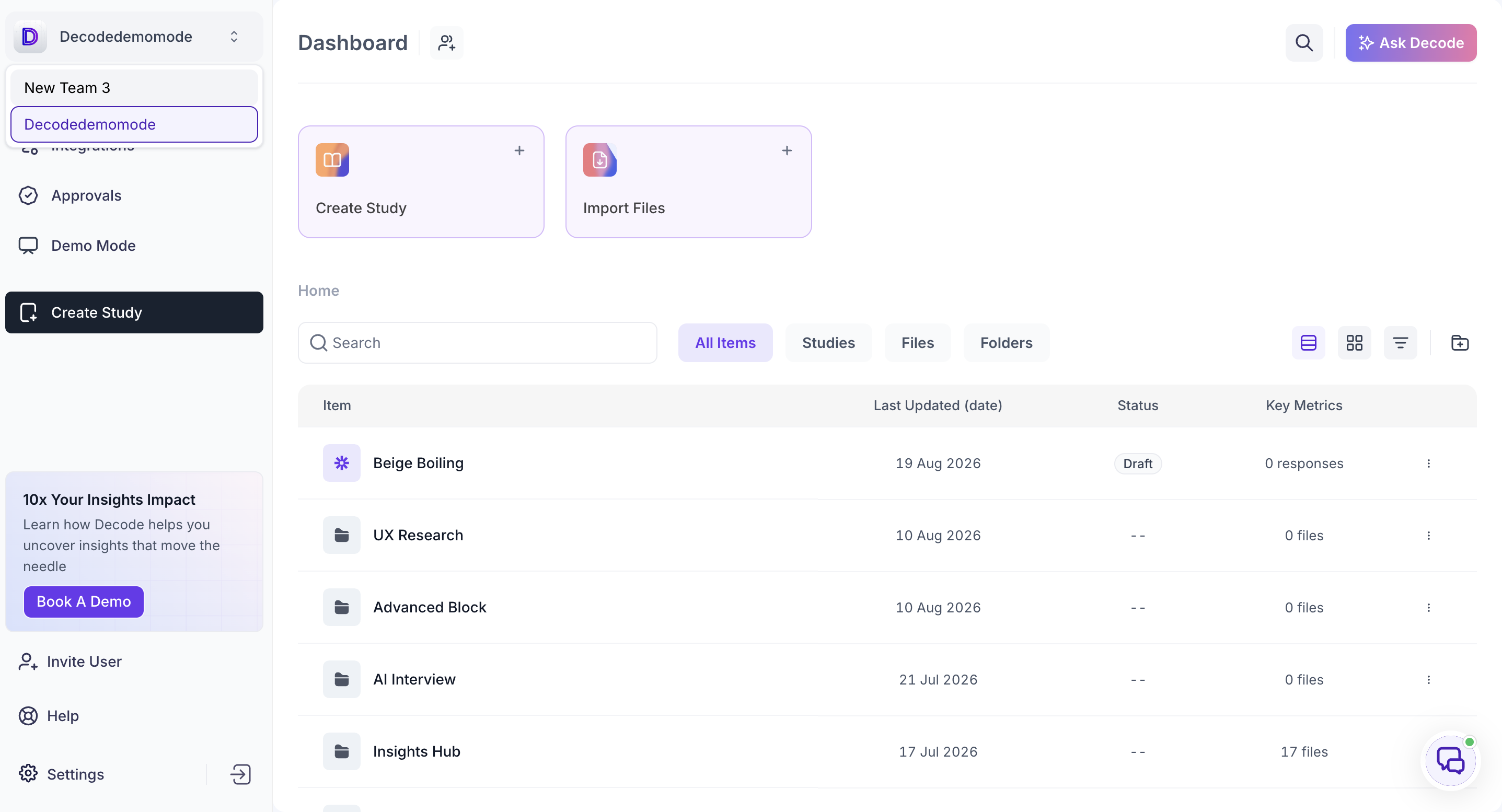
At the top left of the sidebar, click the team name shown above Home.
A dropdown will open with the teams you belong to.
Step 2: Select the team
The dropdown will show the teams you belong to. Select the team you want to switch to.
Decode will switch you to that team, and the Home tab will update to show the studies, files, and folders available in that team.
Important: Before creating a study, check which team you are currently in. Any study or file you create will belong to that team.
Change your Home Team
Your Home Team is the team you land in when you log in to Decode. You can change it from your profile settings.
- Go to Settings.
- Open the Profile tab.
- Under Home Team, select the team you want.
- Save your changes.
Your other teams are listed under Other Teams on the same page.
If you only see one team
The team switcher only shows teams you are a member of. If you see only one team, you currently belong to one team, usually the workspace's Default Team.
To join another team, ask a workspace Owner or Admin to add you:
Settings → Teams → Select the team → + Add Team Members
If you are an Owner or Admin, you can create a team and add yourself from the same screen.