
Setting Up a Social Media In-Context Block
Overview
This article covers how to add and configure a Social Media In-Context block in Decode. The setup process is the same across all platforms, select your platform, upload your creatives, and configure the properties accordingly.
Step 1: Add the block
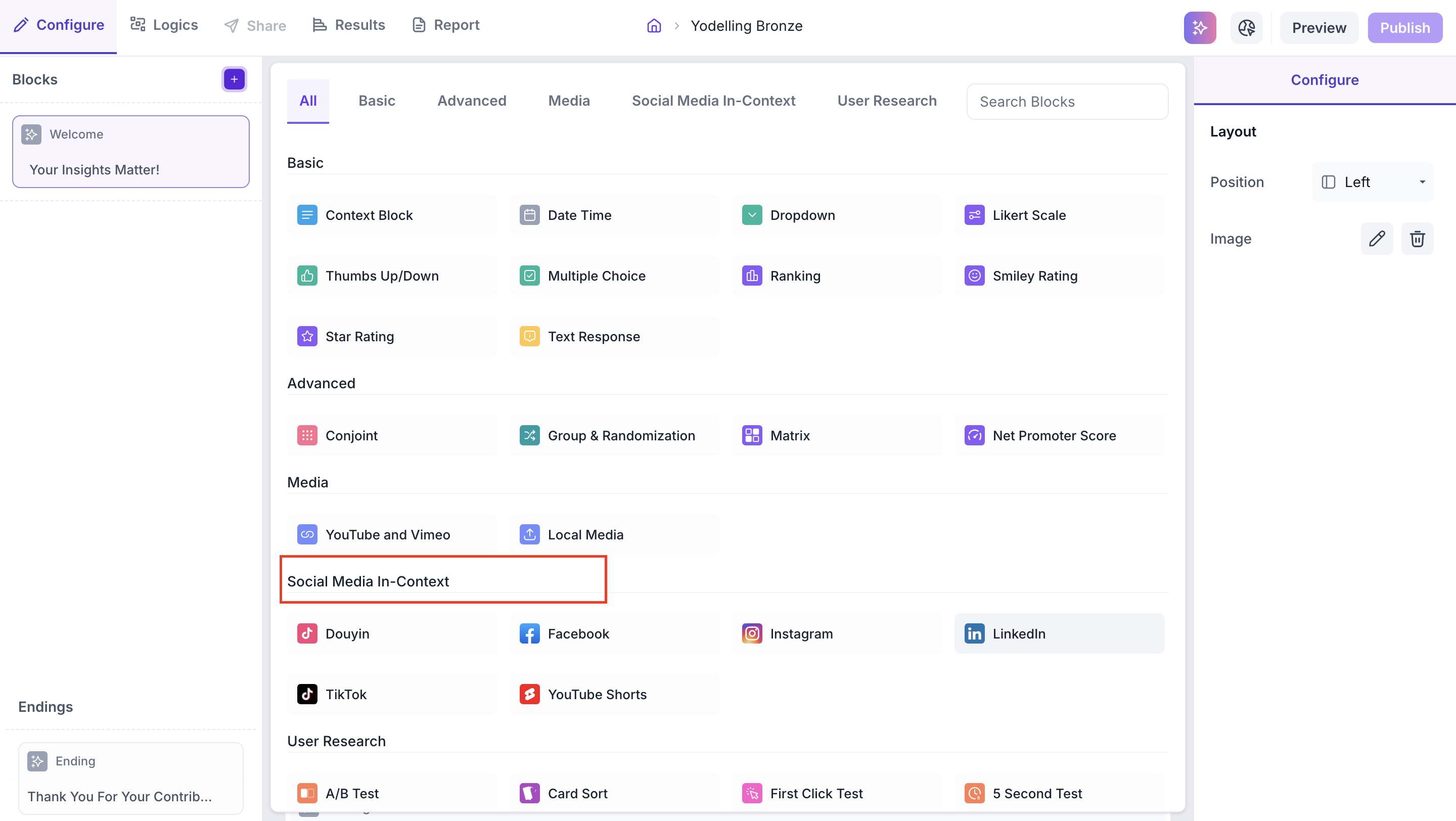
Click the + icon in the left panel to open the block selection panel. Under the Social Media In-Context section, select the platform you want to test on: Douyin, Facebook, Instagram, LinkedIn, TikTok or YouTube Shorts.
Step 2: Upload your creatives
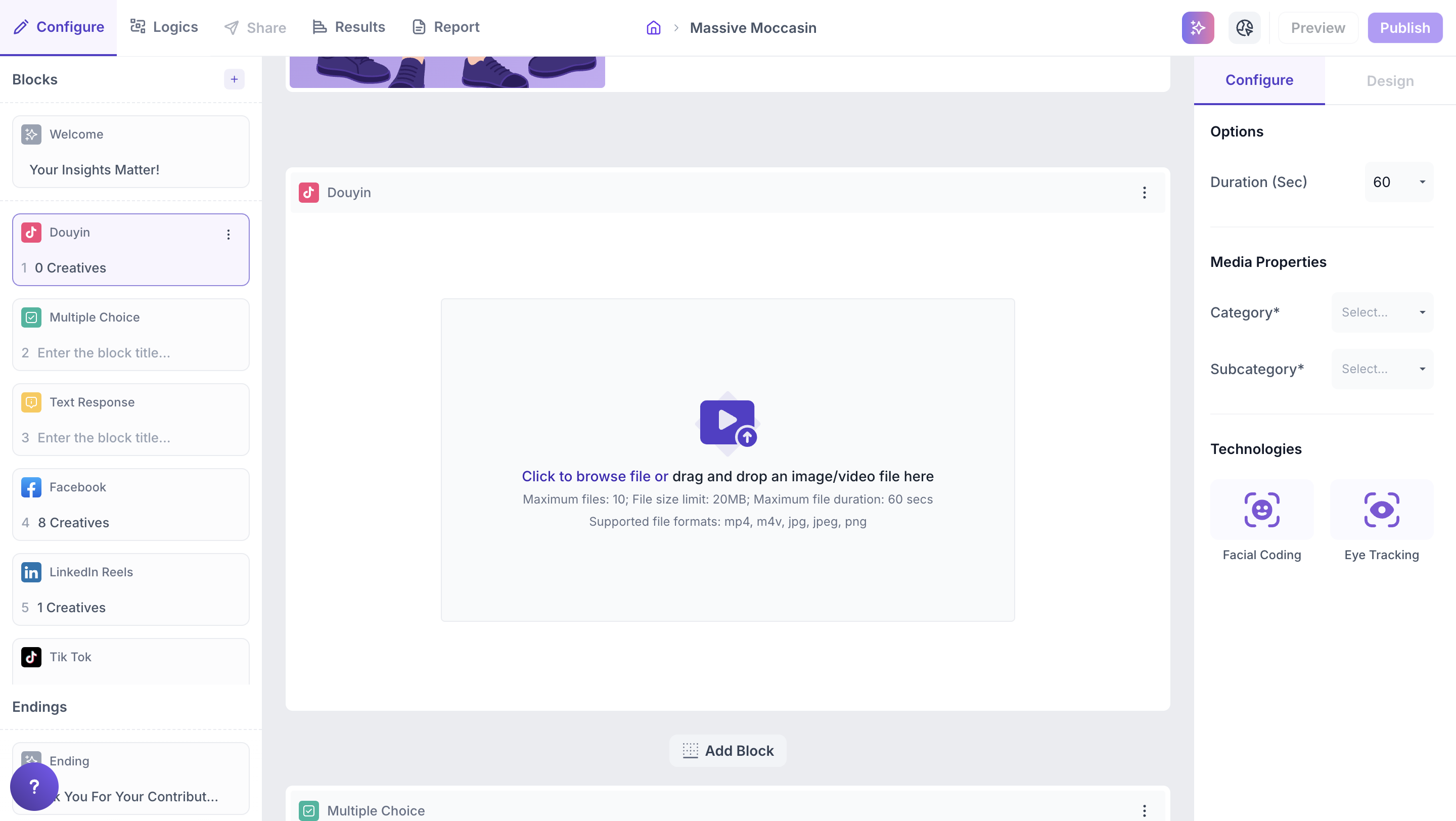
Click to upload or drag and drop your files into the block. You can upload up to 10 creatives per block.
File upload limits: Maximum files per block: 10. File size limit: 20 MB per file. Maximum video duration: 60 seconds. Supported formats: MP4, M4V, JPG, JPEG, PNG.
Step 3: Customize your creative
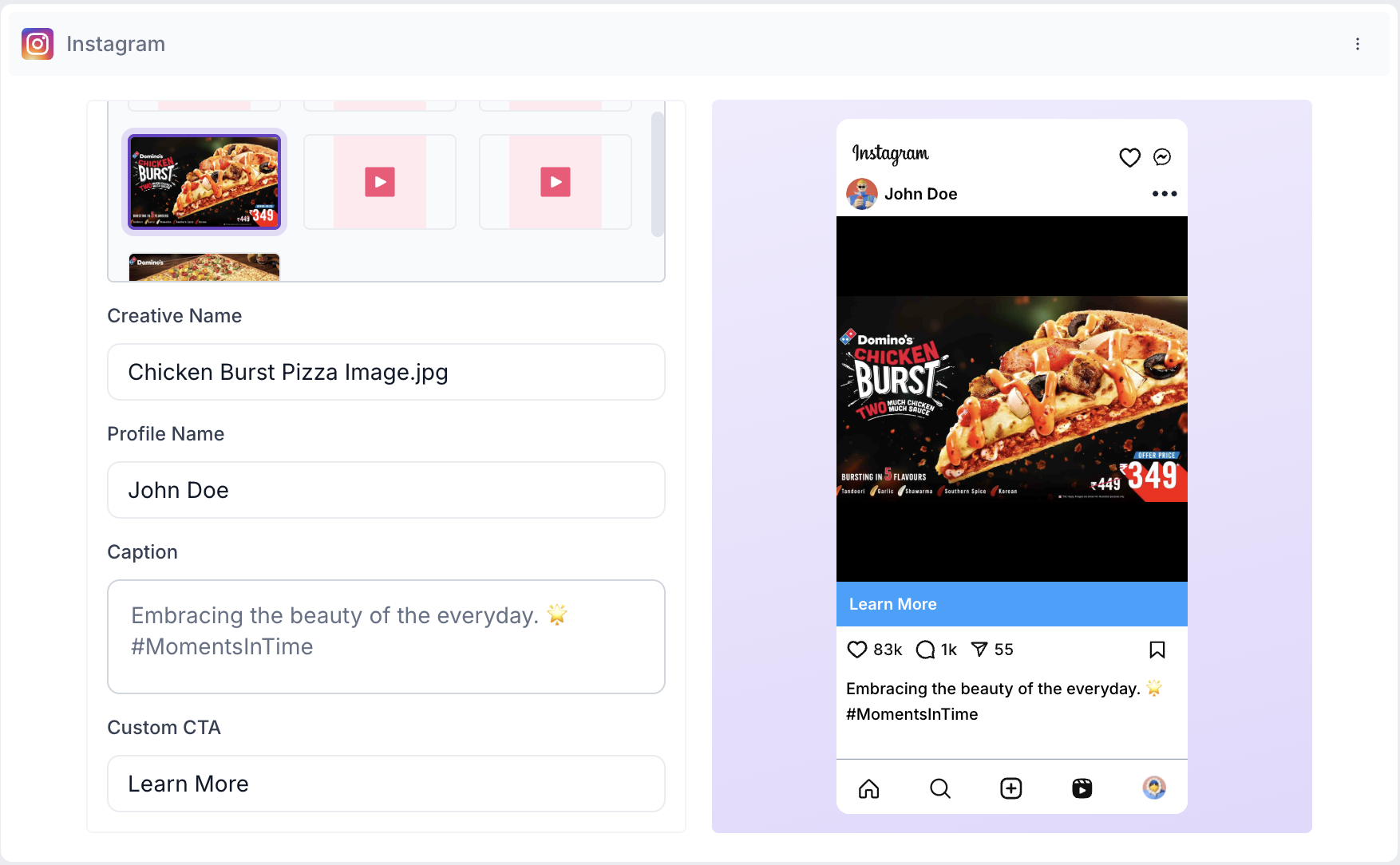
Once a file is uploaded, click into it to customize how it appears in the simulated post. A live preview on the right shows exactly how the creative will look to participants as you make changes.
- Creative Name — an internal label to identify this creative in your results, not shown to participants
- Profile Name — the name shown as the poster of the creative in the simulated post
- Caption — the post caption shown alongside the creative
- Custom CTA — the call-to-action button text shown on the post, for example, "Learn More"
If your creative has multiple parts, such as a sequence of clips, click Add Clip to add more segments to the same creative.
Step 4: Configure properties
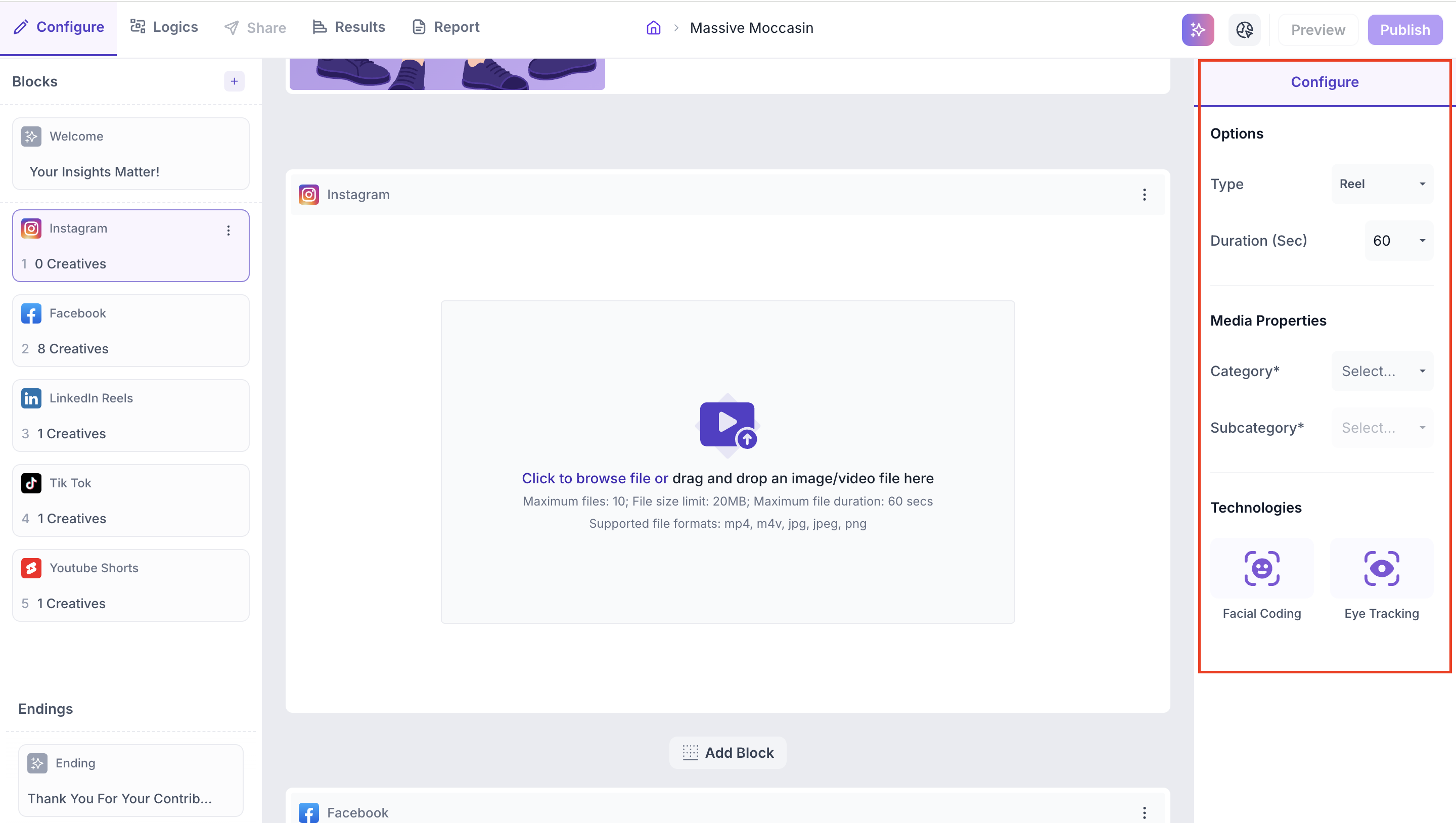
Use the Configure panel to set the following properties.
Select the Content Type
For Facebook and Instagram, a Type option appears in the Configure panel on the right side. Select the appropriate format for your creative.
- Facebook: Feed or Video
- Instagram: Feed or Reel
Options
Duration: Set how long the creative should be shown to participants. The default is 60 seconds.
Media Properties
Category: Classify the creative under a broader group for benchmarking. Click the dropdown and select the relevant category.
Subcategory: Select the appropriate subcategory from the dropdown to further refine the classification.
Technologies
Select the tracking technologies to enable for this block.
- Facial Coding: tracks facial expressions to identify emotional responses such as happiness, surprise and anger. Requires the participant's camera to be enabled.
- Eye Tracking: monitors eye movement and gaze to understand which parts of the creative received the most visual attention.
Step 5: Add follow up questions
Follow up questions can be added directly after a Social Media In-Context block. Use question types such as rating scales, multiple choice or open ended text to capture participant reactions immediately after they view the creative. To control the flow based on participant responses, set up conditions in the Logics tab at the top of the screen.
Working with multiple platforms
You can add more than one Social Media In-Context block to the same study, for example, Douyin, Facebook, and Instagram all at once, to test how the same creative performs across different platforms. Each block is tracked separately in the left panel, showing its own creative count, and has its own results in the Results tab.
What to do next
To read your results once responses come in, see Read in-context results