
Joining and Running an AI Interview Session
This article covers what a participant experiences in an AI interview, from opening the study link through to the end of the session. Use it to understand how the interview runs, and to answer questions from participants before they join.
JOINING THE SESSION
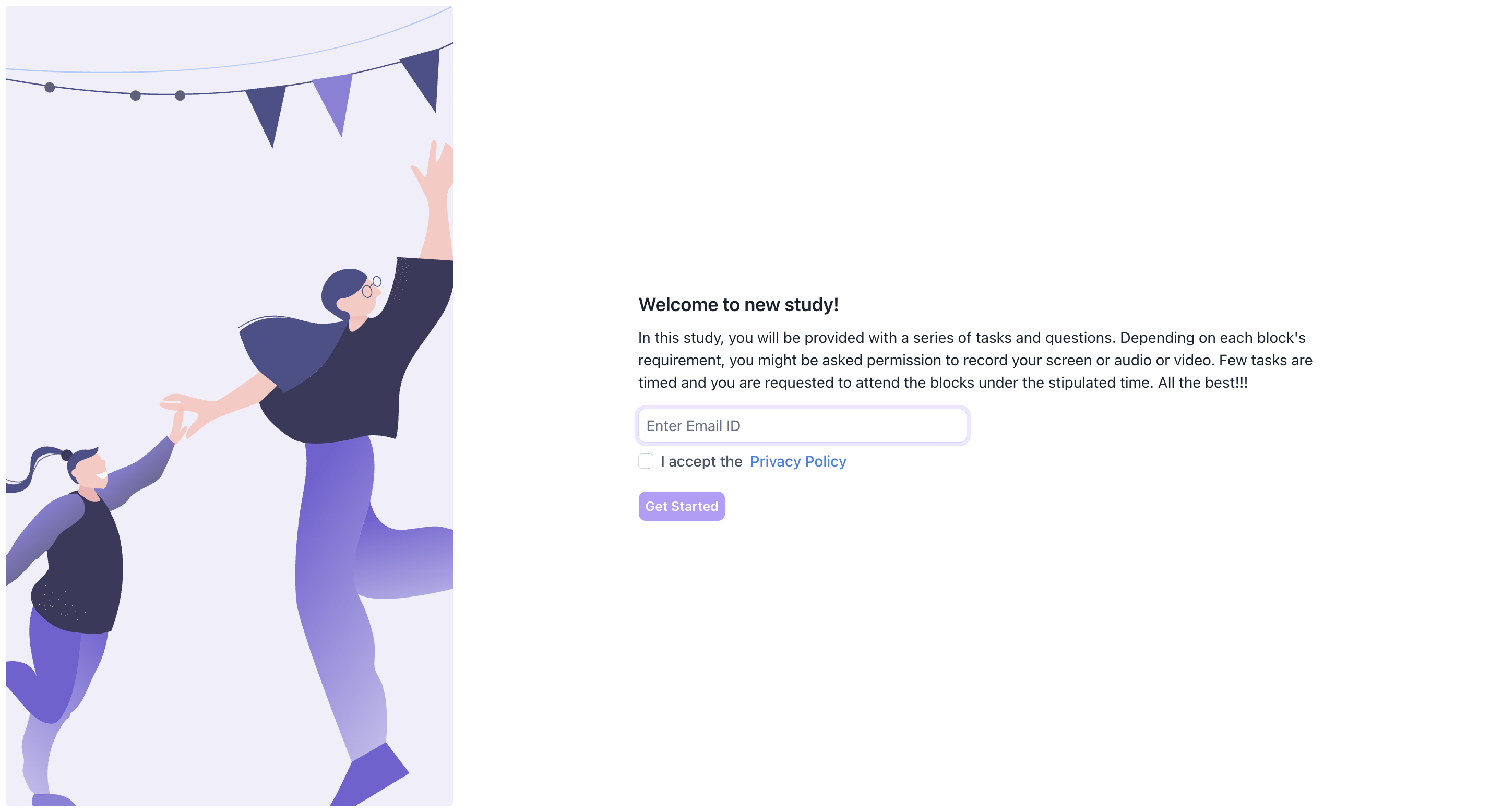
Participants open the study link, enter their email address, accept the Privacy Policy, and click Get Started.
If you have set up a screener, the screening questions appear next. Participants who do not meet the criteria are screened out and cannot proceed.
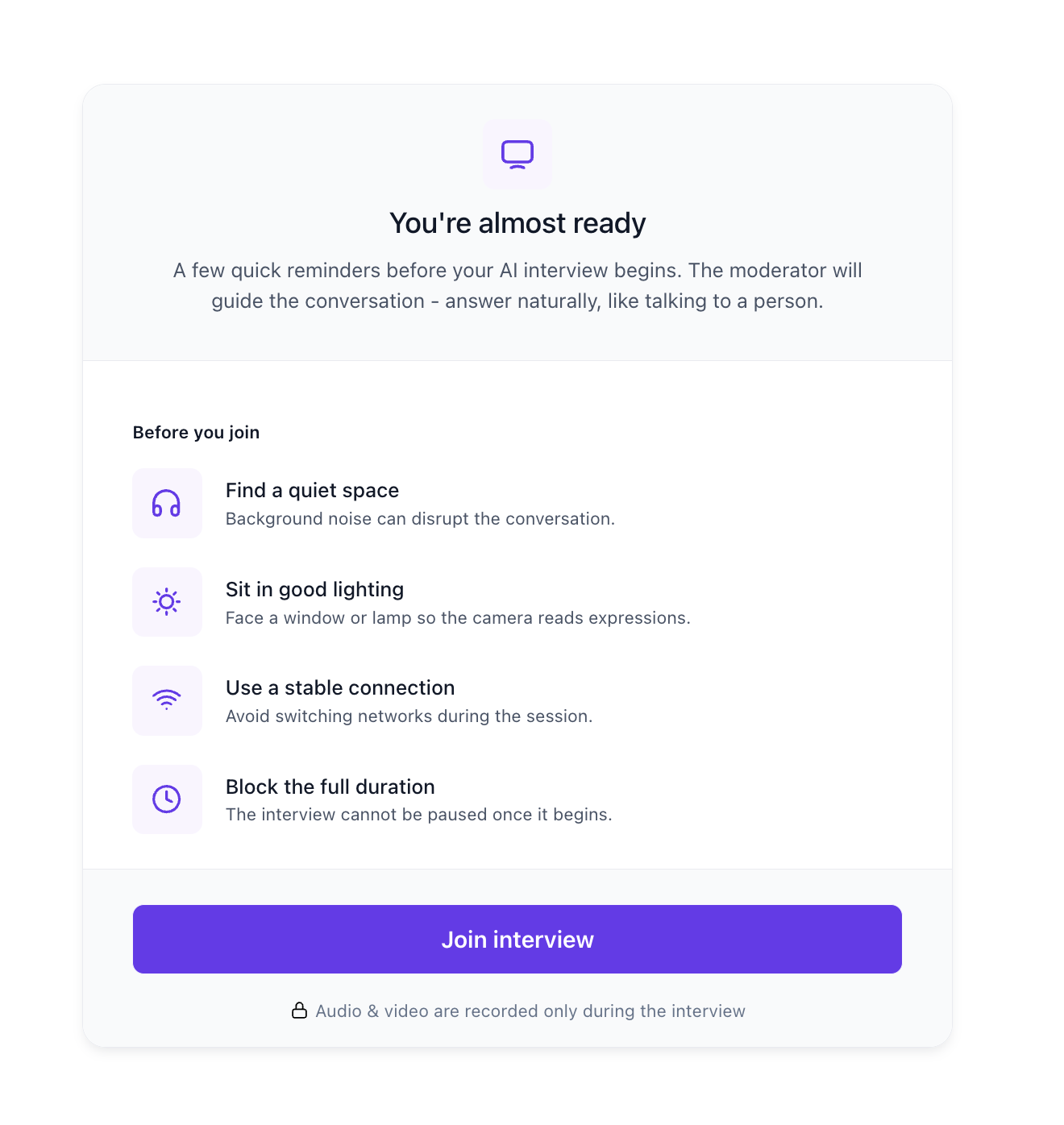
The pre-session checklist
Before the interview begins, participants see the You're almost ready screen. It explains that the moderator will guide the conversation and that they should answer naturally, as they would with a person.
Four reminders follow: find a quiet space, since background noise disrupts the conversation; sit in good lighting so the camera reads expressions; use a stable connection and avoid switching networks; and block out the full duration, because the interview cannot be paused once it begins.
The screen also states that audio and video are recorded only during the interview.
Participants click Join interview to begin.
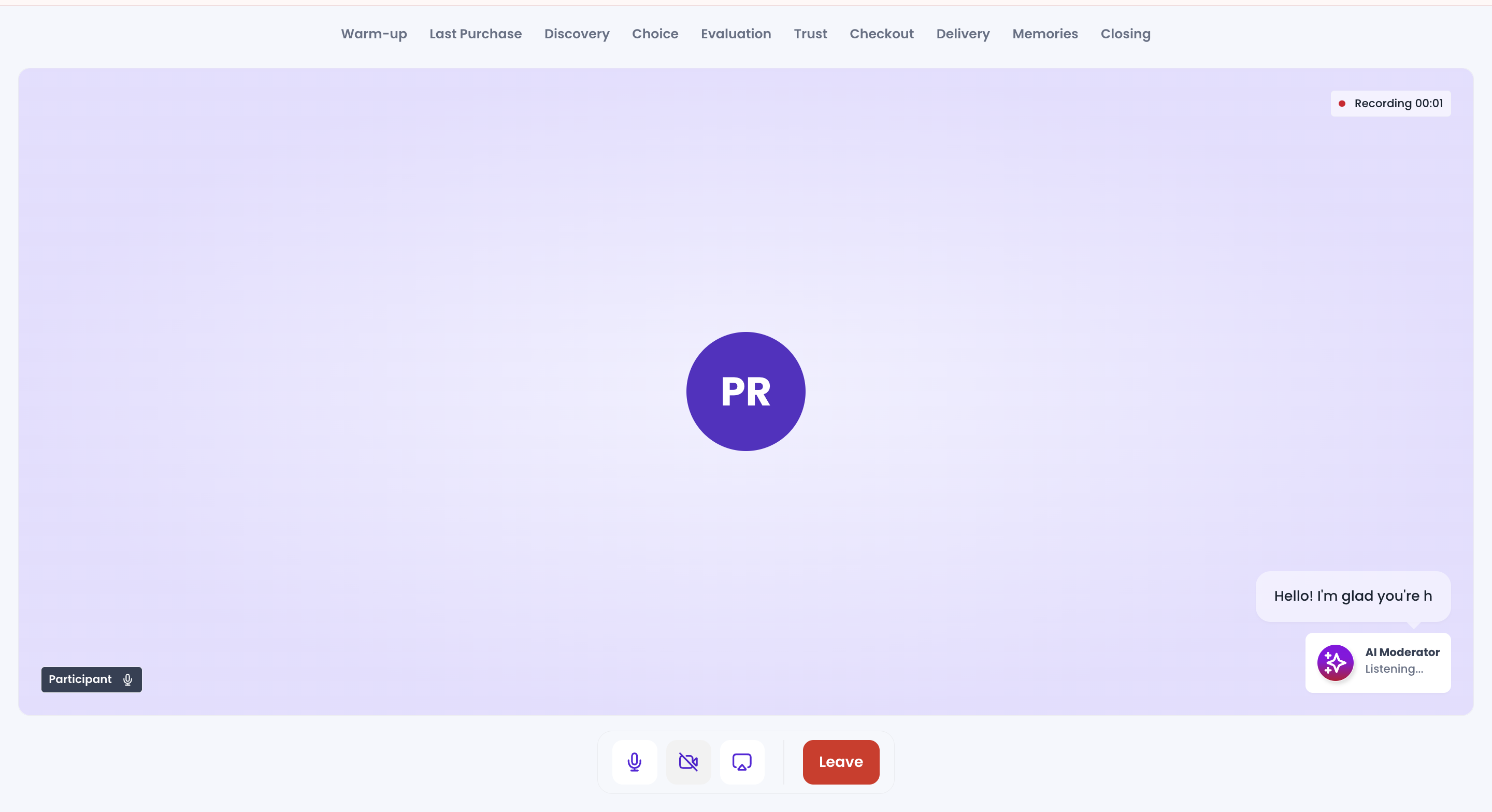
THE SESSION SCREEN
The goal banner
The names of your research goals run across the top of the screen, in the order you set them.
The banner marks where the participant currently is, and moves to the next goal as the AI finishes covering the current one. Because the AI decides when a topic has been covered based on the Conversation Depth you set, the banner advances when that goal is complete rather than on a fixed timer.
This gives participants a sense of progress through the interview and shows them what is still to come.
The AI moderator
The AI Moderator panel sits at the bottom right and shows its current state, either Speaking or Listening.
What the AI says appears on screen alongside it as it speaks, so participants can read as well as hear the question. The AI speaks in the voice and language you selected during setup.
Recording
A recording indicator and timer sit in the top right for the duration of the session.
HOW THE CONVERSATION RUNS
The AI greets the participant and works through the research goals in order.
It is not reading a fixed script. It asks about the goal, listens to the answer, and decides whether to follow up or move on. On a goal set to Deep it keeps probing until the topic is properly explored. On a goal set to Shallow it asks and moves on.
How participants speak depends on the AI Interview Mode you selected.
Tap to Talk. The participant taps to start speaking and taps again when they are done. The AI listens only during that window and responds afterwards. This suits structured Q&A and reflection-based studies where clear turn-taking helps.
Continuous Listening. The AI listens throughout and responds when the participant pauses. The participant speaks naturally with nothing to press. This suits exploratory interviews where conversational flow matters.
STIMULI DURING THE SESSION
Where you have attached a stimulus to a goal, the AI introduces it when the interview reaches that goal.
The AI forms its questions around the visual elements it detects in the file, so participants are asked about what they are actually looking at rather than being asked generic questions with an image on screen.
Each goal can carry its own stimulus, so a session can move through several across the interview as the banner advances.
SCREEN SHARING
Participants can share their screen during the session using the share control.
They choose a Chrome tab, a window, or the entire screen. The AI then asks questions based on what is being shown, so this is how you run a session where the participant walks through a live site, an app, or a document rather than reacting to a fixed asset.
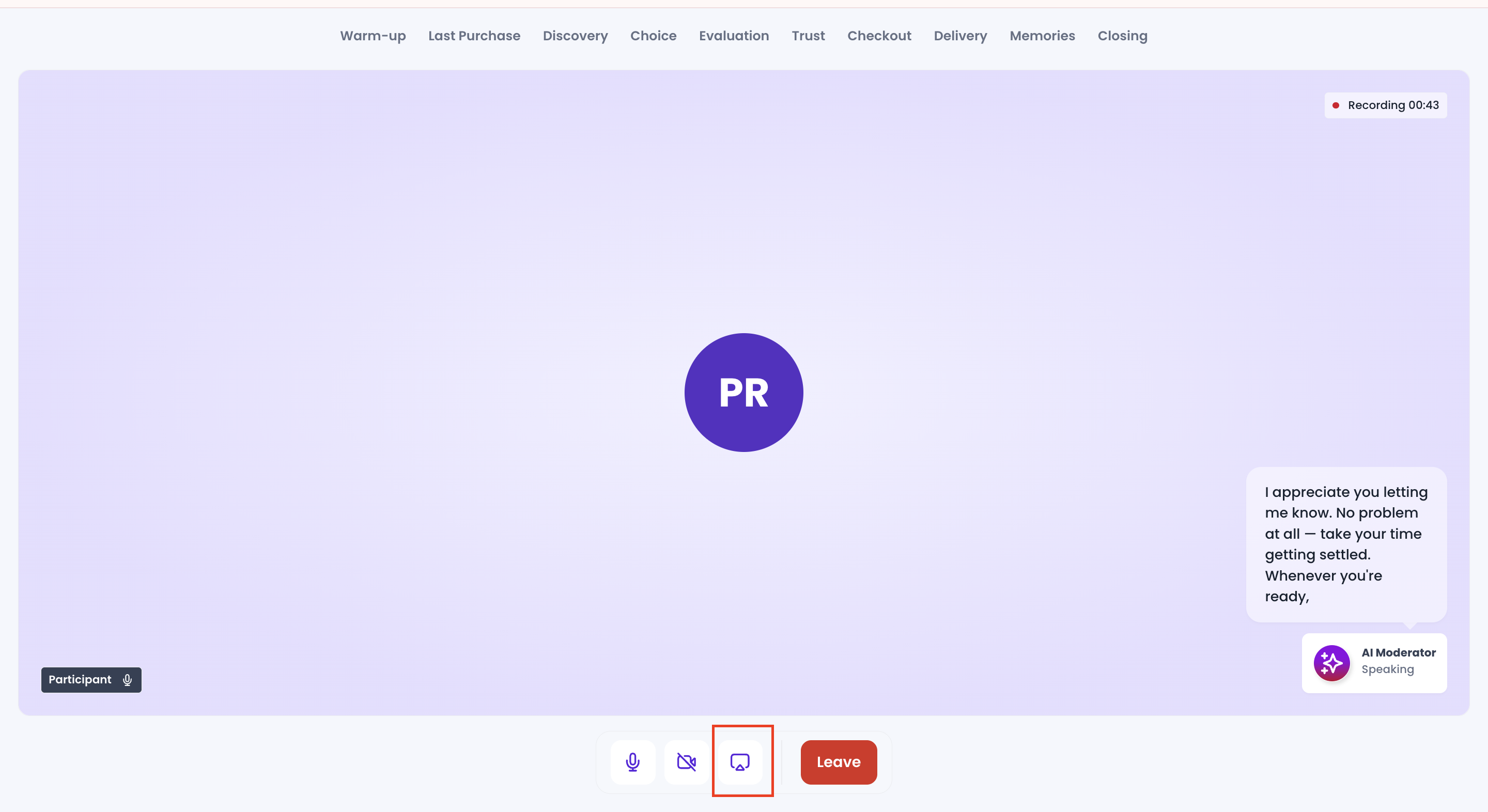
SESSION CONTROLS
Four controls sit at the bottom of the screen.
- Microphone. Mute or unmute.
- Camera. Turn the video feed on or off.
- Share screen. Share a tab, window or the entire screen.
- Leave. End the session.
ENDING THE SESSION
The session ends when the AI has covered all the research goals, or when the participant clicks Leave.
The recording and transcript appear in the Results tab shortly afterwards. A participant who leaves before the interview is complete is counted as dropped rather than completed. See Understanding your AI interview results.