
Setting Up a Mobile App Test
Overview
Provide a link to the app being tested and define the task participants need to complete inside it. Configure the time limit and tracking technologies, and optionally collect feedback from participants at the end.
Step 1: Add the block
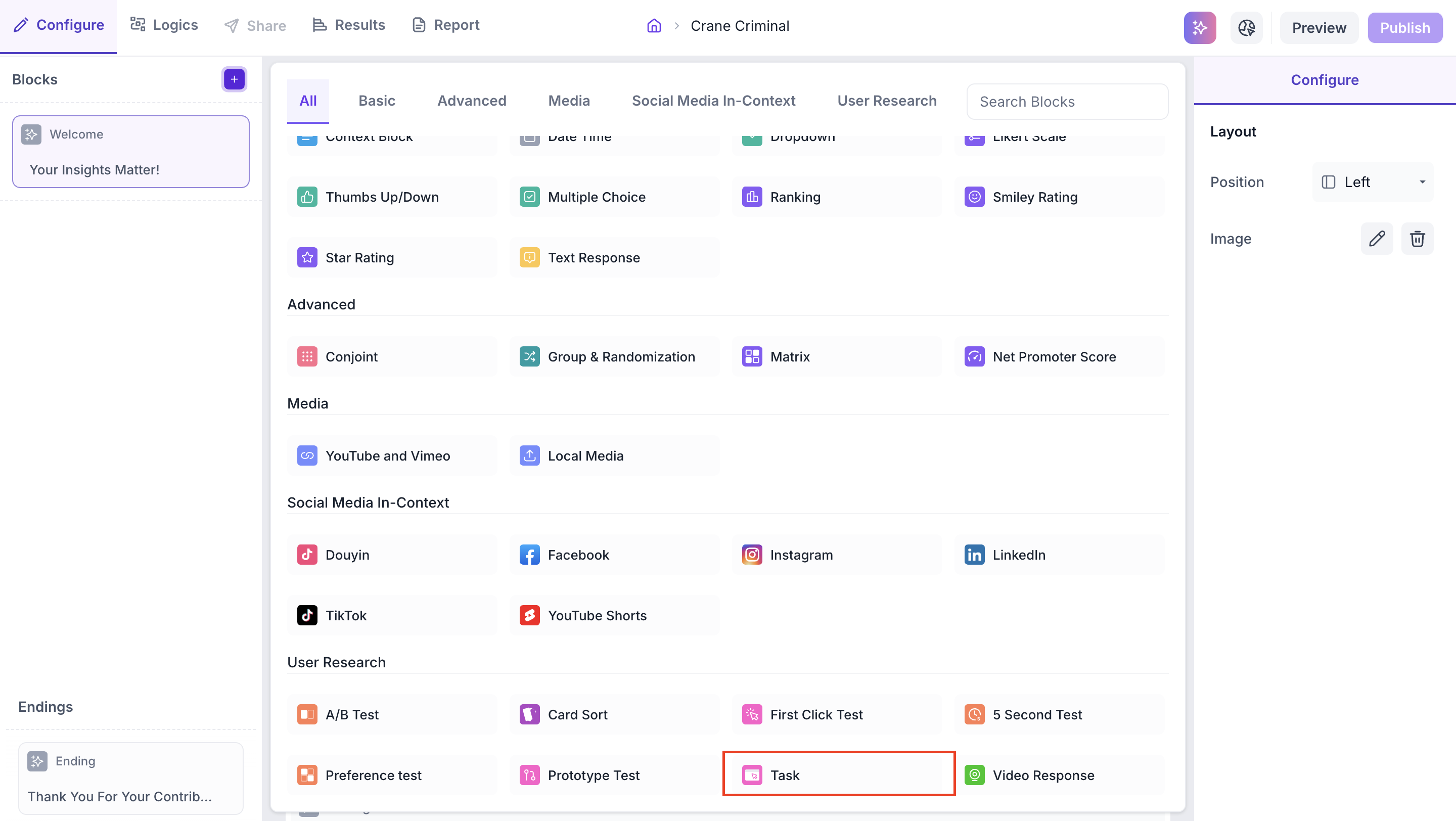
Click the + icon in the left panel to open the block selection panel. Under the User Research section, select Task.
Step 2: Provide the app link
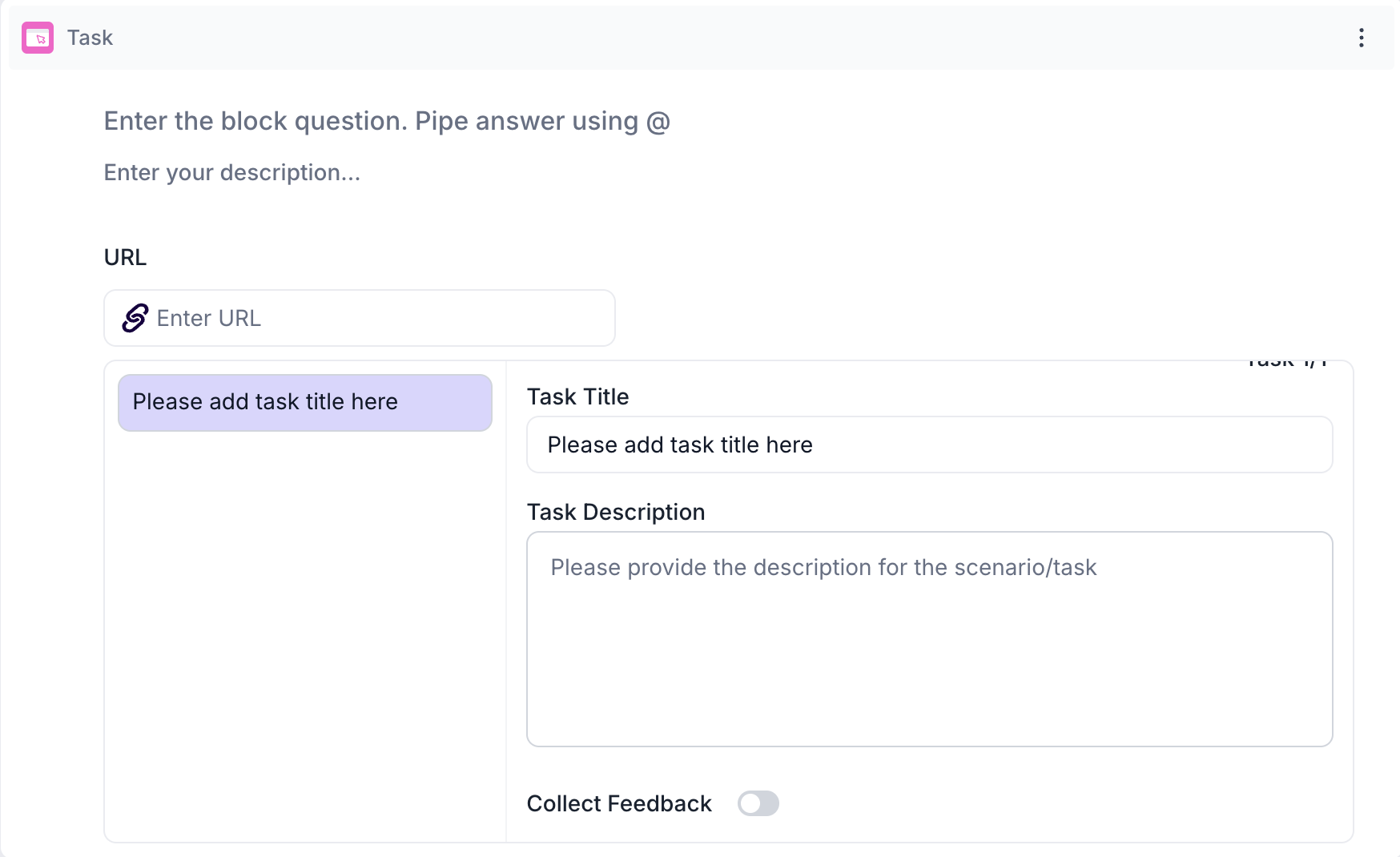
Provide a link to the app being tested, its Play Store or App Store listing, or a direct app link. This is what the participant taps to leave the Decode app and open the app being tested.
Step 3: Add a task
Add a Task Title (the name shown to participants at the start) and Task Description (the scenario or instructions, written in plain language so participants understand exactly what they're being asked to do inside the app).
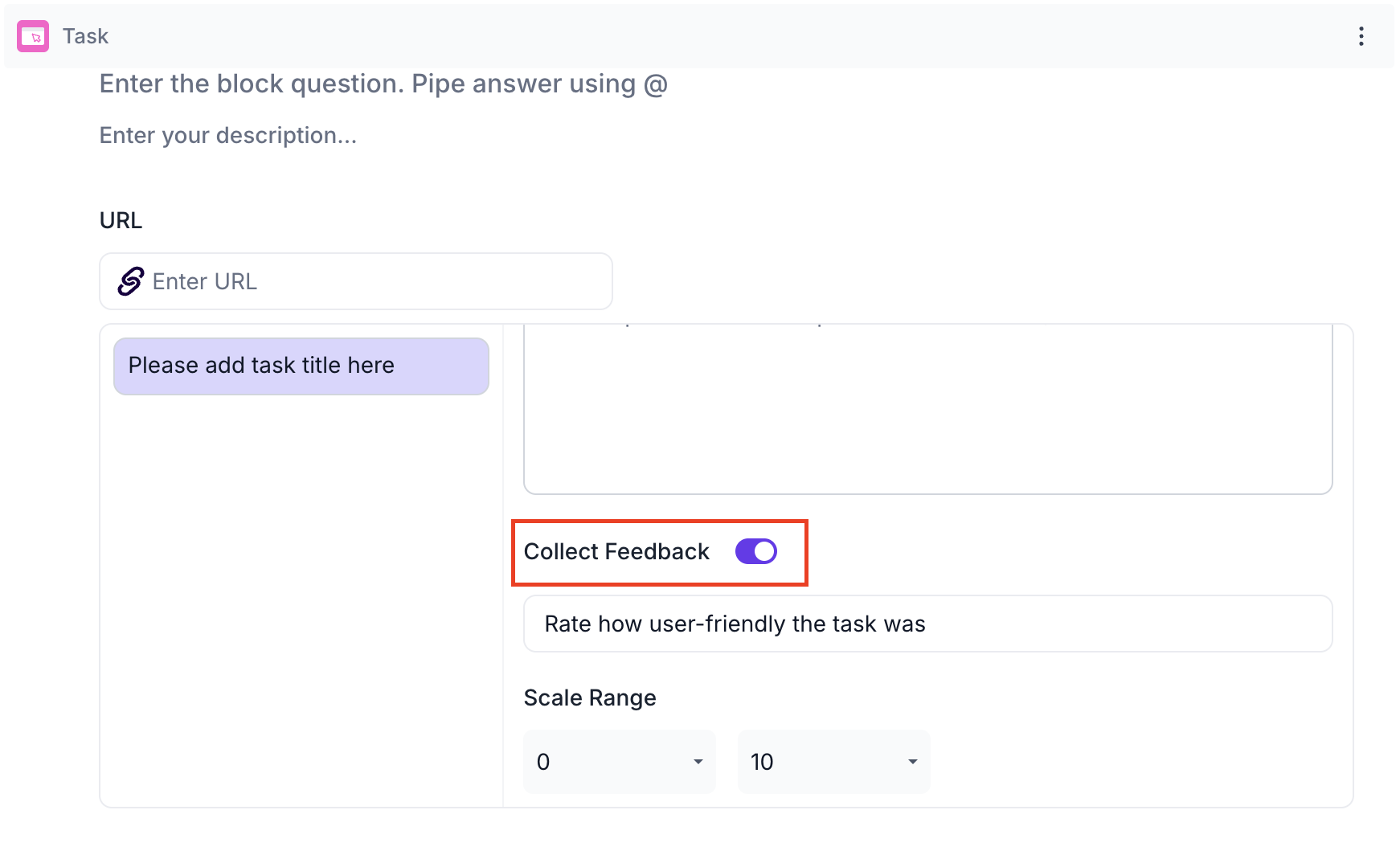
Enable Collect Feedback to add a rating question at the end of the task, asking participants how user-friendly the app experience was. Set the Scale Range by choosing a start value (0 or 1) and end value (between 5 and 10).
Step 4: Configure properties
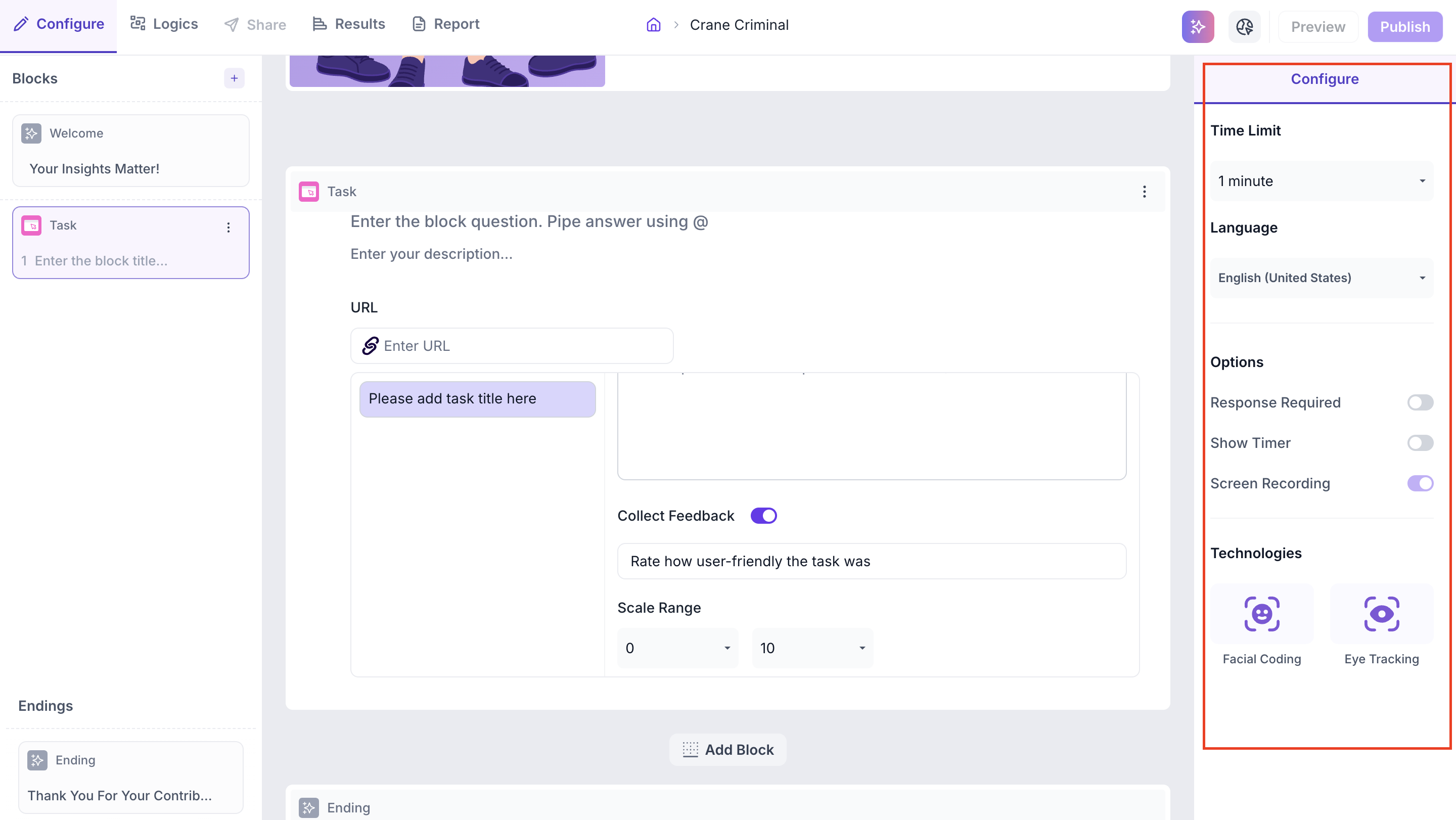
Time Limit
Set the maximum time participants have to complete the task (1, 5, 10, 15, or 30 minutes). Once time is up, the task ends and the recording is saved.
Language
Select the language for this block; transcripts are generated in the selected language if the participant spoke.
Options
- Response Required — participants must complete the task before proceeding; disable to make it optional
- Show Timer — displays a countdown to participants during the task
- Screen Recording — records the participant's full navigation through the app, available in the Results tab
Technologies
- Facial Coding — tracks facial expressions for emotional response throughout the session; requires camera access
- Eye Tracking — monitors eye movement and gaze to see which areas of each screen received the most attention
What the participant needs
Participants need the Decode mobile app installed on their own phone, Android or iOS, and complete the entire study on that same device.
Android - https://play.google.com/store/apps/details?id=com.decode.cx&pcampaignid=web_share
Iphone - https://apps.apple.com/in/app/decode-insights-platform/id6758607840
What the participant experiences
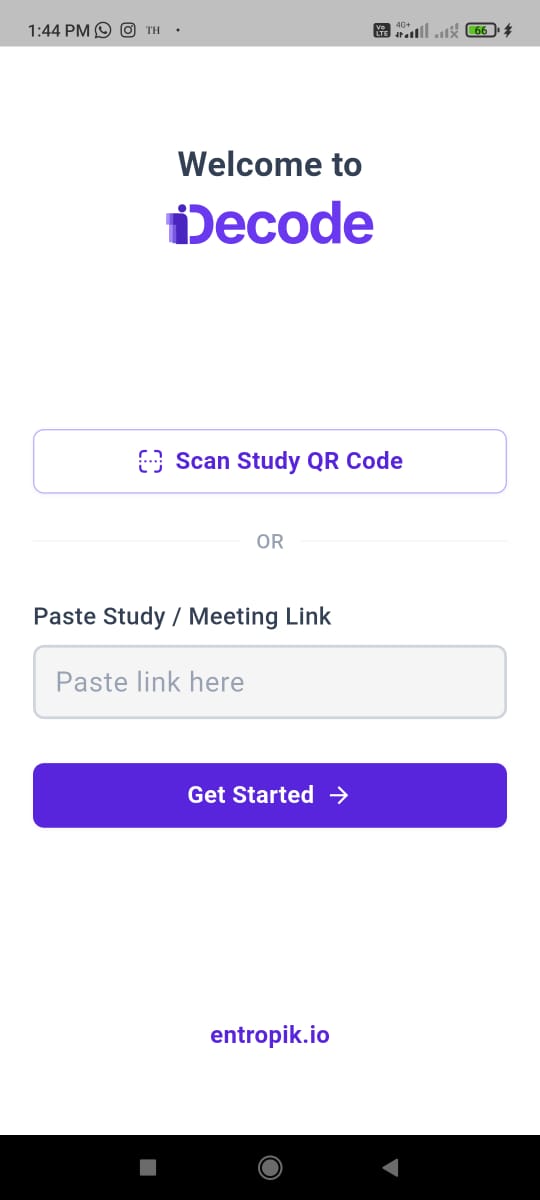
The participant opens the Decode app, scans the study's QR code or pastes the study link, and completes the same Welcome page and consent step as any other study.
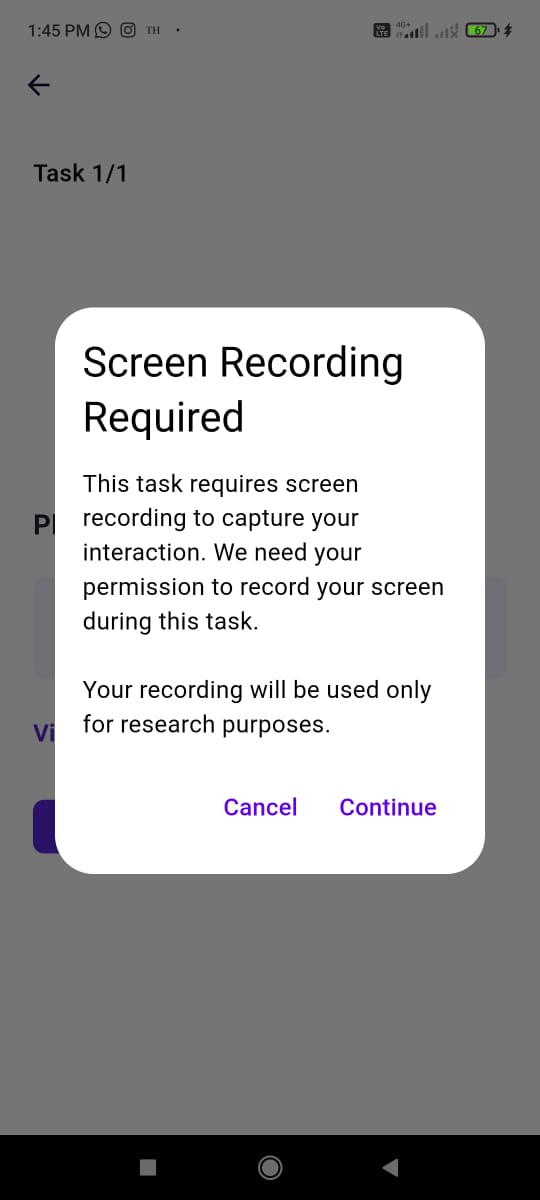
At the task, they see the task instructions and an Open Link button. Before recording starts, they're shown Decode's explanation that the recording is for research purposes only, followed by their phone's own system permission prompt for screen recording.
Once granted, tapping Open Link takes them out of the Decode app and into the app being tested, with a small recording indicator visible on their screen throughout.
The participant completes the task inside the target app, then manually returns to the Decode app to continue, using their phone's back button or app switcher. The task screen reminds them to do this: "Keep the link open and return to this page to complete all tasks."
What to do next
Once responses come in, see Mobile app testing results.