
Joining a Live Session in Mobile Browser / Decode Mobile App
Overview
You can join a Decode live session from your phone in two ways: directly in your mobile browser, or through the Decode app. The mobile browser needs nothing installed and covers the basics of taking part: audio, video, hand raise, chat, and reactions. The Decode app adds screen sharing, which the mobile browser cannot do.
A phone session has fewer controls than a desktop session. This article shows what each option gives you. For the full set of controls and what each role can do, see [Joining a Live Session from a Desktop or Laptop].
Joining from your mobile browser
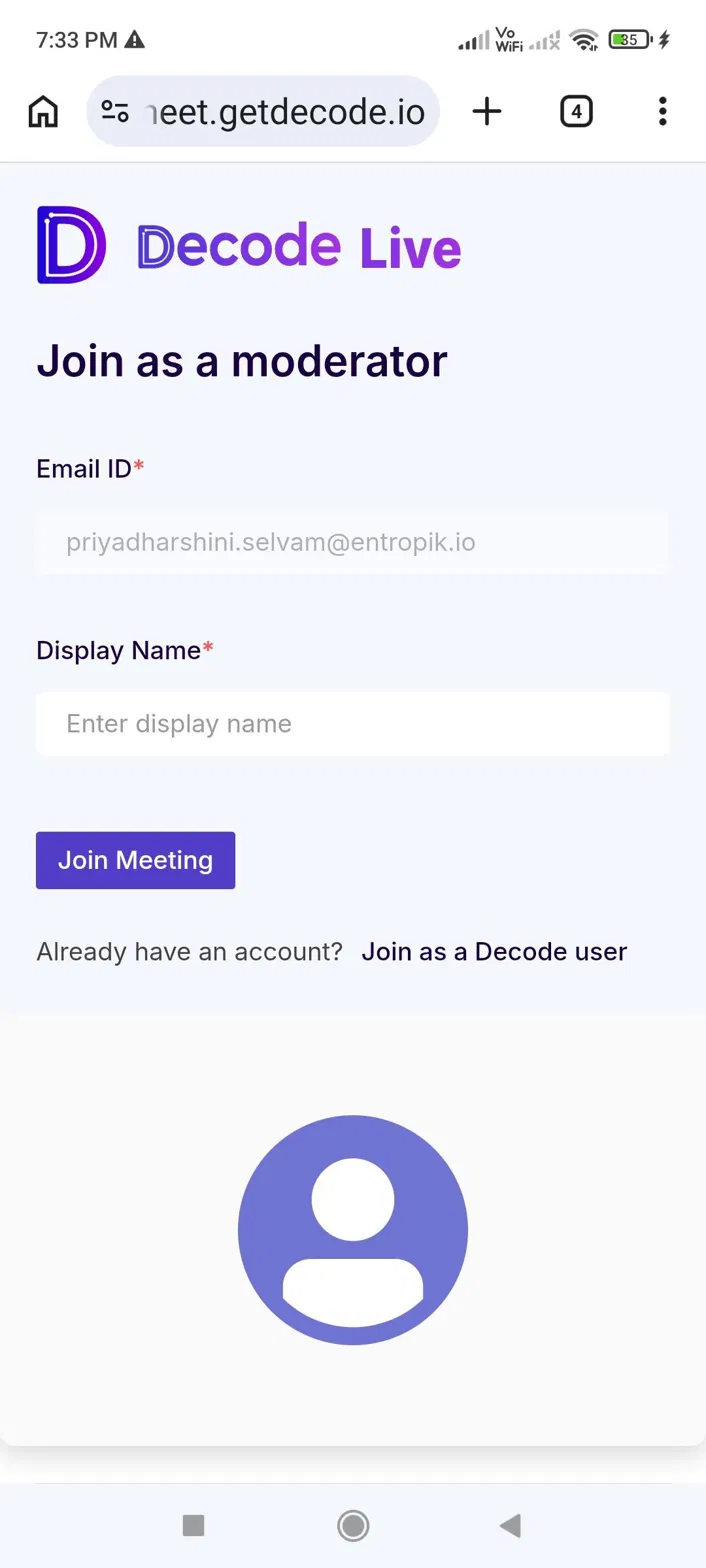
Open your join link on your phone. Decode Live opens in your browser with the same join screen as on desktop. Enter your Email ID and a Display Name and tap Join Meeting, or tap Join as a Decode user to sign in with your account.
What you have in the session
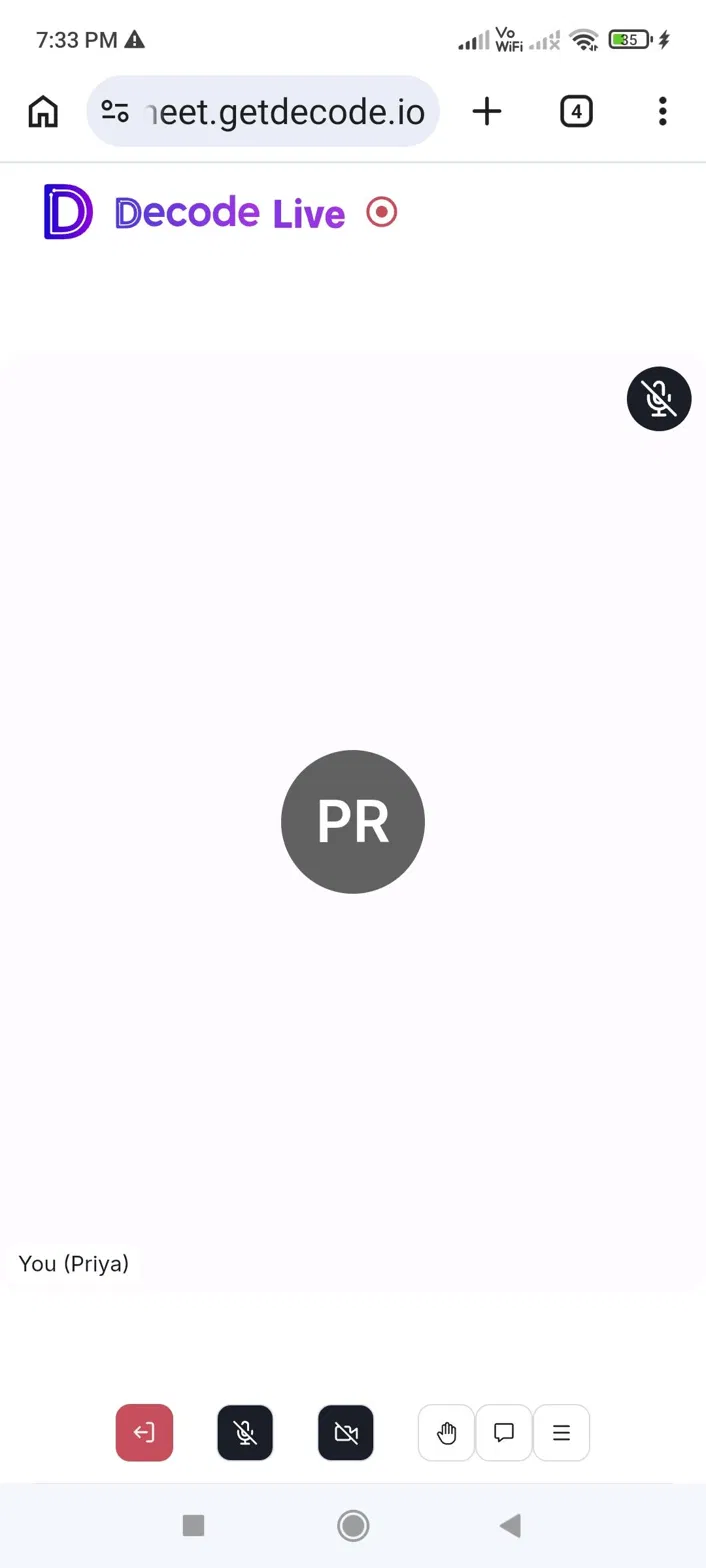
The red recording dot appears next to the Decode Live logo at the top.
The bottom toolbar holds six controls: the red leave button, microphone, camera, hand raise, chat, and the Options menu.
- Microphone and Camera: mute or unmute your audio and turn your video on or off.
- Hand Raise: raise a hand signal that others in the session can see.
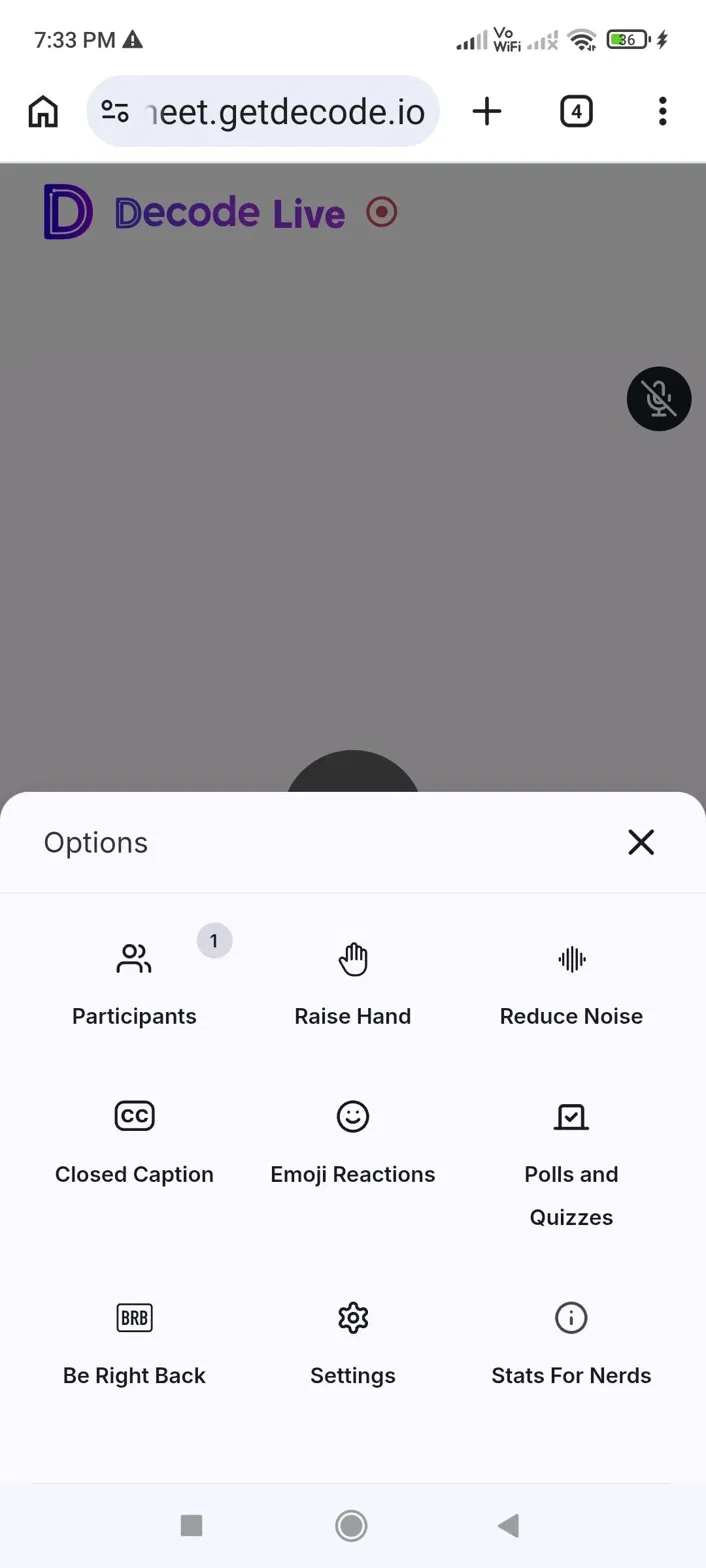
- Chat: opens full screen with the same Chat and Participants tabs as on desktop. The To dropdown for choosing who receives your message works the same way.
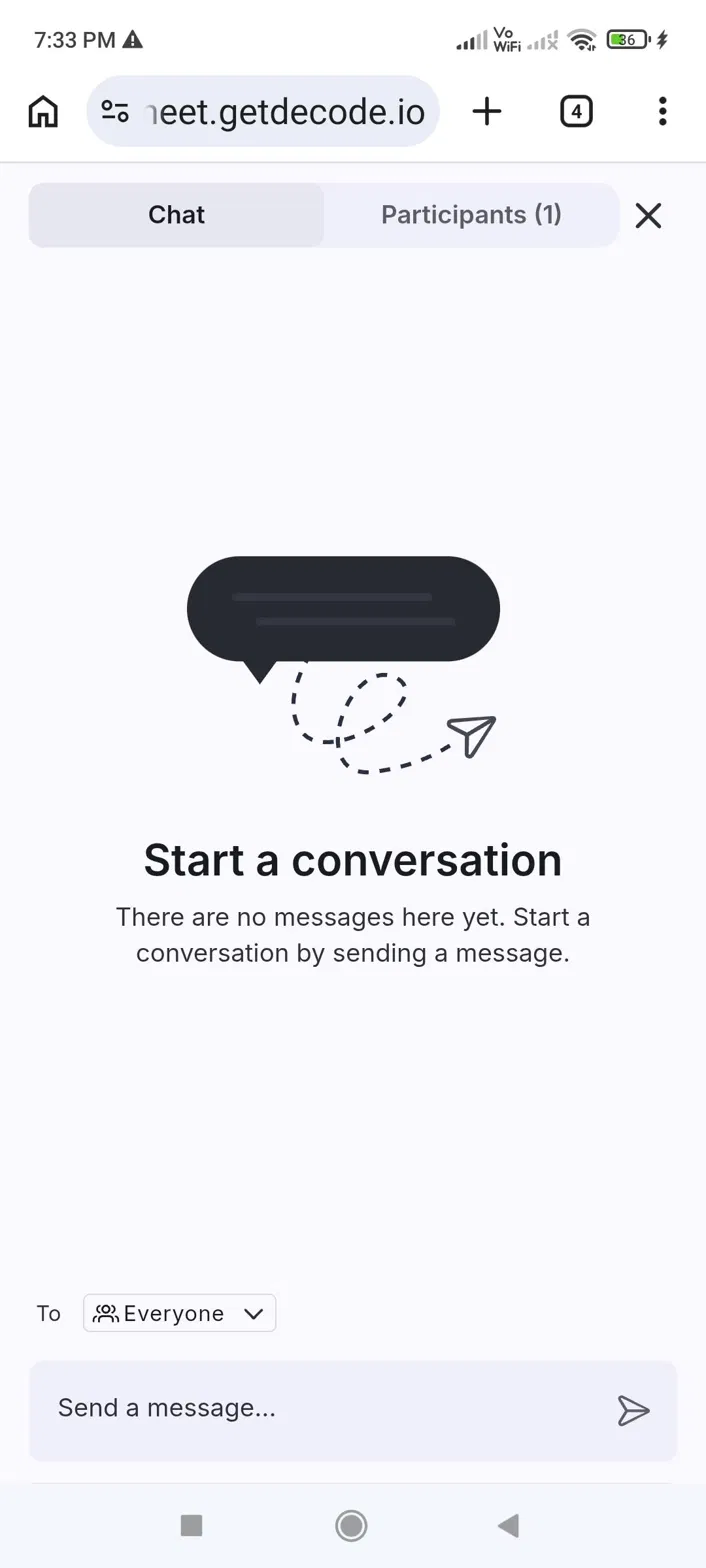
- Participants: the list of everyone in the session, grouped by role.
- Raise Hand: the same hand signal, also reachable from here.
- Reduce Noise: turns background noise reduction on or off.
- Closed Caption: turns captions on or off.
- Emoji Reactions: sends a quick emoji reaction without unmuting.
- Polls and Quizzes: for moderators, creating and launching polls and quizzes.
- Be Right Back: marks you as temporarily away.
- Settings: your device and notification preferences.
- Stats For Nerds: technical session details.
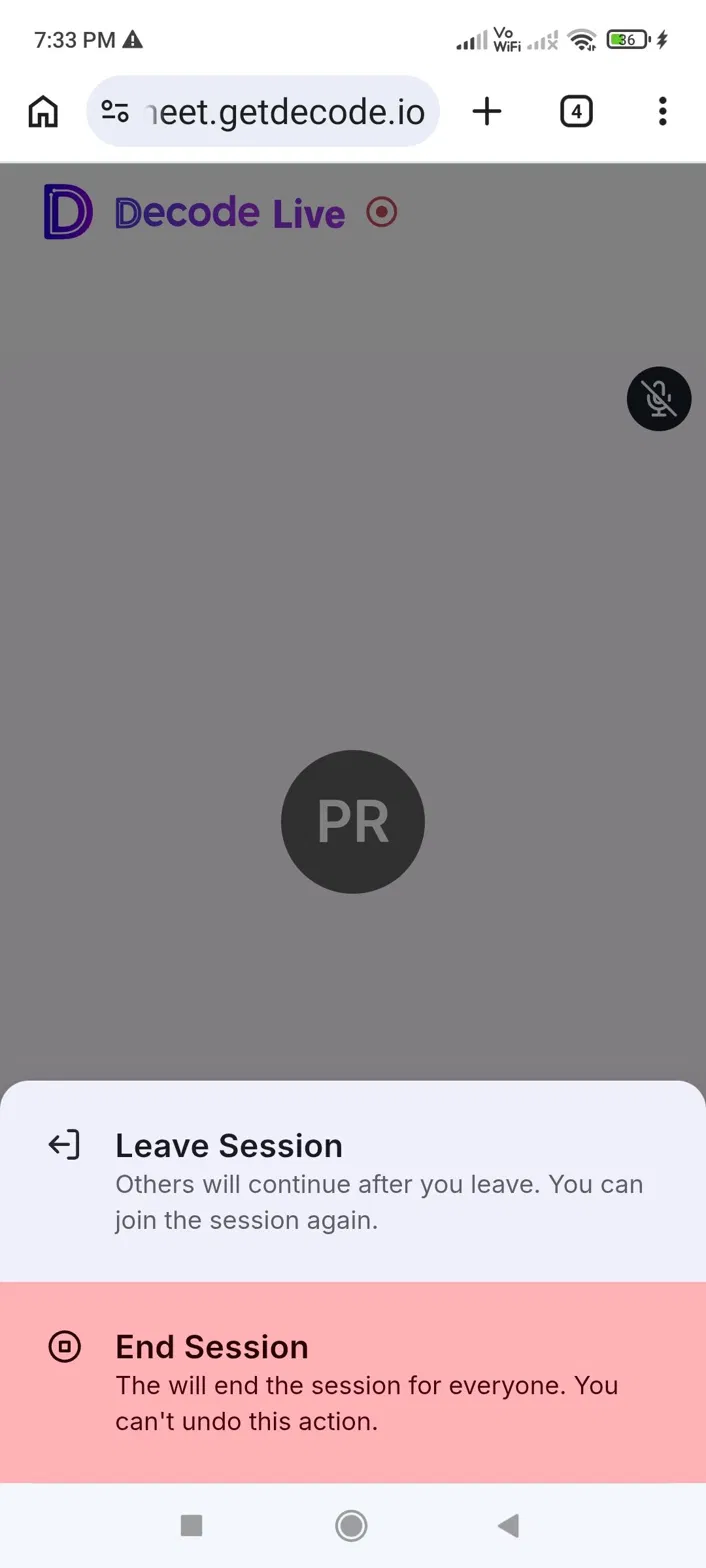
Moderators tapping the red button get the same two choices as on desktop, Leave Session or End Session. Participants and observers leave only for themselves.
What the mobile browser cannot do
There is no share option in the mobile browser. You cannot share your screen or a PDF from it. The desktop features Picture-in-Picture, Pop out Chat, and Go Fullscreen are also not part of the mobile browser menu. If your session involves sharing your screen, join through the Decode app instead.
Joining through the Decode app
Install the Decode: Insights Platform app from your phone's app store.
Android - https://play.google.com/store/apps/details?id=com.decode.cx&pcampaignid=web_share
Iphone - https://apps.apple.com/in/app/decode-insights-platform/id6758607840
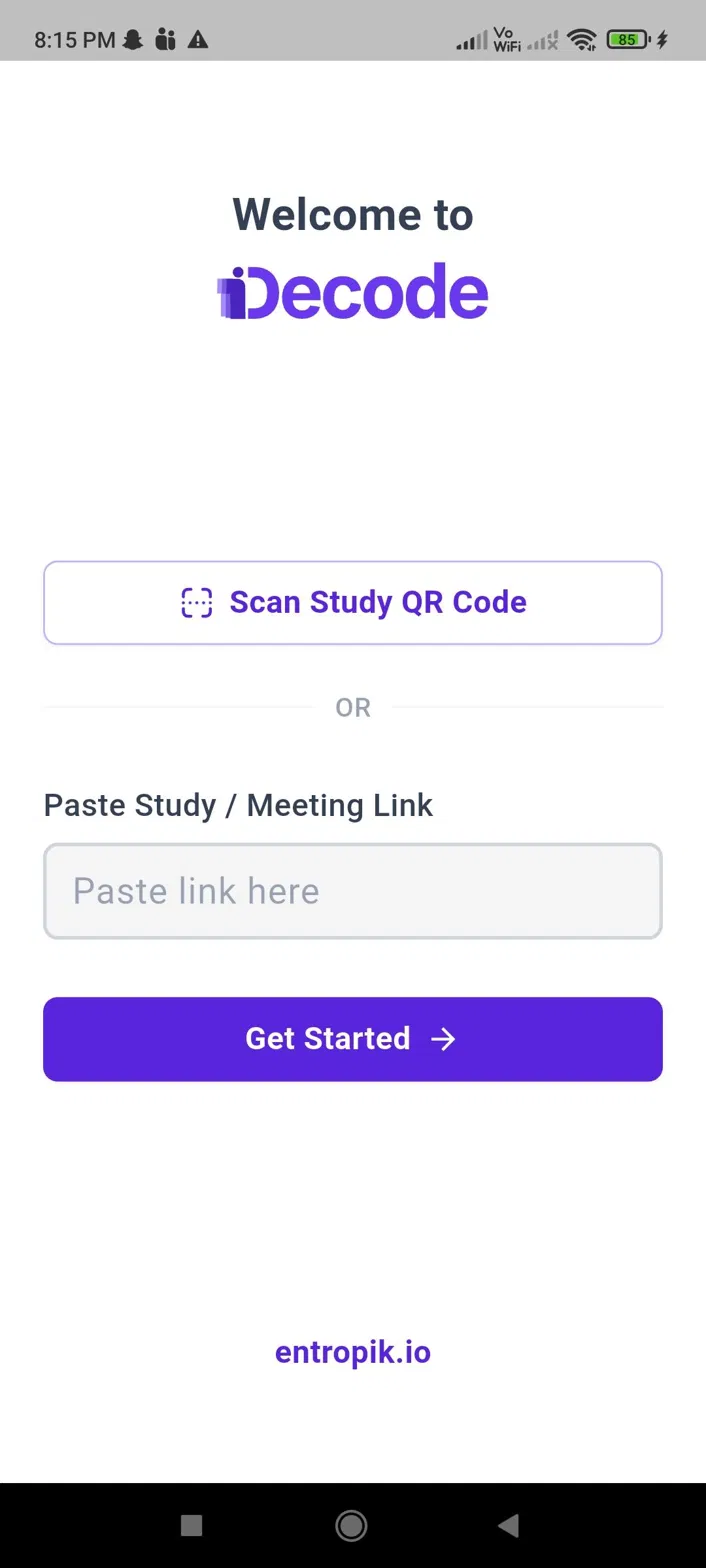
Open the app. On the Welcome screen, you have two ways in: tap Scan Study QR Code and point your camera at the study's QR code, or paste your study or meeting link into the field and tap Get Started.
Enter your Email ID and a Display Name, then tap Join Meeting.
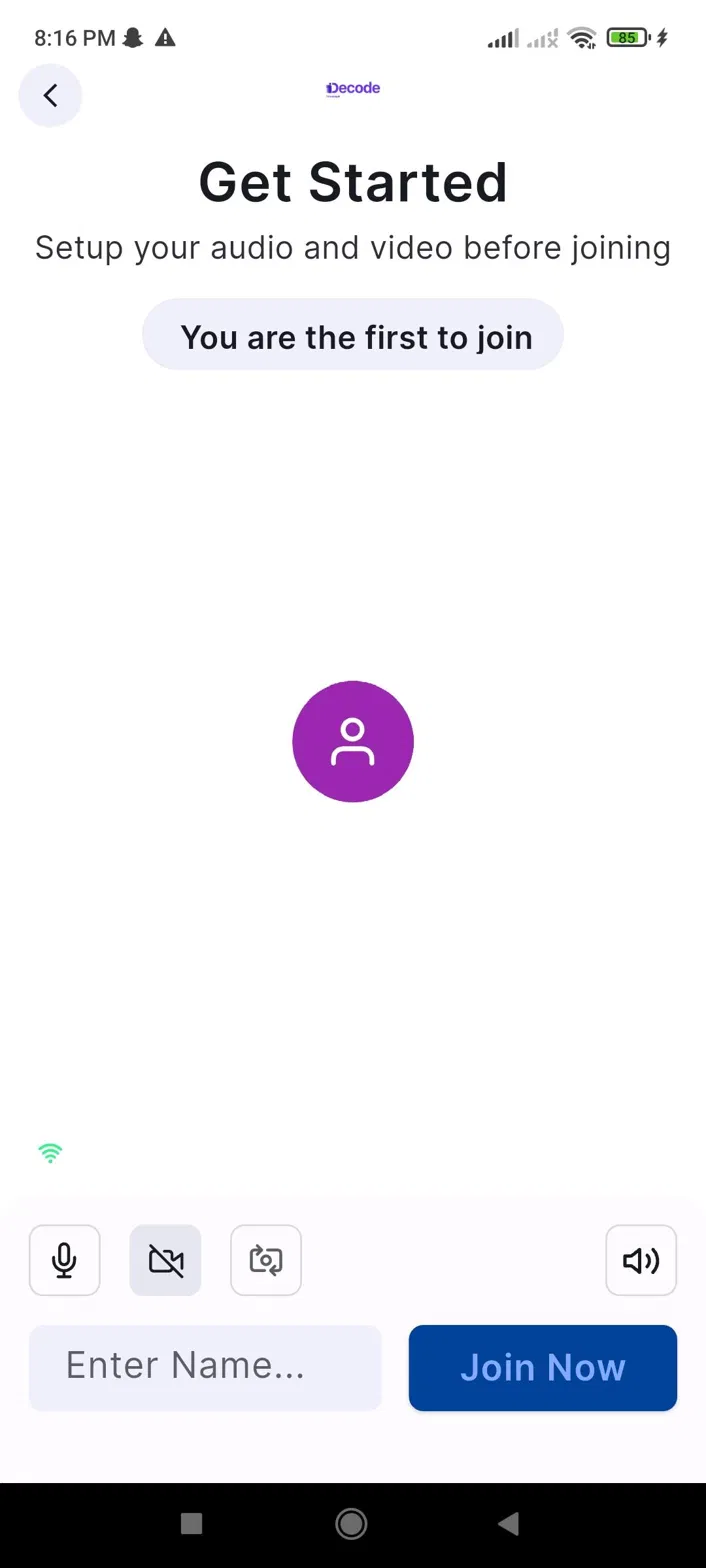
A setup screen appears before you enter. Turn your microphone and camera on or off, switch between your front and back cameras, and choose your speaker. Tap Join Now to enter the session.
What you have in the session
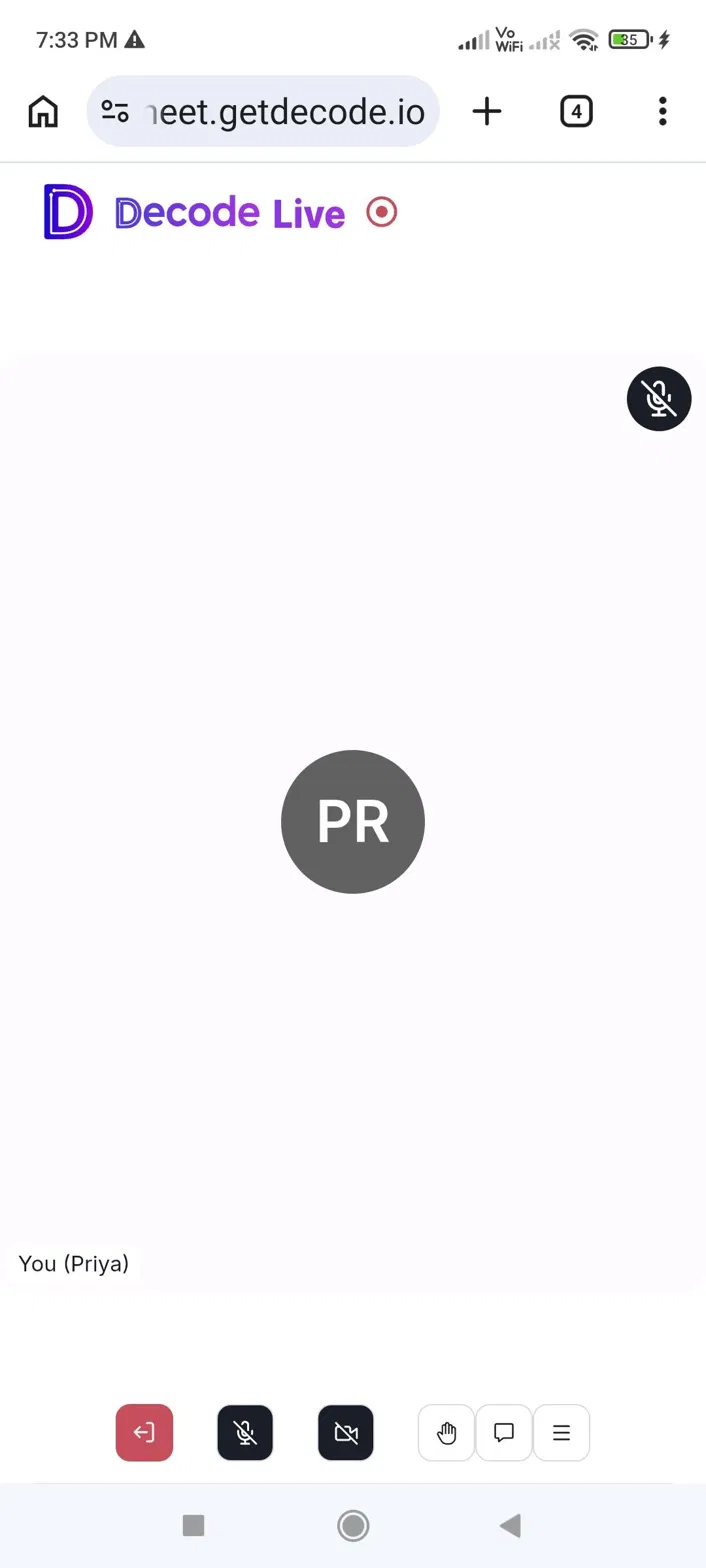
The switch camera and speaker controls sit at the top of the screen, and the recording dot appears next to the Decode logo.
Tap the Options menu for the session controls.
- Participants: the list of everyone in the session.
- Share Screen: shares your phone screen with everyone in the session. This is the reason to join through the app. If your session involves reacting to an app, a website, or anything else on your phone, share it from here.
- Be Right Back: marks you as temporarily away.
- Raise Hand: raises a hand signal that others in the session can see.
- Polls and Quizzes: for moderators, creating and launching polls and quizzes.
- Open Whiteboard: opens a whiteboard in the session.
- Closed Captions: turns captions on or off.
Choosing between the browser and the app
Join from your mobile browser when you only need to talk, be on camera, and follow the session. Join through the Decode app when the session involves sharing your screen.