
Setting Up Audience Panel Integrations on Decode
This article explains how audience panel integrations work on Decode and how to control which panels supply participants for your studies.
Decode has two audience panel integrations: Cint and Dynata. Both are active on your workspace by default.
How audience panels work
When you publish a study and recruit through Decode Audience Cloud, participants come from the audience panels active on your workspace.
With both Cint and Dynata active, your study draws participants from both panels. This gives you the widest reach and the fastest fieldwork, since two panels are supplying respondents rather than one.
Cint is a global audience exchange platform providing access to a wide network of survey panels for scalable and cost-efficient participant recruitment.
Dynata is one of the world's largest first-party data platforms, offering high-quality, deeply profiled audiences for reliable and targeted research.
No setup is required to use them. Because both are active by default, publishing a study to Decode Audience Cloud works immediately.
Recruiting from a single panel
If you want your study to draw participants from one panel only, deactivate the other.
Step 1: Log into your Decode account.
Step 2: Click Integrations in the left navigation panel to access Decode Marketplace.
Step 3: On the All Integrations or Active tab, find the panel you want to turn off.
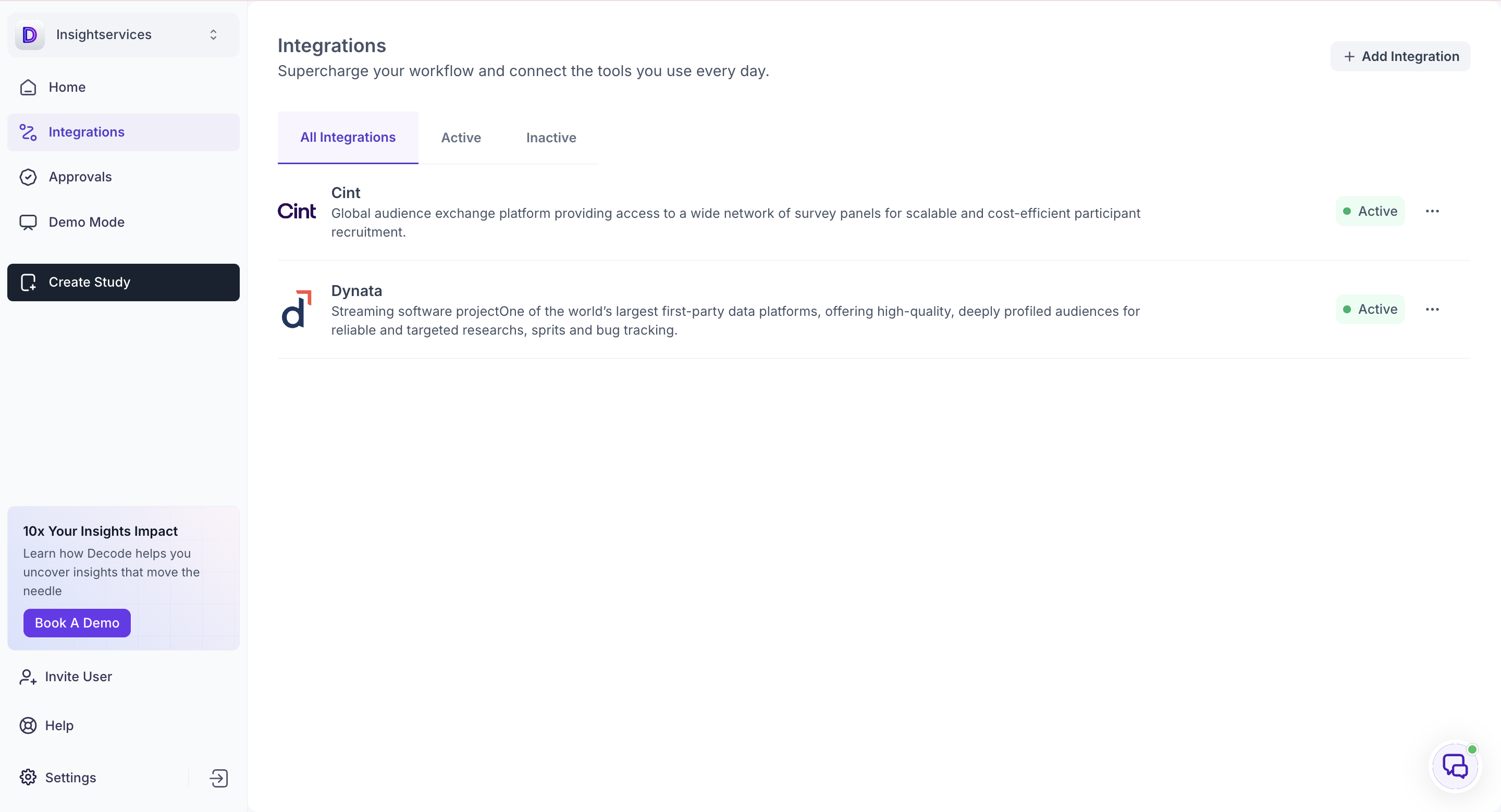
Step 4: Click the options icon (three dots) on that panel's tile.
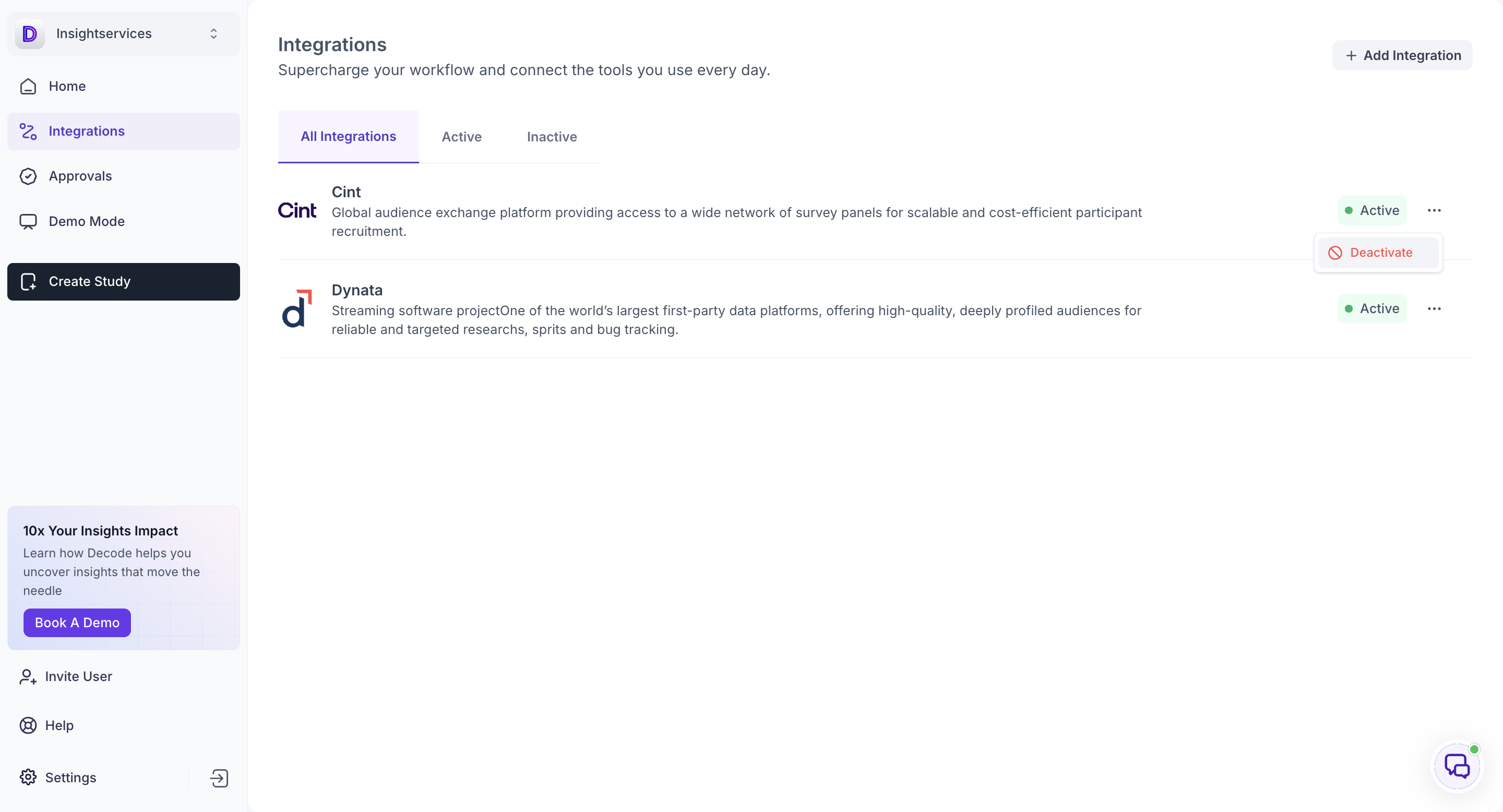
Step 5: Click Deactivate.
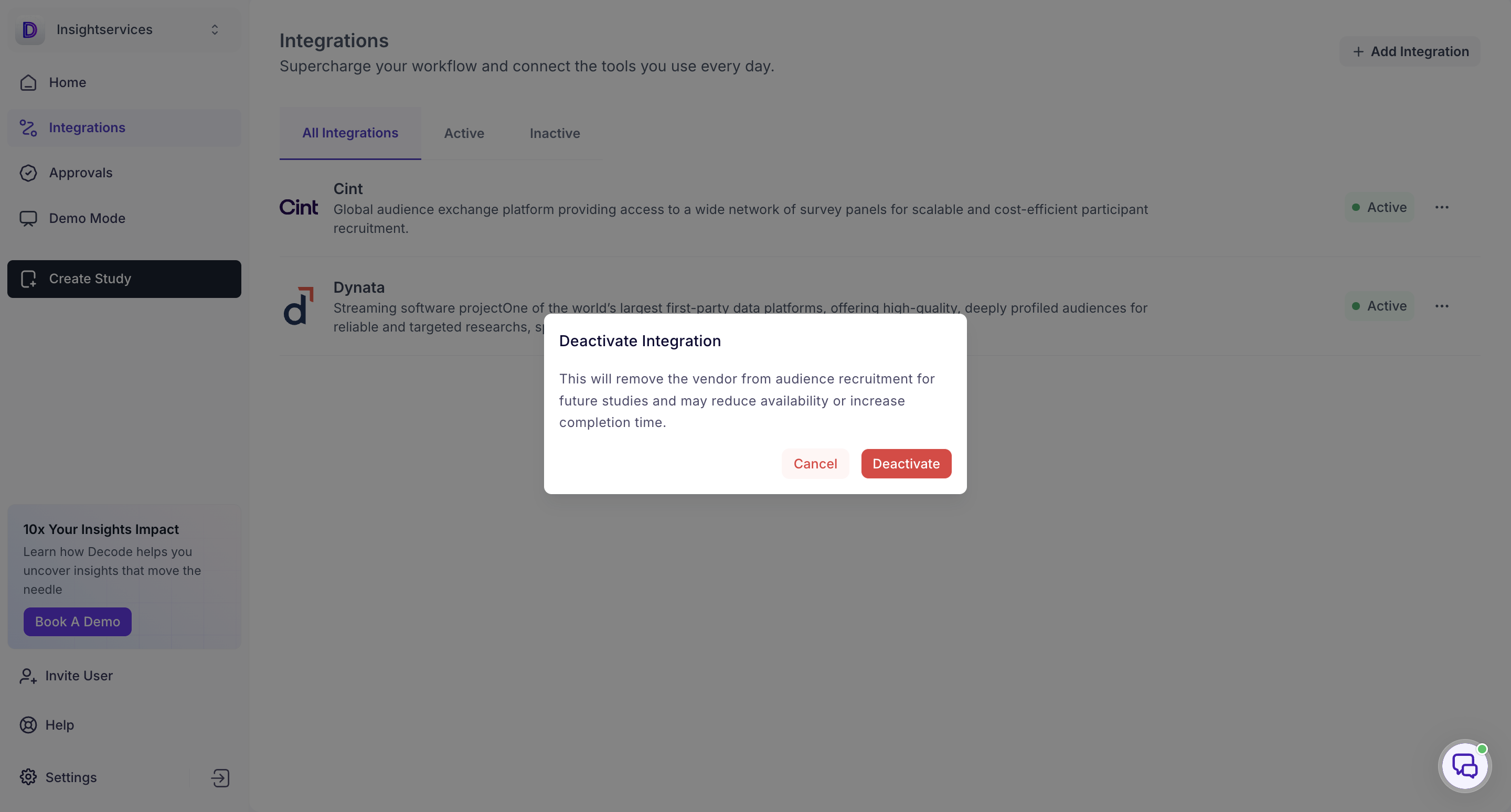
The panel moves to the Inactive tab and stops supplying participants. Any study you publish afterwards recruits from the remaining active panel only.
Check what is currently in field before deactivating a panel, since this changes where participants come from for studies still collecting responses.
Reactivating an audience panel
Step 1: Navigate to the Integrations page.
Step 2: Find the panel on the All Integrations or Inactive tab. Panels that are turned off show a status of In Active.
Step 3: Click the options icon (three dots) on that panel's tile.
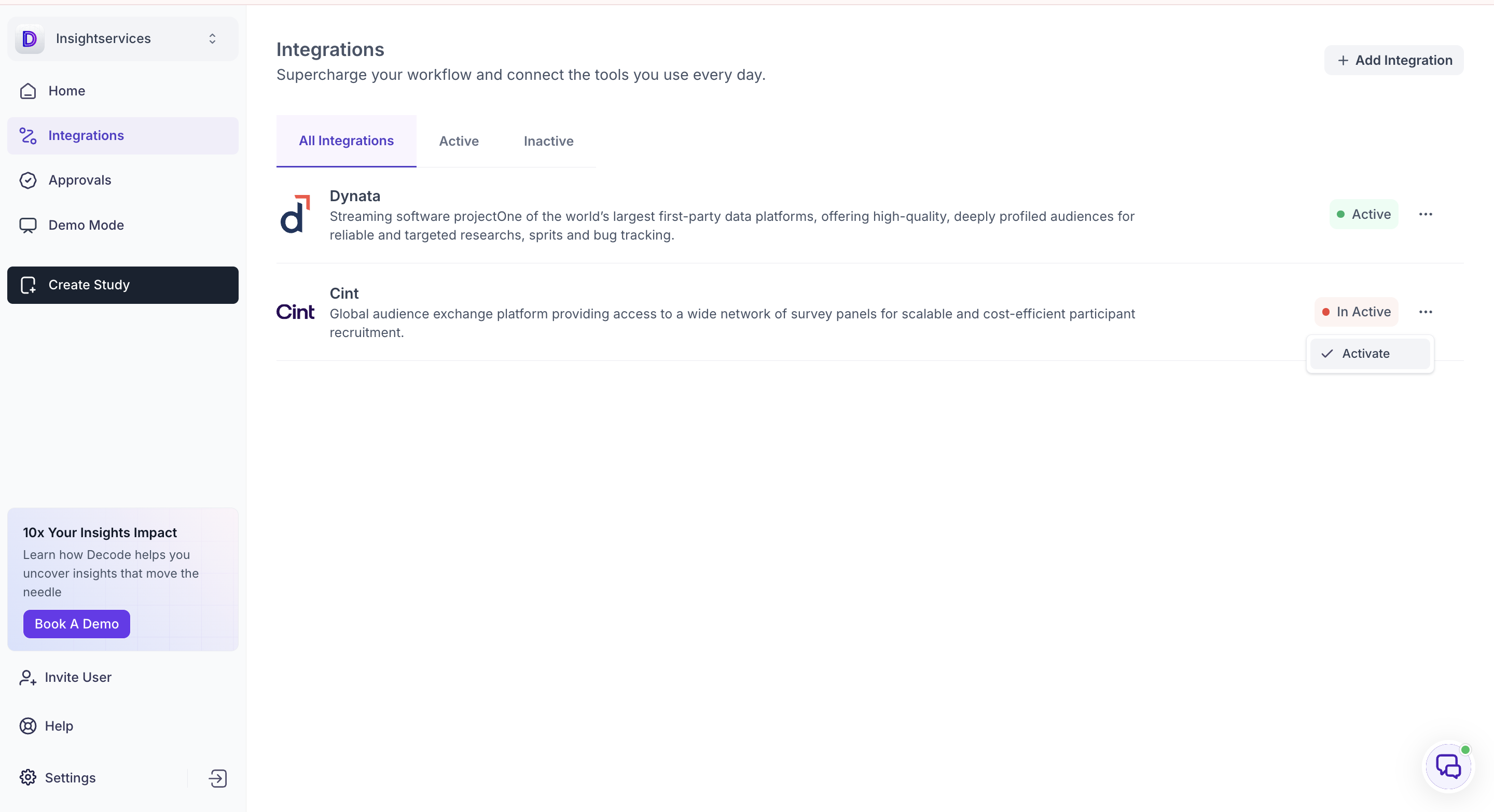
Step 4: Click Activate.
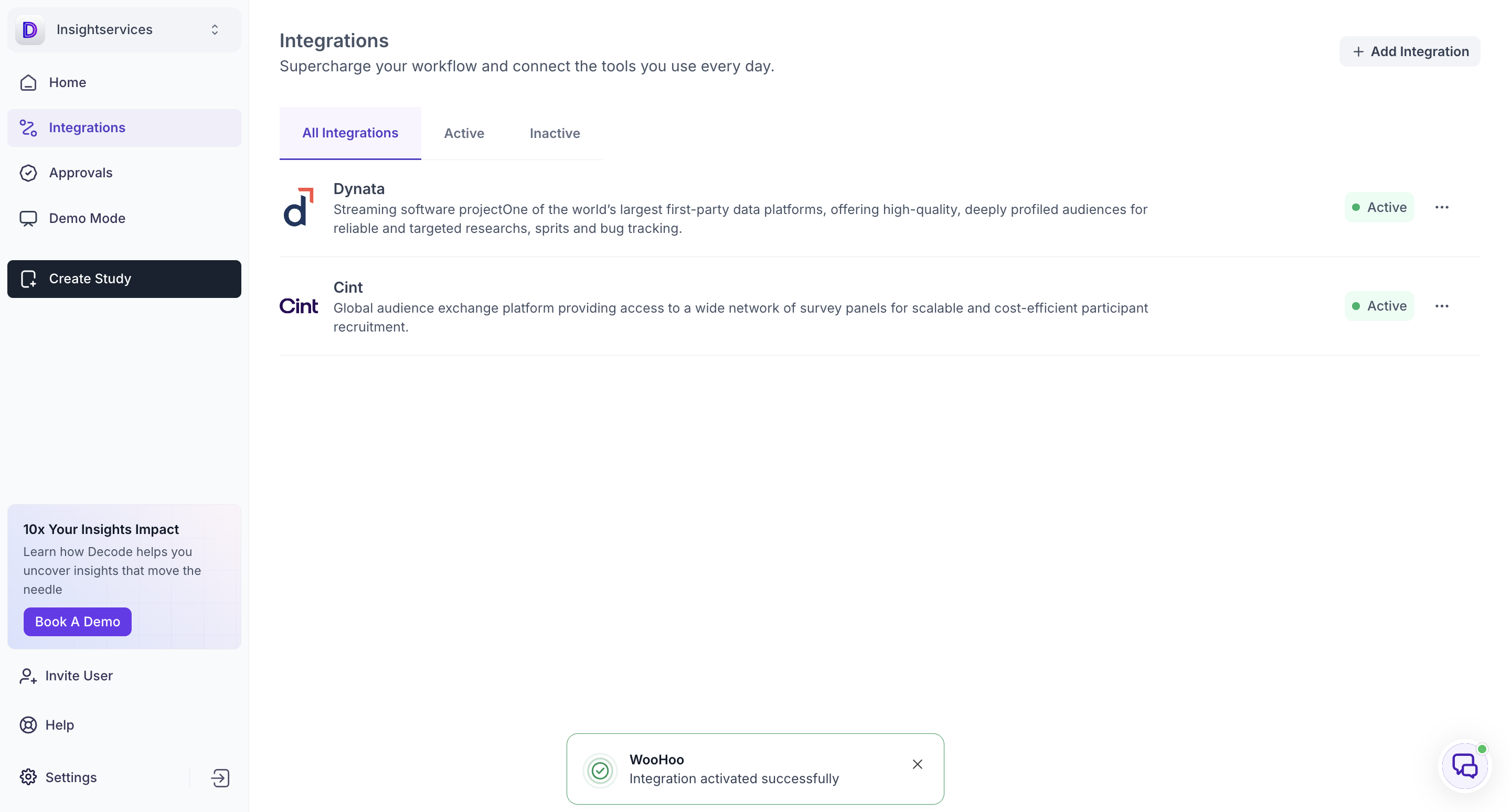
The status changes back to Active and the panel is available for recruitment again.
When to use one panel or both
Leave both active for most studies. Two panels reach more people and fill quotas faster, which matters most on studies with a large sample or a narrow target audience.
Deactivate one where you need participants from a specific panel, such as when a client or project requires a single named supplier, or when you are comparing results against earlier research run on one panel.