
Decode Panel
Overview
Decode Audience Cloud is Decode's integrated network of global panel providers, giving you access to over 50M+ verified respondents. Use it to recruit participants who match specific criteria, such as country, age, or gender, without needing your own audience. This option uses credits from your workspace.
Set it up
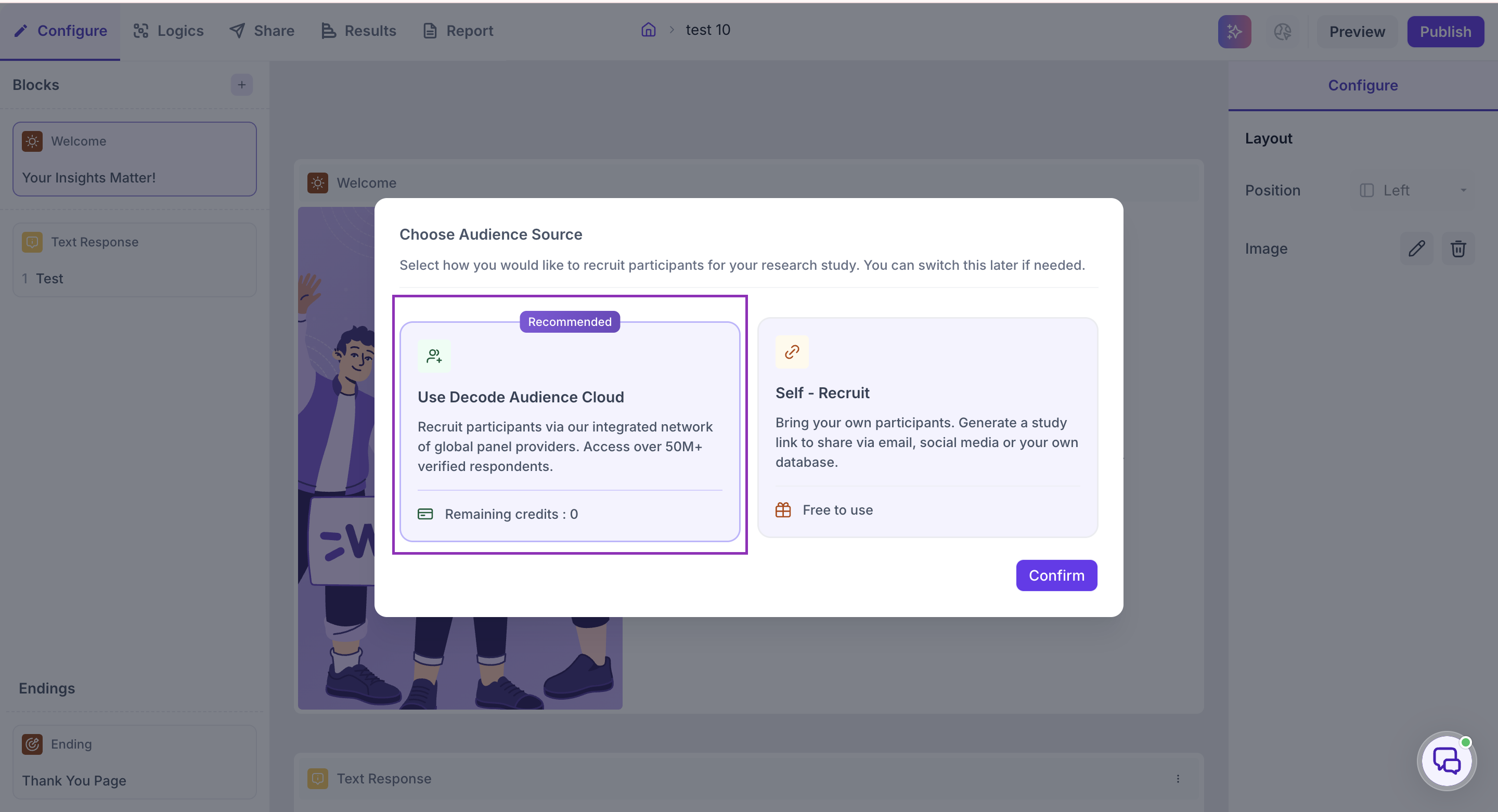
When publishing your study, select Use Decode Audience Cloud on the Choose Audience Source screen, then click Confirm.
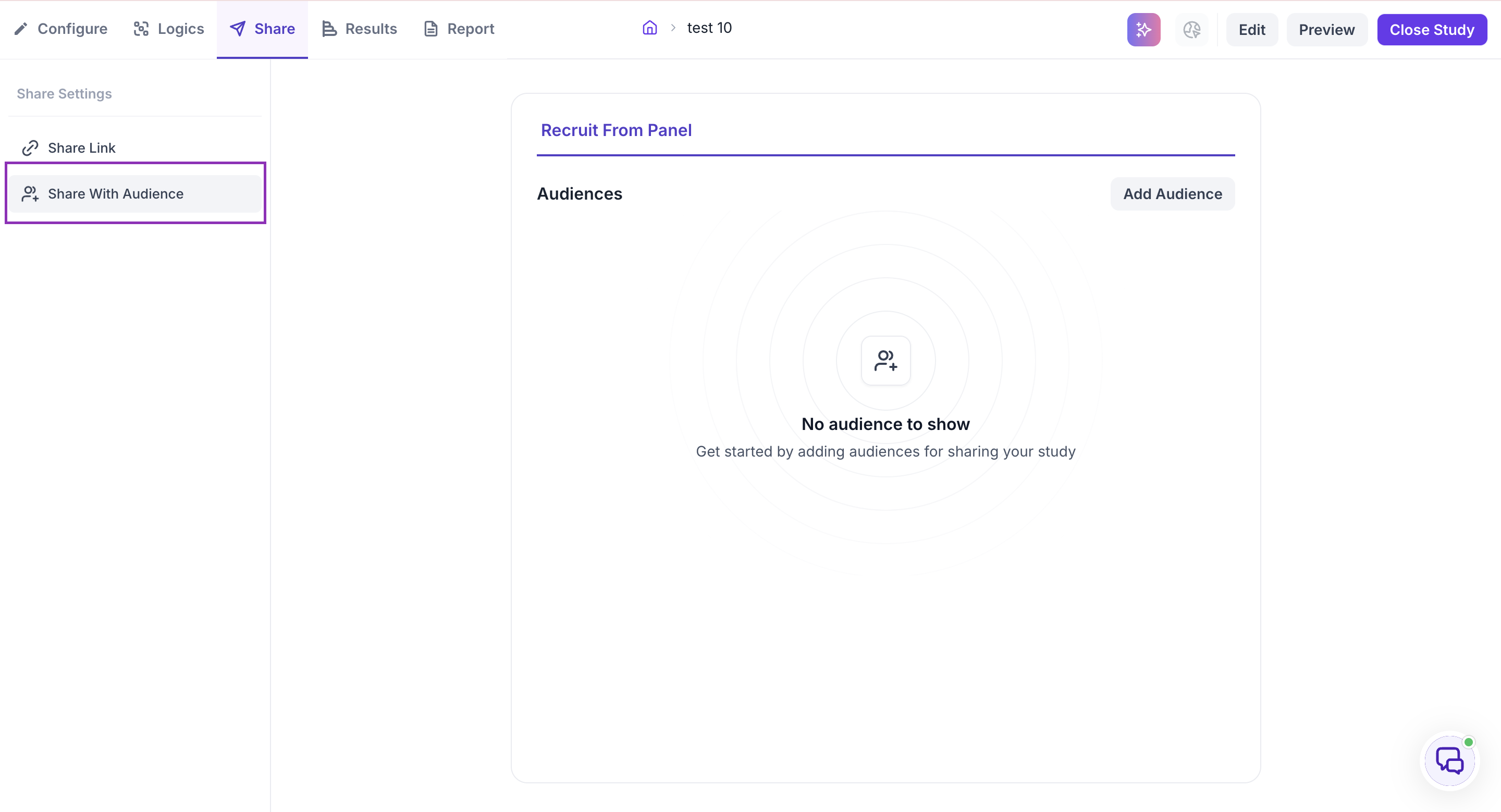
If you've already published with Self - Recruit and want to add a panel afterward, go to the Share tab and select Share With Audience, then click Recruit From Panel.
Add an audience
Once you confirm, you'll be taken to Add Audience, where you'll complete three sections:
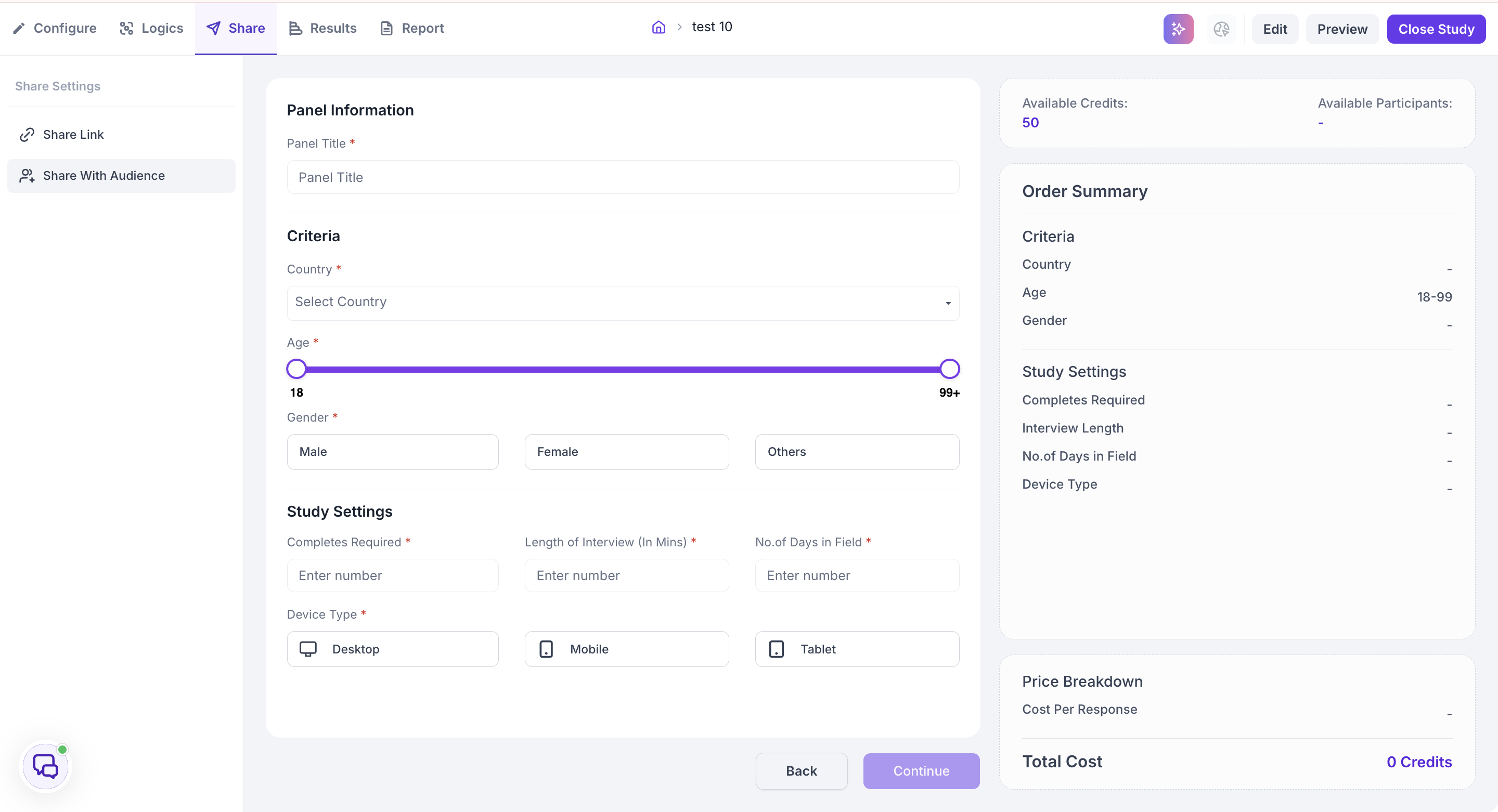
Panel Information
- Panel Title — a name to identify this audience
Criteria
- Country — select one or more countries
- Age — set your age range using the slider (18 to 99+)
- Gender — select Male, Female, or Others
Study Settings
- Completes Required — the number of responses you need
- Length of Interview (In Mins)
- No. of Days in Field
- Device Type — select Desktop, Mobile, or Tablet
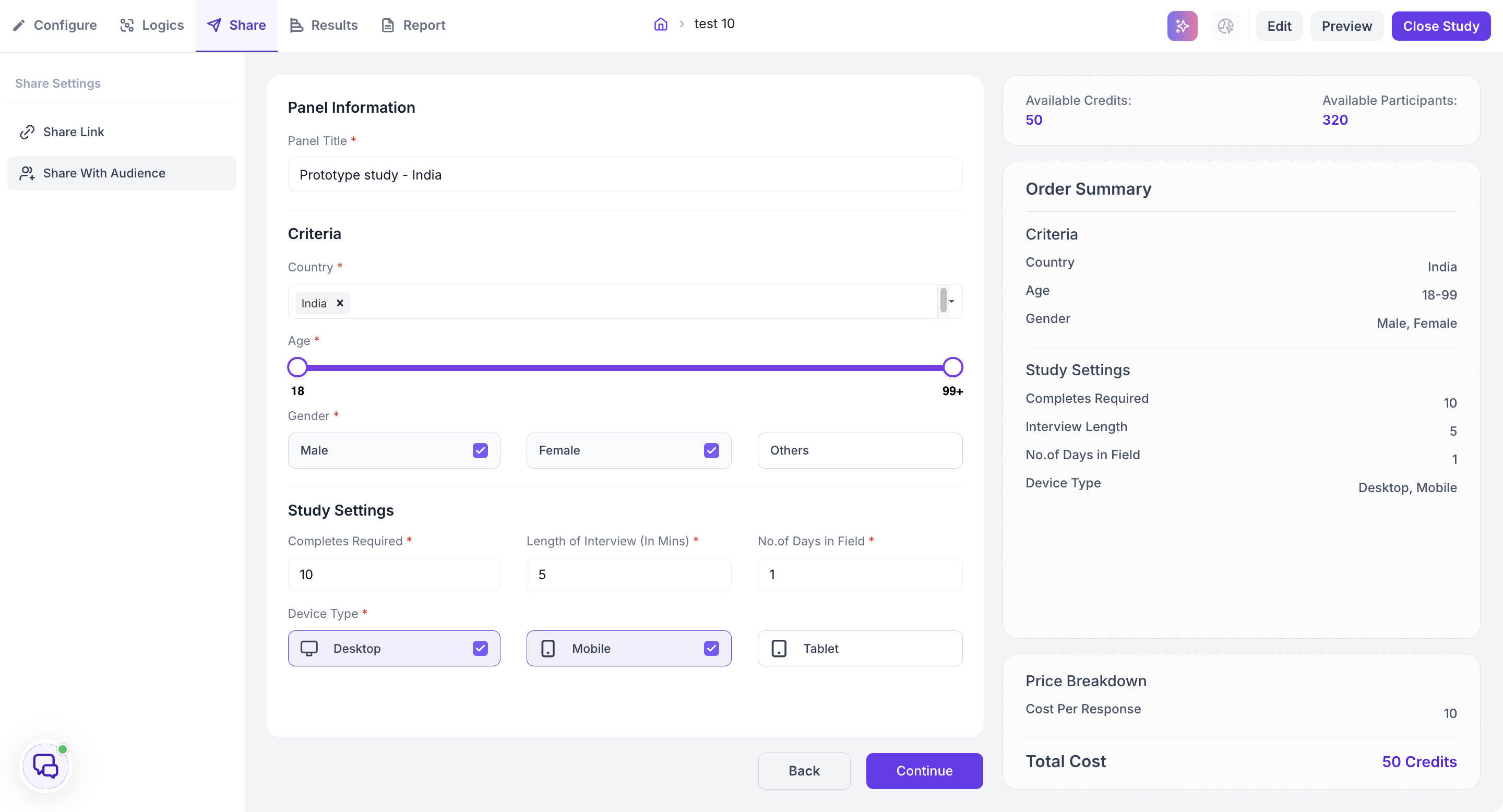
As you fill these in, the right-hand panel updates with Available Credits, Available Participants matching your criteria, an Order Summary of what you've selected, and a Price Breakdown showing Cost Per Response and Total Cost.
Click Continue once you're done.
Pay for your panel
At Checkout, you'll see your Required Credits against your Available Credits. Choose how to pay:
- Credits — pay with your credits
- Credit Card — Visa, Mastercard, or American Express
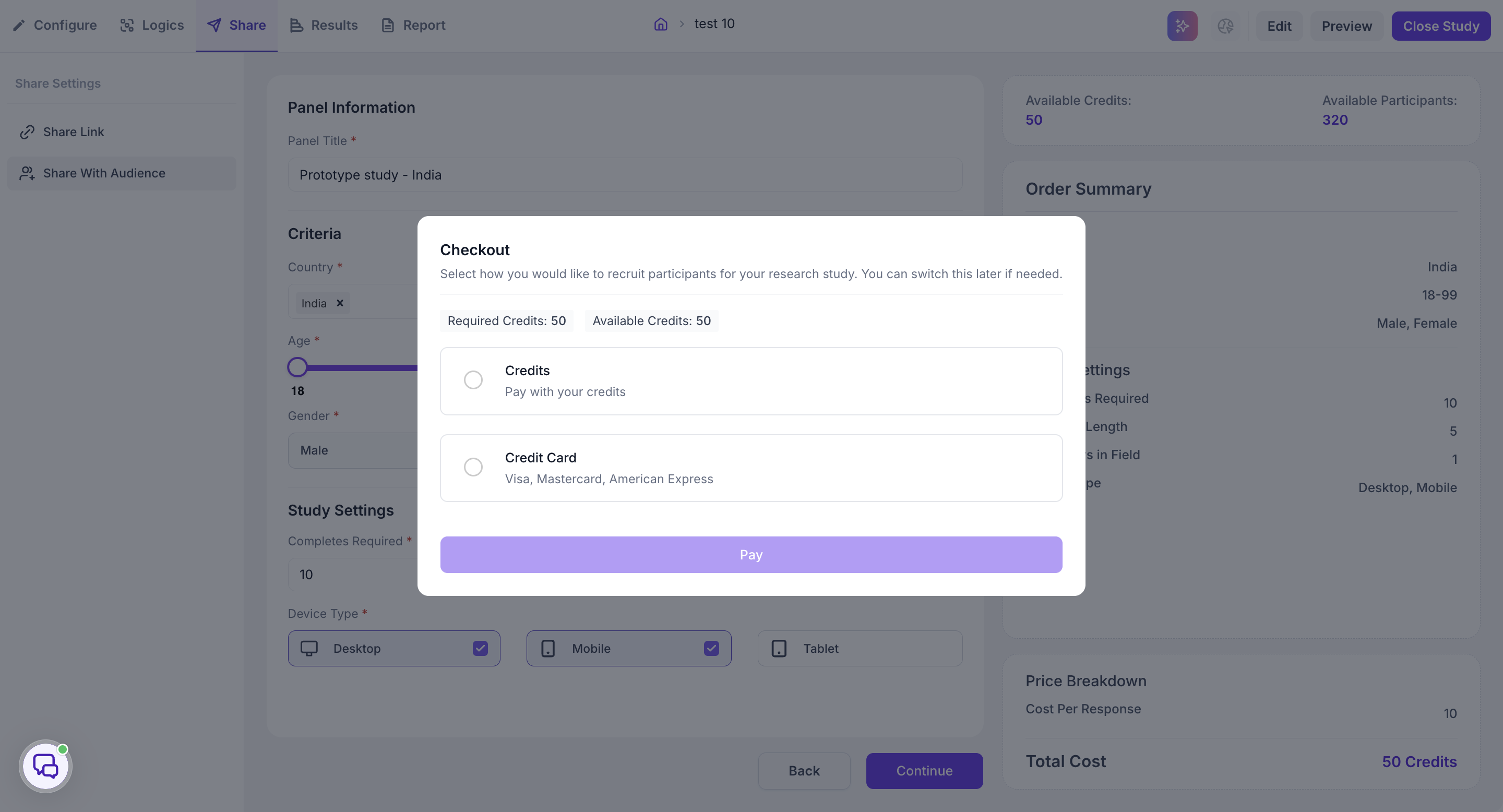
If you'd like to add more credits to your workspace before launching, you can do so from the Audience Credits section under Settings, then return here to complete your payment. See Audience Credits for how to buy credits.
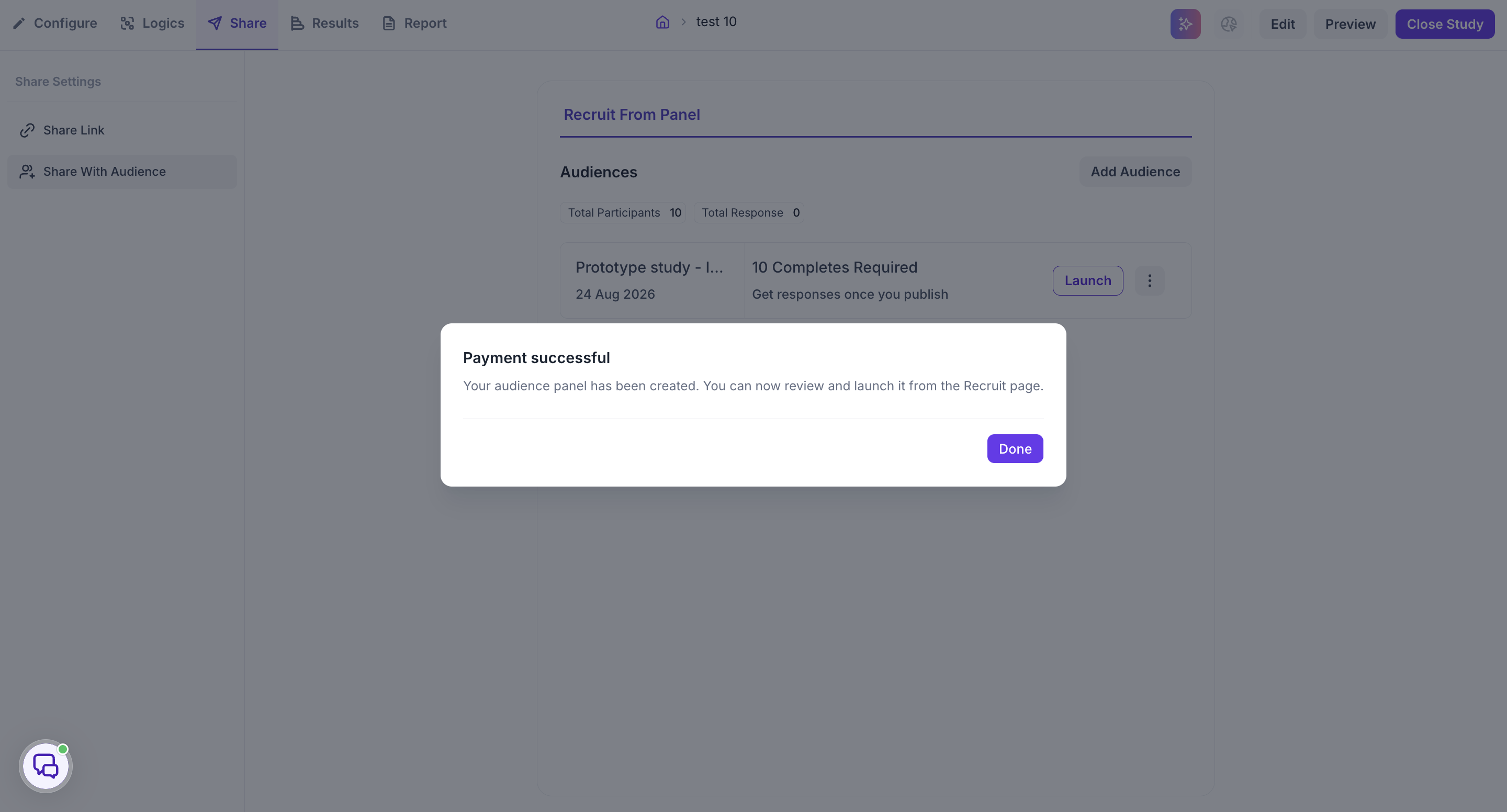
Click Pay. Once you see Payment successful, your audience panel has been created. Click Done to return to the Recruit page.
Launch your panel
On the Recruit From Panel page, your panel appears under Audiences with its Total Participants and Total Response counts, along with the number of completes required. It will show Get responses once you publish until launched.
Click the three-dot menu next to your panel if you need to Edit, Duplicate, or Delete it before launching.
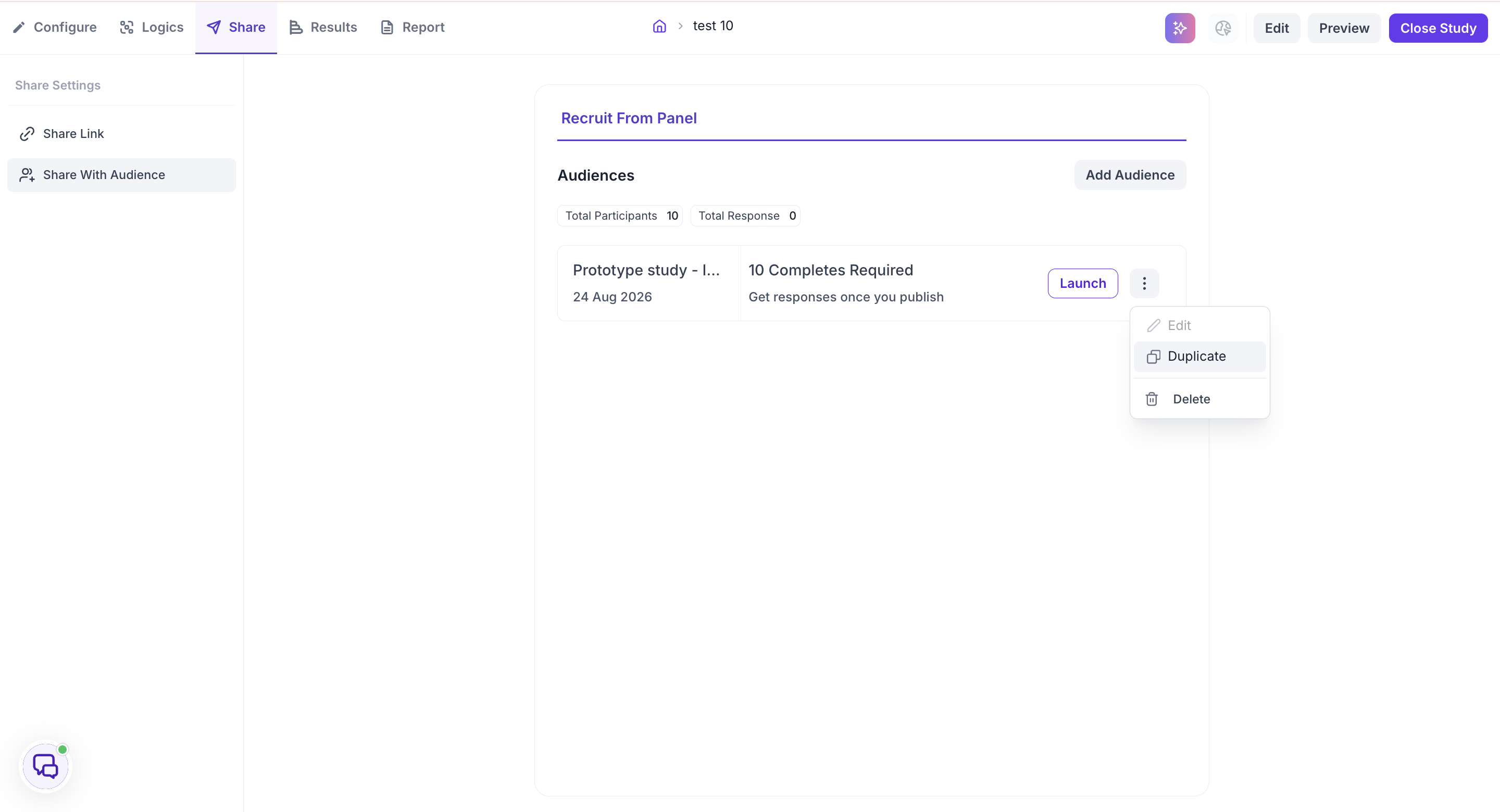
When you're ready, click Launch. Your study will go out to Decode's panel network.
Track completion
Responses collected for this study, whether through your own panel or a Decode panel, appear in the Results tab. From there, you can analyze the responses to get insights from your study.
What to do next
To manage or top up the credits used here, see Audience Credits.