
Getting Started with Insights Hub
What is Insights Hub
Insights Hub is the section of Decode where your team stores, organises and reviews research files. You can upload documents such as PDFs, presentations and Word files, as well as video recordings from research sessions. Once uploaded, each file is processed so you can read an AI-generated summary, review key highlights, explore themes across the file, and for video recordings, view analytics.
Insights Hub gives your team a single place to store and access all research material. Everything sits in one location that anyone on your workspace can access.
What you can do in Insights Hub
- Upload files: Add PDFs, Word documents, presentations, audio and video recordings to your workspace.
- Read a file summary: Review an AI-generated summary of the file content. For documents, this includes key points, concerns and action items drawn from the content.
- Browse highlights: See the key statements and moments that Decode has identified as significant across the file, each tagged with a topic label.
- Explore themes: View recurring themes detected across the file. Use this to identify patterns across the content without reading every page.
- View file analytics: For video and audio recordings, access detailed analytics including facial coding, emotion data and speaker metrics. PDFs, Word files and presentations show a summary, highlights and themes but do not have an Analytics tab.
- Organise files: Use folders to group related files. Organise by project, client or topic so your team can find relevant research quickly.
Supported file types
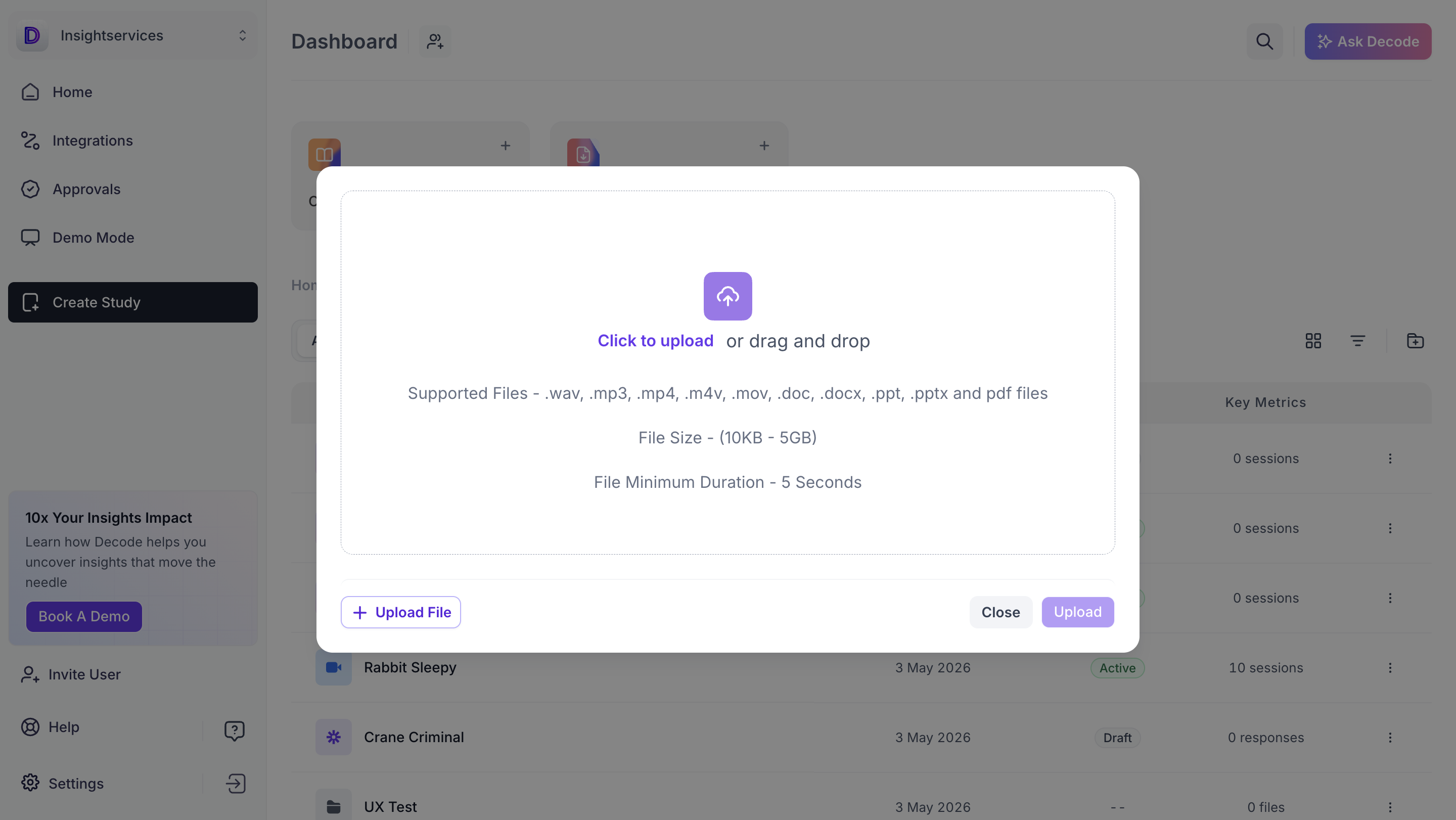
Insights Hub accepts the following file formats:
- Documents: .pdf, .doc, .docx
- Presentations: .ppt, .pptx
- Audio: .wav, .mp3
- Video: .mp4, .m4v, .mov
File size must be between 10 KB and 5 GB. Audio and video files must be at least 5 seconds long.
Analytics features such as facial coding, emotion data and speaker metrics are available for video recordings only. PDFs, Word files and presentations show a summary, highlights and themes but do not have an Analytics features.
Quick start
Follow these steps to upload your first file and start reviewing it in Insights Hub.
1. Open Insights Hub from the Dashboard
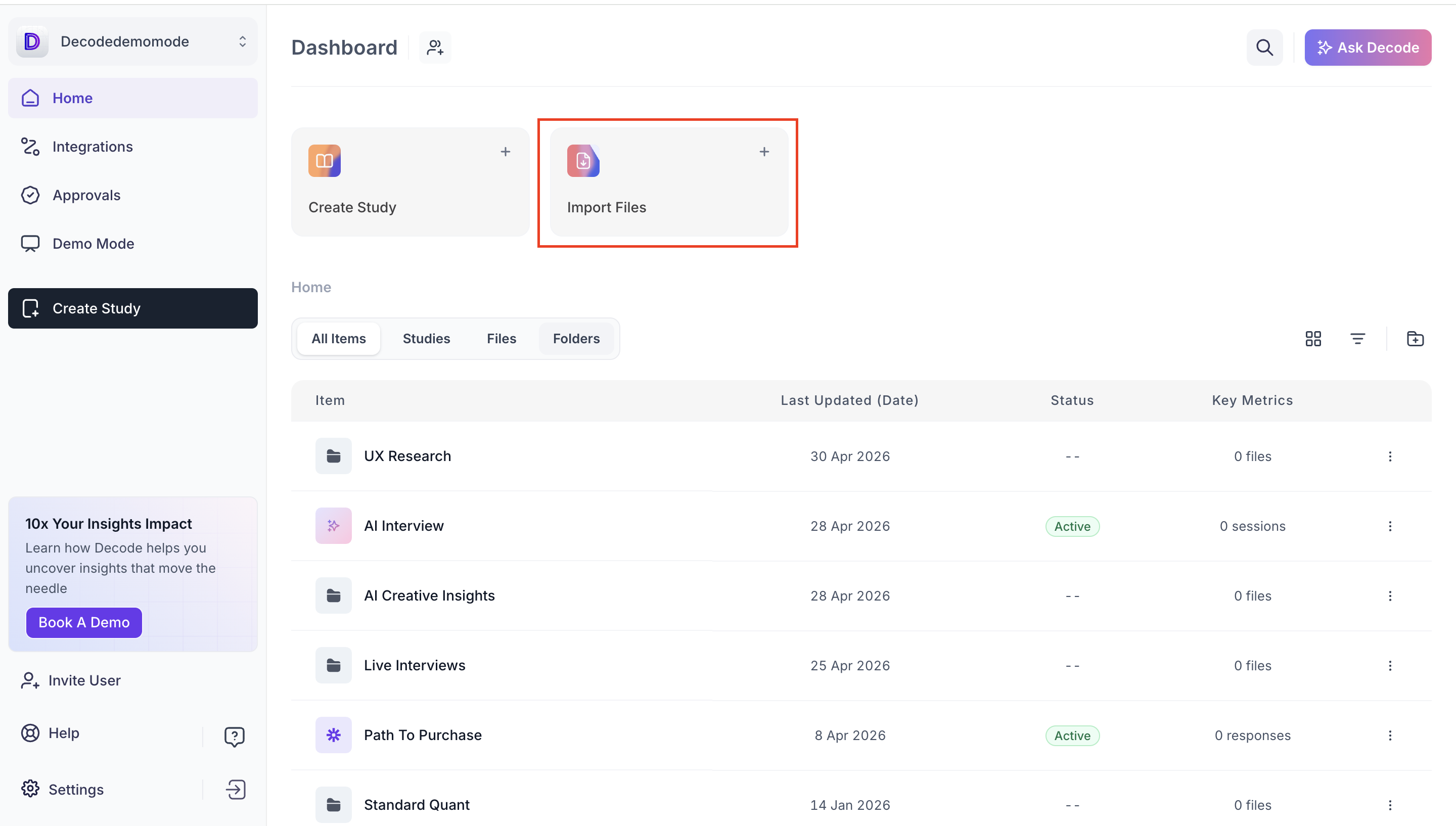
On the Dashboard, click Import Files. This opens the Insights Hub upload panel.
2. Select your files
Click Upload File to browse your computer, or drag and drop files directly into the upload area. You can add multiple files in one upload.
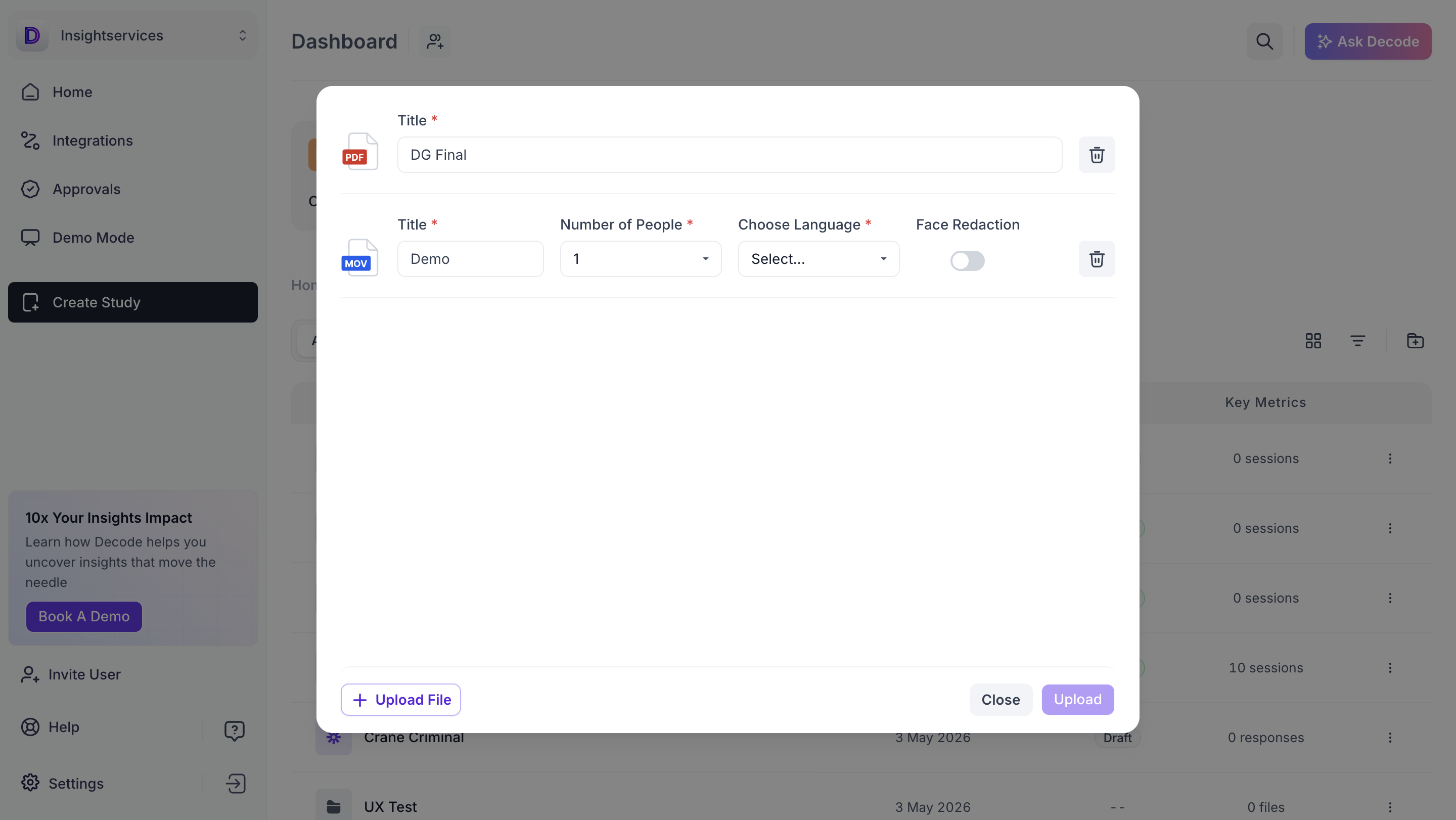
Result: Your selected files appear in the panel with a title field and configuration options for each one.
3. Name each file
Enter a title for each file in the Title field. The title appears in the Dashboard file list and is visible to everyone on your workspace
4. Configure video settings (video files only)
For each video file, set the number of people appearing in the recording and select the language spoken. You can also turn on Face Redaction if you need to anonymise participants before the file is shared.
Result: These settings tell Decode how to process the recording so the analytics are accurate.
5. Upload the files
Click Upload. Decode begins processing each file. Processing time depends on file size and type.
Result: Once processing is complete, your files appear in the Docs Repository where you can open and review them.
Next steps
Once your files are uploaded, you can open them to read the file summary, browse highlights and themes, and for video files, view the analytics. The next two articles in this series explain what each section shows and how to use it.