
First Click Test in Decode
Overview
The First Click Test block in Decode presents an image of a design to participants and records where they click when given a task. You can set the number of clicks allowed and how the image is displayed. Mouse Click tracking is enabled to capture all click positions on the image.
How to Set Up a First Click Test
Step 1: Add the Block
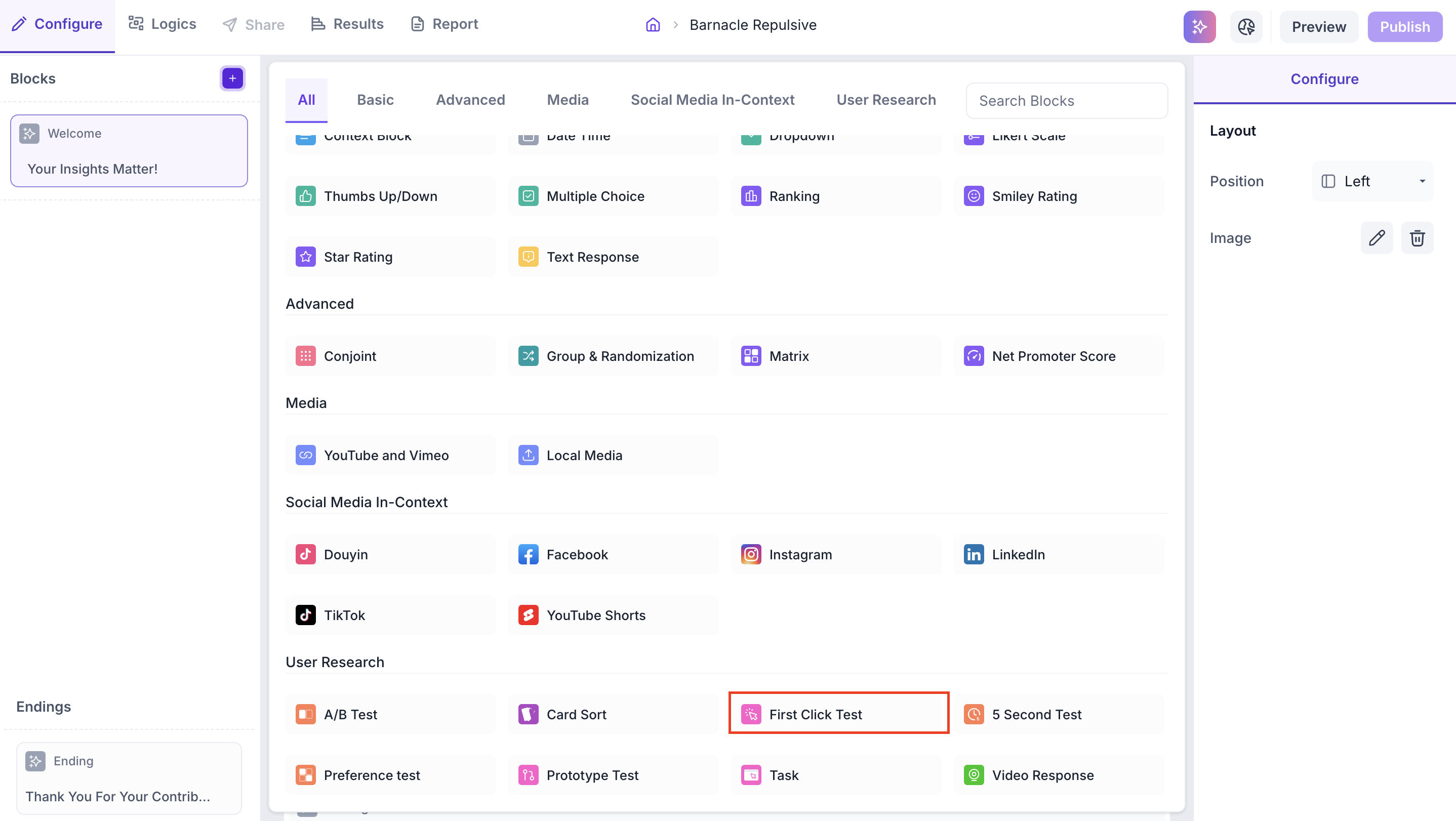
Click the + icon in the left panel to open the block selection panel. Under the User Research section, select First Click Test.
Step 2: Upload Your Image
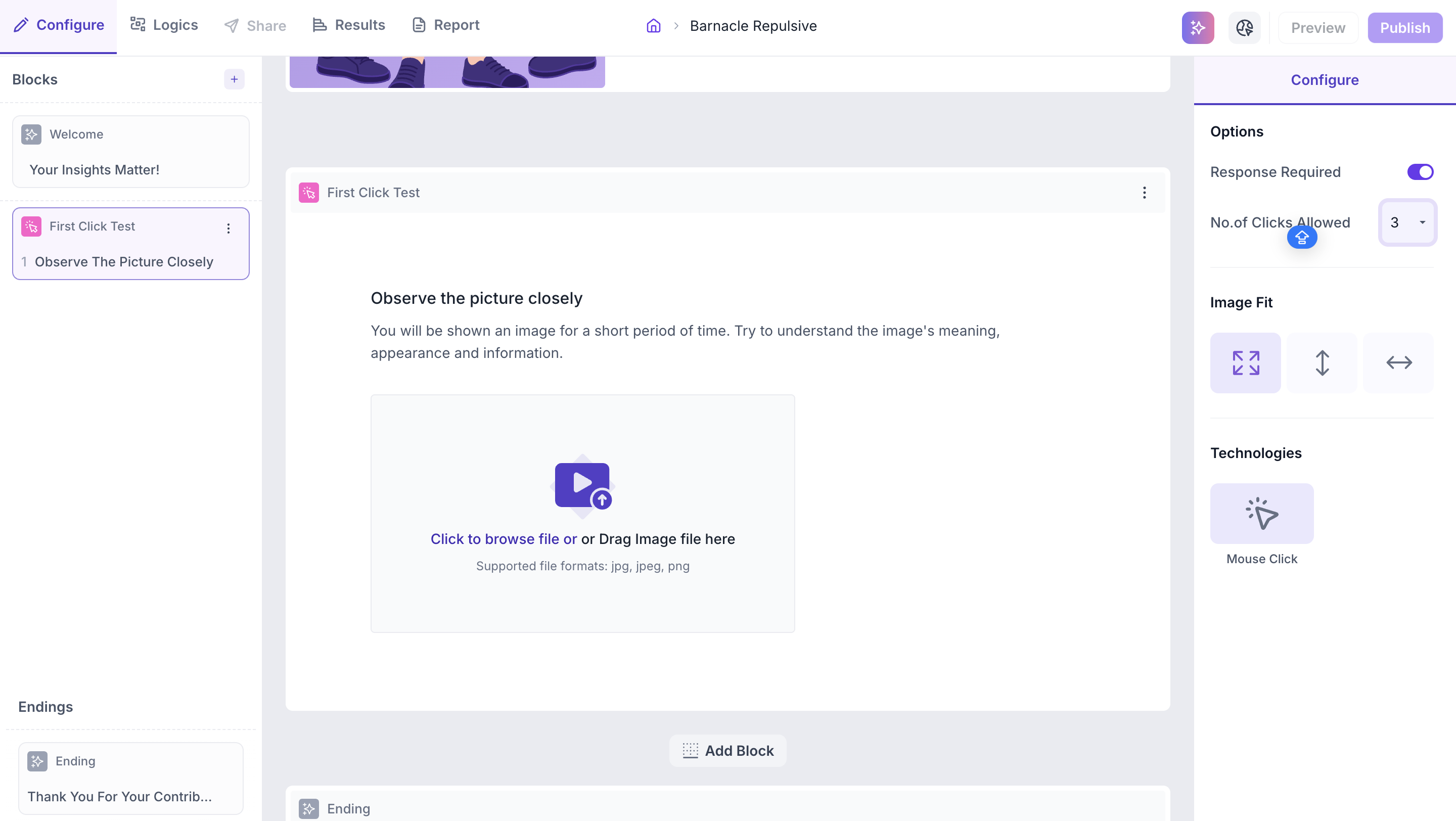
Click the upload area or drag and drop your image file into the block. This should be a screenshot or image of the design you want to test, such as a webpage, app screen or wireframe.
File upload limits
Supported formats: JPG, JPEG, PNG.
Step 3: Configure Properties
Use the Configure panel to set the following properties.
Options
- Response Required: enabled by default. Participants must complete the test before proceeding to the next block
- No. of Clicks Allowed: Set the maximum number of clicks a participant can make on the image. Only the last click is recorded as the final response. The default is 3 and can be set up to a maximum of 10.
Image Fit
Select how the image is displayed to participants.
- Fit to Screen: The image is scaled to fit within the screen boundaries. Participants can view the entire image without scrolling
- Fit to Height: The image height is adjusted to fit the screen. If the image width exceeds the screen width, participants can scroll horizontally
- Fit to Width: The image is scaled to cover the full screen width. If the image height exceeds the screen, participants can scroll vertically
Technologies
Mouse Click: Records where participants click on the image. This is the core technology for the First Click Test and captures all click positions
RESULTS
Once the study is live and responses are collected, you can view the results in the Results tab.
Block Level Summary
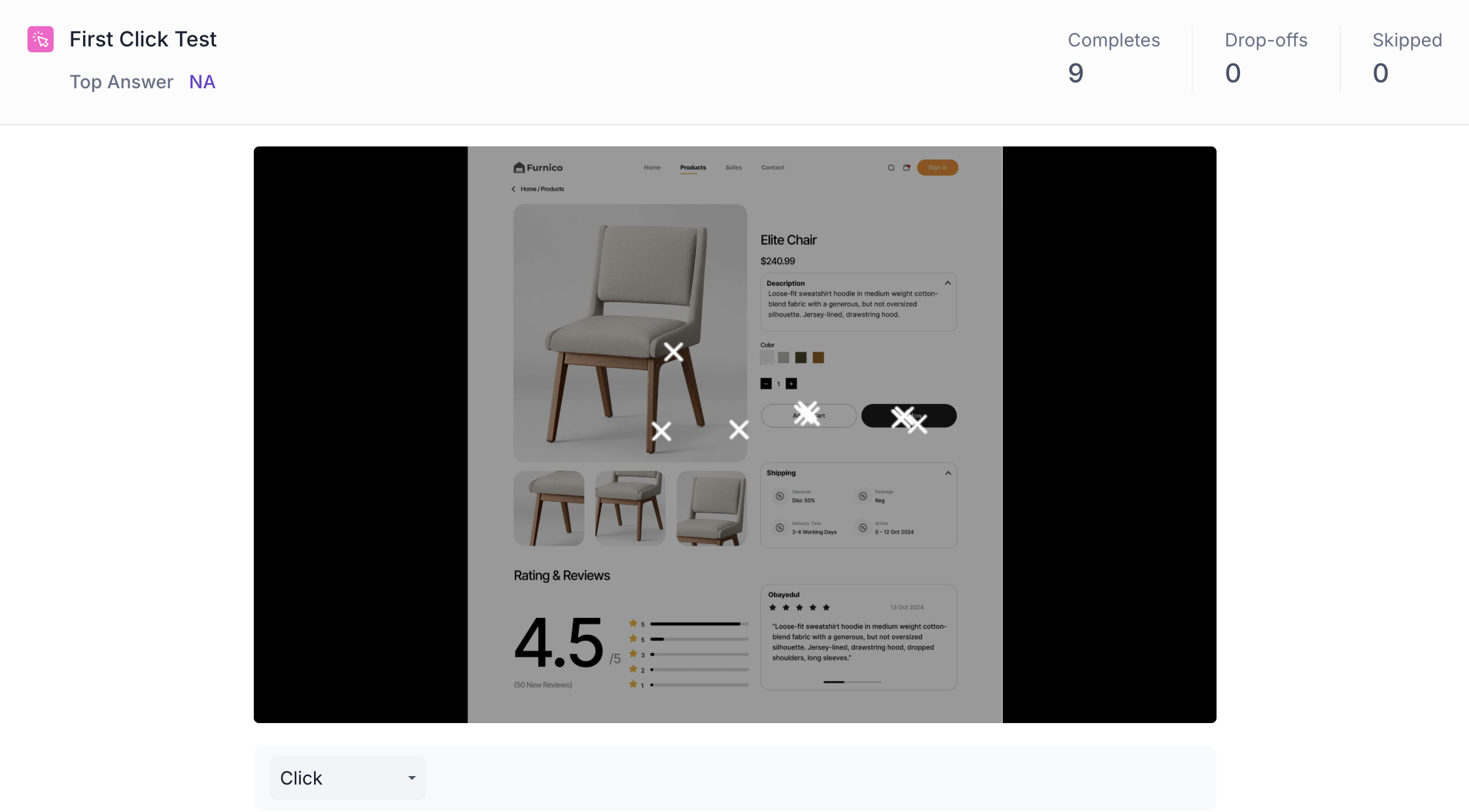
The following metrics are displayed for the First Click Test block.
- Completes: Number of participants who completed this block
- Drop offs: Participants who exited the study before reaching this block
- Skipped: Participants who viewed the block but did not respond
Click Results View
The results are displayed as an overlay on the image. Use the dropdown to switch between two views.
- Original: Shows the image as uploaded without any click data overlay
- Click: Shows the image with X markers indicating where each participant clicked. The markers reveal the spread of click locations across all participants, showing which areas were selected most and where participants clicked off target
Note
Only the last click from each participant is recorded when multiple clicks are allowed. If a participant clicked three times, only their third click appears in the results.