
Prescriptive guidance - what the recommendations mean
The Prediction tab turns the analysis into specific recommendations for improving the creative. This article explains what you need to provide, what each section produces, and how to use the recommendations.
GENERATING THE INSIGHTS
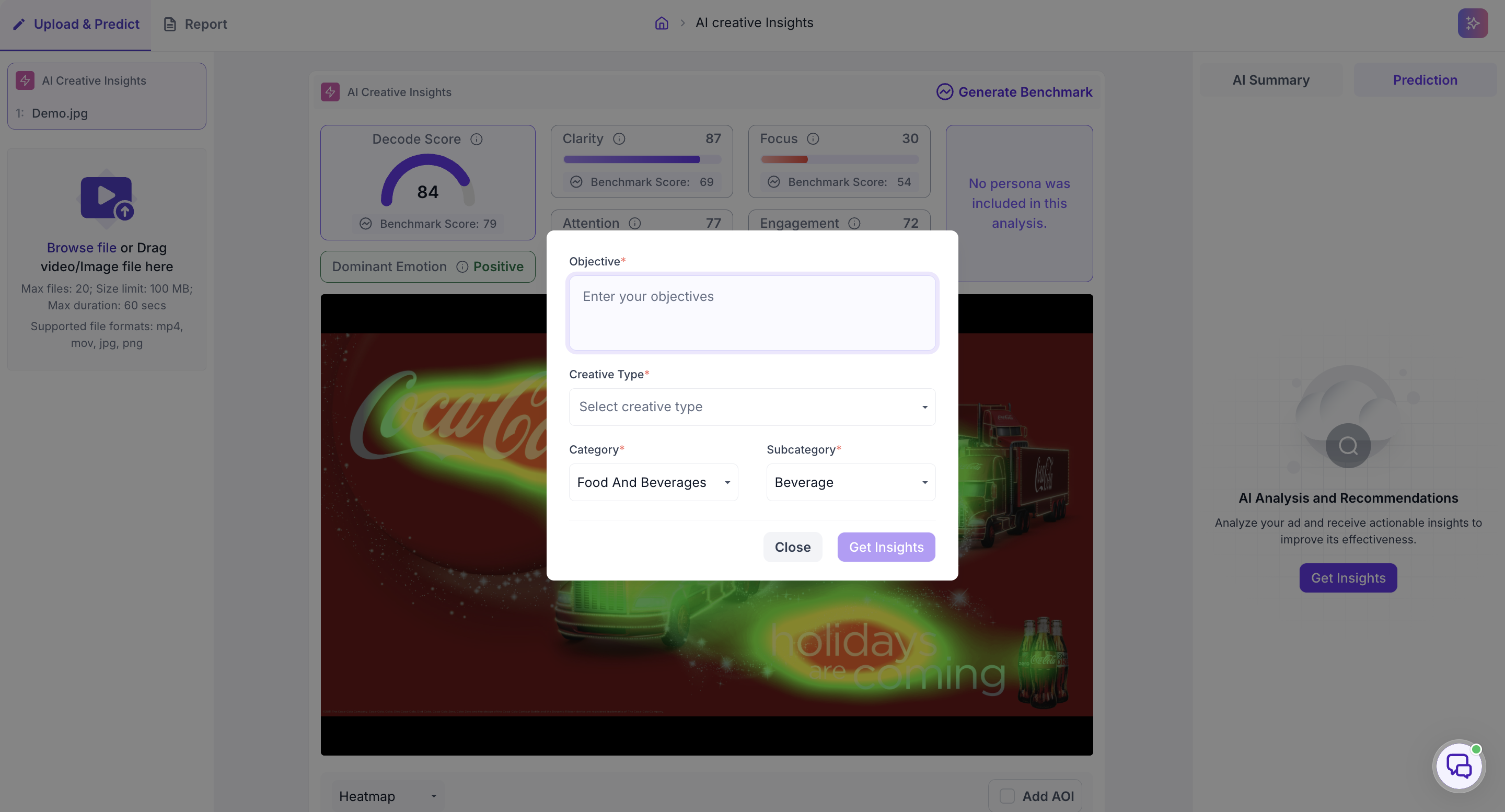
In the Prediction tab, click AI Analysis & Recommendations. Enter the objective for the creative, select the Creative Type, Category and Sub-Category, then click Get Insights. If the Category, Sub-Category and Creative Type were filled in at the upload step, you only need to enter the objective.
The objective is what every recommendation is written against. A creative assessed for brand recall produces different recommendations from the same creative assessed for clicks, so enter the objective the creative was actually built for.
HOW TO READ IT
The output comes in three parts, and they are meant to be read in order.
The Analysis section shows an Advertising Layout Review covering Layout, Clarity, Focus and Text-Visual Balance. Each area describes what is working and what is not. Read this first, because it explains the design and layout factors behind the scores.
The Prescription section shows an Advertisement Performance Report. The Introduction describes the objective of the creative, and the Current Media Performance assessment identifies the issues affecting Focus, Attention and Clarity. This is where the scores at the top of the results page are connected to specific problems in the creative.
The How to improve the ad and its impact section shows a Design Recommendations Report with actionable suggestions. Each recommendation covers one aspect of the design, such as Primary Focus, Color Adjustment, Visual Hierarchy, Reduce Clutter or Call to Action, with a description of what to change and why it would improve performance.
READ IT WITH THE VISUAL VIEW
The recommendations tell you what to change. The visual view shows you the evidence behind each one.
If a recommendation concerns where attention is going, switch the visual view to Heatmap. If it concerns an element not being noticed, switch to Fogmap. If it concerns a specific element such as the CTA or the logo, mark that element as an area of interest to get its Time to Discover and Attention values.
READ IT WITH THE SCORES
The scores at the top of the results page tell you how the creative performs against the benchmark. The recommendations tell you what to do about it.
Where the Design Recommendations Report addresses an aspect that scored below the benchmark, that recommendation is the one to act on first. Check each recommendation against your brand guidelines, legal requirements and where the creative will run before acting on it.
Use the report when briefing a design team on revisions, or when deciding which version of a creative to take forward for further testing.