
Release Notes - 26th October
This release focuses on improving tester identification across Insights, providing greater control over AI Moderator probing behavior, introducing AI-powered research report generation in Document and Slides formats, improving the handling of failed and corrupt media files, and refining the user experience across several platform workflows.
Key highlights include standardized tester identification across block-level Insights, a new No Probing option for individual research goals in AI Moderator, AI-powered report generation with PDF and PPTX export options, clearer processing statuses for failed media, more accurate file counts, and UI/UX enhancements across the Dashboard, Integrations, Approvals, Live Interview, and qualitative study experiences.
Feature Enhancements
1. Standardized Tester ID Across Block-Level Insights
Overview
Tester identification is being standardized across block-level Insights to make it easier to identify and track individual participants throughout a study.
What’s Changed
- Standardize tester identification using a unified Tester ID or Tester Alias across Task, Prototype, Media/Video, Screen Recording, and other tester-level Insights.
- Replace inconsistent displays of tester names and IDs with a consistent identifier.
- Ensure the same tester identifier is displayed across relevant Insights views.
Why This Matters
Previously, different blocks could display different forms of tester identification. For example, Task Block Screen Recording could display a Tester ID, while Prototype Block Screen Recording could display a Tester Name. This inconsistency could make it difficult to recognize the same participant when reviewing results across multiple blocks.
Business Impact
A consistent tester identifier makes it easier for researchers and analysts to follow individual participants across study results and compare their responses. Sales and Customer Success teams can also explain participant-level findings more clearly during client discussions and product demonstrations.
2. Goal-Level No Probing Control for AI Moderator
Overview
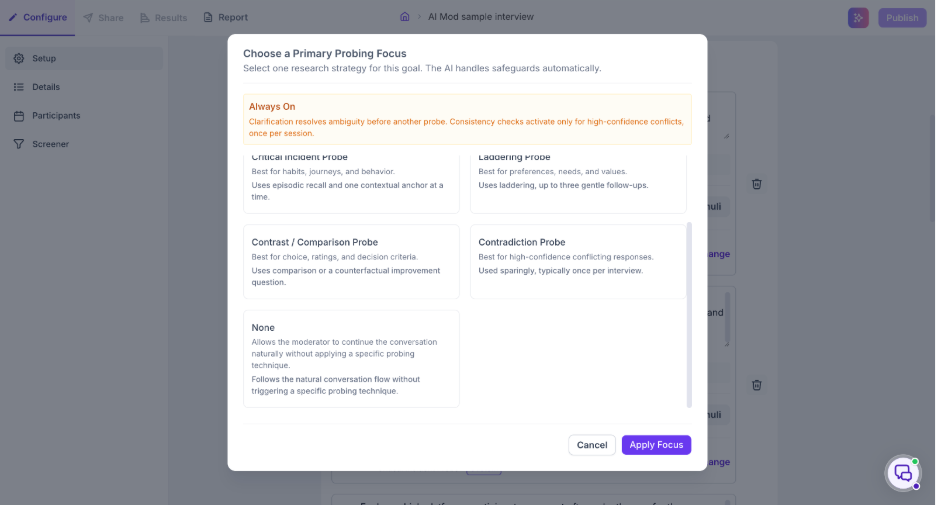
A new No Probing option gives researchers greater control over whether the AI Moderator asks follow-up questions for individual research goals.
What’s Changed
- Added a No Probing option to each goal’s AI Moderator configuration, alongside the existing probing options.
- Researchers can configure probing behavior independently for each research goal.
- When No Probing is selected, the AI Moderator asks the planned question, accepts the participant’s response, and proceeds to the next step without asking automatic follow-up questions for that goal.
- The selected probing configuration is retained when the study is saved, refreshed, or reopened.
- The goal card, configuration summary, and preview display the selected probing behavior.
- The selected setting applies only to the specific research goal for which it is configured.
Why This Matters
Not every research goal requires follow-up questions. Some goals need direct answers, while others benefit from additional probing to explore participants’ thoughts and motivations. This option allows researchers to tailor the AI Moderator’s behavior to the needs of each research goal.
Business Impact
Researchers gain greater control over interview flow and can tailor the depth of exploration to their research objectives. Sales and Customer Success teams can highlight this flexibility when explaining how Decode supports different research methodologies and interview requirements.
3. Generate Research Reports as Documents or Slides
Overview
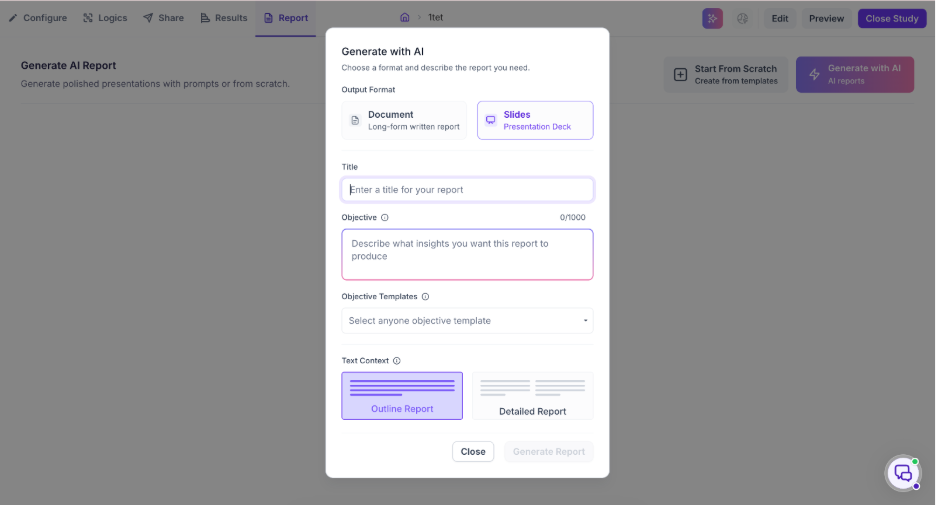
Decode now supports generating AI-powered research reports in two formats: Document and Slides. Users can choose between a detailed, written report and a presentation deck based on their reporting needs.
What’s Changed
- Document: Generates a long-form written report with section headings, paragraphs, relevant tables, charts, and supporting evidence. Documents can be downloaded as PDF files.
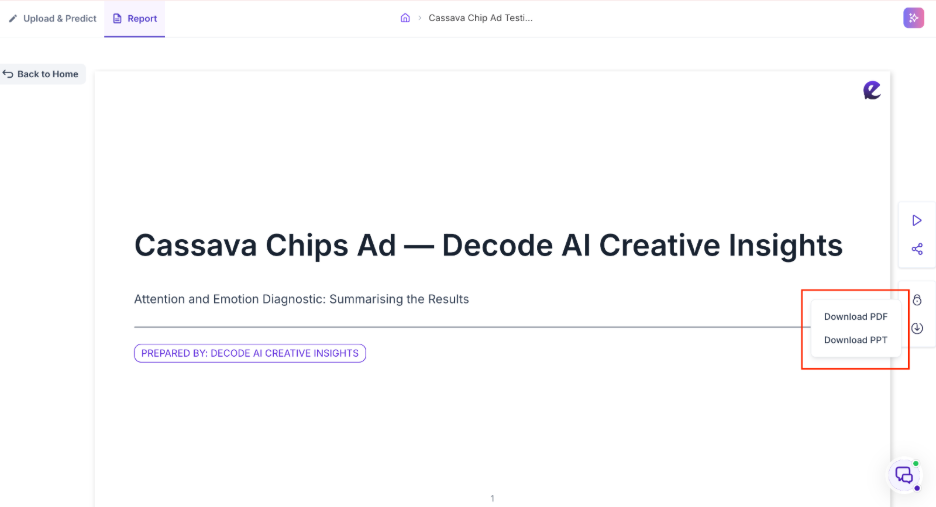
- Slides: Generates a presentation deck using the existing report-generation workflow. Slides reports can be downloaded as PDF or PPTX files.
- Report Format Selection: Users can select Document or Slides in the Generate with AI modal. Slides remains the default option to preserve the existing workflow.
- Flexible Report Configuration: The Title, Objective, Objective Templates, and Text Context options remain available for both formats. Switching between formats preserves the entered information and selections.
- Consistent Research Findings: Both formats use the selected study data and research objective, preserving relevant metrics, participant quotes, findings, and supporting evidence.
- Saved Report Preferences: The selected report format and its supported export options are retained when users reopen a report.
Why This Matters
- Provides flexibility to present research findings as a detailed written report or a presentation deck.
- Makes it easier to adapt research outputs to different reporting and sharing needs.
- Helps users access research insights in a format suited to their intended use.
Business Impact
- Reduces the manual effort required to restructure research findings into different reporting formats.
- Enables users to generate and download written reports and presentation decks directly from Decode.
- Provides clear export options based on the selected report format, with PDF available for both formats and PPTX available for Slides reports.
Improvements
1. Dashboard and Platform UI/UX Improvements
Several interface refinements have been made across the platform to improve navigation, consistency, and usability.
What’s Changed
- Improved folder navigation, filter positioning, and empty-state alignment across the Dashboard and Studies pages.
- Refined the Integrations experience, including integration activation and deactivation, pop-up behavior, scrolling, and button states.
- Improved layout consistency, spacing, typography, and tab styling across the Approvals, File Import, and Audience Share sections.
Business Impact
These improvements provide a cleaner, more consistent interface, making everyday workflows easier to navigate and reducing confusion during product demonstrations.
2. Live Interview UI Improvements
What’s Changed
- Improved the meeting setup experience, including date selection, navigation, and field layouts.
- Refined the presentation of participant information, session details, recordings, and results.
- Improved the layout, typography, spacing, and empty states across Highlights, Themes, and Audience Segments.
Business Impact
These refinements make the Live Interview experience more consistent and easier for researchers to navigate, from meeting setup through results review.
3. AI Moderator and Qualitative Insights UI Improvements
What’s Changed
- Added tooltips to buttons in the AI Moderator tester view.
- Improved spacing and empty-state alignment across Themes and qualitative results.
Business Impact
These changes make the interface easier to understand and provide a more consistent experience when reviewing qualitative insights.
Bug Fixes
1. Eye Tracking Data Displayed Outside the Mobile Viewport
Issue: In Task Block results for studies completed through the mobile app with Facial Coding and Eye Tracking enabled, eye-tracking data could appear over the black areas surrounding the mobile content.
Fix: Correct the eye-tracking display so the data appears within the intended mobile content area.
Impact: Users can review mobile eye-tracking results without visualizations appearing outside the actual content being viewed.
2. Study Analytics Remained in a Processing State After Media Processing Failed
Issue: When all media files in a study failed to process, Analytics sections including AI Summary, Theme Analysis, Audience Segment, Question-Wise Insights, and Recommendations could continue to show processing indicators. The Themes tab could also remain in a processing state.
Fix: Improve the handling of failed processing states so the interface can distinguish unsuccessful processing from ongoing processing.
Impact: Users can more easily recognize when results are unavailable because media processing failed, rather than mistakenly assuming that the system is still processing the files.
3. Unexpected UI Element in Emotion Metrics for YouTube and Vimeo Blocks
Issue: An unexpected UI element appeared in the bottom-right area of the Emotion Metrics progress bar for YouTube and Vimeo blocks with Facial Coding enabled.
Fix: Correct the Emotion Metrics progress bar presentation to align with the expected appearance of the uploaded video block.
Impact: Emotion Metrics displays more consistently across supported video block types.
4. Corrupt DOCX Files Incorrectly Marked as NLP Processed
Issue: A DOCX file that was too corrupt to read could incorrectly display a successful NLP processing status.
Fix: Correct the processing status so an unreadable DOCX file is identified as failed instead of being marked as successfully processed.
Impact: File statuses more accurately reflect whether a document is available for analysis, reducing confusion when reviewing uploaded files.
5. Incorrect File Count Displayed for Folders
Issue: The file count displayed for a folder did not always match the actual number of files it contained. For example, a folder containing two files could display a count of seven.
Fix: Correct the folder file-count display to reflect the actual number of files.
Impact: Users can rely on folder counts when managing and reviewing study files.
6. Inconsistent UI and File Icons for Corrupt Media
Issue: The same corrupt media file could appear differently across the Home and Files sections. For example, one section could display a media-processing interface while another showed a MOV file icon.
Fix: Improve consistency in the representation of corrupt media files, including their file type, icon, and processing status across the relevant sections.
Impact: Users receive a more consistent view of file information and processing failures throughout the platform.