
Setting Up a Qualitative Study
Overview
This article explains how to create and configure a live moderated research study in Decode. This lets you run live sessions with participants and analyse the recordings in one place.
Step 1: Create a new study
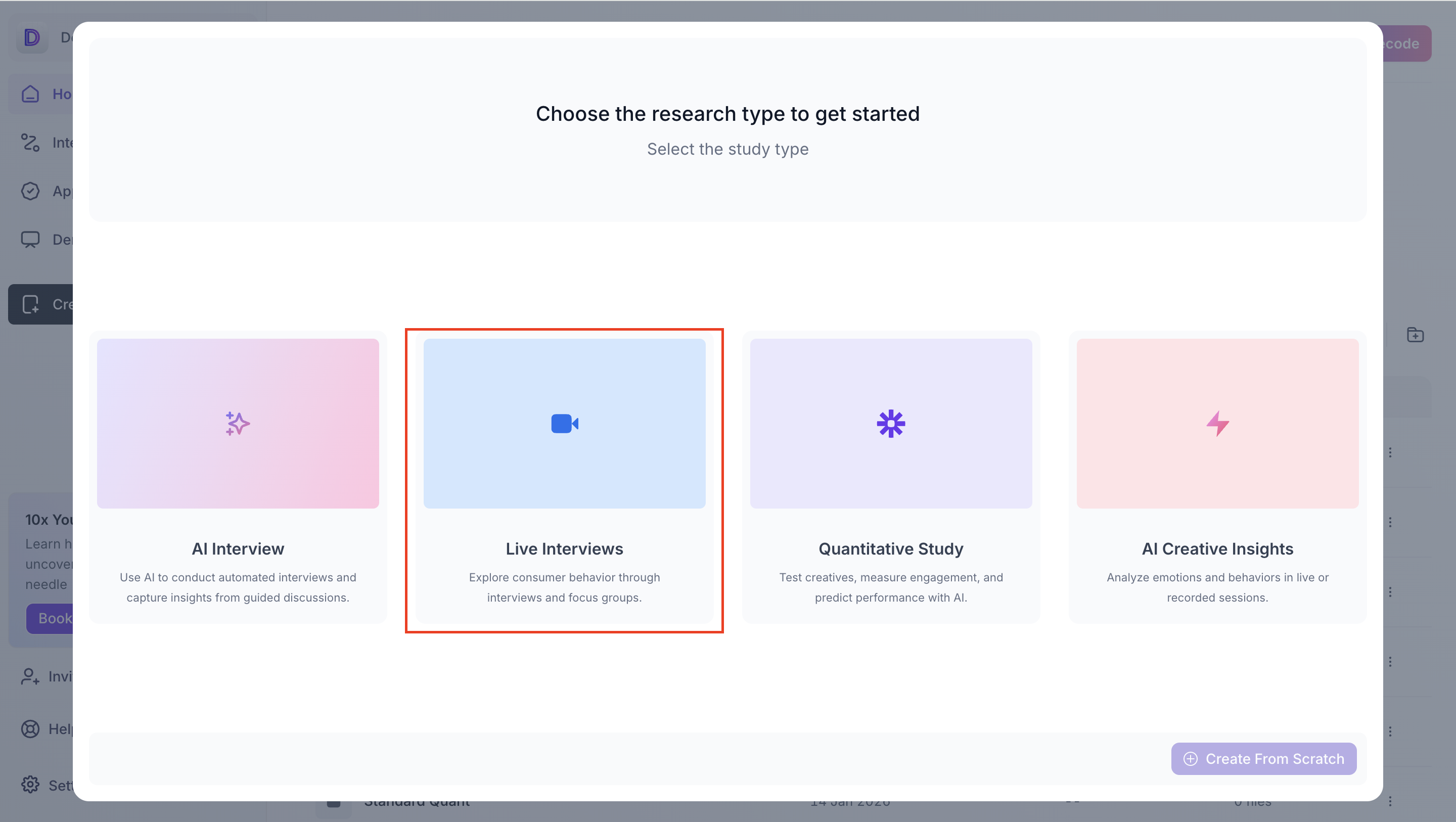
From the Decode dashboard, click Create New Study and select Live Interviews. You'll land on the Configure view with four sections in the left navigation: Details, Availability, Participants, and Screener.
Step 2: Fill in meeting details
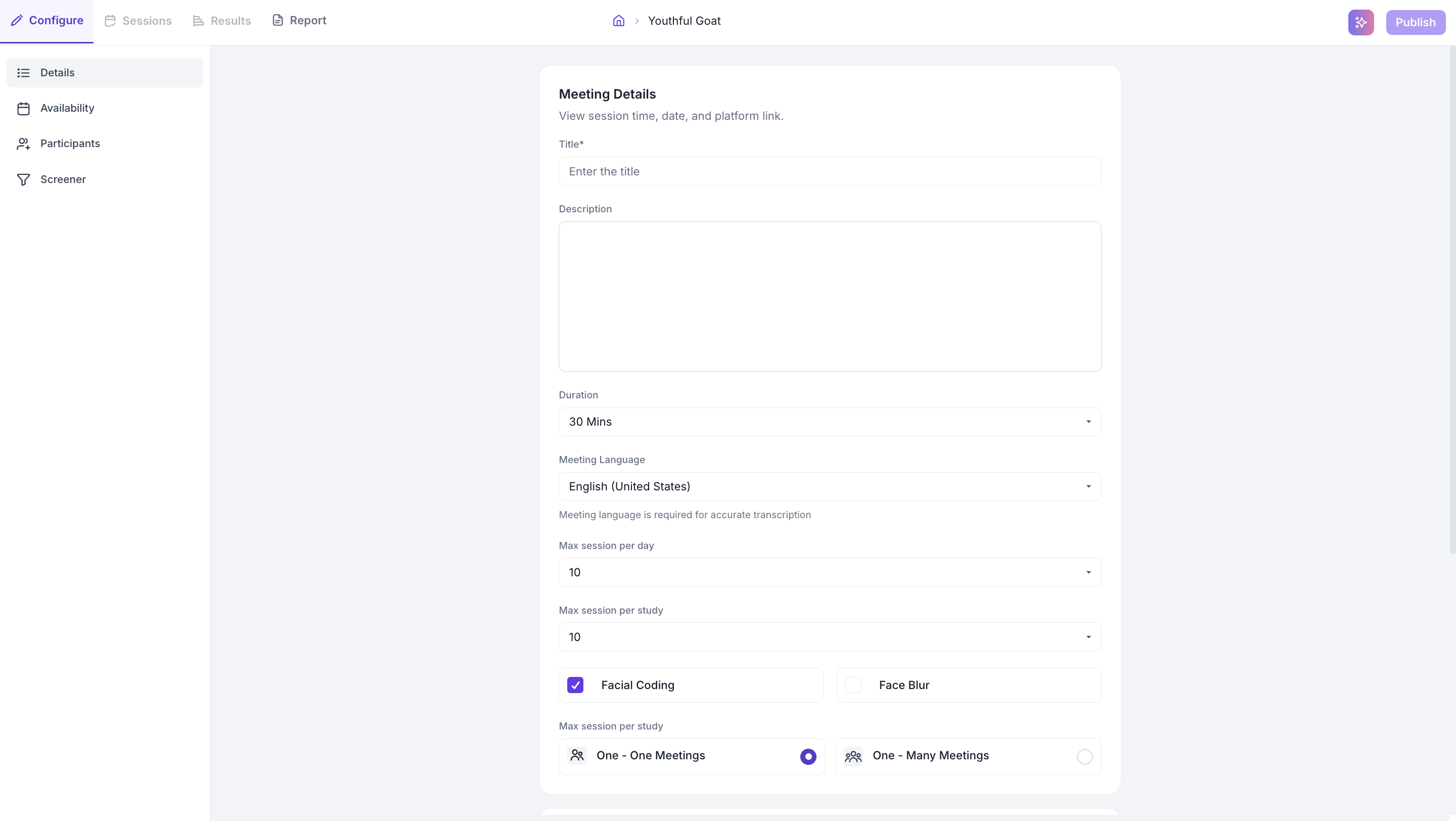
Title and Description
Give your study a clear title. The description is optional but helps participants understand what to expect before the session.
Duration
Select the session length from the dropdown. The default is 30 minutes.
Meeting Language
Select the language spoken in sessions. This is used for auto-transcription.
Session limits
- Maximum sessions per day — the maximum number of sessions that can be booked on any single day
- Maximum sessions per study — the total number of participants who can book a session using the study link
Technologies
- Facial Coding — captures emotional data from participant faces during live sessions
- Face Blur — blurs participant faces in the recording; enable this if participants have requested anonymity
Select meeting type
- One - One Meetings — the moderator conducts individual sessions with each participant
- One - Many Meetings — the moderator runs a session with multiple participants at the same time, such as a group discussion. A maximum of 5 participants can join a single session.
Meeting Attendees
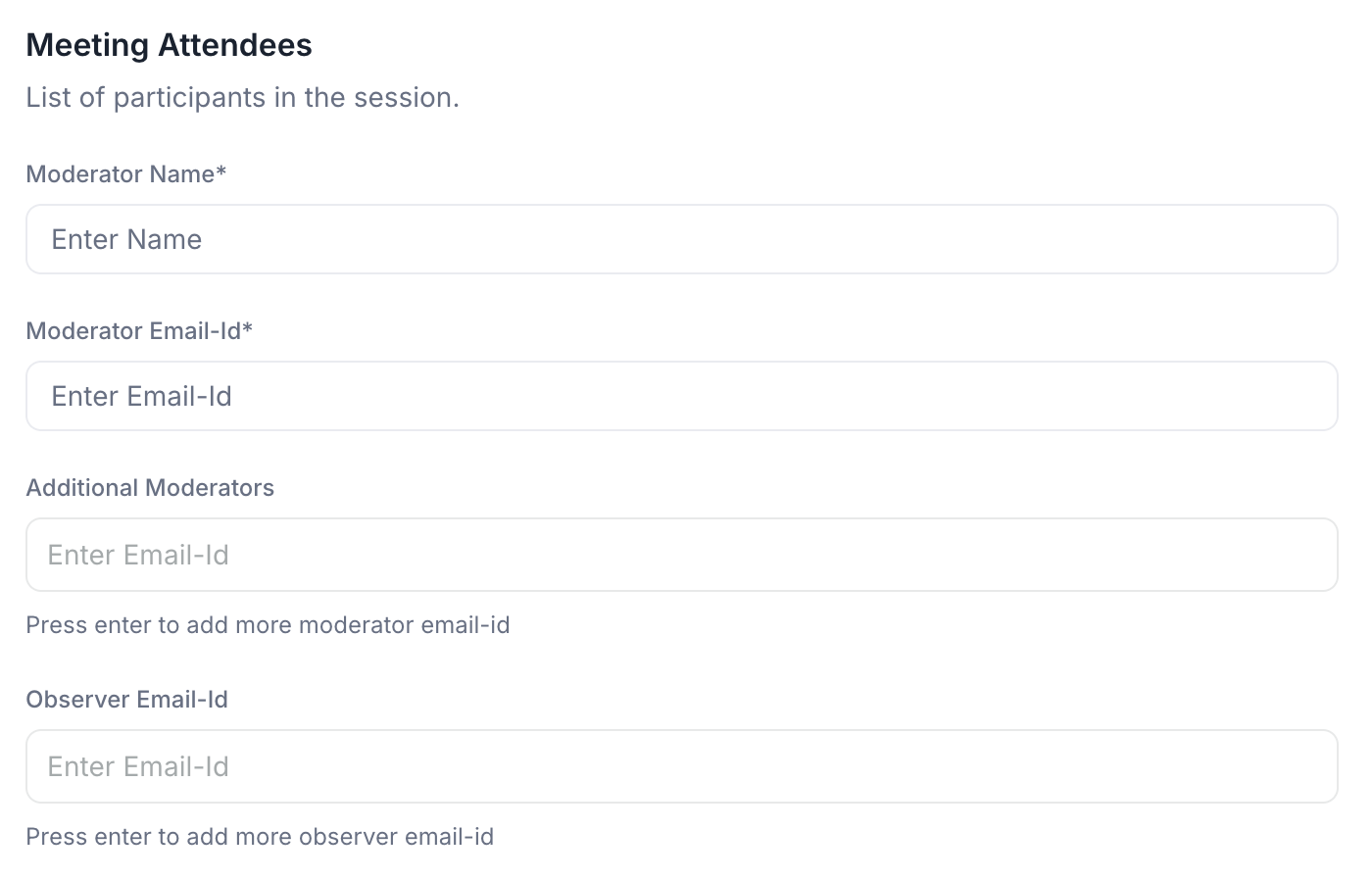
Scroll down within the Details section to add attendees:
- Moderator's name and Moderator's email address (required) — the moderator leads the session and receives a dedicated join link
- Additional Moderators (optional) — enter each email address and press Enter to add more than one moderator
- Observer's email address (optional) — observers can watch the session without participating; enter each email and press Enter to add multiple observers
Step 3: Set availability
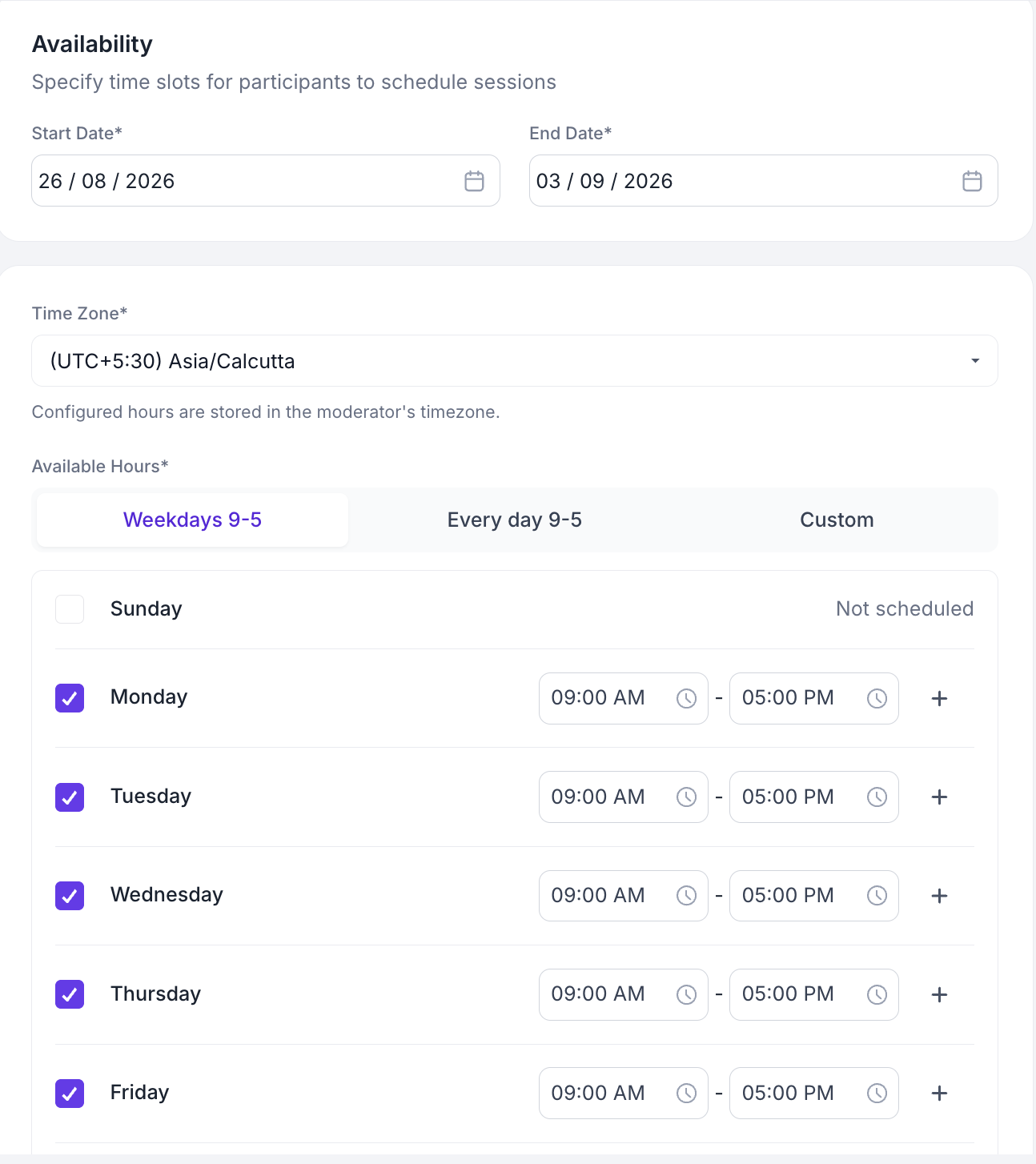
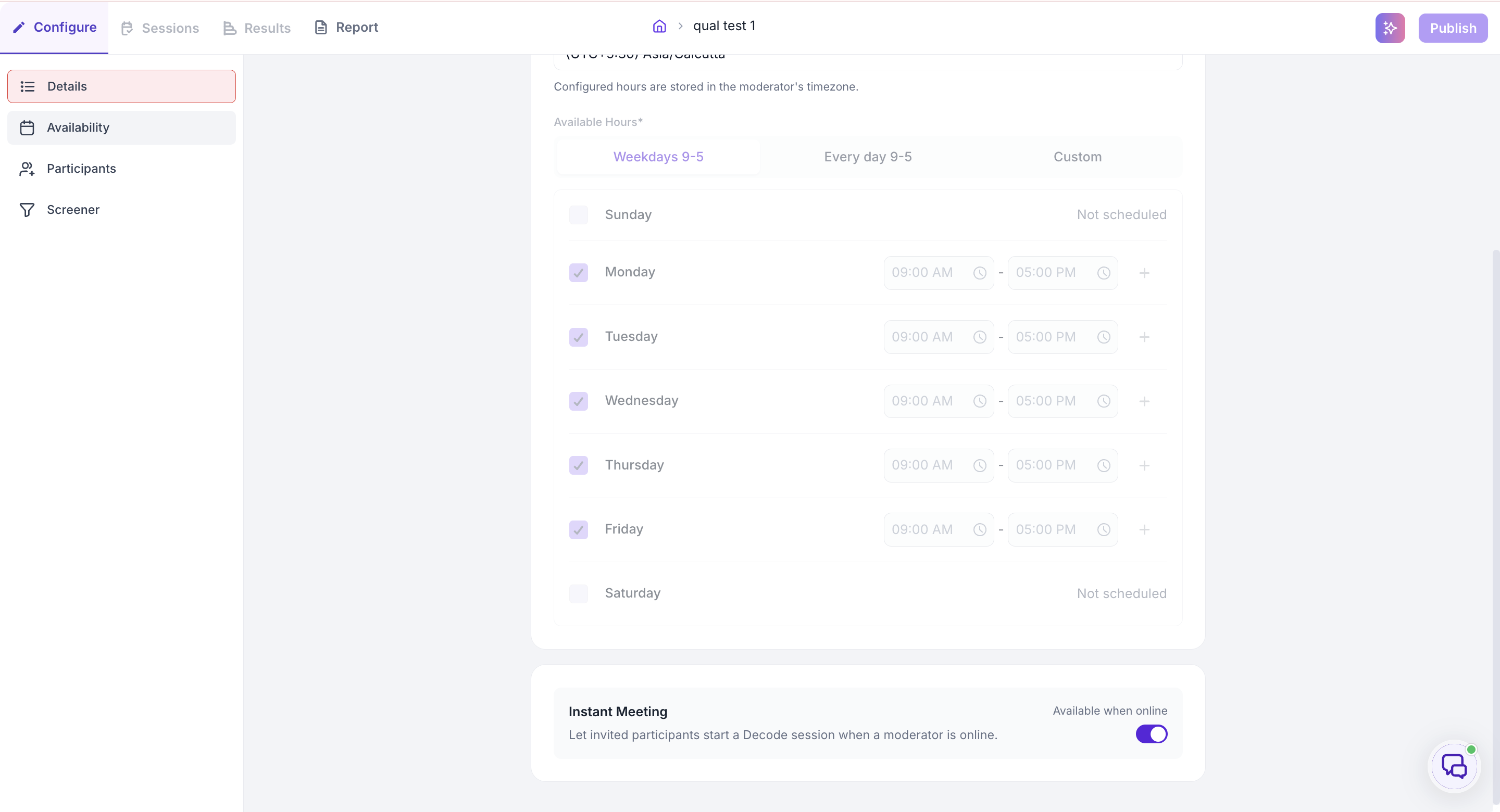
Go to the Availability section to set when participants can book sessions.
- Start Date and End Date — the date range of the study itself, not when participants book. Participants can only book within whatever slots fall inside this range.
- Time Zone — participants see available slots in their own local time zone. Configured hours are stored in the moderator's timezone.
- Available Hours — choose a preset (Weekdays 9-5 or Every day 9-5), or select Custom to set your own schedule. With Custom, check each day you're available and set a time window for it, use the + button to add multiple time slots on the same day. Days left unchecked are not available for booking.
Instant Meeting
Turn on Available when online to let invited participants start a Decode session whenever a moderator is online, instead of booking a slot in advance. Enabling this appears to override the fixed weekly schedule above, since participants no longer need to pick a slot within it.
Step 4: Add participants
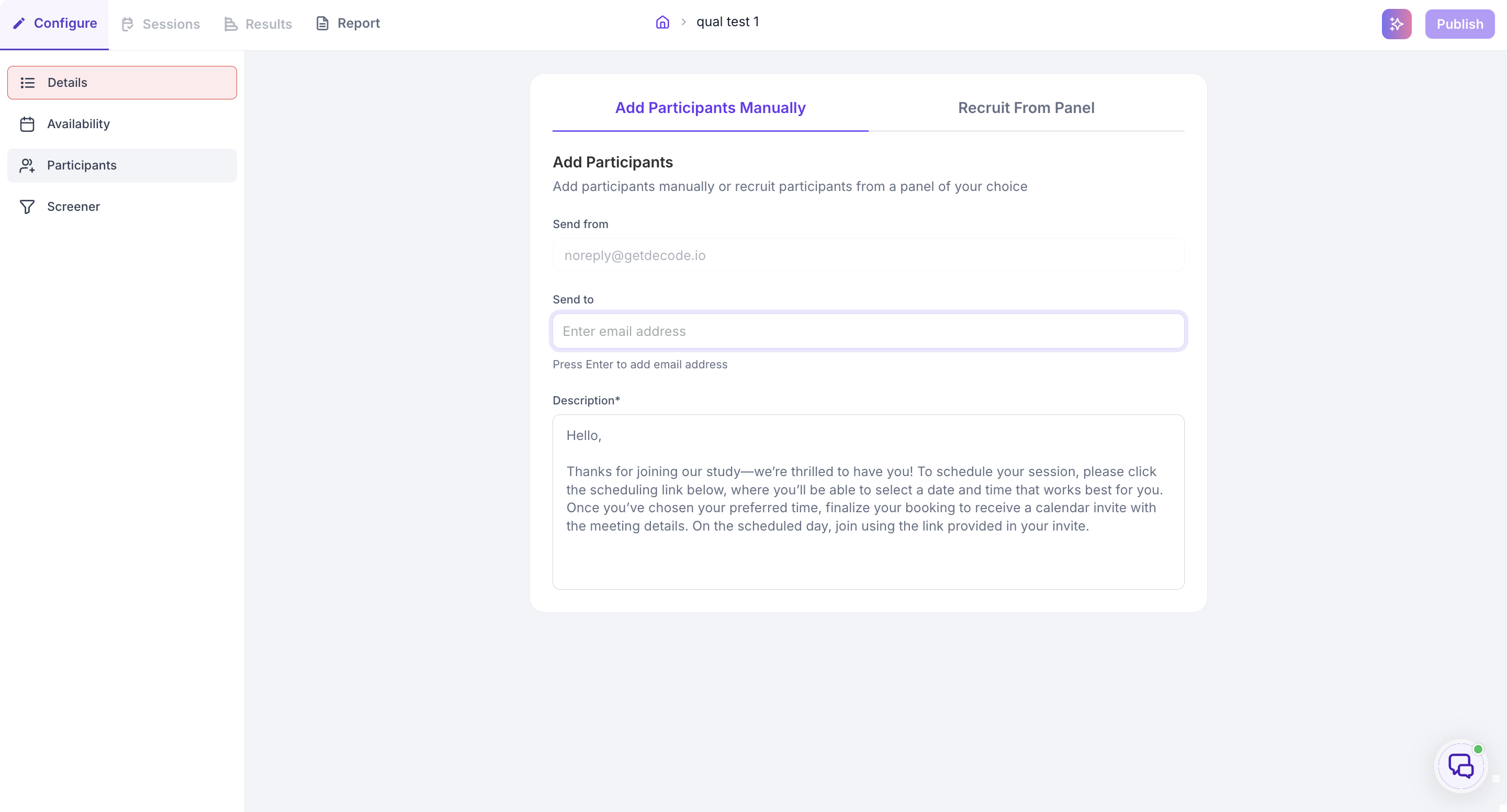
Under Participants, choose how you want to bring people into the study:
- Add Participants Manually — enter participant email addresses under Send To and press Enter after each one. Participants receive an invitation email (from noreply@getdecode.io) with a link to schedule their session. The invitation message under Description is pre-filled but can be edited before sending.
Step 5: Configure the screener
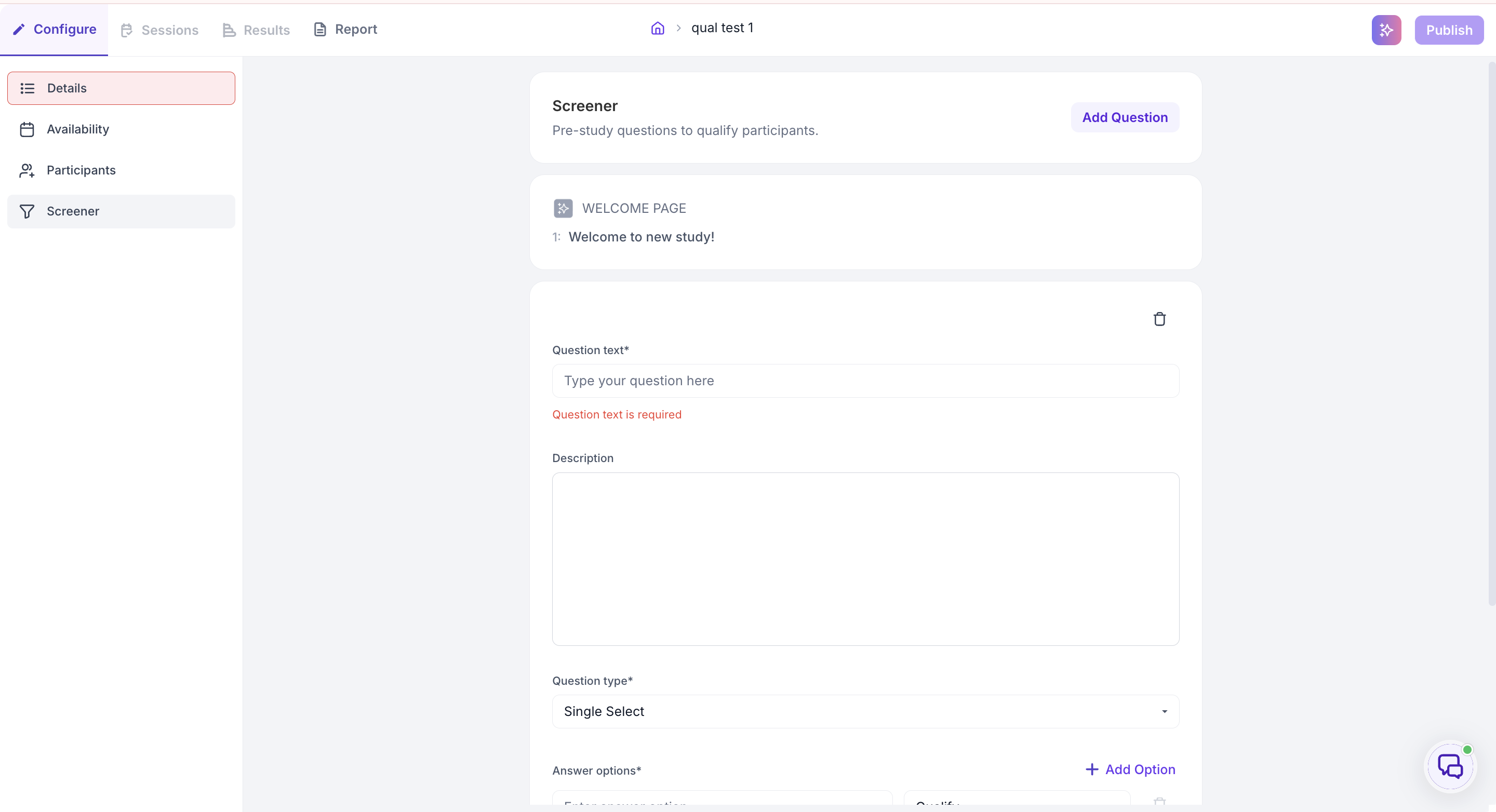
The Screener lets you add qualification questions so only eligible participants can book a session. Two pages are included by default:
- Welcome Page — shown to all participants when they open the study link; title and description are editable
- Screenout Page — shown to participants who don't meet your criteria; the default message is "Sorry, you are screened out!" and can be customised
To add a screening question, click Add Question, then fill in:
- Question text — the question shown to participants
- Description (optional) — additional context or instructions for the question
- Question type — for example, Single Select
- Answer options — click Add Option to add each possible answer. For each option, set whether it routes the participant to Qualify (continue to booking) or Disqualify (routed to the Screenout Page)
Step 6: Publish
Once all sections are complete, click Publish. The study moves to the Sessions tab, where the shareable study link is available. Share the study link with participants; when a participant selects a slot, they receive a calendar invite with their join link.
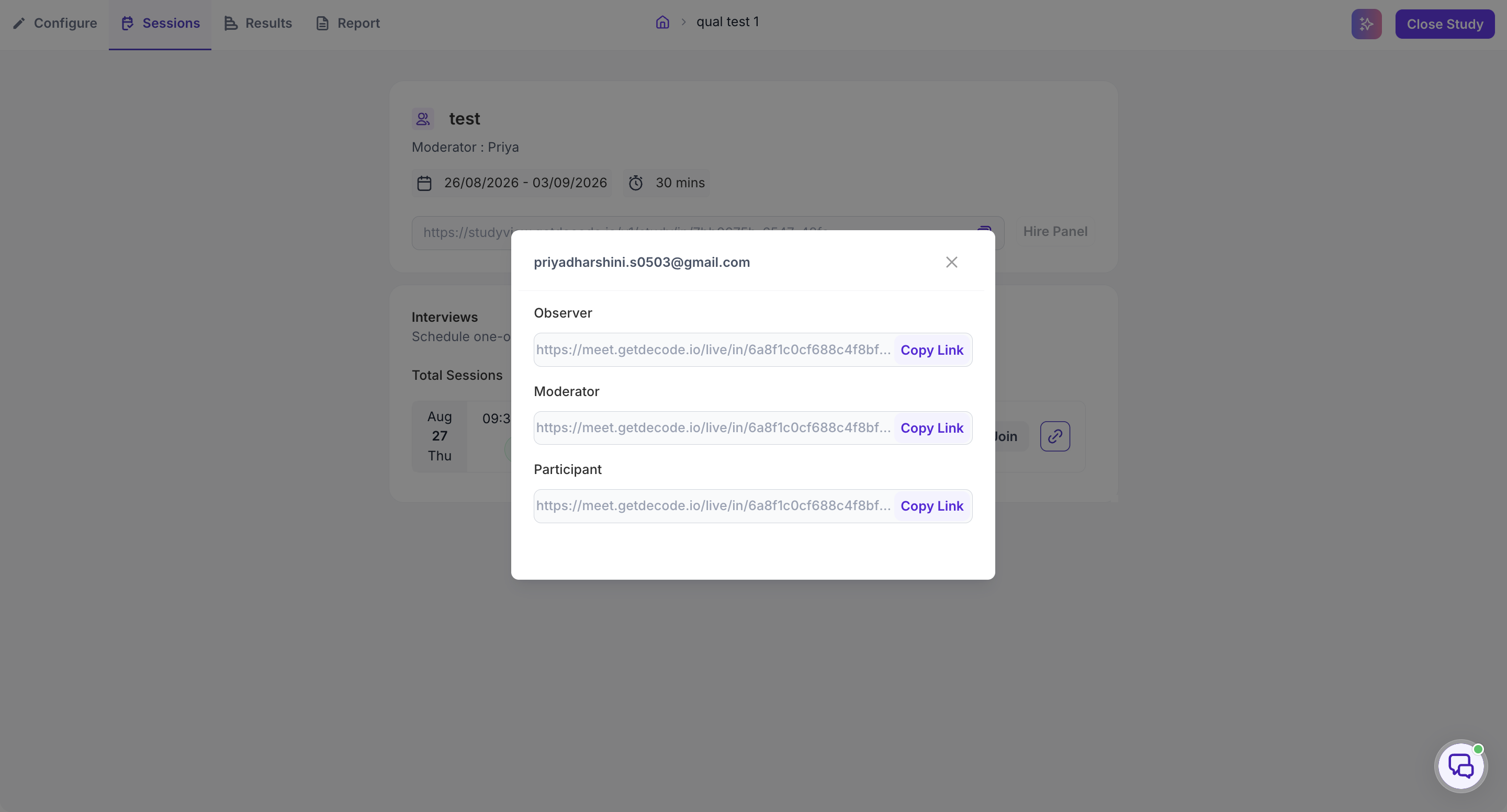
Each role gets a separate join link. From the Sessions tab, click the link icon on any booked session to see the individual links for the Observer, Moderator, and Participant.
Managing sessions
After publishing, the Sessions tab shows all booked interviews. Each session card shows the participant email, scheduled time, and current status.
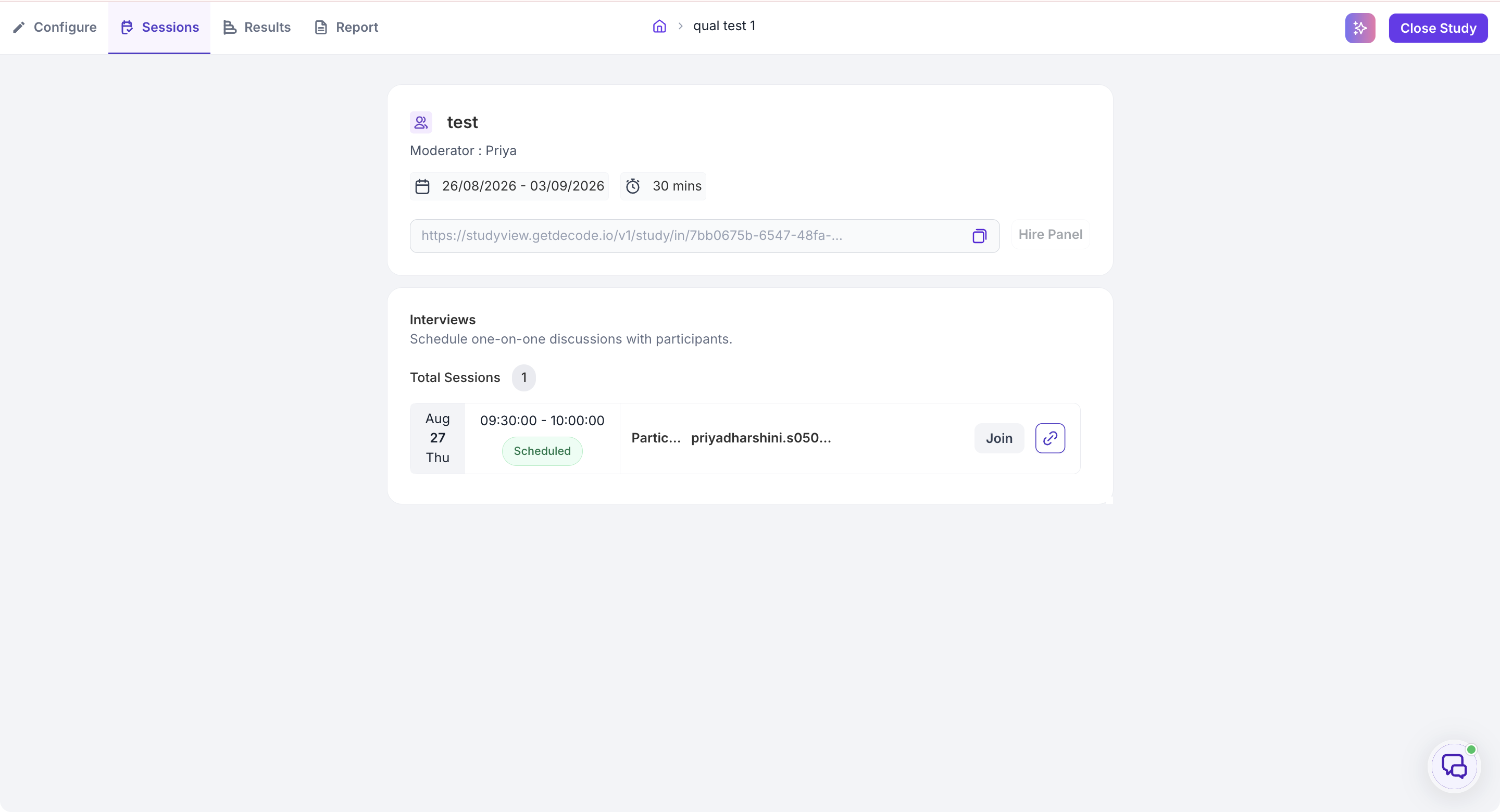
- Join — enter the session as a moderator; opens the Decode Live meeting link for that session directly
- Reschedule — propose a new time to the participant; they'll receive an updated calendar invite with the new slot
- Cancel — remove the session; the participant will be notified that it's been cancelled
- Link icon — view the join links for that session; a modal opens with separate links for the Moderator, Participant, and Observer, which you can copy individually
What to do next
To learn how to run a session once it's scheduled, see Run a live session.