Video Response Testing in Decode
Overview
The Video Response block in Decode lets you collect open-ended natural feedback from participants in video format. Participants record a video response or upload a pre-recorded one. Decode generates a transcript, an AI summary and an emotional breakdown of each response.
How to Set Up a Video Response Block
Step 1: Add the Block
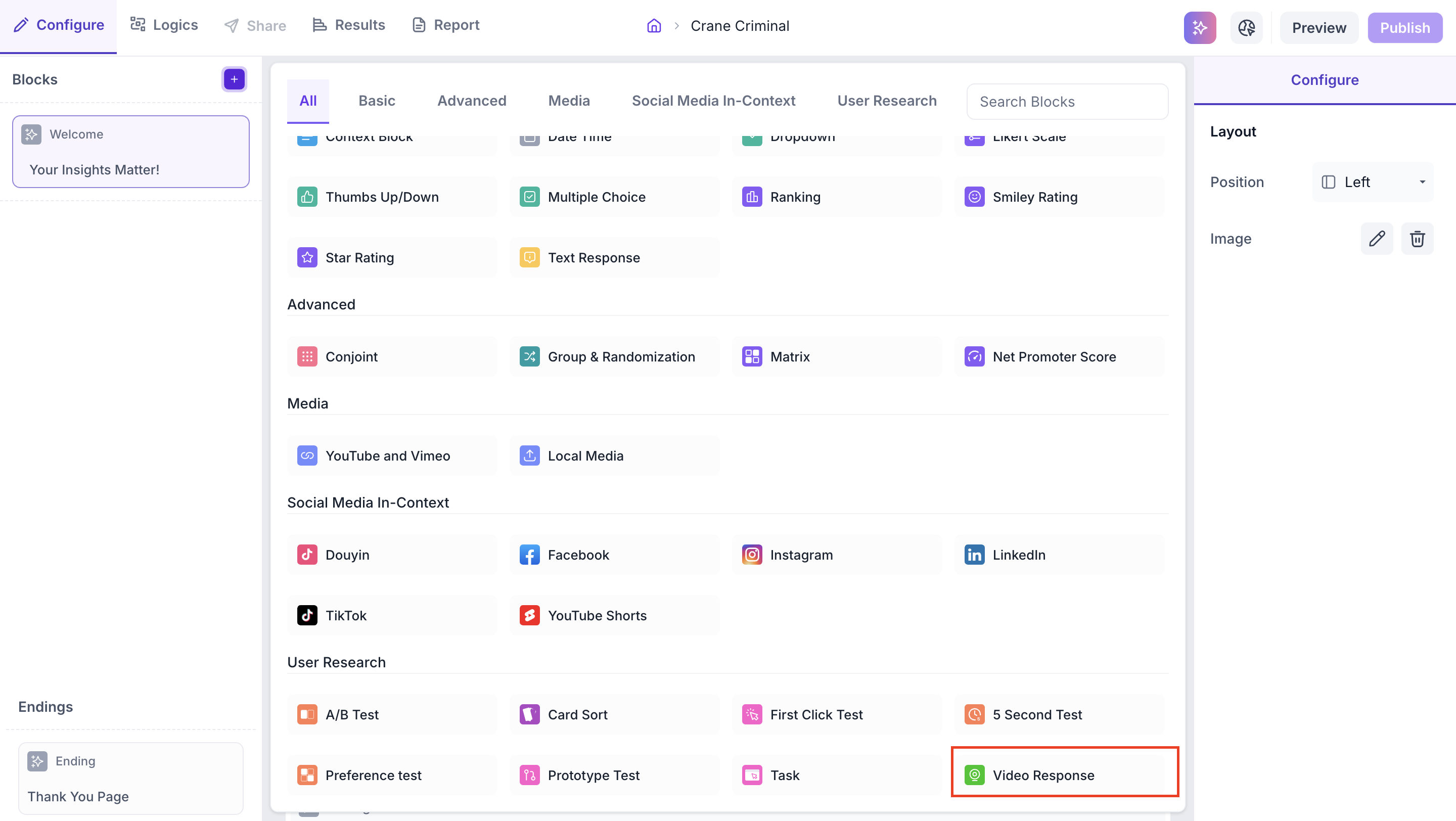
Click the + icon in the left panel to open the block selection panel. Under the User Research section, select Video Response.
Step 2: Enter the Question
Enter the block question and description to give participants context before they record their response.
Step 3: Configure Properties
Use the Configure panel to set the following properties.
Options
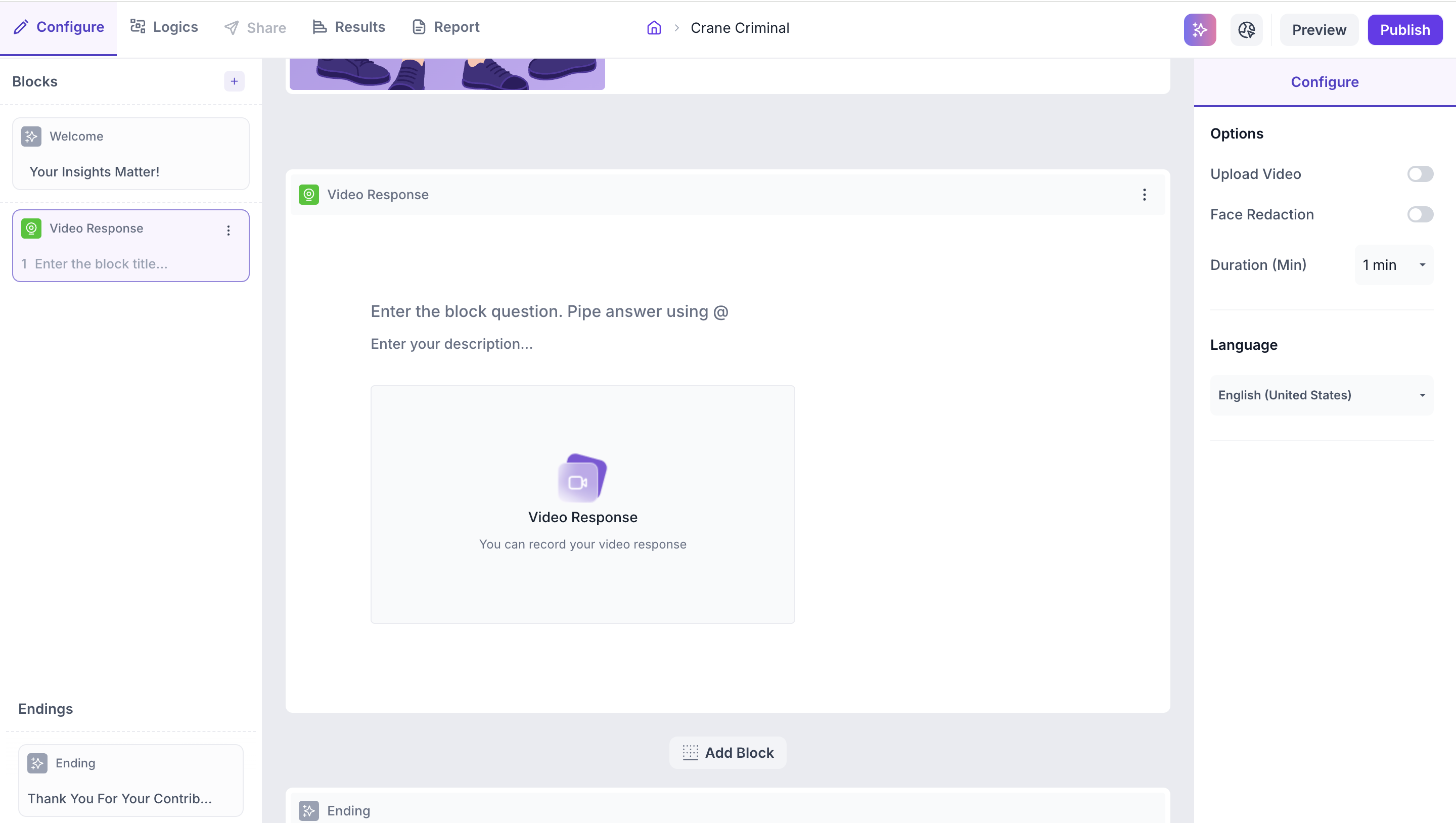
Upload Video: When enabled, participants can upload a pre-recorded video instead of recording live. Use this when participants may prefer to submit a prepared response or when live recording is not suitable for the research context
Face Redaction: When enabled, the participant's face is blurred in the recorded video in the results view. Use this to protect participant identity when sharing recordings with stakeholders or within your team
Duration: Set the maximum length of the video response. Available options are 1 to 10 minutes in increments of 1 minute
Language
Select the language for this block. The transcript will be generated in the selected language based on what the participant says in their video response.
RESULTS
Overview
Once your study is live and responses are collected, you can view the results in the Results tab.
Block Level Summary
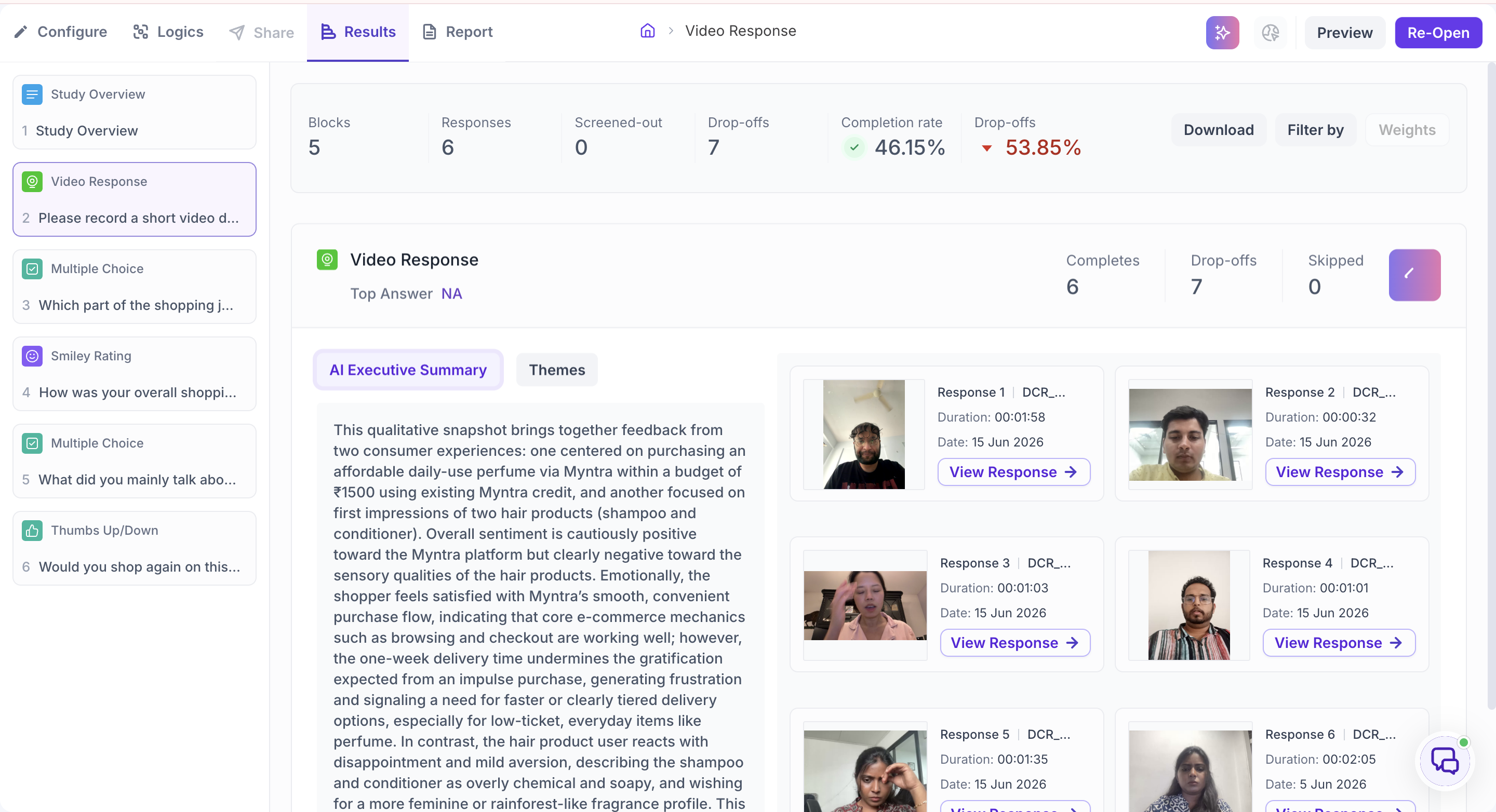
The following metrics are displayed at the top of the Video Response block results:
- Completes — participants who submitted a video response
- Drop-offs — participants who exited the study before reaching this block
- Skipped — participants who viewed the block but did not submit a response
AI Executive Summary and Themes
Below the block-level summary, two tabs give you a consolidated view across every response:
- AI Executive Summary — a written summary pulling together the key points across all responses, so you can understand the overall picture without reviewing each response individually
- Themes — the recurring topics that came up across responses, shown as separate cards, each with a short description of what participants said about that theme
Response List
All submitted responses are listed with a thumbnail, response ID, duration, and submission date. Click View Response to open a detailed view of an individual response.
Individual response view
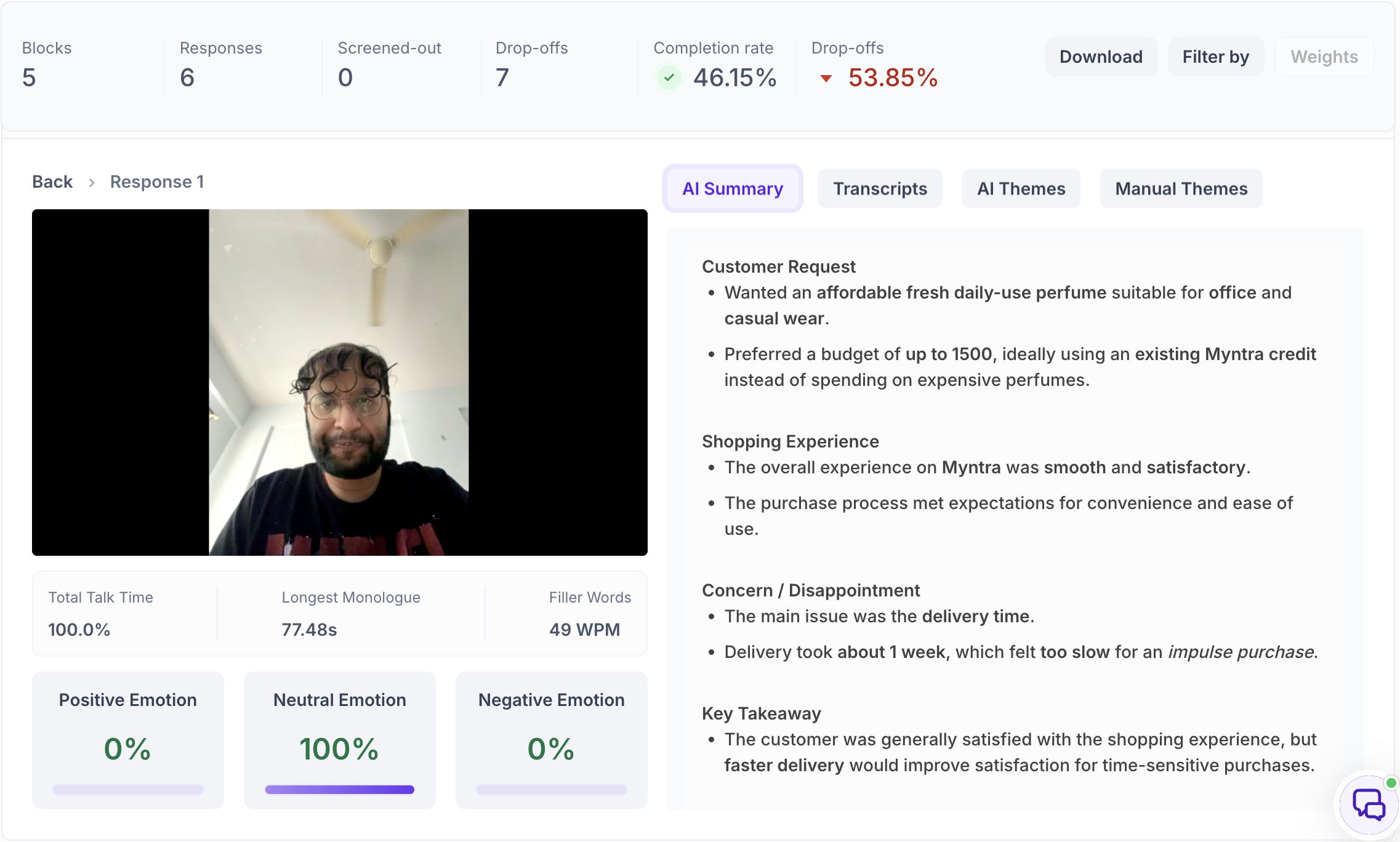
The individual response view shows the video alongside the following metrics:
- Total Talk Time — the percentage of the video duration in which the participant was speaking
- Longest Monologue — the duration of the participant's longest uninterrupted segment of speech
- Filler Words — the number of filler words (such as "um" and "uh") used, shown as words per minute
Below this, an Emotion Breakdown shows Positive Emotion, Neutral Emotion, and Negative Emotion as a percentage of this individual response.
Four tabs give you different ways to review a single response:
- AI Summary — a structured breakdown of the response, organized into sections such as what the participant requested, their experience, any concerns raised, and a key takeaway, so you can scan the substance of a response without watching the full video
- Transcripts — a full, timestamped transcript with a play button next to each segment to jump to that point in the video. Segments are highlighted to group related statements together, making it easier to see which parts of what someone said relate to the same point
- AI Themes — Decode automatically identifies themes within this specific response, each shown with a short description of what the participant said about it
- Manual Themes — shows specific words or phrases Decode has tagged within the transcript, each with the exact quote where that word or phrase appeared, useful when you want to trace a specific term back to exactly where and how it was said