
Connecting Decode to AI Assistants with MCP
MCP Settings lets AI assistants connect to your Decode workspace using the Model Context Protocol, so an assistant can work with your research directly rather than you exporting and pasting data across.
MCP Settings is in Settings, under the MCP tab.
ENABLING THE MCP SERVER
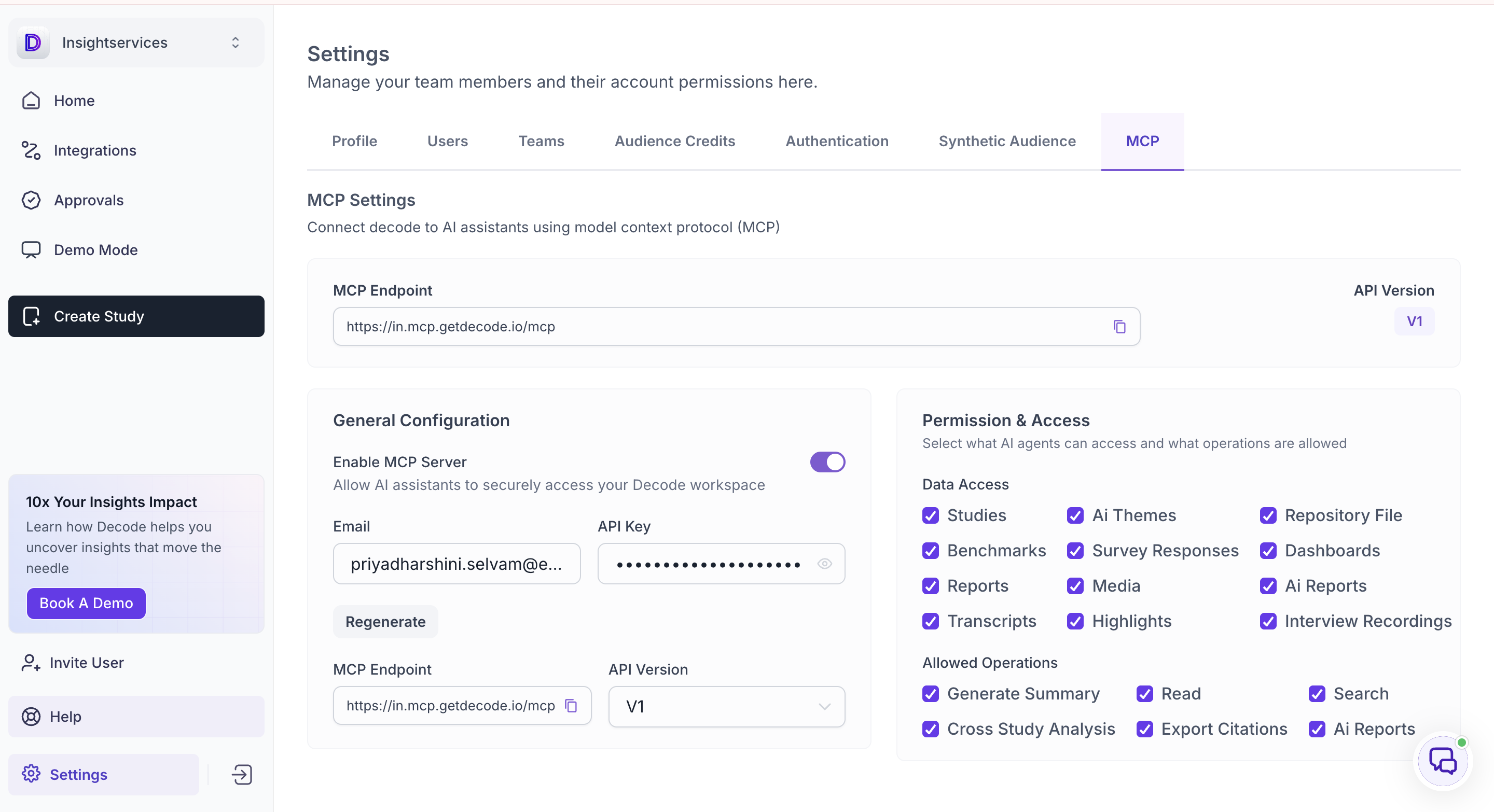
MCP is off by default. Turn on Enable MCP Server to allow AI assistants to access your workspace.
The connection details and access controls appear once the server is enabled.
CONNECTION DETAILS
Three values are needed to connect an assistant to your workspace.
MCP Endpoint. The address the assistant connects to. Use the copy icon to copy it.
Email. The account the connection is associated with.
API Key. The key that authenticates the connection. Select the eye icon to reveal it.
API Version. The version of the MCP API the connection uses.
Treat the API key as a credential. Anyone holding it can reach your workspace within the permissions you have set, so share it only with the people setting up the connection.
REGENERATING THE API KEY
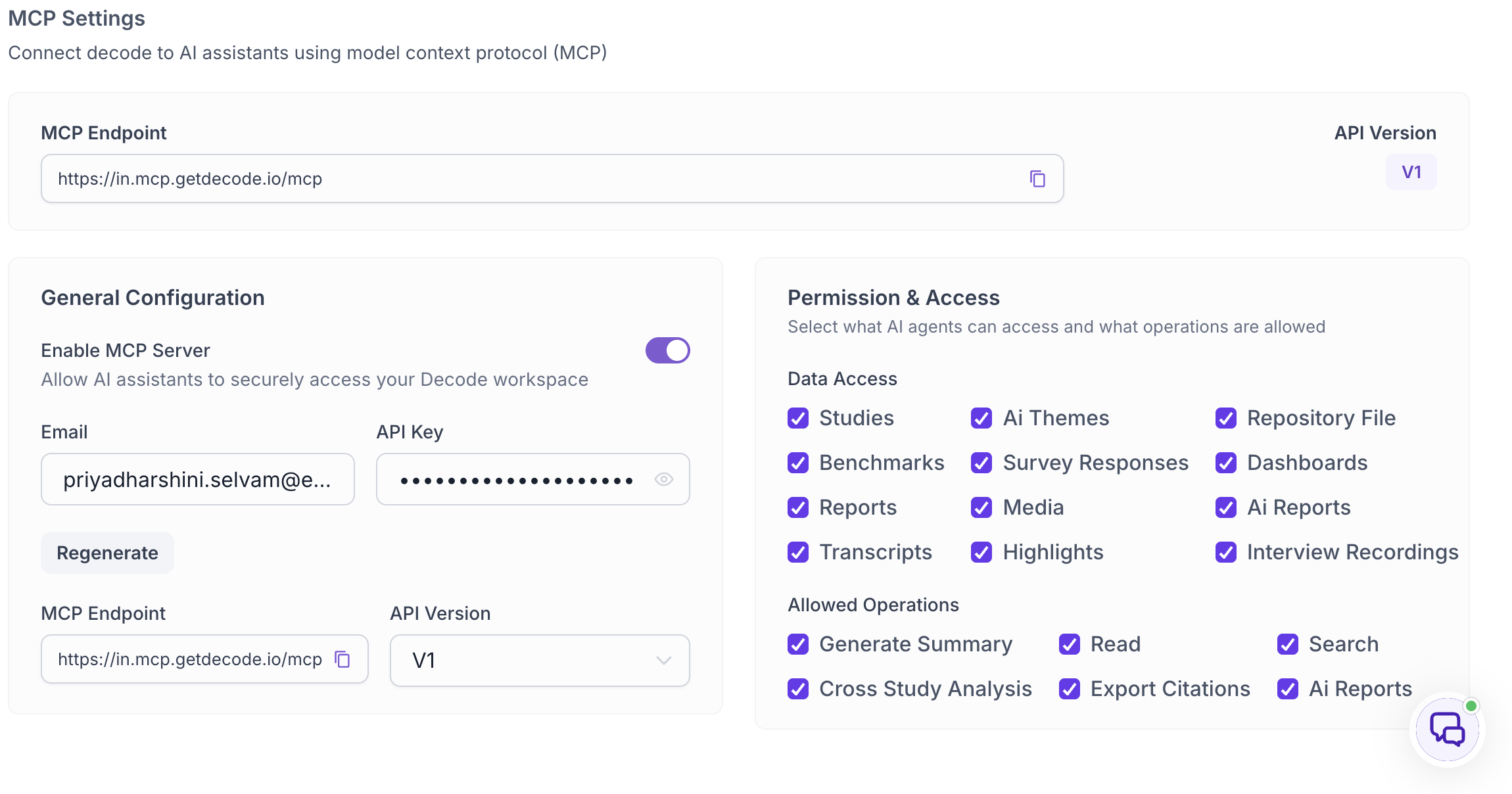
Regenerate issues a new API key and invalidates the existing one.
Use this if the key has been shared more widely than intended, or as part of routine credential rotation. Any assistant still using the old key stops working until you update it with the new one.
DATA ACCESS
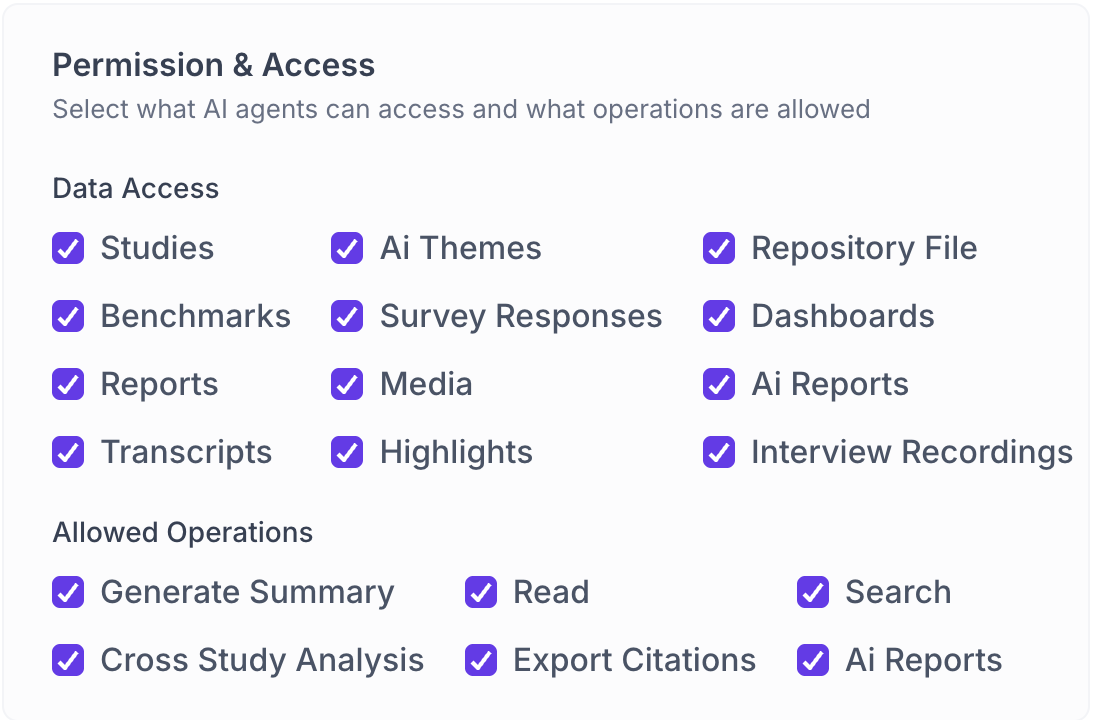
Data Access sets which parts of your workspace an assistant can reach. Each type is enabled or disabled independently.
Studies. Your studies and their setup.
Benchmarks. Category benchmark data.
Reports. Reports generated from your studies.
Transcripts. Session transcripts.
AI Themes. Themes identified automatically across sessions.
Survey Responses. Participant responses to survey questions.
Media. Media files used in or produced by your studies.
Highlights. Tagged moments from sessions.
Repository File. Files uploaded to Insights Hub.
Dashboards. Study results dashboards.
AI Reports. AI-generated reports.
Interview Recordings. Session recordings.
Enable only what the assistant needs. Transcripts, Interview Recordings and Survey Responses carry participant data, so consider these carefully against how the connection will be used and where the assistant sends data.
ALLOWED OPERATIONS
Allowed Operations sets what an assistant can do with the data it can reach.
Read. Retrieve the data types enabled under Data Access.
Search. Search across your workspace.
Generate Summary. Produce summaries from your research.
Cross Study Analysis. Analyse across more than one study.
Export Citations. Export the sources behind an answer.
AI Reports. Work with AI-generated reports.
Data Access and Allowed Operations work together. An assistant can only act on data types you have enabled, and only in the ways you permit here, so a connection with Studies enabled and Read alone can retrieve study data without summarising or analysing it.
BEFORE SHARING THE CONNECTION
Set Data Access and Allowed Operations before sharing the endpoint and key, so the connection behaves as intended from the start.
Review both when the people or tools using the connection change, and regenerate the API key if access needs to be withdrawn.