
Figma prototype embed
Overview
Decode imports a Figma prototype directly using its share link, so participants can navigate through it as part of a Prototype Test block.
Prepare your Figma file
Before importing, make sure your prototype is fully set up:
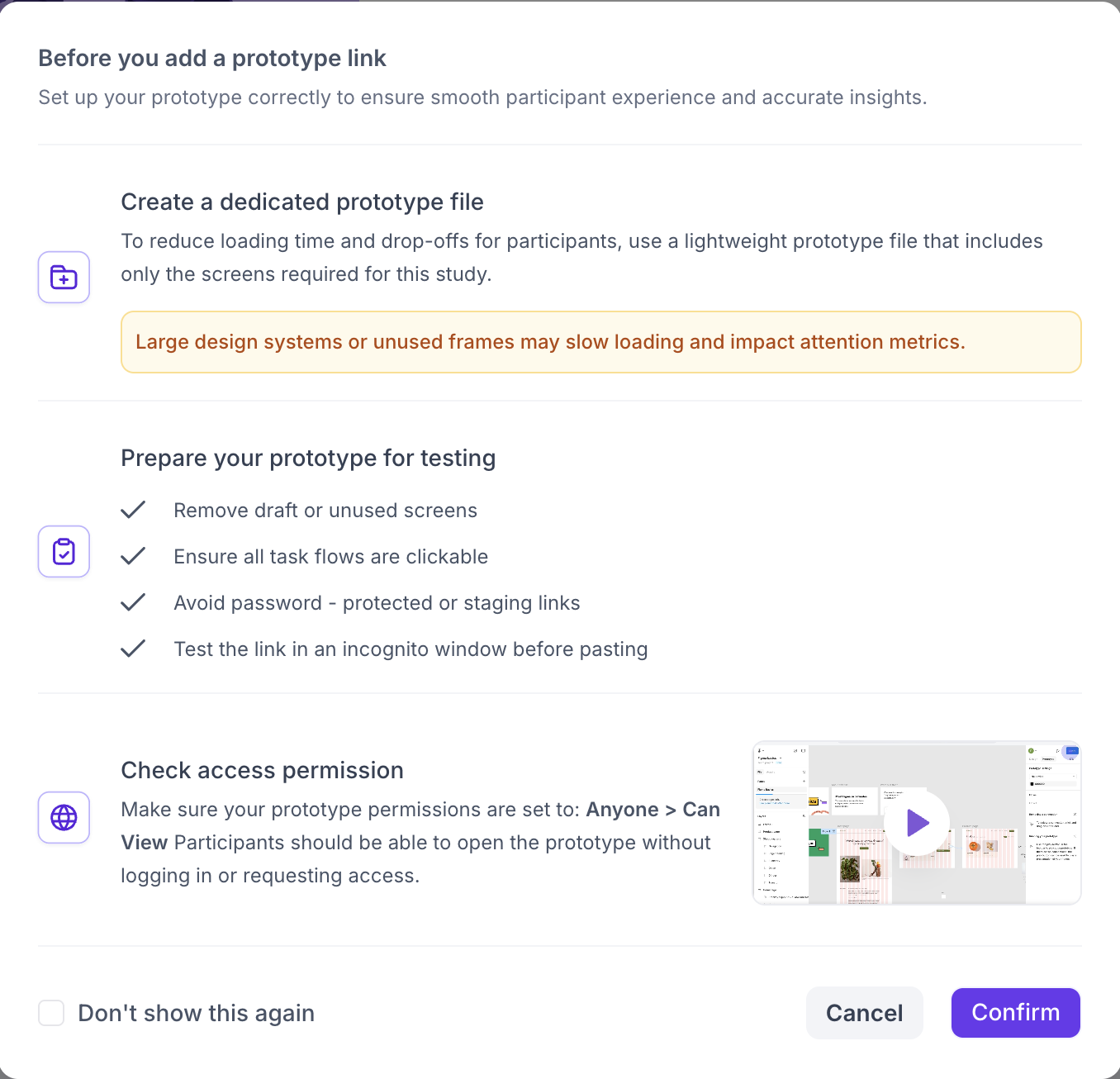
- Create a dedicated prototype file containing only the screens needed for this study
- Remove any draft or unused screens
- Make sure every task flow is clickable and every screen is connected
- Test the prototype link in an incognito window first, to confirm it opens correctly outside your own logged-in Figma session
- Set sharing permissions to "Anyone with the link can view"
Import the prototype
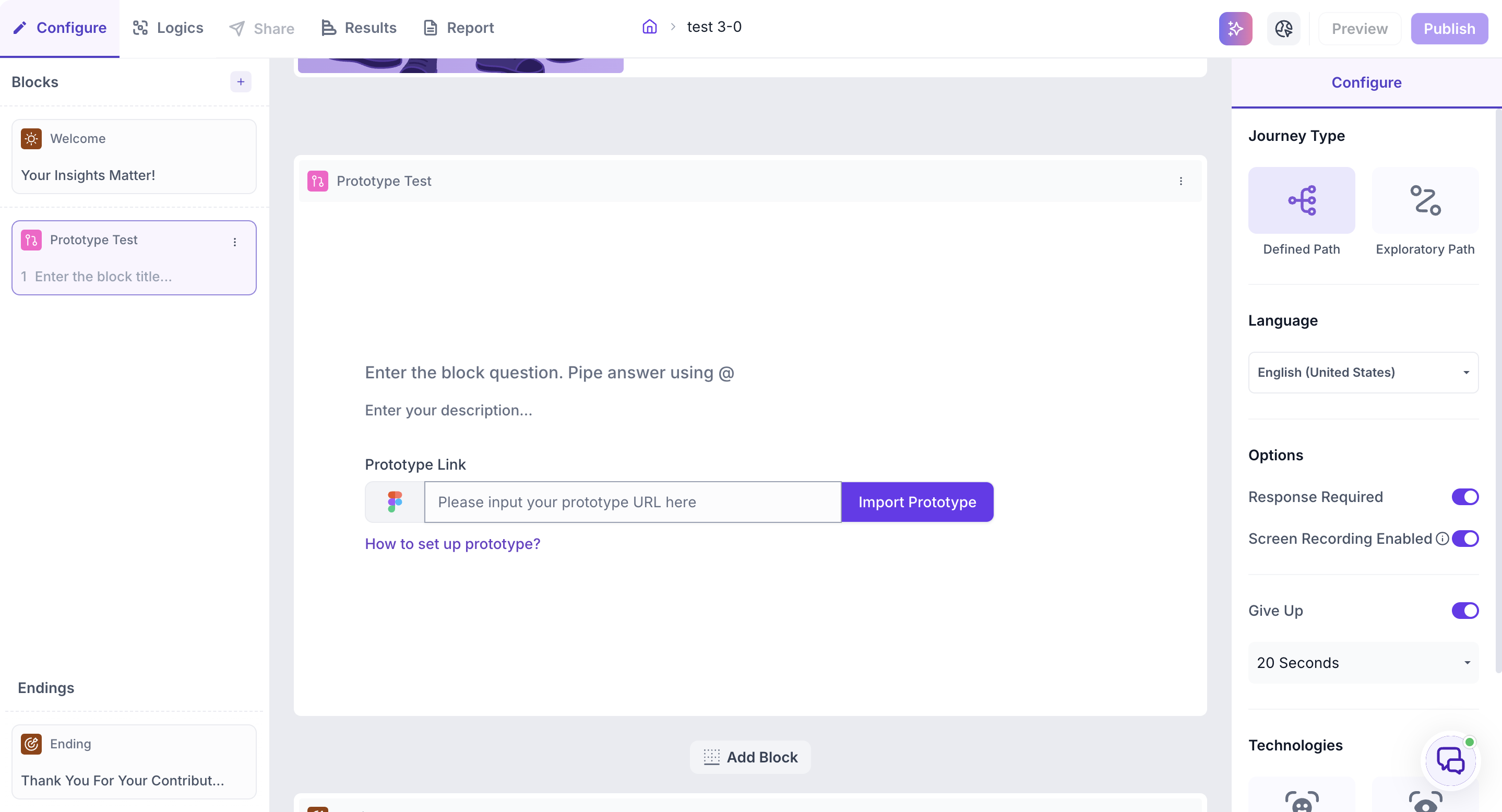
Paste your Figma prototype URL into the Prototype Link field and click Import Prototype.
If this is your first time importing a Figma prototype into Decode, you'll be prompted to grant Figma access.
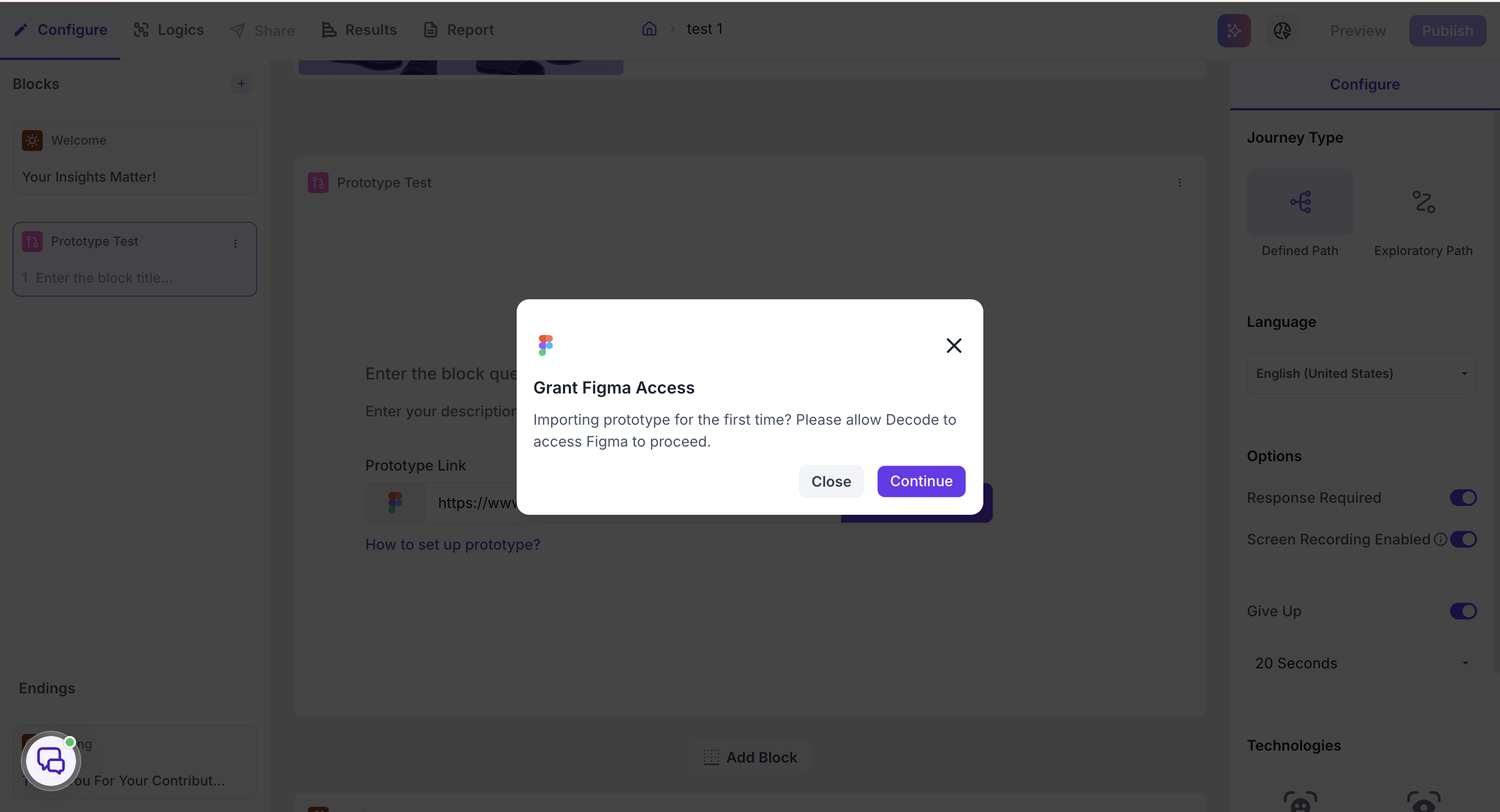
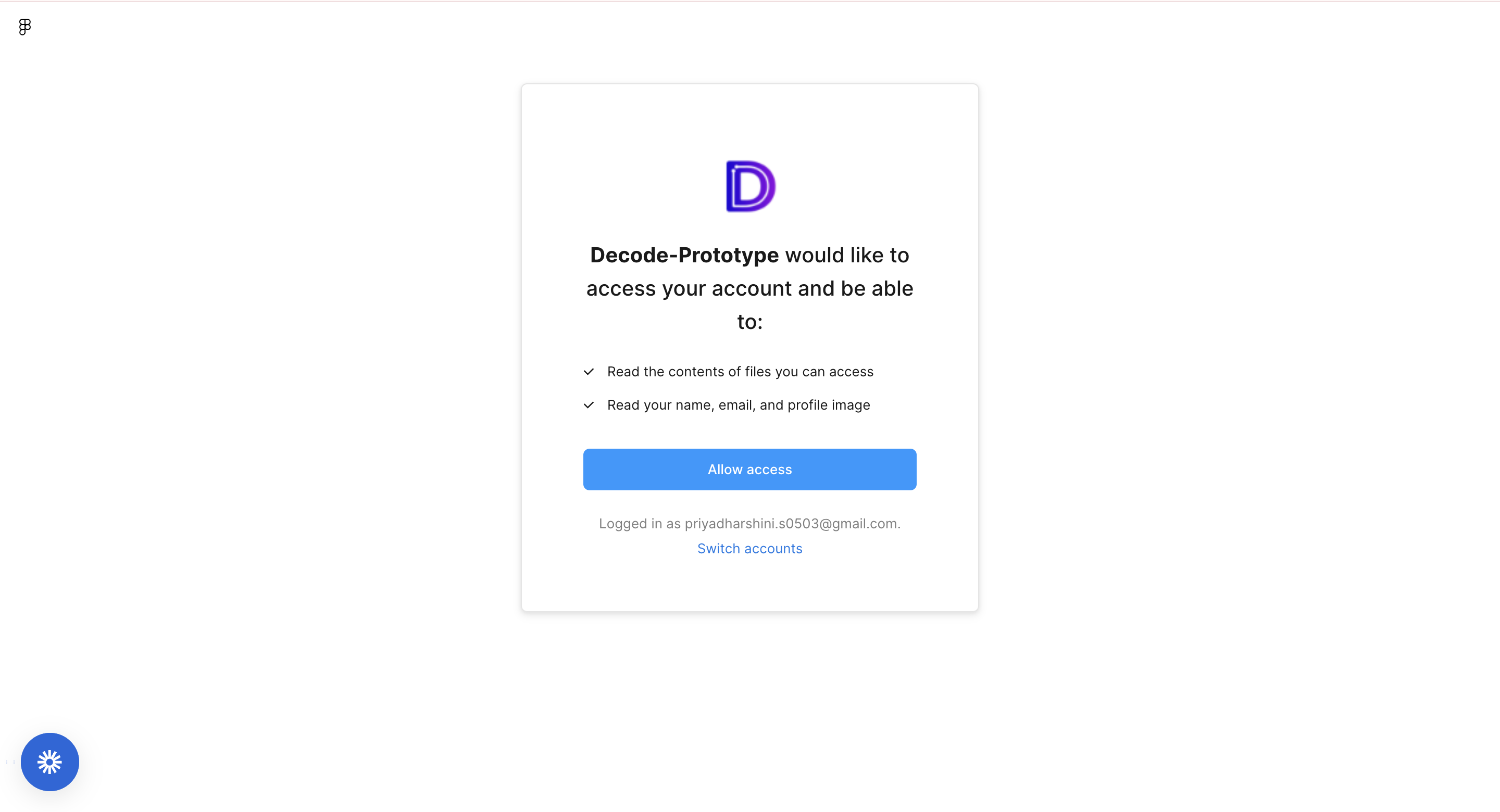
Click Continue, then Allow Access on the Figma permissions screen. Decode can only read the contents of files you already have access to, along with your name, email, and profile image, no other access is requested.
The prototype begins importing, with a progress bar shown while it loads.
Password-protected prototypes
If your prototype is password protected, click Add Password after importing and enter it. During the test, participants will see a popup prompting them to enter the password, they can copy and paste it directly from the popup to proceed.
What to do next
Once your prototype is imported, continue with journey type and property setup in Set up a prototype block.