
Set Up and View Results for a Diary Study
Overview
This article covers how to build a Diary Study in Decode: adding activities, scheduling when each one is released to participants, and reading your results once responses start coming in.
Adding the block
Go to the Configure tab, click the + icon next to Blocks, and select Diary Study under the Advanced category.
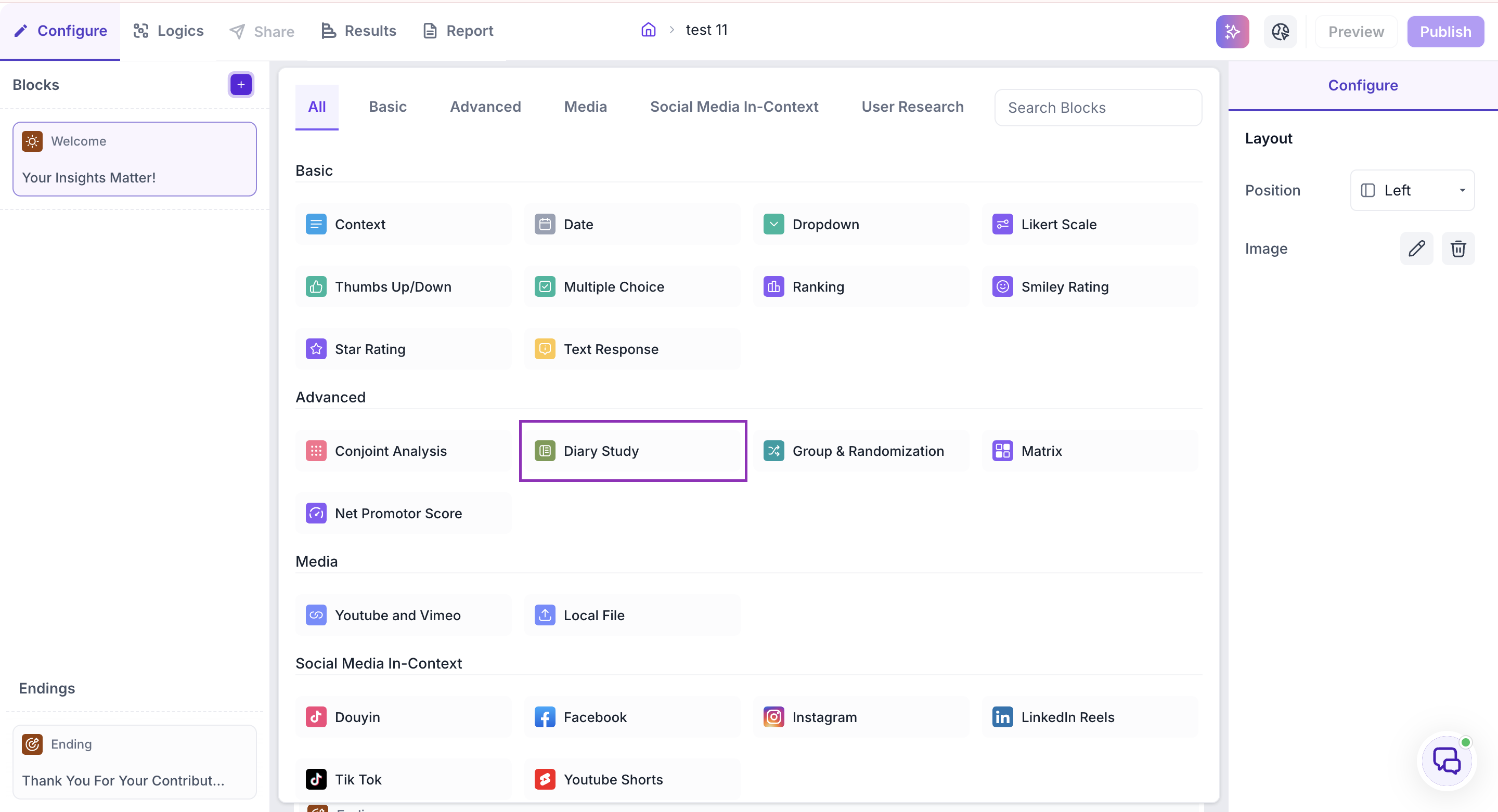
A Diary Study is built from activities. Each activity is one check-in point in the study, such as Day 1 or a Post-Purchase Reflection, and contains the questions or tasks a participant completes at that point in time. The block is added with one activity ready to configure, and you can add more activities to build out the rest of your study.
Building your first activity
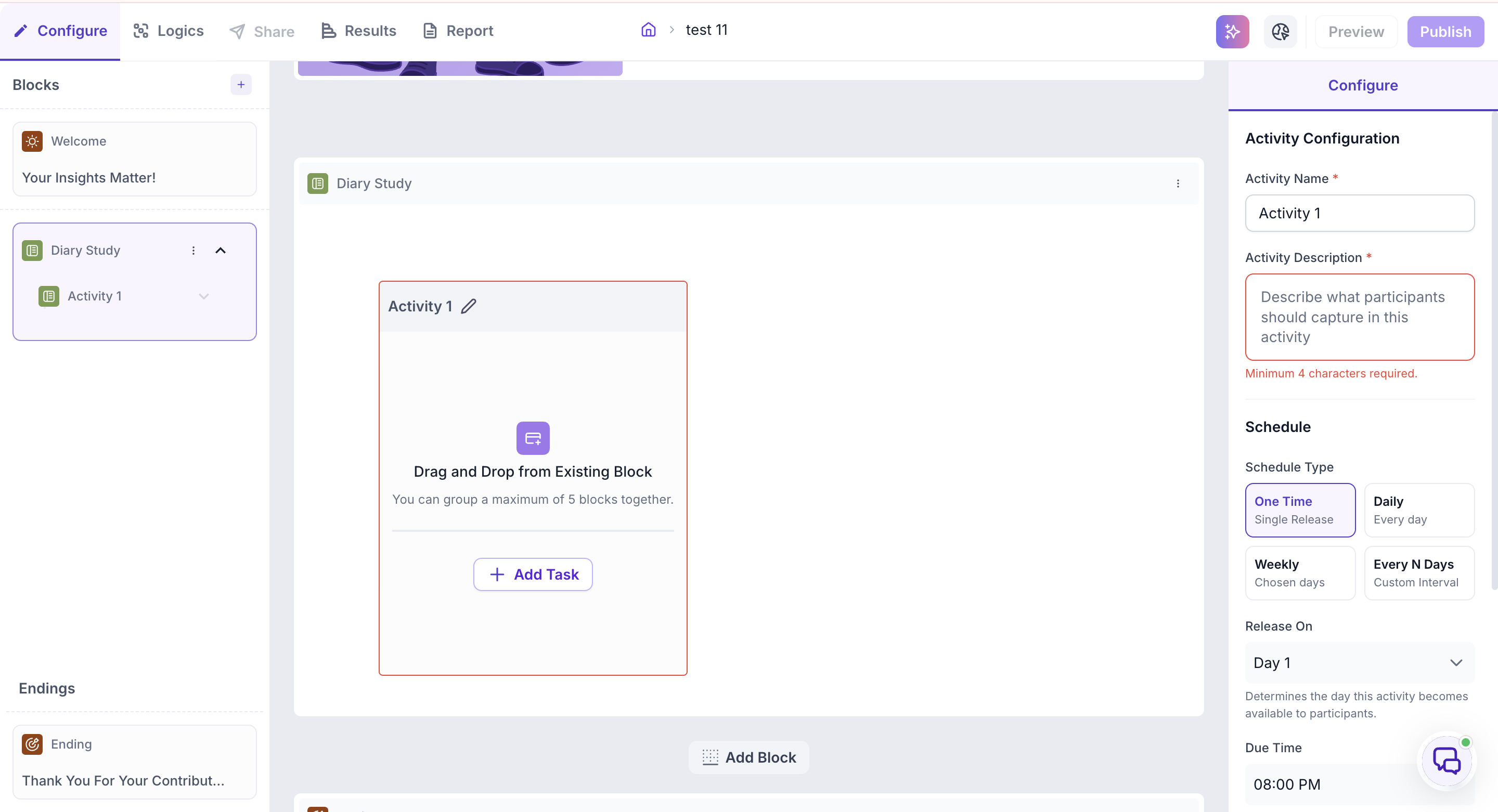
Before adding questions to an activity, give it a name and a description telling participants what to do. Participants only see one activity at a time, at the moment it's released to them, so the description needs to make sense on its own, without the context of any other activity in the study.
Click into the activity and fill in:
- Activity Name - A label for this activity, used for your own reference when managing the study
- Activity Description - An instruction telling the participant what to do in this activity (minimum 4 characters required)
Adding questions to an activity
Each activity can hold up to 5 tasks. Click Add Task to open the block picker and choose from any available block type, or drag an existing block into the activity from outside the Diary Study block using the + icon at the top of the page.
Scheduling activities
Each activity is released to participants on its own schedule, rather than all at once. Choose a Schedule Type:
- One Time - Released once, on a Release On day you choose
- Daily - Repeats every day within a Start Day and End Day range
- Weekly - Repeats on specific days of the week, chosen under Repeat On, within a Start/End Day range
- Every N Days - Repeats at a custom interval you set under Repeat Every, within a Start/End Day range
For every schedule type, also set:
- Due Time — when the activity is due each day it's active
- Entries Required — how many entries a participant must submit
- Late Submission — turn this on to accept late entries within a Grace Time (1, 2, 6, 12, or 24 hours) after the due time
Publishing
Preview and publish a Diary Study the same way as any other study in Decode.
Reading your results
A Diary Study's results are organized into three levels: the overall study, the Diary Study block itself, and individual responses.
Study-level overview
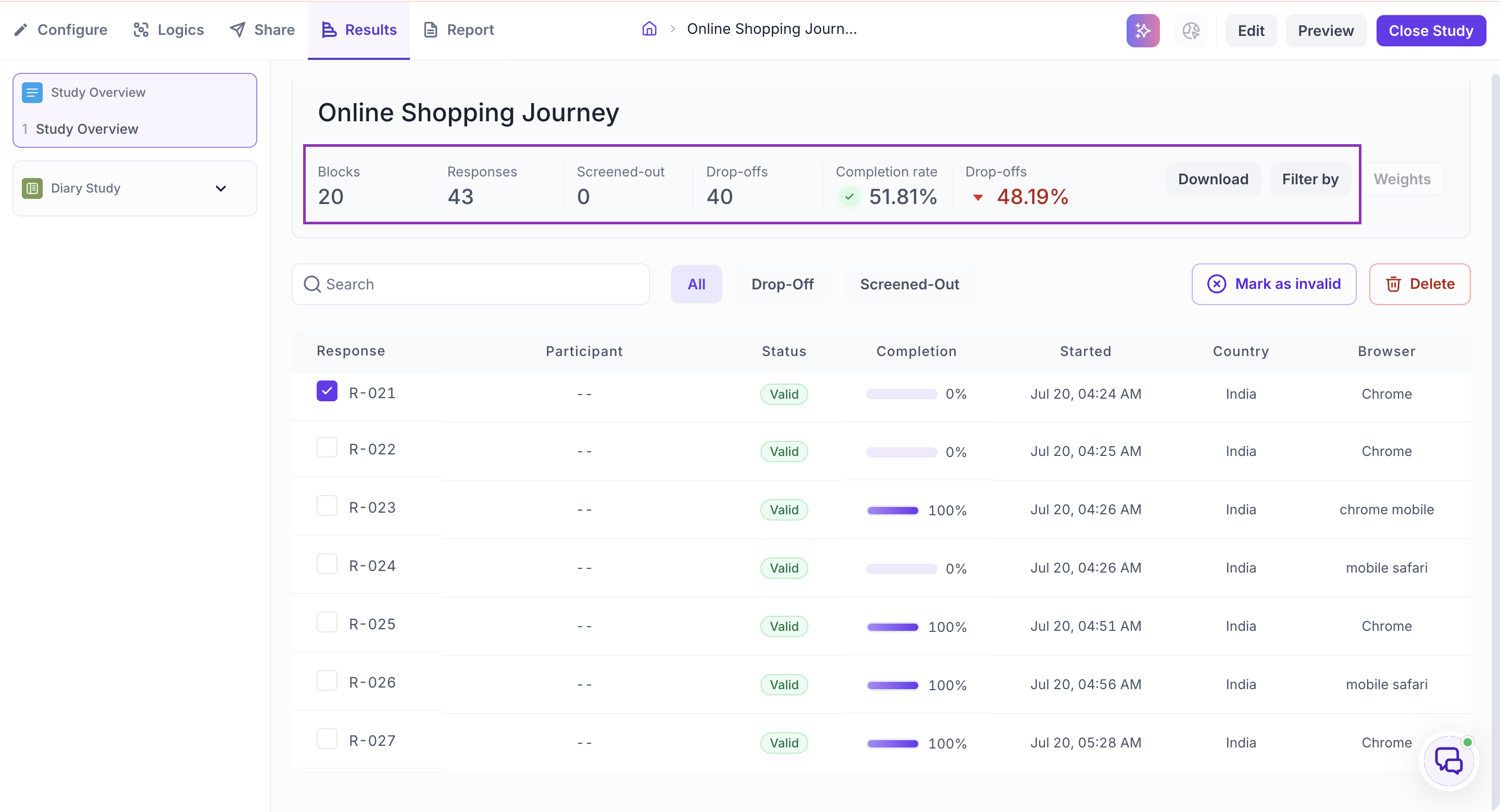
Open the Results tab and go to Study Overview. This is the top level, covering your entire study, not just the Diary Study block, and gives you four things: a summary of how the study performed, a way to download all your data, a way to filter it down to specific segments, and a list of individual responses.
Top Summary tells you the overall health of your study:
- Total Blocks — the number of question blocks included in the study
- Total Responses — the count of completed responses across all blocks
- Screened Out — respondents who didn't qualify based on your screener logic
- Dropped Off — respondents who exited the study midway
- Completion Rate — the percentage of respondents who completed the full study
- Drop-Off Rate — the percentage of respondents who exited before completing
Click Download to export all collected response data at the study level, covering every block and question in one file.
Use the filter panel at the top of the results view to narrow the data down to a specific segment, rather than looking at everyone who responded. You can filter based on answers to previous questions, device type, or browser used, useful for checking whether a pattern holds across everyone or only within a specific group.
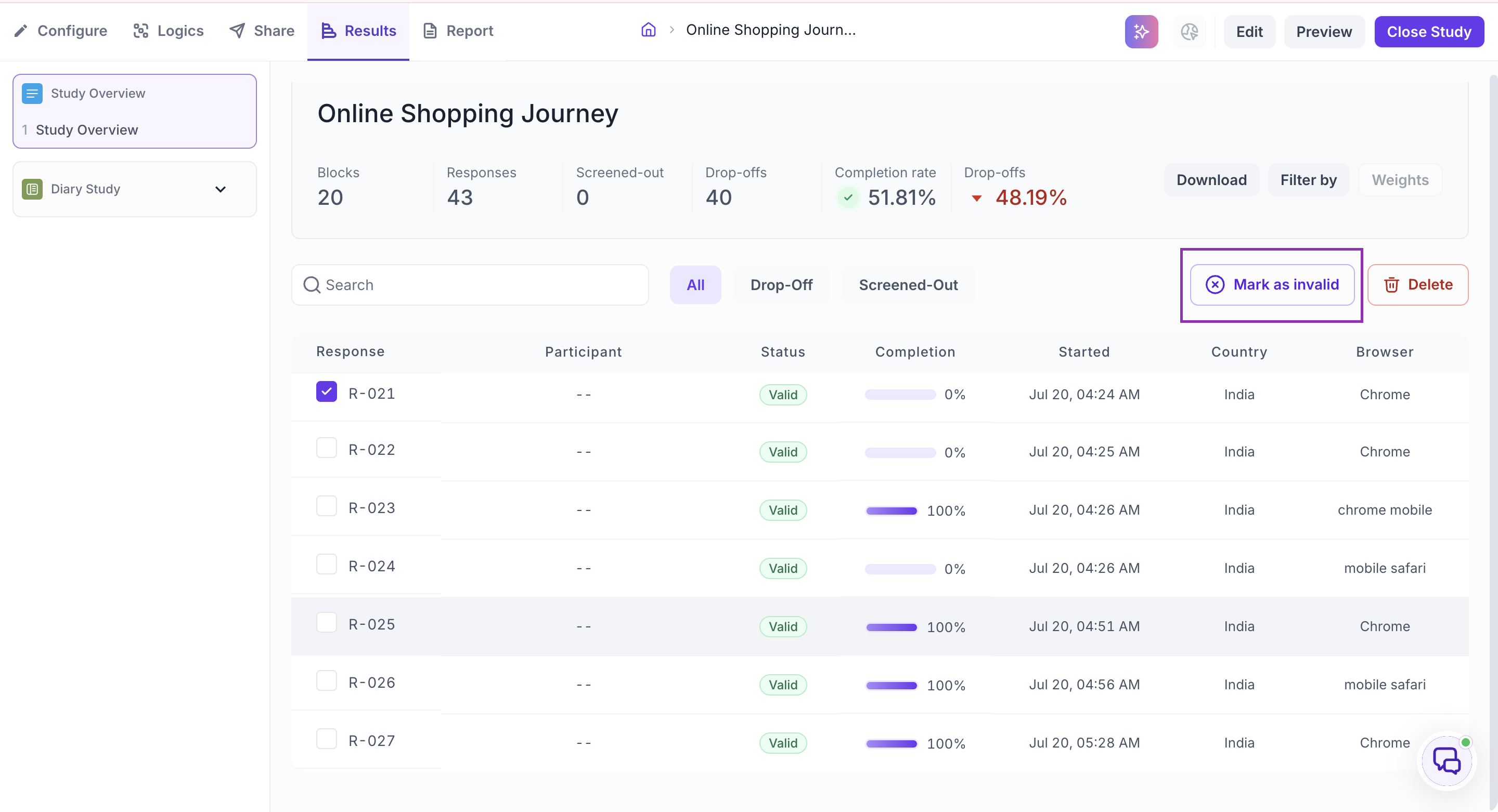
Below this, Study Overview also lists every response individually, rather than as an aggregate number. This tells you who took part, how far they got (Completion), when they started, and where they responded from (Country, Browser). By default, every response is marked Valid. If a response doesn't belong in your analysis, you can mark it Invalid or delete the response, so it isn't included as part of your results. Use the All, Drop-Off, and Screened-Out tabs to filter this list down to just the group you want to look at.
Diary Study block overview
From the left sidebar, click into the Diary Study block, then select its Overview. This tells you the story specific to your diary, rather than the study as a whole.
The AI Summary here tells you, in plain language, when engagement was strongest, where it started to weaken, and what likely caused participants to drop off, such as a demanding task or a long final activity. Read this first if you want a quick sense of what happened in your diary without digging through the data yourself.
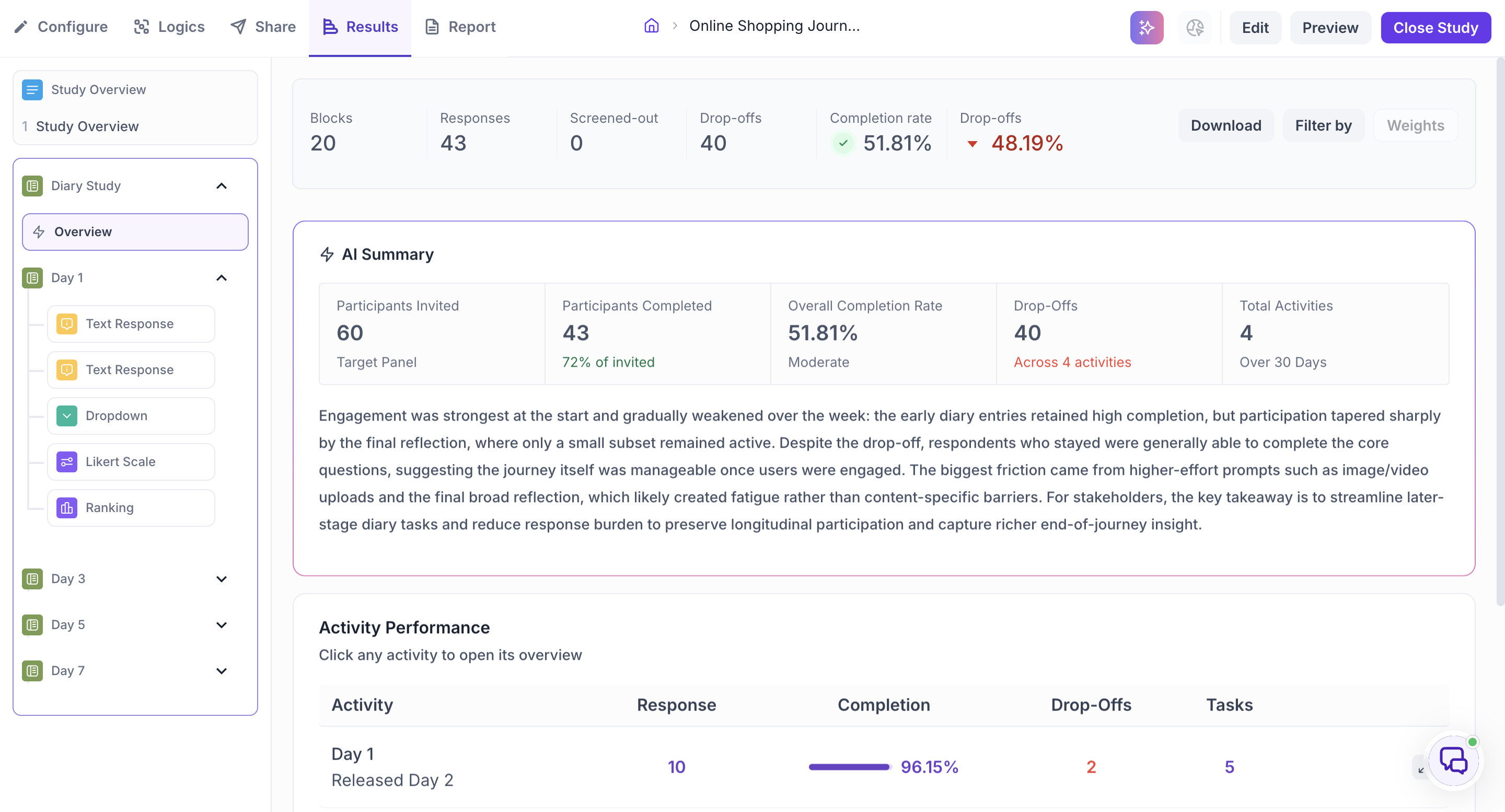
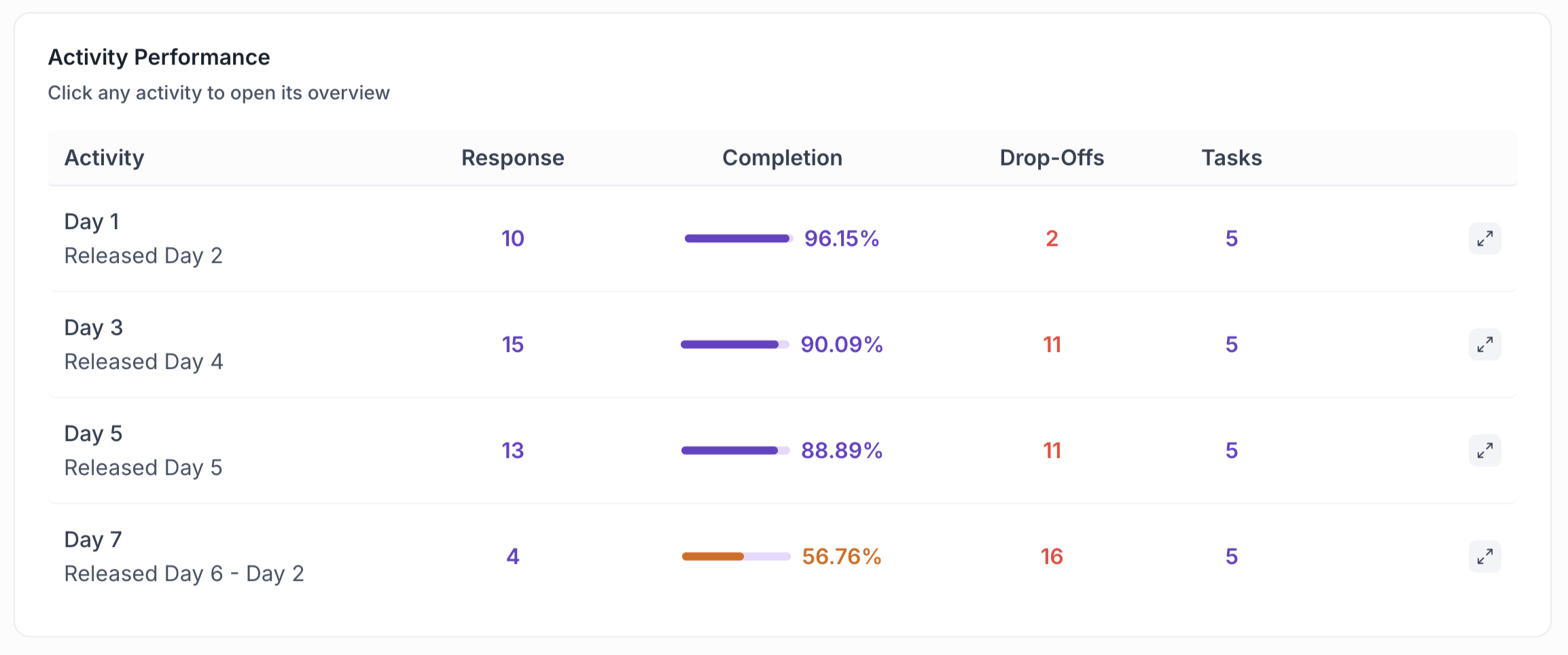
Below the AI Summary, the Activity Performance table breaks the same story down day by day. Each row is one activity, showing its own Response count, Completion rate, Drop-Offs, and number of Tasks. This tells you exactly where in the timeline engagement dropped, for example, if Day 1 completed at 96% but Day 7 fell to 57%, you know the later stages of your diary are where you're losing people, not the study overall.
Zoom into a specific activity
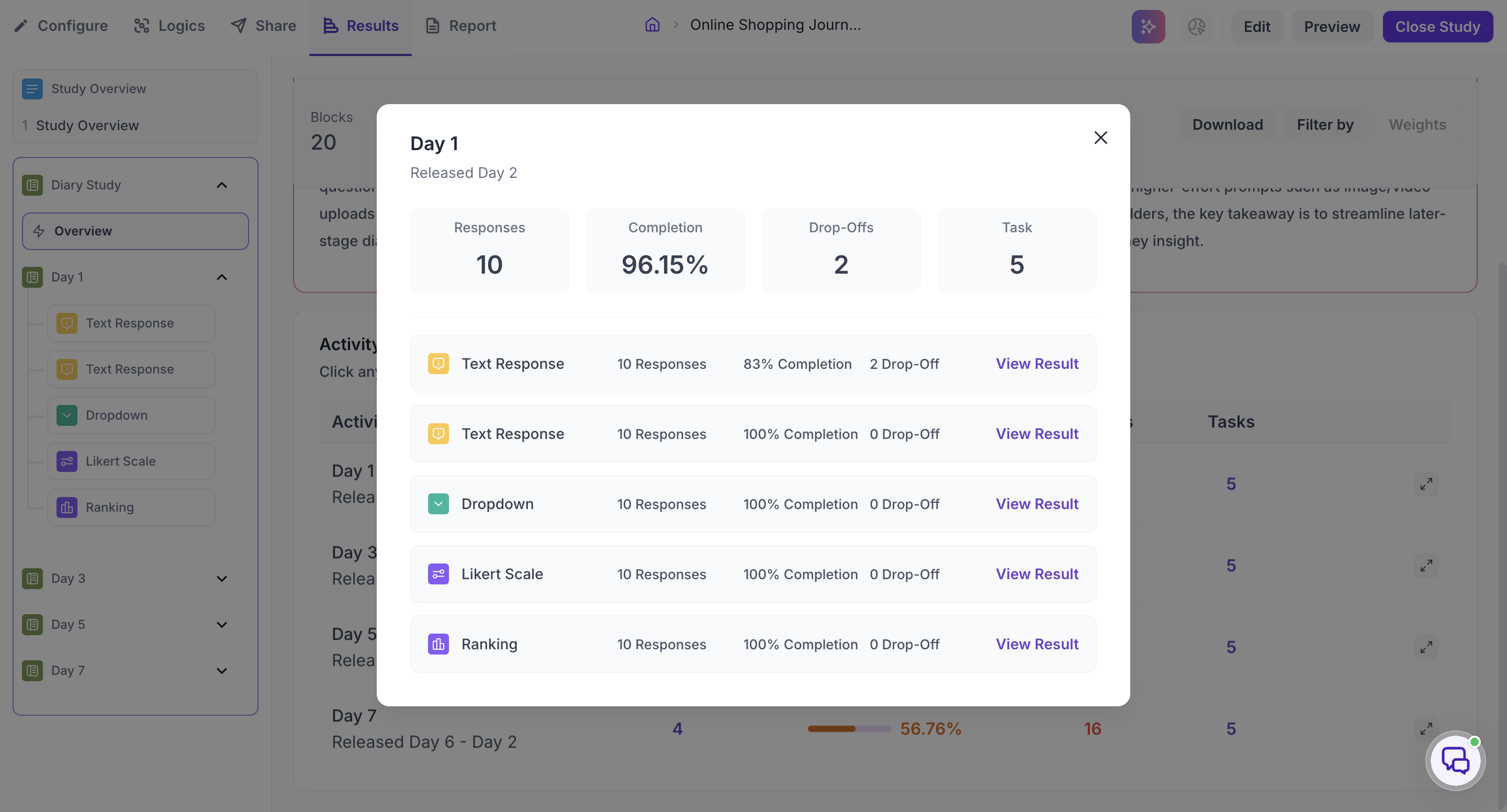
From the Diary Study block's Activity Performance table, click any activity to see its individual breakdown. This tells you how each task inside that activity performed on its own, so if an activity has a low completion rate overall, this view tells you which specific task inside it is causing the drop-off, rather than the activity being uniformly weak.
Zoom into a specific question
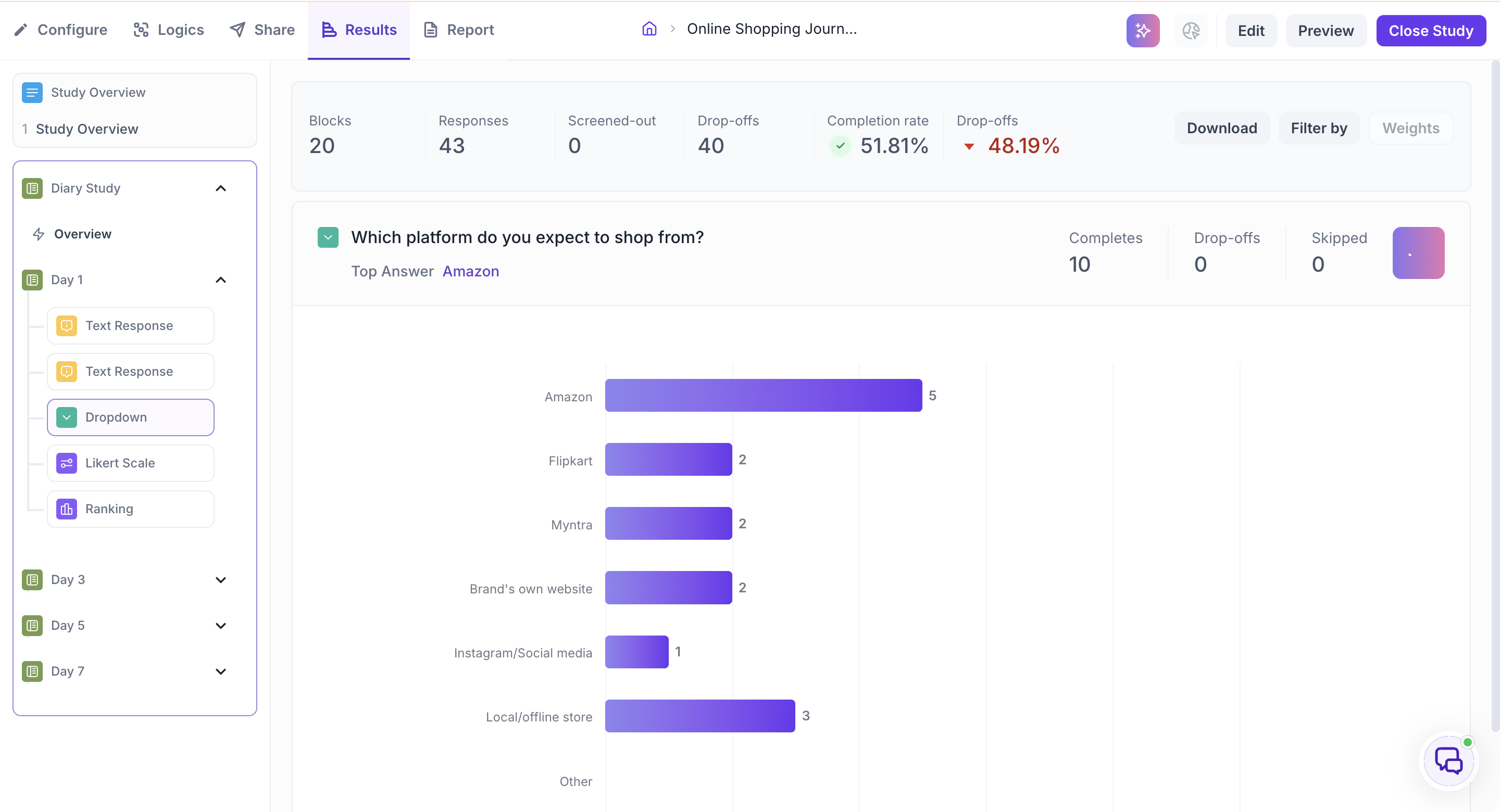
To go one level deeper, click View Result on any task from an activity's breakdown, or expand an activity from the left sidebar and click a question directly. This tells you the actual response data for that single question.
Working through these views in order, study level, then diary level, then activity, then individual question, tells you not just that engagement dropped, but exactly where and why.