
Setting Up a Synthetic Audience
Synthetic audiences are built in Settings, under the Synthetic Audience tab. This article explains how to create an audience, add personas to it, and manage audiences once they exist.
OPENING THE AUDIENCE MANAGER
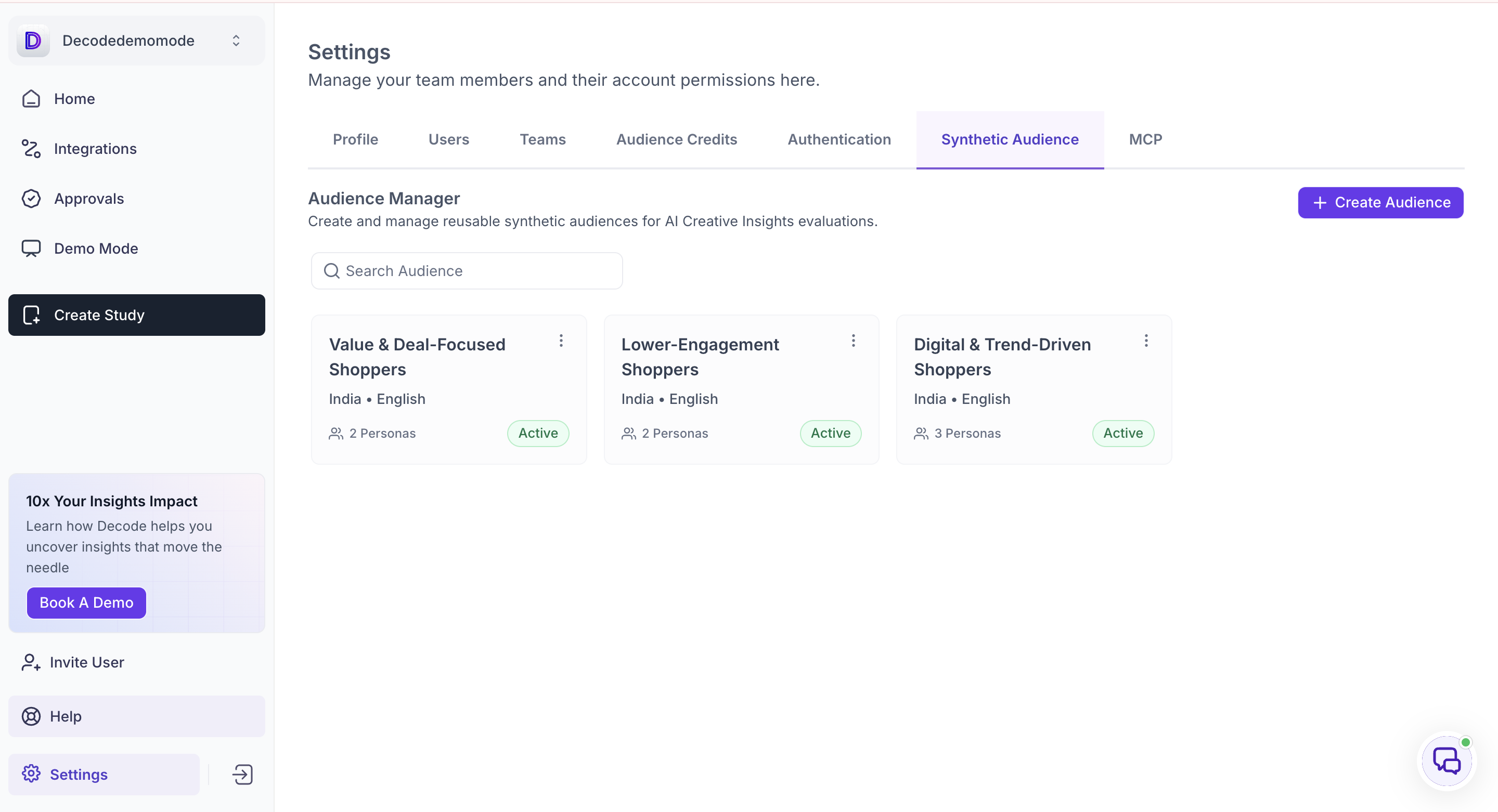
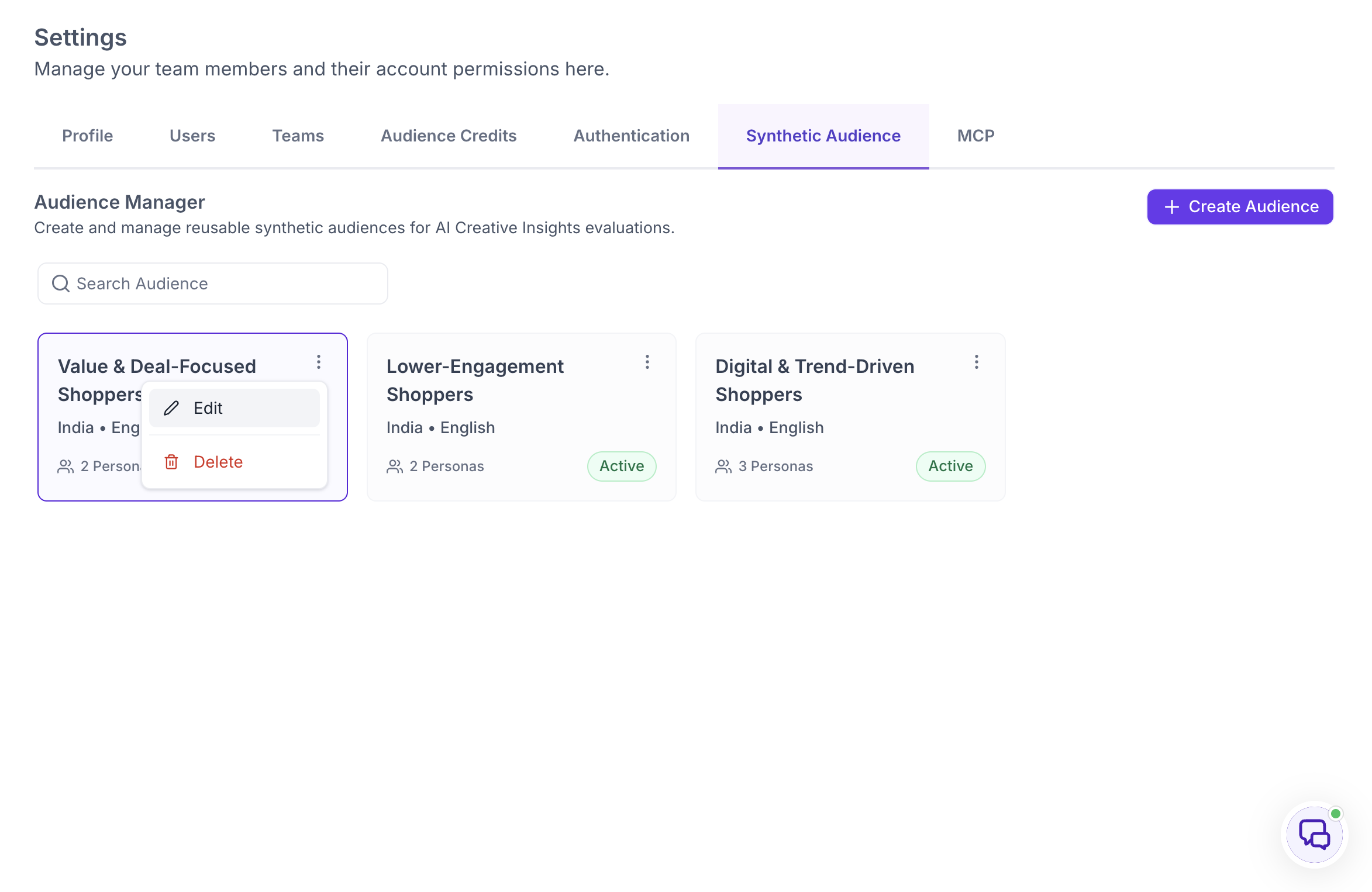
Go to Settings and select the Synthetic Audience tab. The Audience Manager lists every synthetic audience in your workspace, with a search field above the list.
Each audience appears as a card showing its name, its market and language, how many personas it contains, and whether it is Active.
CREATING AN AUDIENCE
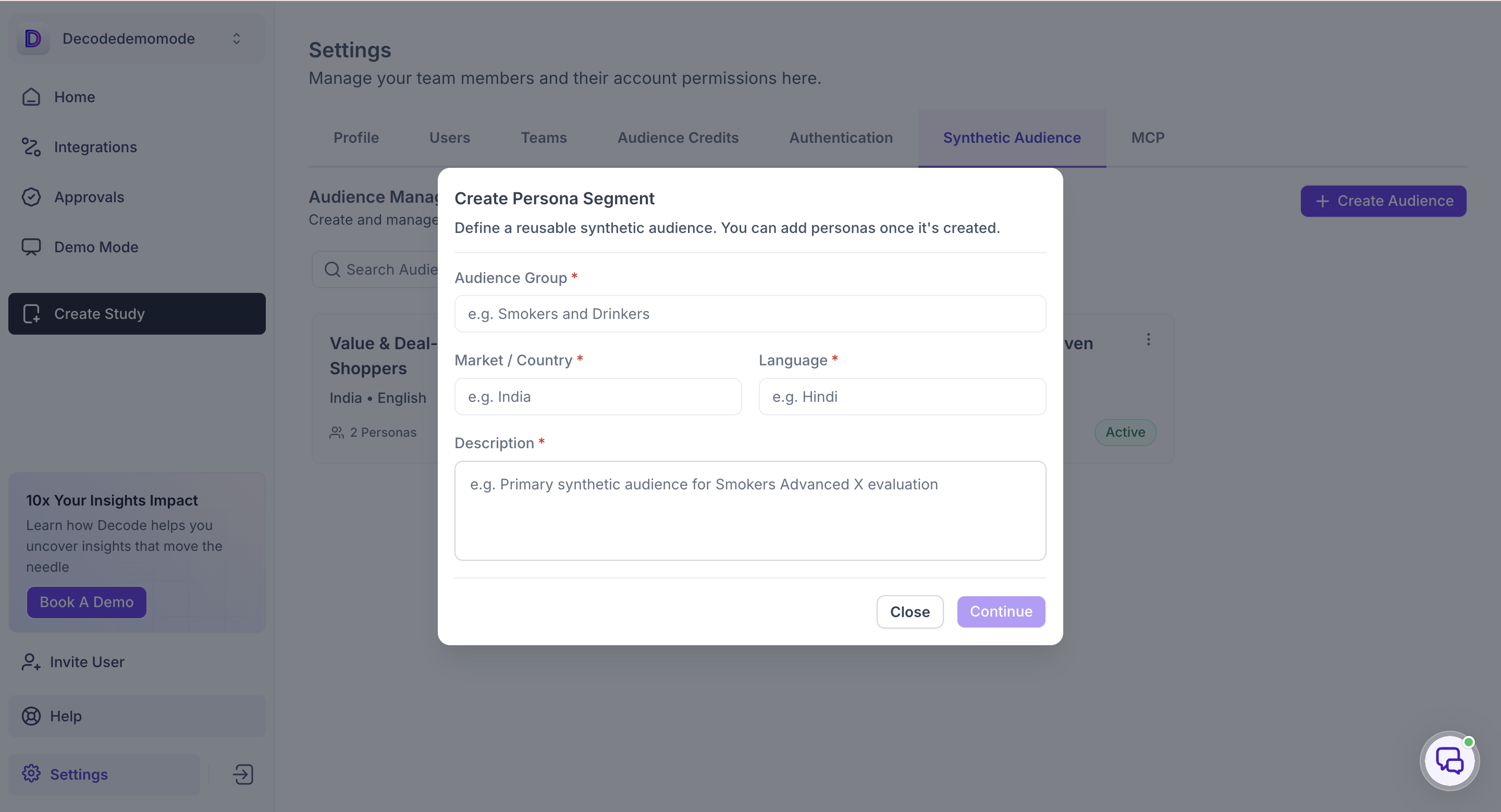
Click Create Audience. The Create Persona Segment dialog opens, where you define the audience itself before adding any personas to it.
Audience Group is the name of the audience, such as Value and Deal-Focused Shoppers.
Market / Country and Language set where the audience is based and what language they use. These carry into every persona in the audience.
Description explains what the audience represents. This is what identifies the audience to anyone else in the workspace choosing between audiences later, so describe the group rather than the campaign.
All four fields are required. Click Continue to create the audience.
ADDING PERSONAS
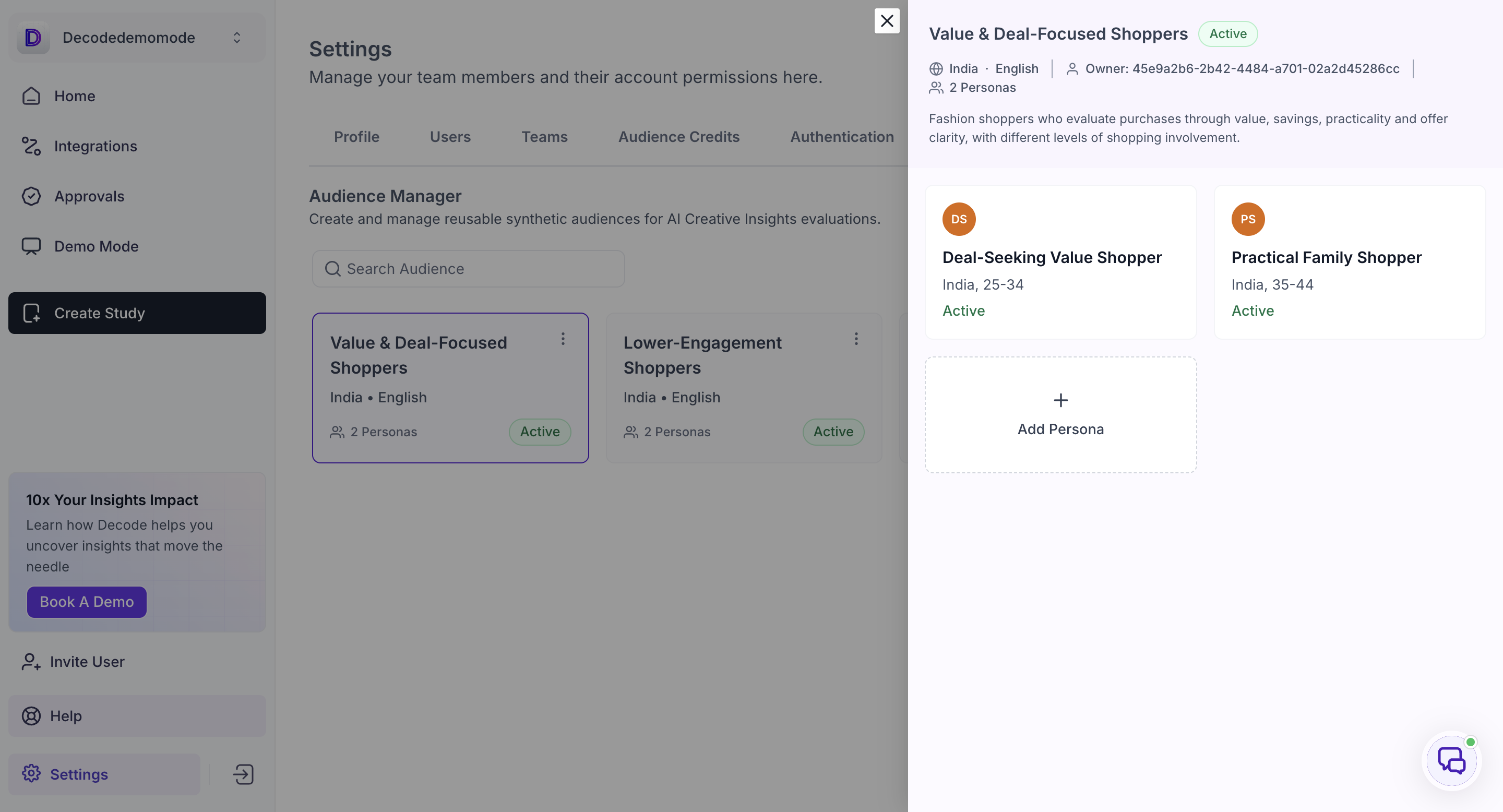
An audience holds one or more personas, and each persona is one type of person within that group. A value-focused audience might hold a deal-seeking shopper in one age band and a practical family shopper in another.
Open the audience from the Audience Manager to see the personas it already contains, then click Add Persona. The persona is defined across three tabs.
 Overview
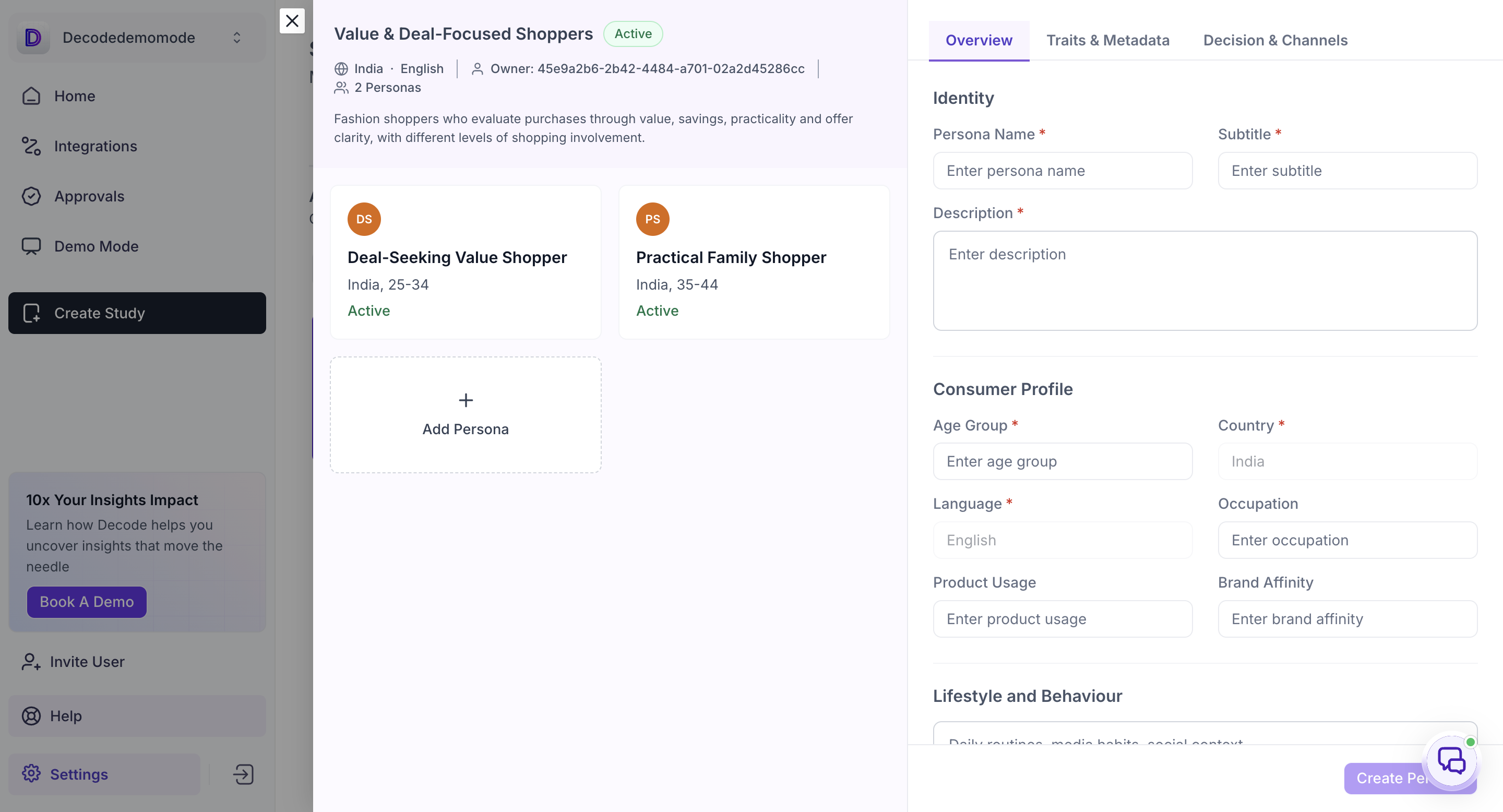
Identity holds the Persona Name, a Subtitle, and a Description of who this person is.
Consumer Profile holds the Age Group, Country, Language, Occupation, Product Usage and Brand Affinity. Country and Language are carried in from the audience.
Lifestyle and Behaviour is a free text field for daily routines, media habits and social context.
Traits & Metadata
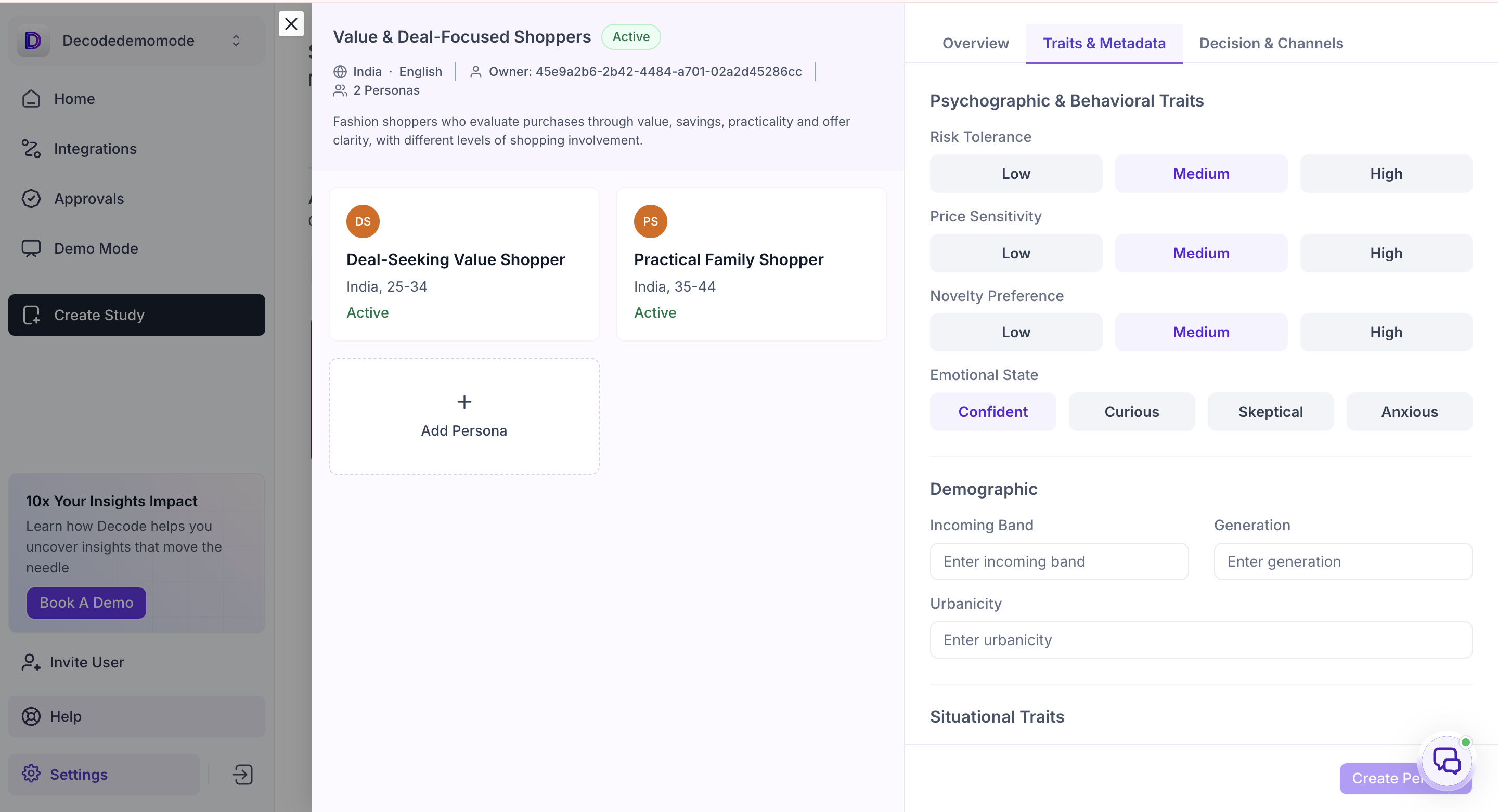
Psychographic & Behavioral Traits set Risk Tolerance, Price Sensitivity and Novelty Preference to Low, Medium or High, and Emotional State to Confident, Curious, Skeptical or Anxious. These shape how the persona reacts to what a creative is asking of them.
Demographic holds Incoming Band, Generation and Urbanicity.
Situational Traits hold Purchase Occasion, Primary Device / Channel and Decision Stage. These describe the context the person is in when they encounter the creative, which affects what they notice in it.
Domain / Interest Tags let you add category and interest tags to the persona.
Decision & Channels
Job To Be Done describes what the person is trying to achieve, in the form of situation, motivation and outcome.
Motivations / Trust Points, Pain Points, Key Decision Trigger and Preferred Channels / Media are each added one at a time by typing an entry and pressing enter.
Decision Criteria (AI evaluation weighting) is where you enter each criterion and give it a weight. This is what tells Decode how much each factor counts when the persona evaluates a creative, so a persona weighted heavily towards price will assess a creative differently from one weighted towards brand trust. Click Criterion to add another.
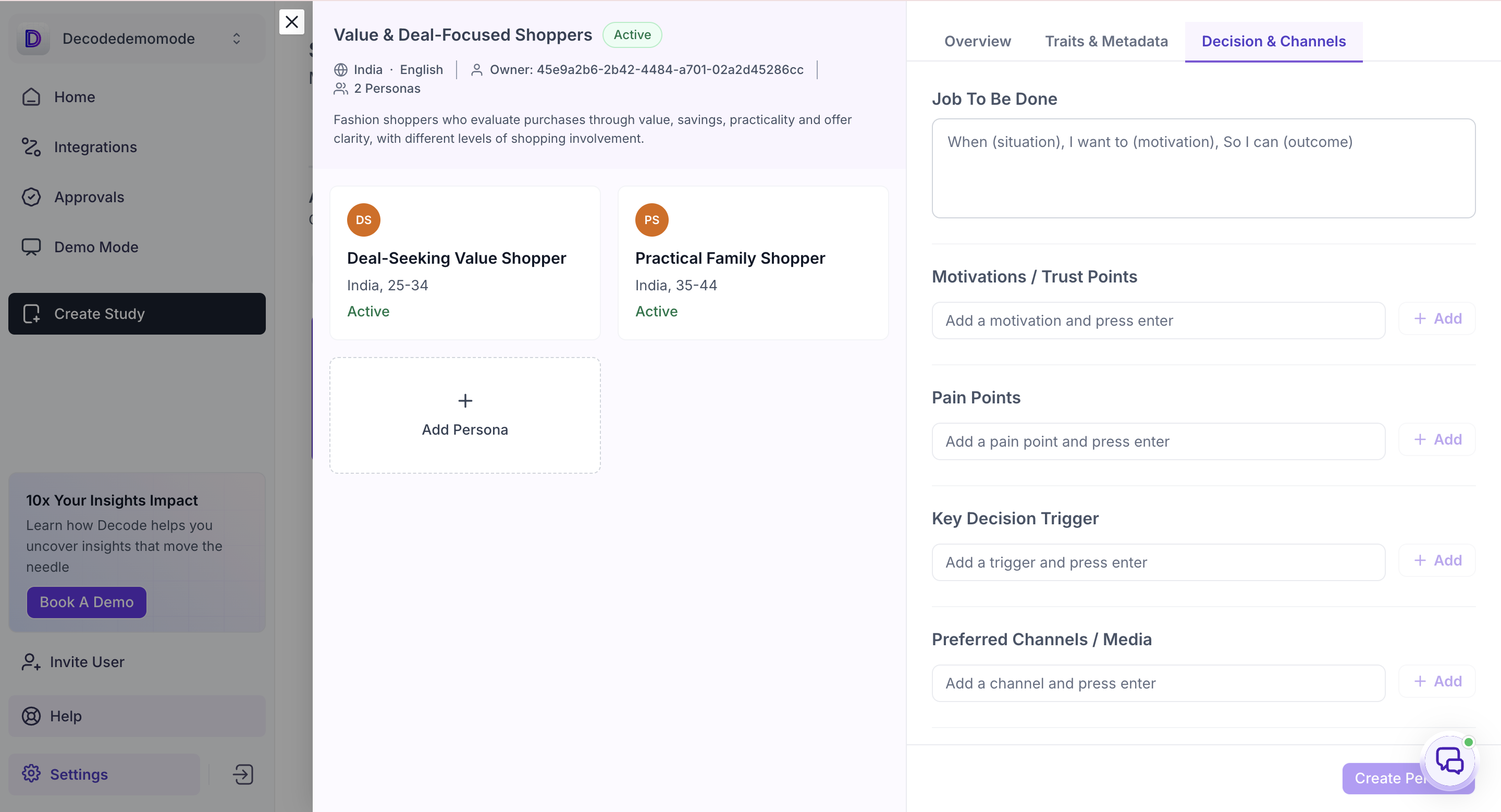
Click Create Persona to save.
EDITING AND VERSIONING
To change an audience, open the three-dot menu on its card and select Edit. Delete removes the audience.
To change a persona, open it from the audience and edit any of the three tabs, then click Update Persona.
Select Save as a new version before updating. This bumps the version number and logs the change to Version History, so earlier definitions of the persona stay on record rather than being replaced.
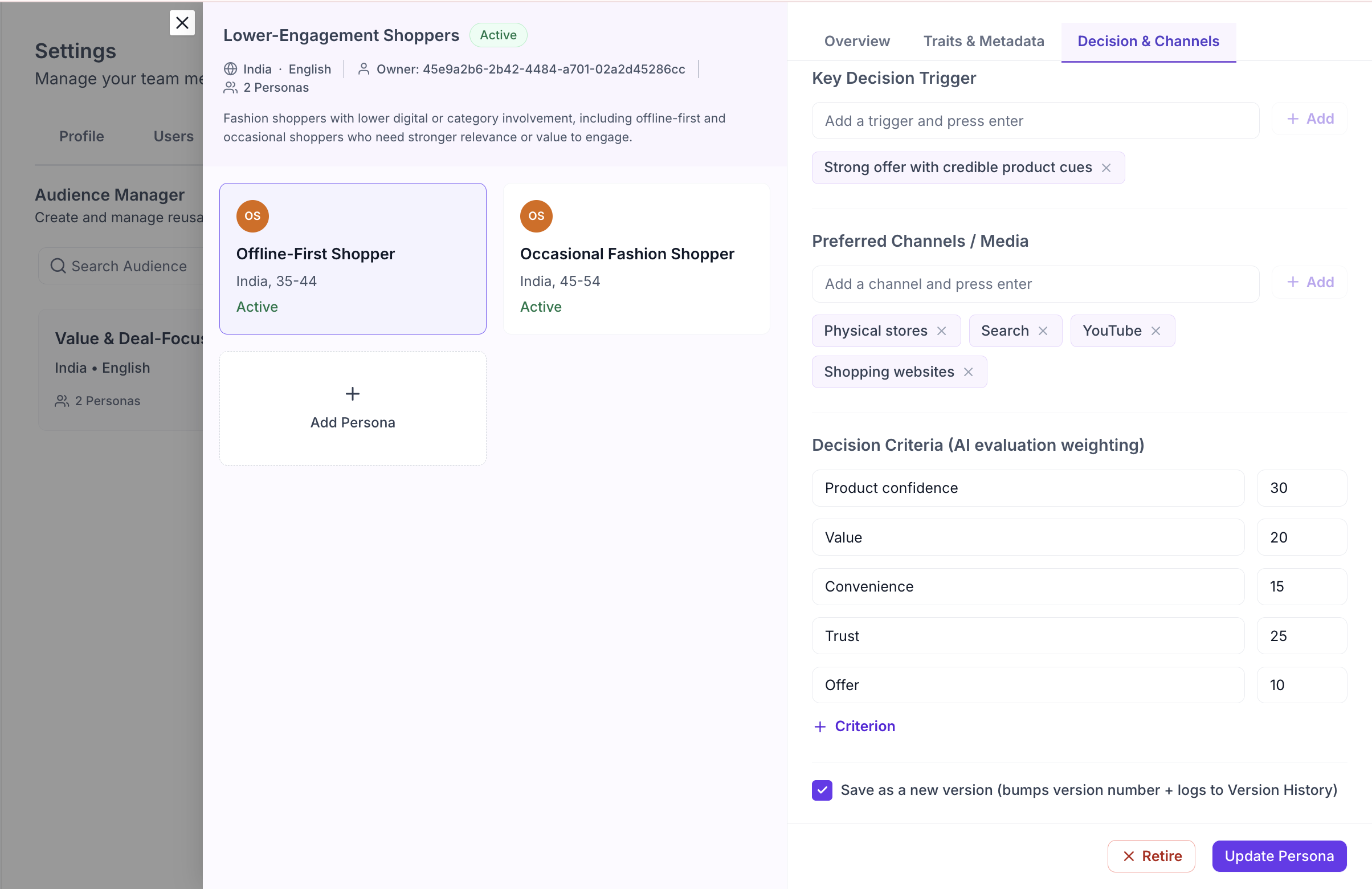
Retire sits next to Update Persona on the persona form. Retiring a persona keeps it out of future evaluations, so it will no longer be counted when the audience is applied to a creative. Use this rather than deleting when a persona is no longer relevant to the work but you want the audience and its history intact.
MANAGING AUDIENCES
Audiences are reusable across evaluations, so an audience built once can be applied to any AI Creative Insights upload afterwards. Keep the Description accurate as audiences build up, since that is what anyone choosing between them will read.