NPS Block in Decode
What is NPS?
Net Promoter Score (NPS) is a popular customer loyalty metric that helps you understand how customers feel about your brand, product or service. It is based on a single standardised question.
Example: How likely are you to recommend [your product/service] to a friend or colleague?
Respondents answer on a scale of 0 to 10 and based on their responses they are grouped as follows:
- Promoters (9 to 10): Loyal enthusiasts who are likely to promote your brand and drive growth
- Passives (7 to 8): Satisfied but unenthusiastic customers who are vulnerable to competitive offerings
- Detractors (0 to 6): Unhappy customers who could hurt your brand through negative word of mouth
Block Details
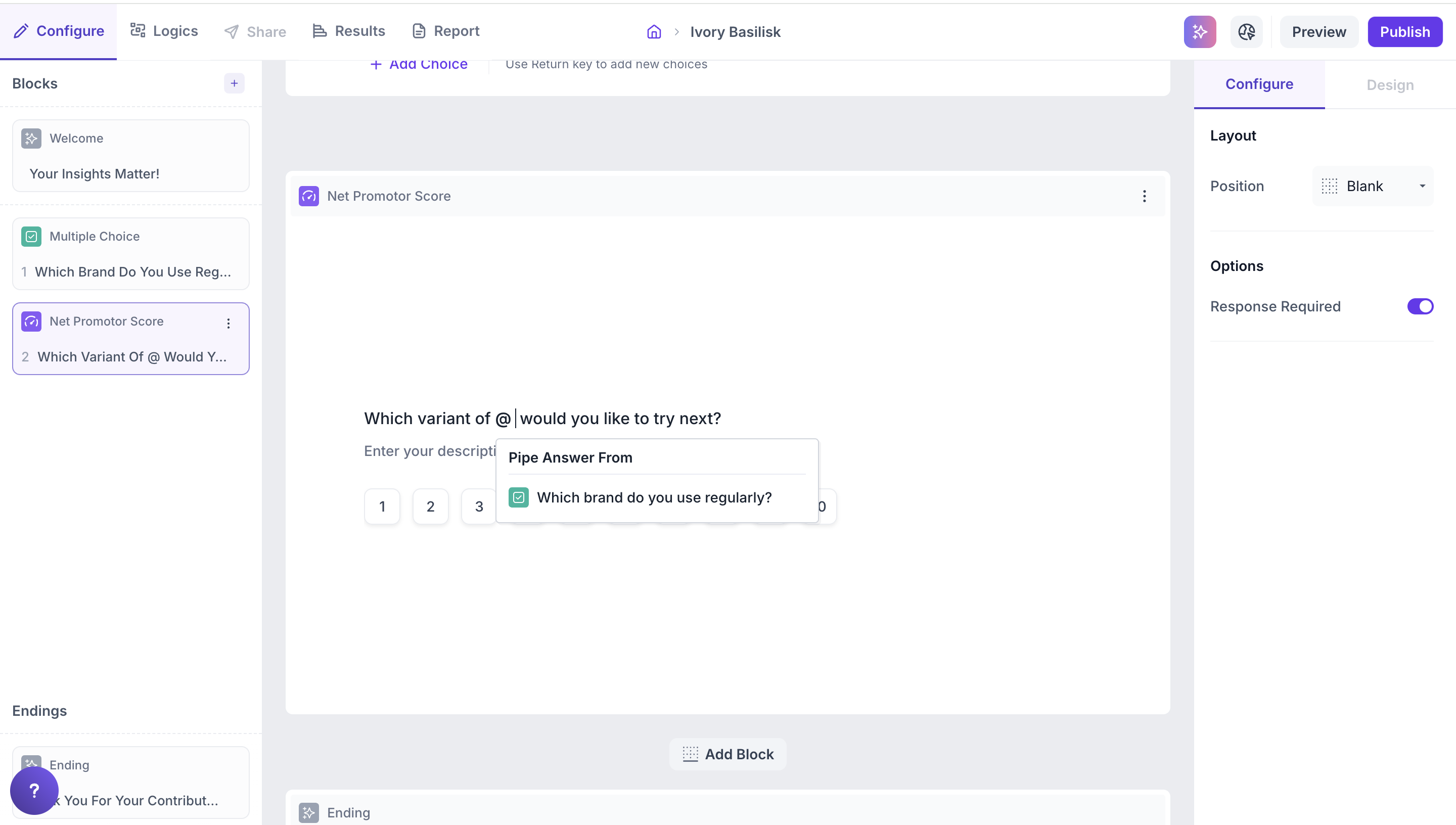
To personalise a question using an answer from a previous block, type @ in the question field. A list of earlier questions will appear. Select the one you want to pipe from.
Example:
Previous Question: Which brand do you use regularly?
Options: Dove Shampoo, Head & Shoulders, Pantene, Clinic Plus, Sunsilk, Tresemmé.
NPS Question: Which variant of @Which brand do you use regularly? would you like to try next?
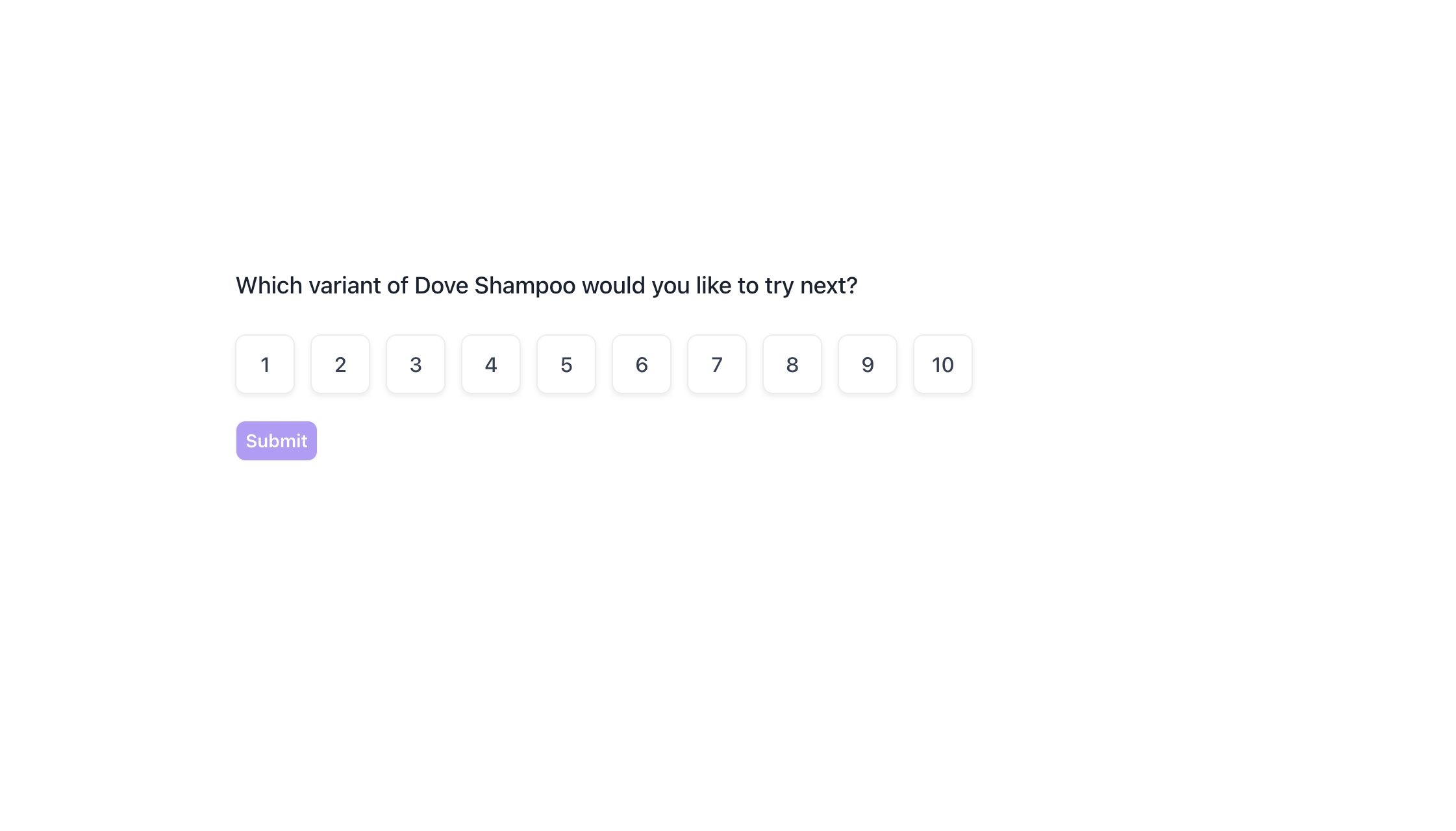
If the respondent selected “Dove Shampoo” in previous question, then NPS question will appear as,
Which variant of Dove Shampoo would you like to try next?
Properties
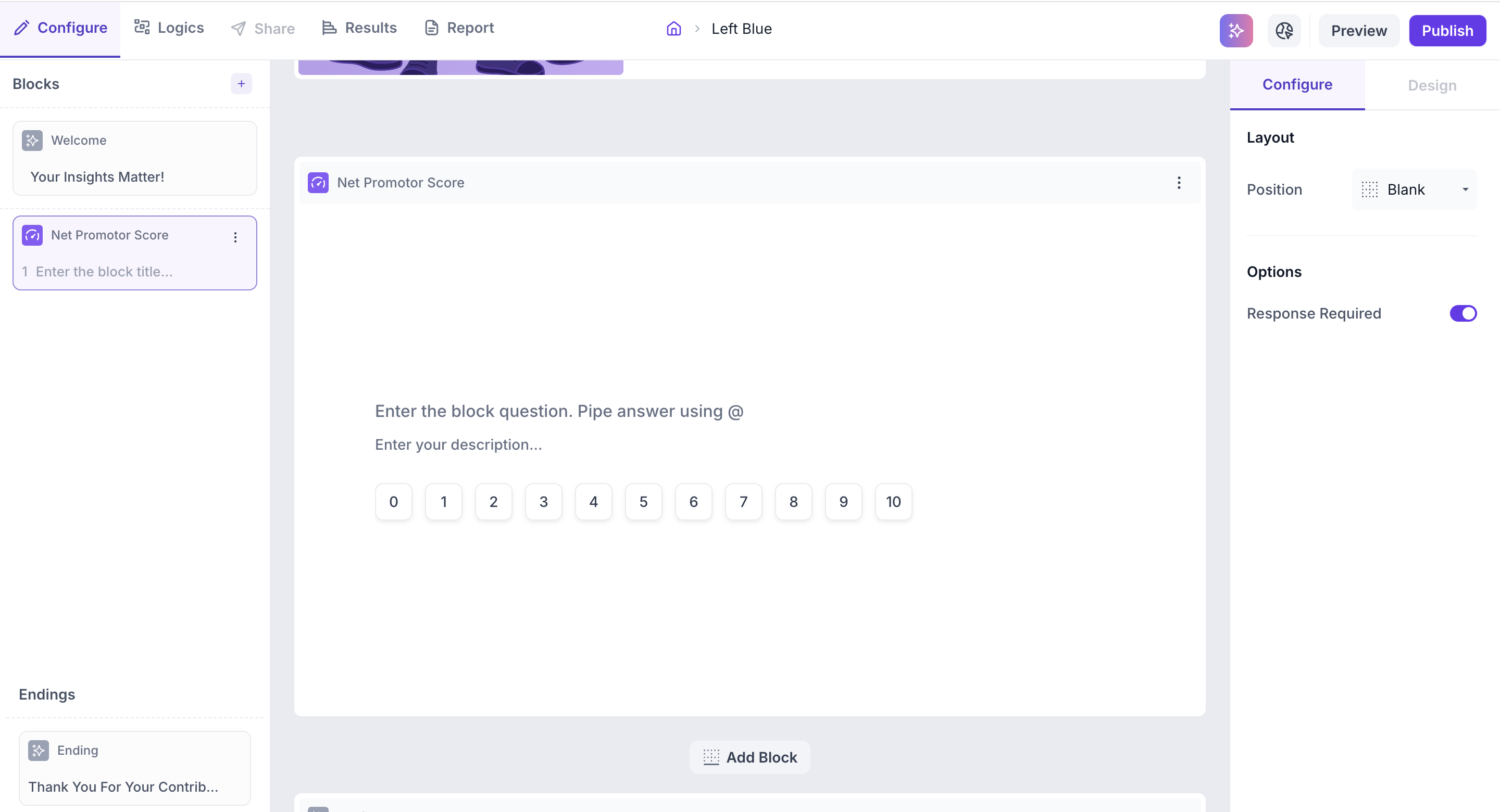
You can configure the NPS block using the following properties.
Layout: You can add an image such as a product shot or brand logo to the block by selecting a layout position.
1. To add an image, select a layout position from the right panel. By default, the layout is set to Blank. To enable image upload, select a different layout option:
- Left
- Right
- Top
2. Upload or Select an Image: Once a layout is selected, you'll see an option to:
- Upload an image from your device
- Choose from predefined images available in the platform’s image library.
Options
Response Required (Enabled by default): This setting ensures respondents must select an option before proceeding to the next question. You can disable it if you want to make the question optional.
Result
Once your study is live and responses are collected, you can view the results in the Results tab.
Overall Results
1. Top Summary
This section provides an overview of how your study performed:
- Total Blocks – Number of question blocks included in the study
- Total Responses – Count of completed responses across all blocks
- Screened Out – Respondents who did not qualify based on screener logic
- Dropped Off – Respondents who exited the study midway
- Completion Rate – Percentage of respondents who completed the full study
- Drop-Off Rate – Percentage of respondents who exited before completion
2. Study-Level Download
- Download all collected response data at the study level, covering every block and question.
3. Filter Responses
Use the filter panel at the top of the results view to analyze specific respondent segments.
You can filter based on:
- Answers from previous questions
- Device type (e.g., mobile, desktop)
- Browser used (e.g., Chrome, Safari)
This helps uncover trends and insights within specific user groups.
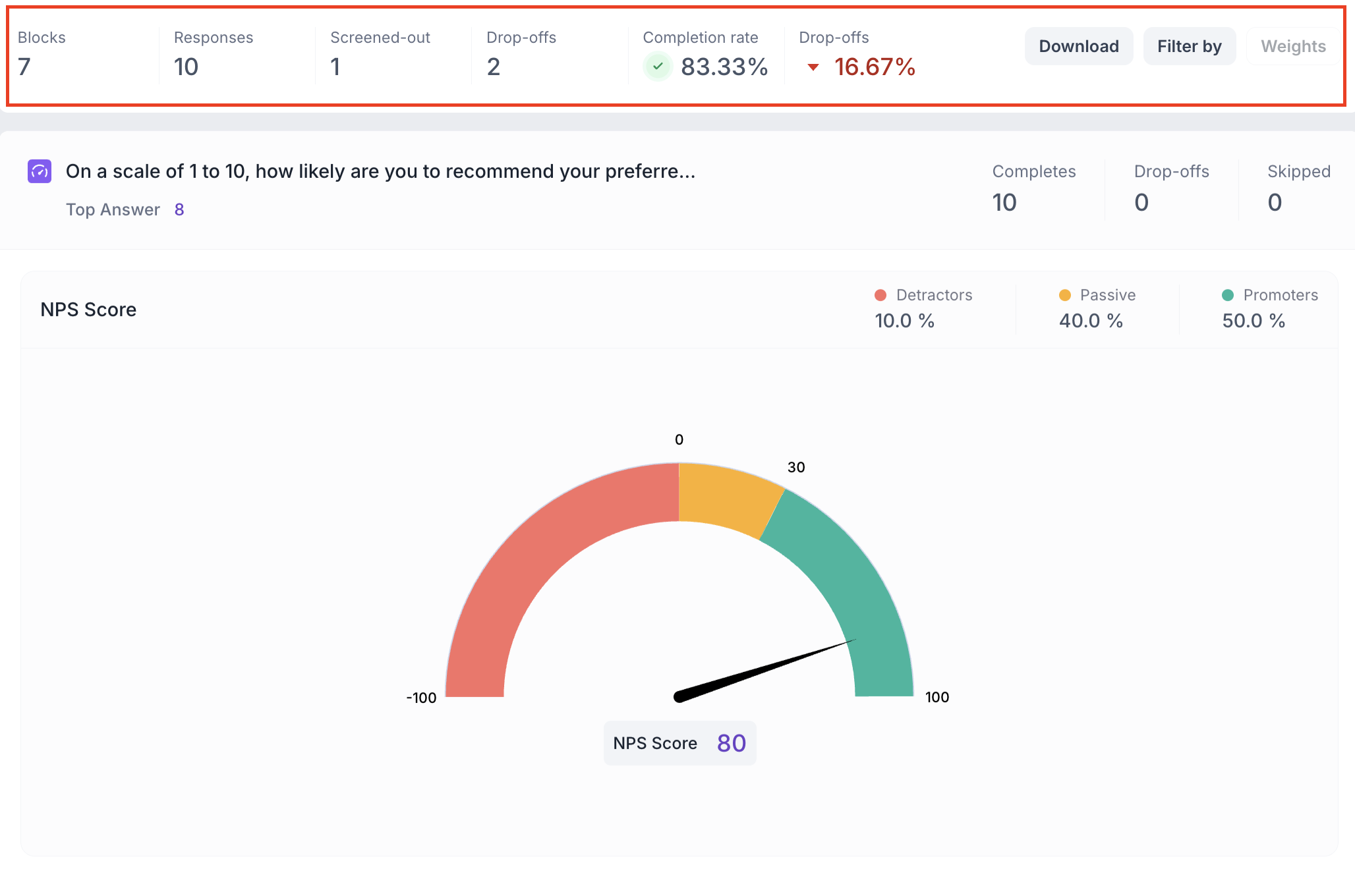
Below this, Study Overview also lists every response individually, rather than as an aggregate number. This tells you who took part, how far they got (Completion), when they started, and where they responded from (Country, Browser). By default, every response is marked Valid. If a response doesn't belong in your analysis, you can mark it Invalid or delete the response, so it isn't included as part of your results. Use the All, Drop-Off, and Screened-Out tabs to filter this list down to just the group you want to look at.
NPS Question Block Results
1. Response Summary
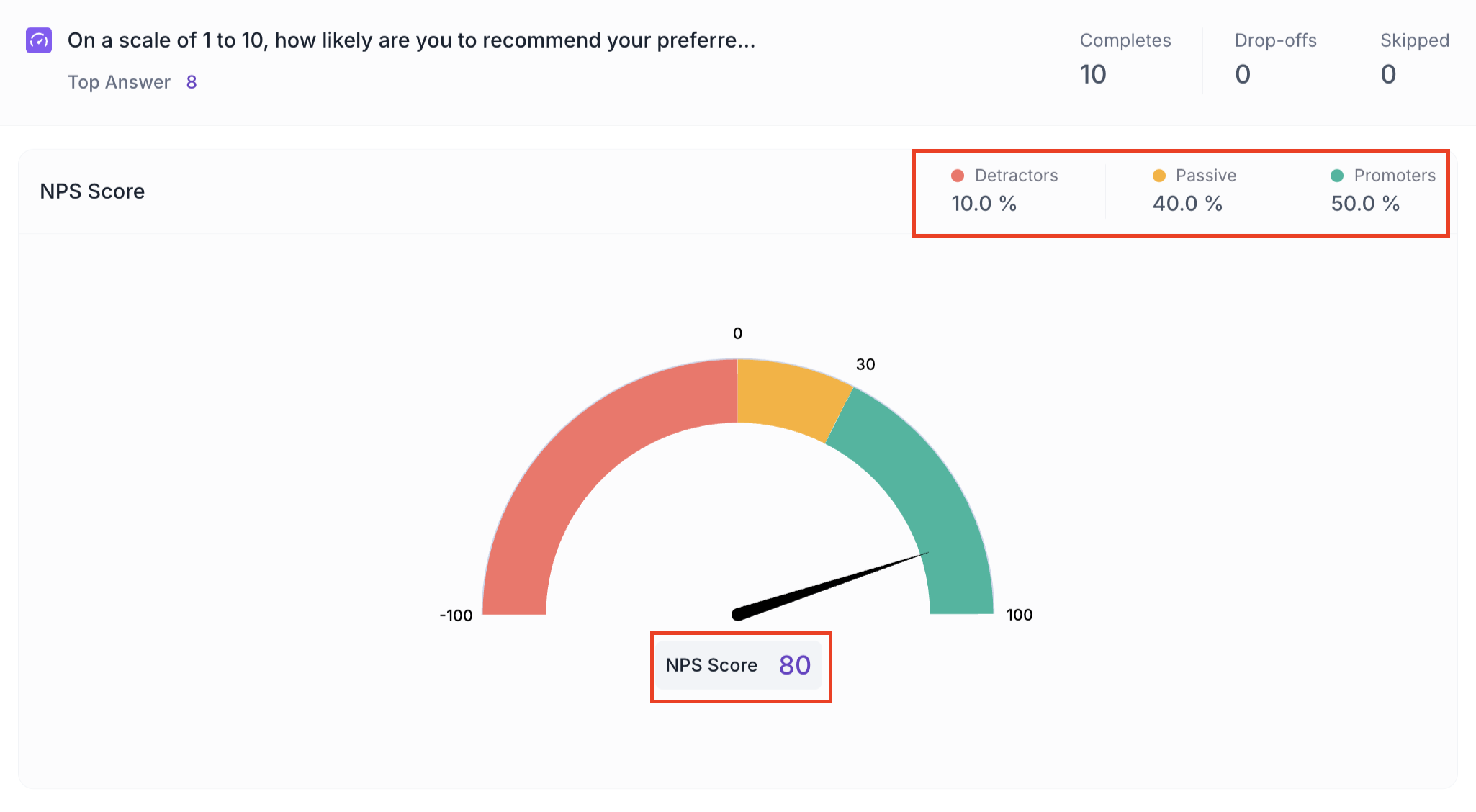
- Completed – Number of respondents who answered the question.
- Drop-off – Respondents who exited the study before reaching this block.
- Skipped – Number of respondents who viewed but did not respond.
2. NPS Score Chart
Below the response summary, the percentages of Promoters, Passives and Detractors are displayed. The chart shows the overall NPS score on a scale of -100 to 100.
NPS Score = % of Promoters minus % of Detractors
The top answer is highlighted showing the rating that received the highest percentage of responses.
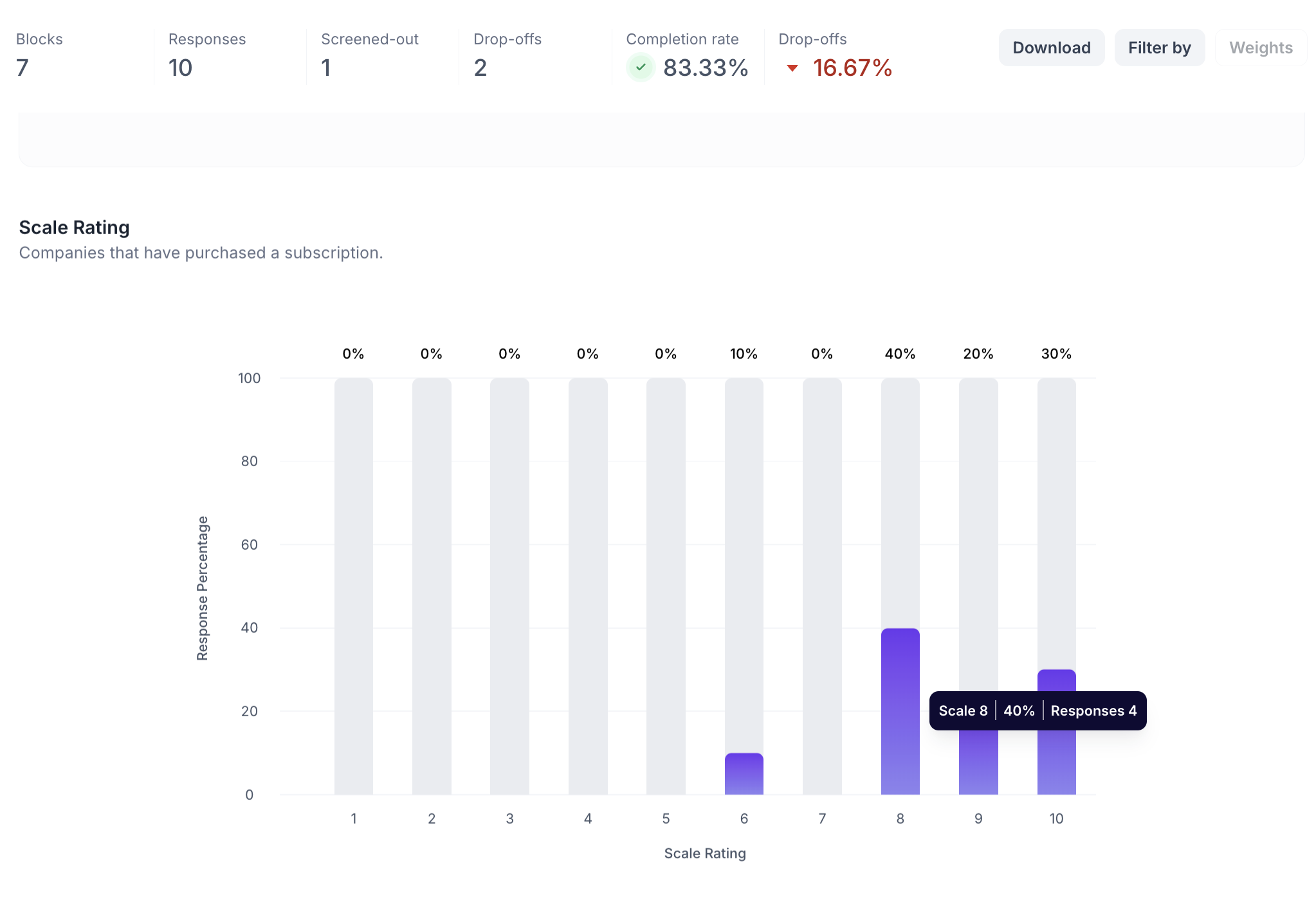
2. Response Distribution Column Chart
This chart shows how respondents rated the question on a 0–10 scale.
- X-axis: Scale rating (1–10)
- Y-axis: Percentage of respondents
- Each column represents a rating and its height shows the percentage of respondents who selected it
- The percentage is displayed on top of each column
- Hovering over a column shows the scale selected, number of respondents and percentage