
Card Sorting in Decode
Overview
The Card Sort block in Decode lets you run open, closed or hybrid card sorting studies. Participants are presented with a set of cards and asked to sort them into categories. You define the cards and, depending on the type of sort, either provide the categories or let participants create their own.
How to Set Up a Card Sort
Step 1: Add the Block
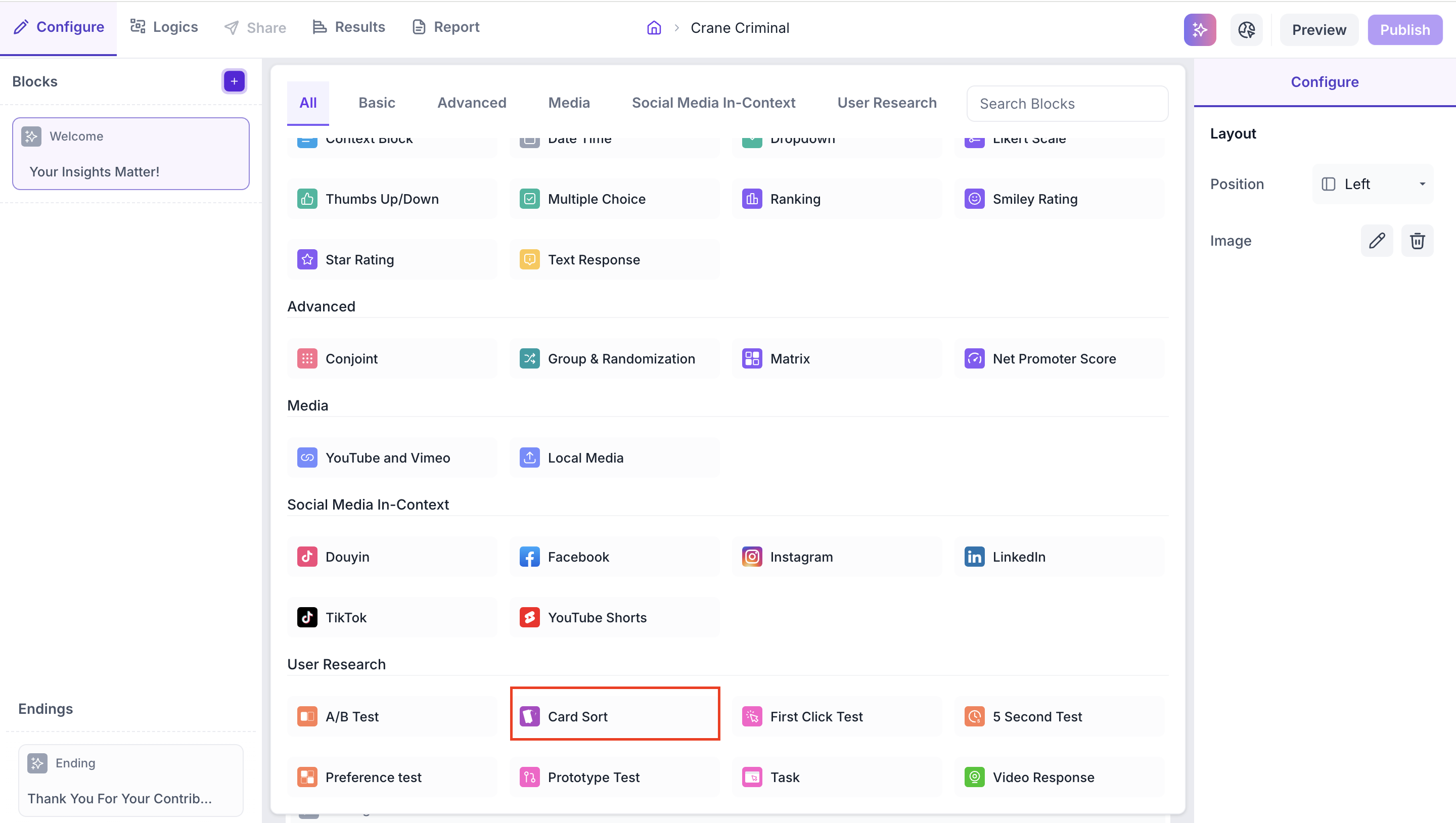
Click the + icon in the left panel to open the block selection panel. Under the User Research section, select Card Sort.
Step 2: Select the Card Sort Type
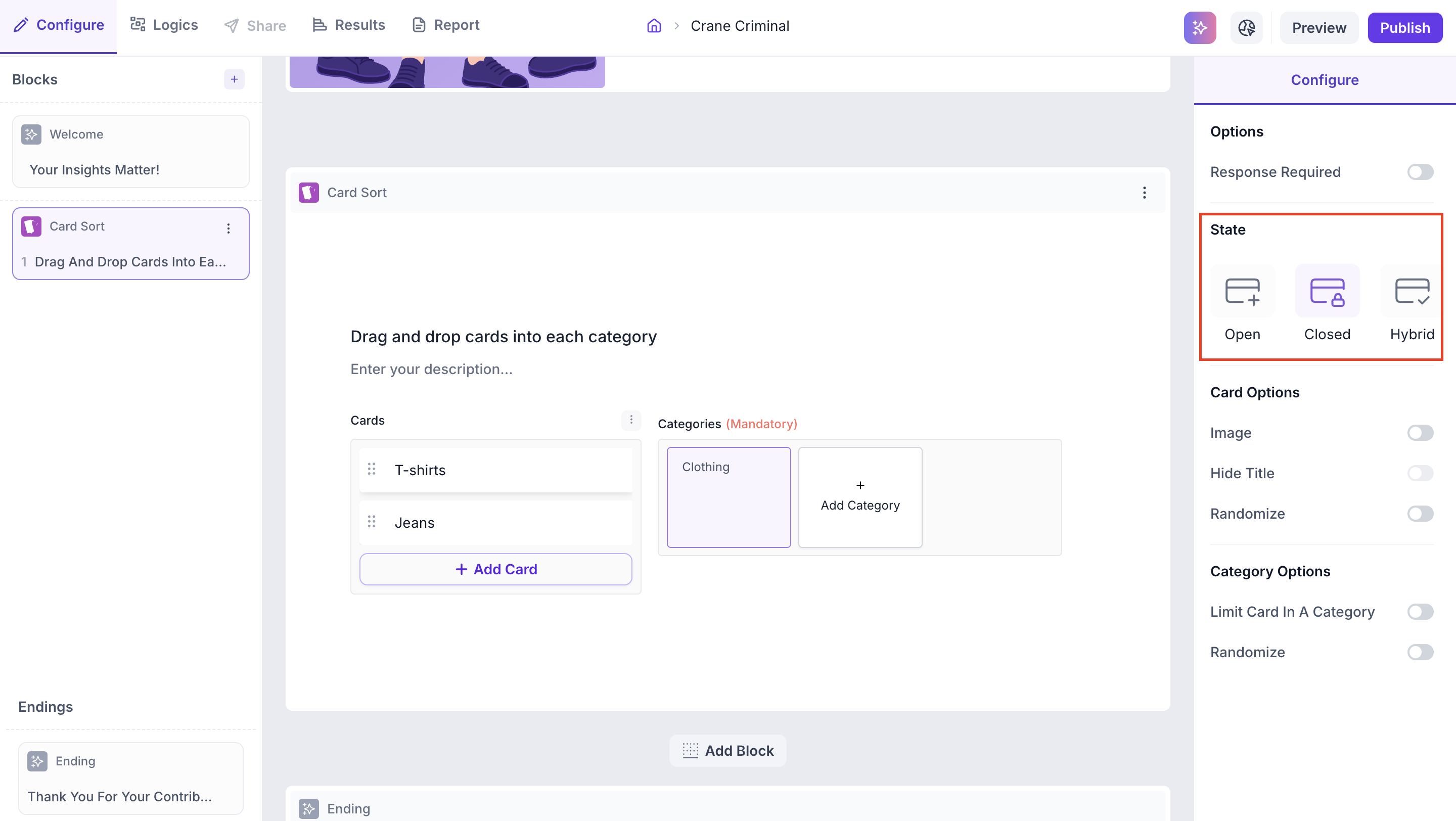
In the Configure panel, select the type of card sort under State.
- Open: Participants sort cards into groups they create and name themselves
- Closed: Participants sort cards into predefined categories you provide
- Hybrid: Participants sort cards into predefined categories but can also create their own
Step 3: Add Cards
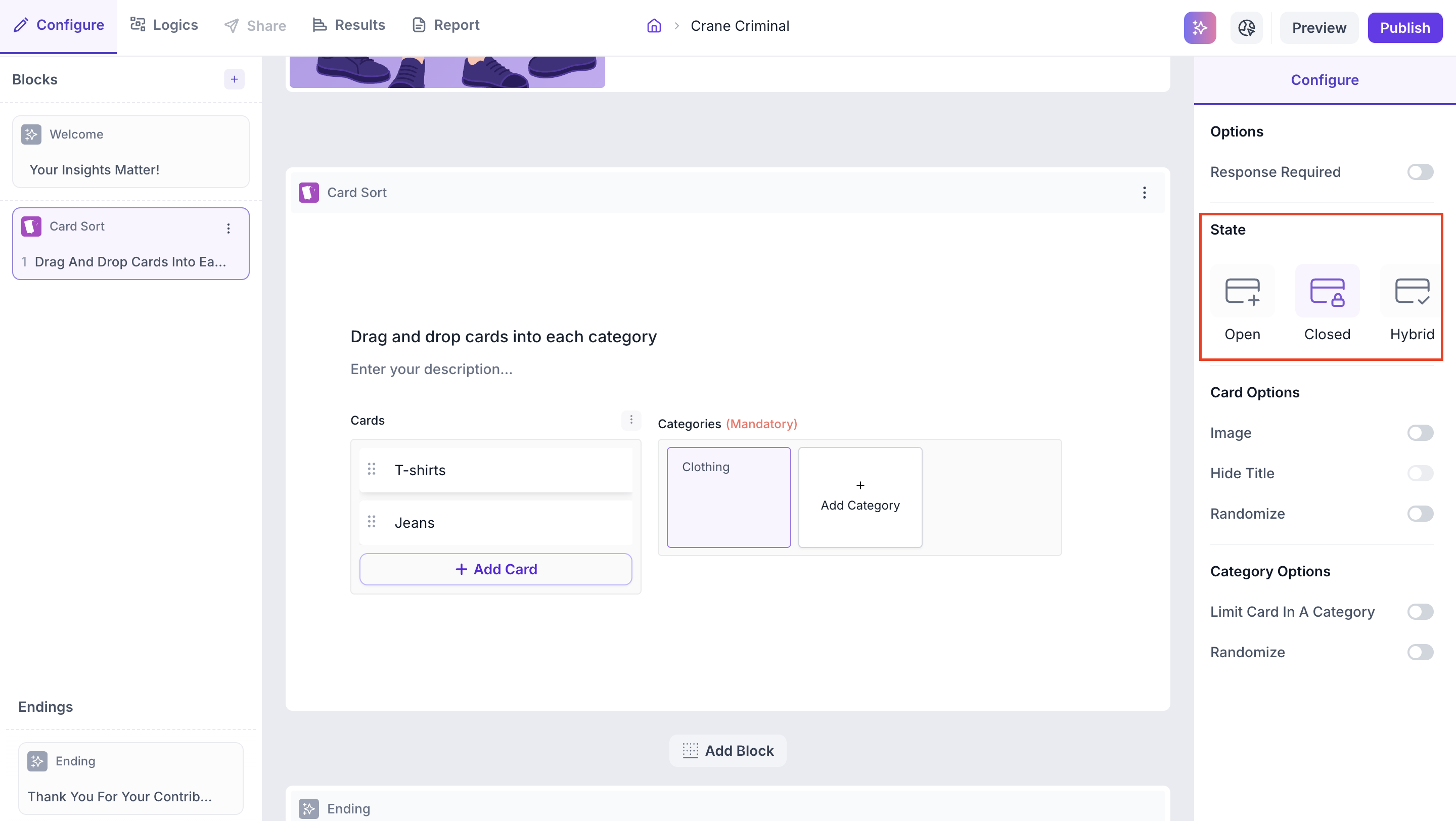
Click Add Card to add each card to the study. Each card requires a name. You can add as many cards as needed for your study.
Step 4: Add Categories
For Closed and Hybrid card sorts, add the predefined categories participants will sort cards into. Click Add Category and enter the category name. For Open card sorts, participants will create their own categories so no predefined categories are required.
Step 5: Configure Properties
Use the Configure panel to set the following properties.
Options
Response Required: participants must complete the card sort before proceeding to the next block
Card Options
- Image: Enable this to add an image to each card alongside the card name
- Hide Title: Hides the card name so only the image is shown. Use this when the image alone is sufficient for participants to identify the card
- Randomize: Shuffle the order in which cards are displayed to reduce order bias
Category Options
- Limit Card In A Category: Set a maximum number of cards that can be placed in a single category
- Randomize: Shuffle the order in which categories are displayed
RESULTS
Once the study is live and responses are collected, you can view the results in the Results tab.
Overall Summary
The top of the results view shows the following study level metrics.
- Blocks: Number of question blocks in the study
- Responses: Total number of completed responses
- Screened out: Participants who did not qualify based on screener logic
- Drop offs: Participants who exited the study before completing
- Completion rate: Percentage of participants who completed the full study
Block Level Summary
The following metrics are displayed for the Card Sort block.
- Completes: Number of participants who completed this block
- Drop offs: Participants who exited the study before reaching this block
- Skipped: Participants who viewed the block but did not respond
Cards and Categories
The results for the card sort are displayed in the Cards and Categories section.
Cards View
Each card is listed with the following information.
- Number of categories the card was placed in across all participants
- Agreement percentage: The percentage of participants who placed the card in the same category
Expand a card to see the breakdown of which categories it was placed in and the percentage of participants who placed it in each one.
Categories View
Each category is listed with the following information.
- Number of cards placed in the category across all participants
- Agreement percentage: The percentage of participants who agreed on the cards belonging to that category
Expand a category to see the breakdown of which cards were placed in it and the percentage of participants who placed each card there.
Agreement Matrix
The Agreement Matrix is a table that shows the relationship between every card and every category. Rows represent cards and columns represent categories. Each cell shows the percentage of participants who placed that card in that category.
Cells with higher agreement are highlighted in green. Cells with 0% indicate that no participants placed that card in that category.
How to read the matrix
A cell showing 100% means all participants who completed the study placed that card in that category. A cell showing 50% means half of the participants placed it there. Use the matrix to identify clear groupings and areas of disagreement.